Advanced Mapping Settings (Gear Icons)
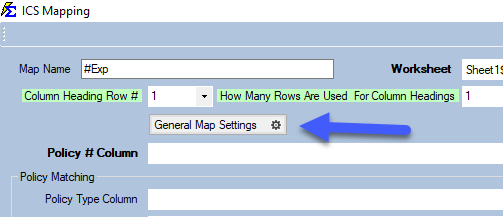
When mapping your carrier statement, you will notice Gear Icons next to specific fields. these icons open advanced configuration menus that allow you to manipulate raw data from the Excel file before it is imported into Commission Tracker.
General Map Settings
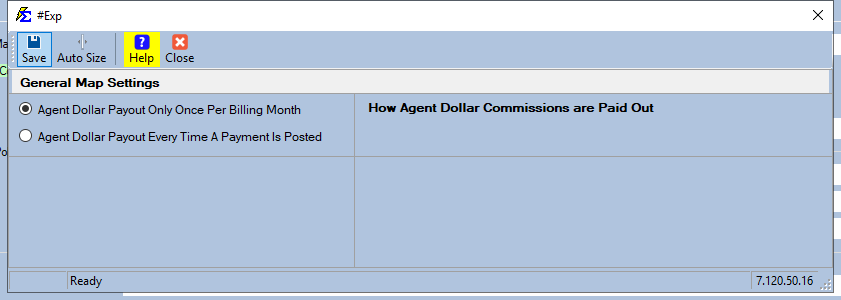
The main gear icon at the top of the mapping screen controls global logic for agent payouts.
- Dollar Amount Payouts: Use this to define exactly how agents receiving a flat dollar amount (rather than a percentage) are processed during the import.
Policy Number Manipulation
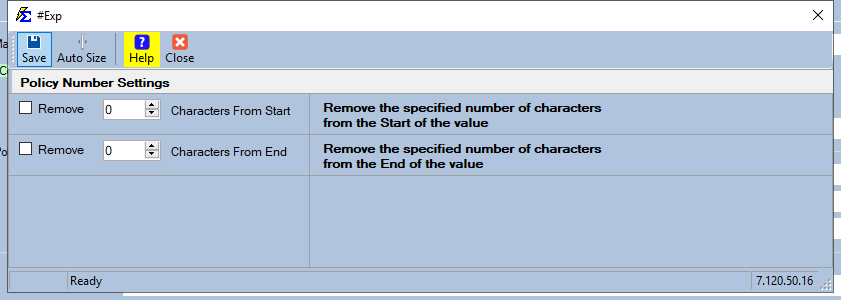
Often, carriers include extra prefixes or suffixes on policy numbers that do not match your database.
- Character Removal: This tool allows you to automatically strip a specified number of characters from the Start or End of the Policy Number string during the import process.

Billing Date Adjustments
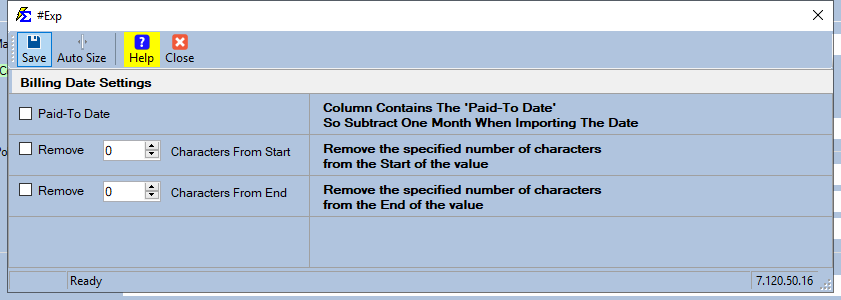
Some carriers provide a "Paid-To-Date" instead of a "Billing Date."
- Subtract One Month: Checking this option will automatically subtract one month from the date provided in the statement, ensuring the revenue aligns with the correct billing cycle in your policy terms.

Financial Formulas (Premium, Subscribers, & Commission)
For statements where the carrier does not provide a final value, or provides data that needs to be mathematically adjusted, you can use the Formula Input gears.
Premium & Subscribers
Apply custom formulas to calculate a new Premium or Subscriber value based on the available columns in your spreadsheet.
-
Premium Gear:

-
Subscribers Gear:

Commission Value
If the carrier statement provides gross commission but you need to calculate a net value or apply a specific multiplier during import, use the Commission Formula gear.
- Commission Gear:

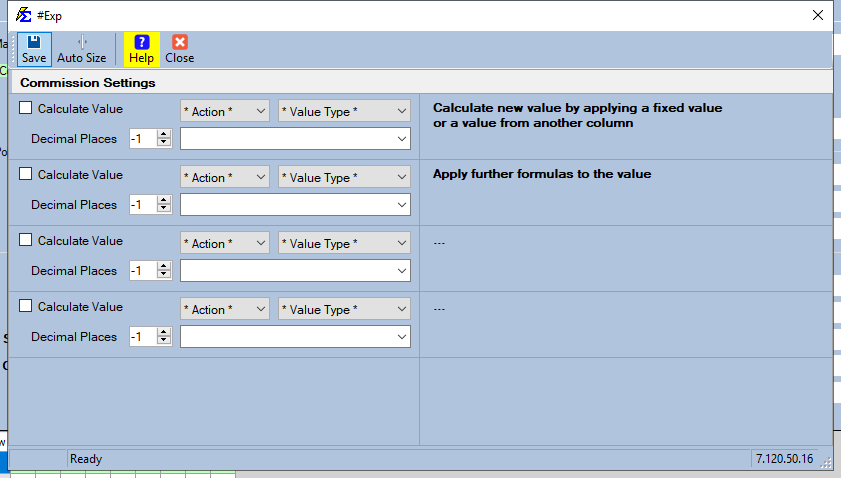
Advanced Formula Interface
When clicking into any of the financial gears, you will be presented with a formula builder that allows you to combine columns using standard mathematical operators ($+$, $-$, $*$, $/$).
Tips for Advanced Mapping
| Feature | Best Use Case |
|---|---|
| Start/End Trim | Removing "POL-" prefixes or "-01" suffixes from carrier policy numbers. |
| Date Offset | Aligning "Paid Through" dates with your internal "Billing Month" tracking. |
| Formulas | Calculating Premium when only "Rate" and "Volume" columns are provided. |
Next Steps:
Need help building a specific mathematical formula? Contact support@commission-tracker.com