Policy Example: Entering a "Takeover" Policy
This scenario covers how to enter a policy whose Effective Date is earlier in the year before you started tracking it in Commission Tracker. In this case, the goal is to enter a policy effective January 2026 but only start tracking actual payments beginning October 2026.
💡 Why Use This
This walkthrough is useful when:
- Migrating existing business — You need to enter policies that were active before Commission Tracker was set up, without triggering false missing-payment alerts.
- Understanding Auto Receive — See how the Auto Receive feature is used to "close out" historical months so tracking starts cleanly from the current month.
- Learning the relationship between Origination Date and Term Number — A real example showing how a matching Origination Date and Term Effective Date produce Term 1.
Recommended Settings
| Field | Value |
|---|---|
| Origination Date | 1/1/2026 |
| Term Effective Date | 1/1/2026 |
| Months In Term | 12 |
| Term # | 1 (Calculated automatically) |
| # Of Pmts Per Term | 12 |
| # Of Pmts Paid In Advance | 1 |
Visual Guide
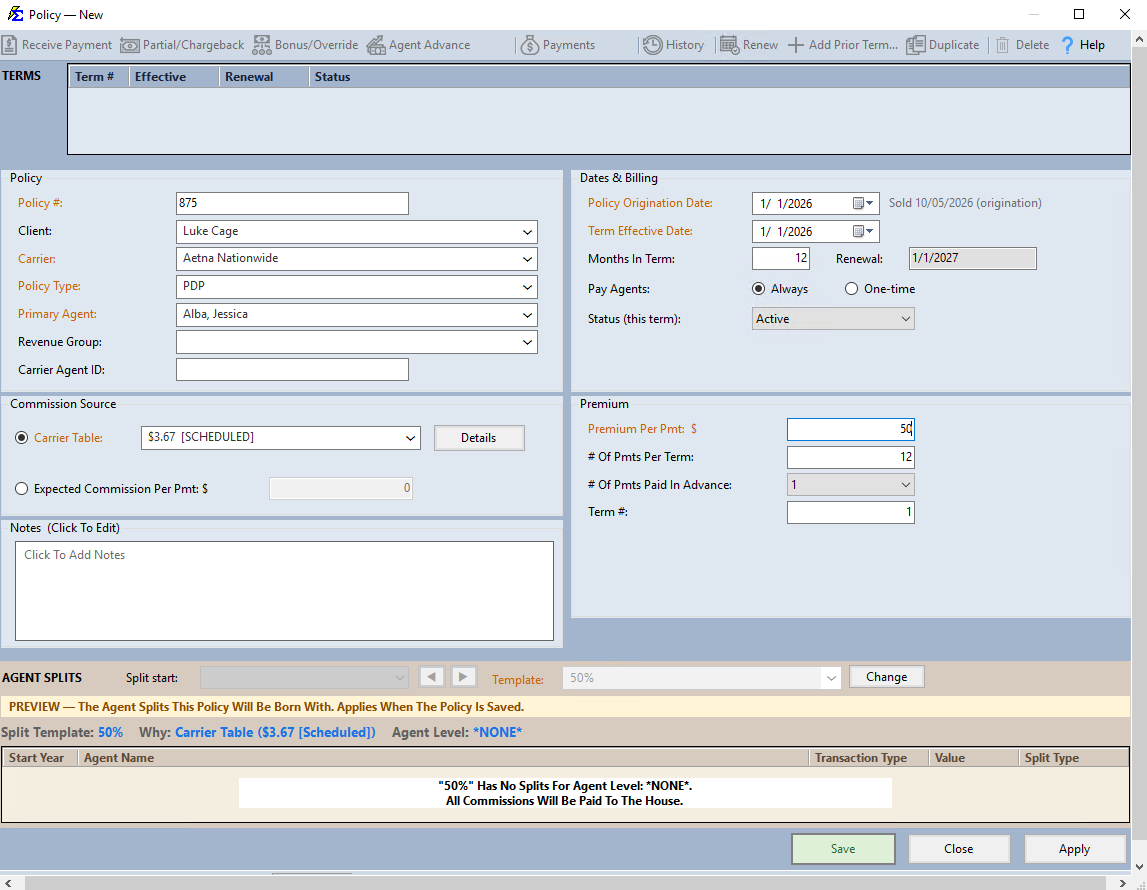
The Auto Receive Shortcut
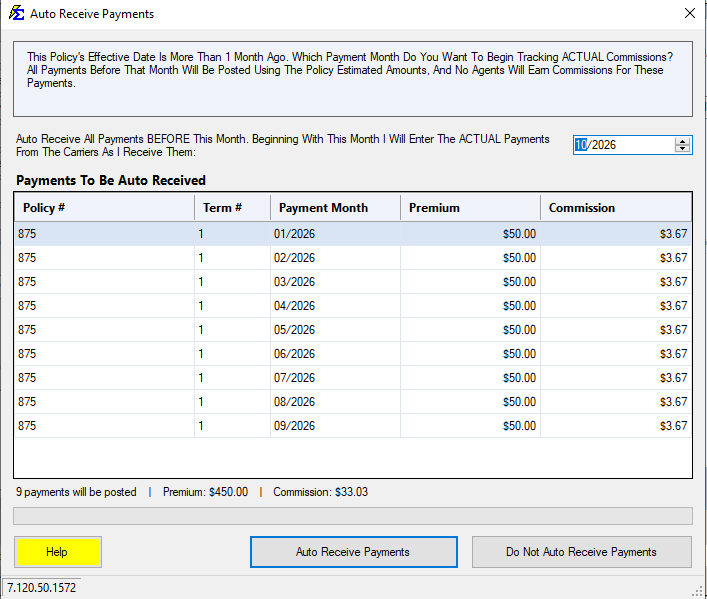
To avoid the system flagging payments from January 2026 to September 2026 as missing, use the Auto Receive function to close out those historical months.
- Click Auto Receive Payments.
- Set the date to 10/2026.
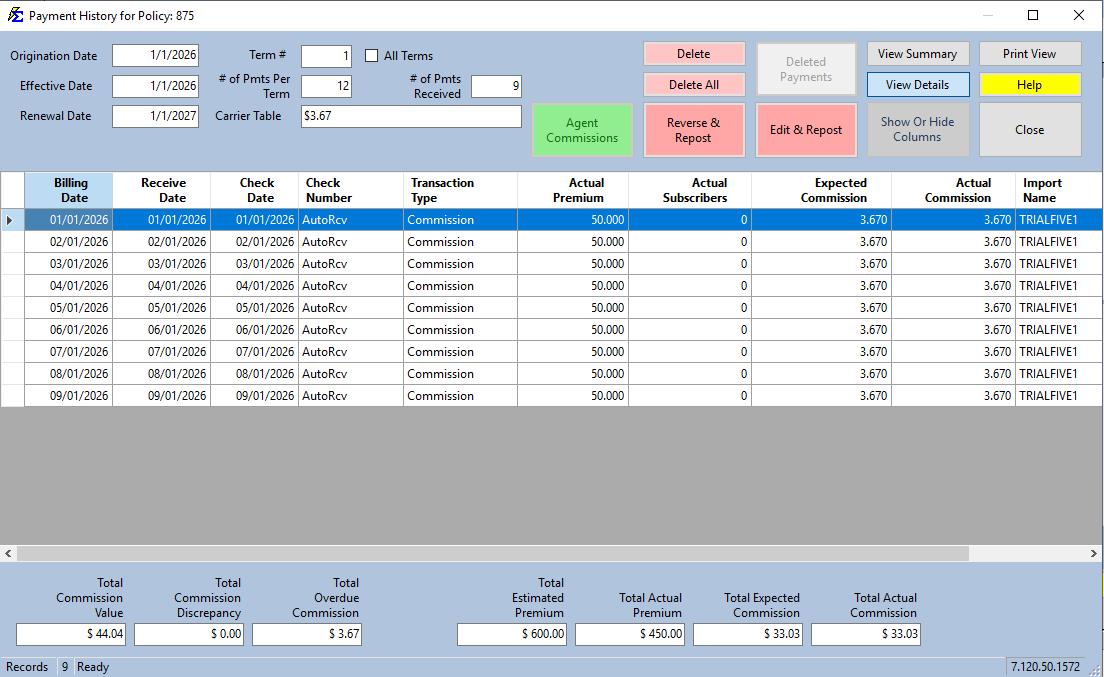
- The system will mark all previous months in the term as closed (9 payments: January through September 2026).
🔧 Troubleshooting
The Term Number is showing as 2 or higher instead of 1. Verify the Origination Date matches the Term Effective Date exactly (both 1/1/2026 in this example). If the Origination Date is set earlier than the Term Effective Date, the system calculates a higher Term Number instead. See Origination Date for details.
The Accounts Receivable report is still showing open periods before October 2026. Confirm the Auto Receive was completed with the date set to 10/2026. Open Payment History and verify the AutoRcv entries exist for January through September 2026.
🔗 Related Topics
- Auto Receive Payments — How Auto Receive works and when to use it.
- Origination Date — How the origination date drives the Term Number calculation.
- Term Number — How term numbers affect commission rates.
- Create New Policy — Full policy creation walkthrough.
Need help? Contact support@commission-tracker.com