Key Features & Commission Entry Methods
Commission Tracker is built around flexibility. There are three primary ways to record commissions in the software, ranging from high-speed bulk imports to manual entry for single items.
💰 The Three Ways to Record Commissions
Choosing the right method depends on the format of your statement and the number of line items.
| Method | Best For... | File Format | Speed |
|---|---|---|---|
| Import Carrier Statement (ICS) | Large statements with many line items | Excel or CSV | ⚡ Fastest |
| Reconcile Carrier Statement | Short or paper statements, or a PDF that PDFx cannot convert | Typed in from the paper or PDF | 🟢 Moderate |
| Receive Payment | Single payments or one-off checks | Manual Entry | 🟡 Best for small tasks |
🗺️ How to Access
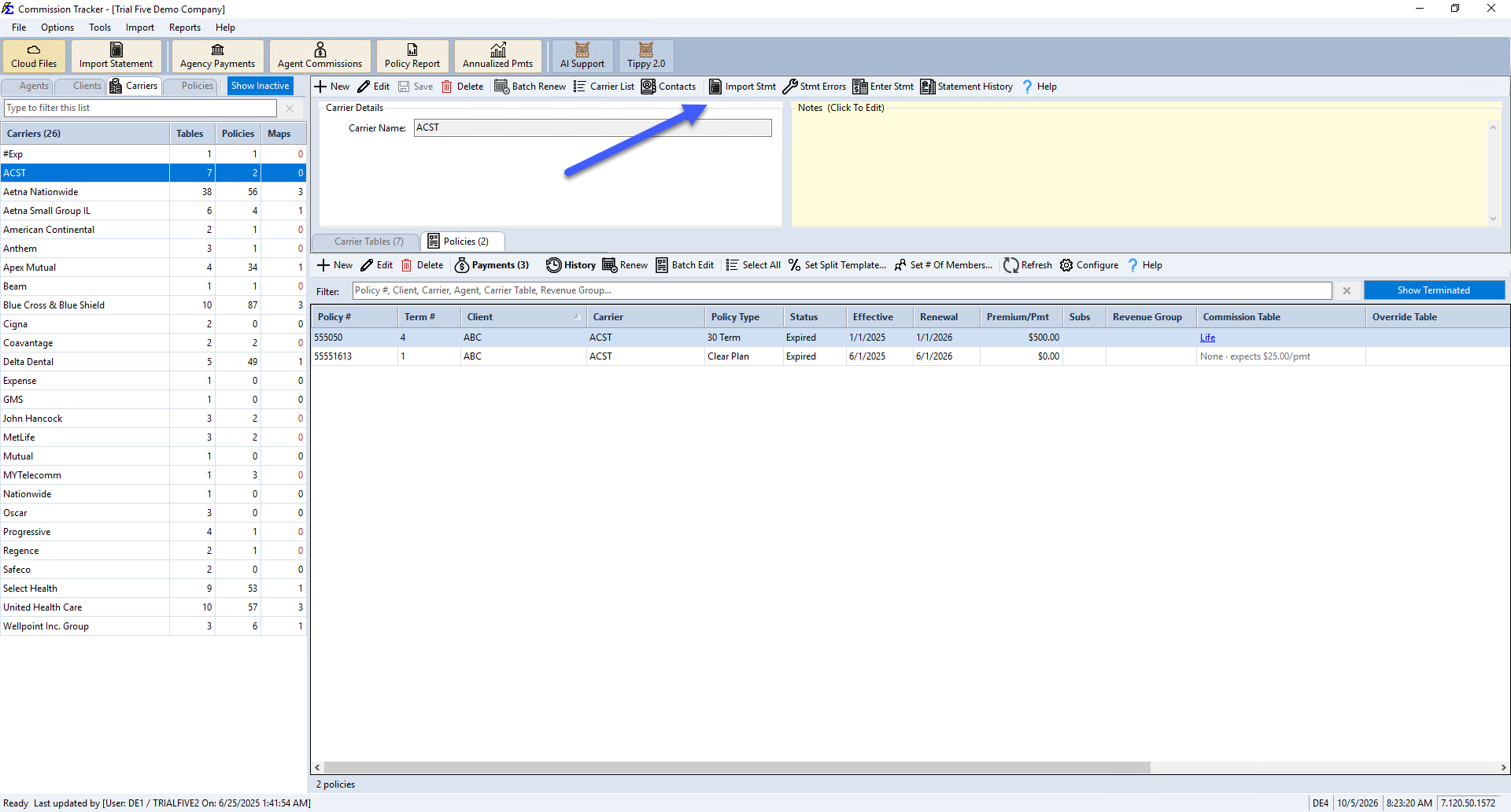
- Import Carrier Statement — Click Carriers in the navigator strip, select the carrier, and click Import Stmt on the carrier's toolbar.
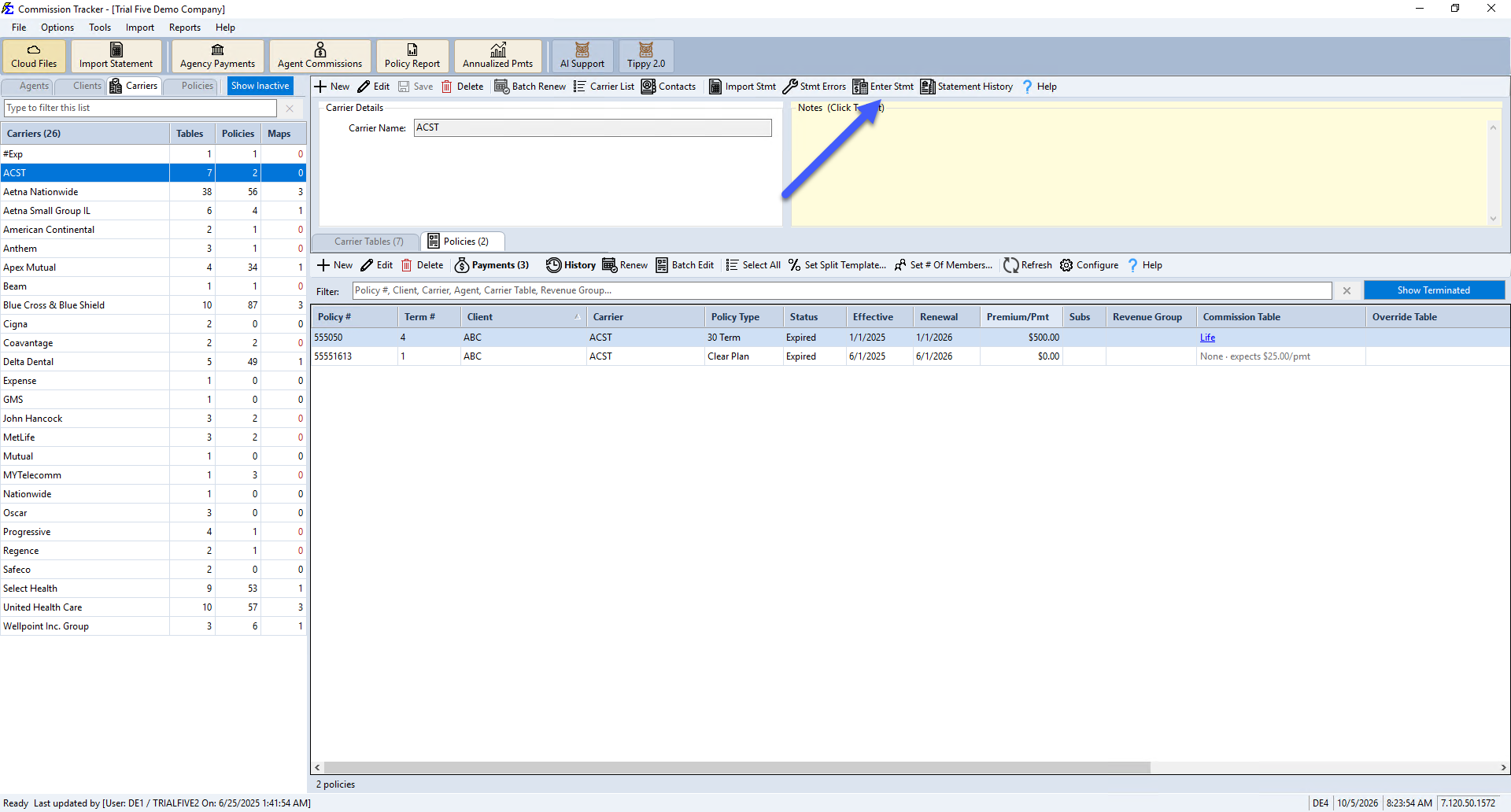
- Reconcile Carrier Statement — Select the carrier and click Enter Stmt on the carrier's toolbar.
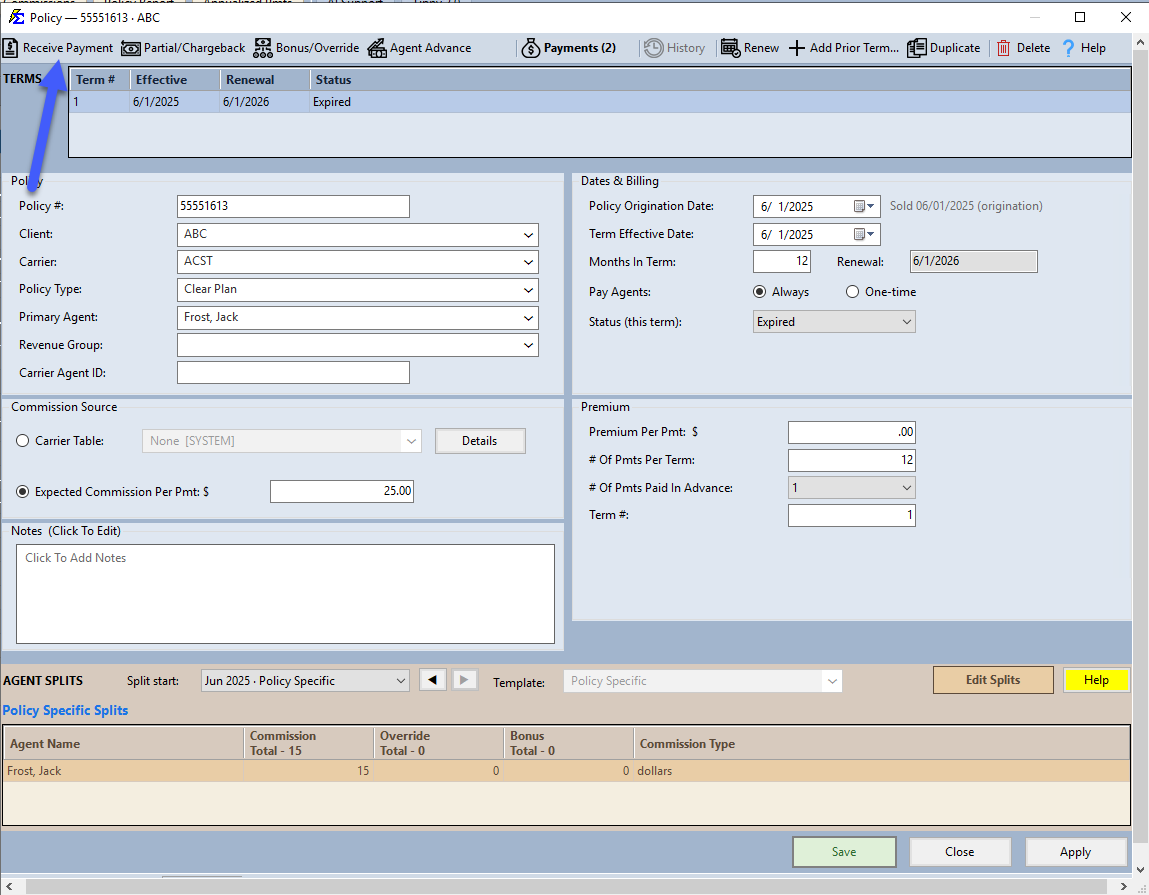
- Receive Payment — Open the policy and click Receive Payment on the policy window's toolbar, or right-click the policy in the Policies grid and choose Receive Payment.
- PDFx converter — Click Cloud Files on the main toolbar. See PDFx.
Newer versions only
Newer versions also start an import from the file: the Import Statement button on the main toolbar, or Import > Import A Statement File.... This is in newer versions of Commission Tracker. If you do not see it, your server has not been updated yet.
1. Import Carrier Statement (ICS)
The Import Carrier Statement tool is the most efficient way to process data. Select the carrier and click Import Stmt on the carrier's toolbar. By mapping an Excel or CSV file to Commission Tracker, you can process hundreds of payments in seconds. See Import Carrier Statements.
- ✅ Ideal for: Large monthly statements from major carriers.
- ⚠️ Requirement: Files must be in
.xlsx,.xls, or.csvformat.
2. Reconcile Carrier Statement
If your carrier only provides a PDF statement, start with the PDFx converter (in Cloud Files) — it converts the PDF into an Excel file that you can then import via ICS. Use Reconcile Carrier Statement (the carrier's Enter Stmt button) for short or paper statements, or a PDF that does not convert well. It lists the carrier's expected payments so you can type in the amounts from your statement and check them off as you go.
- ✅ Ideal for: Short or paper statements, or PDFs that PDFx cannot convert.
- 💡 Pro-Tip: Always check the carrier portal first — most carriers provide Excel versions upon request.
3. Receive Payment
The Receive Payment tool is designed for individual entry. We do not advise using this for full statements, as it is significantly slower than ICS or Reconcile.
- ✅ Ideal for: A single commission check or a one-off payment for a specific client.
- ❌ Avoid for: Statements with more than 5–10 line items.
🏗️ Carrier Commission Tables: The Logic Engine
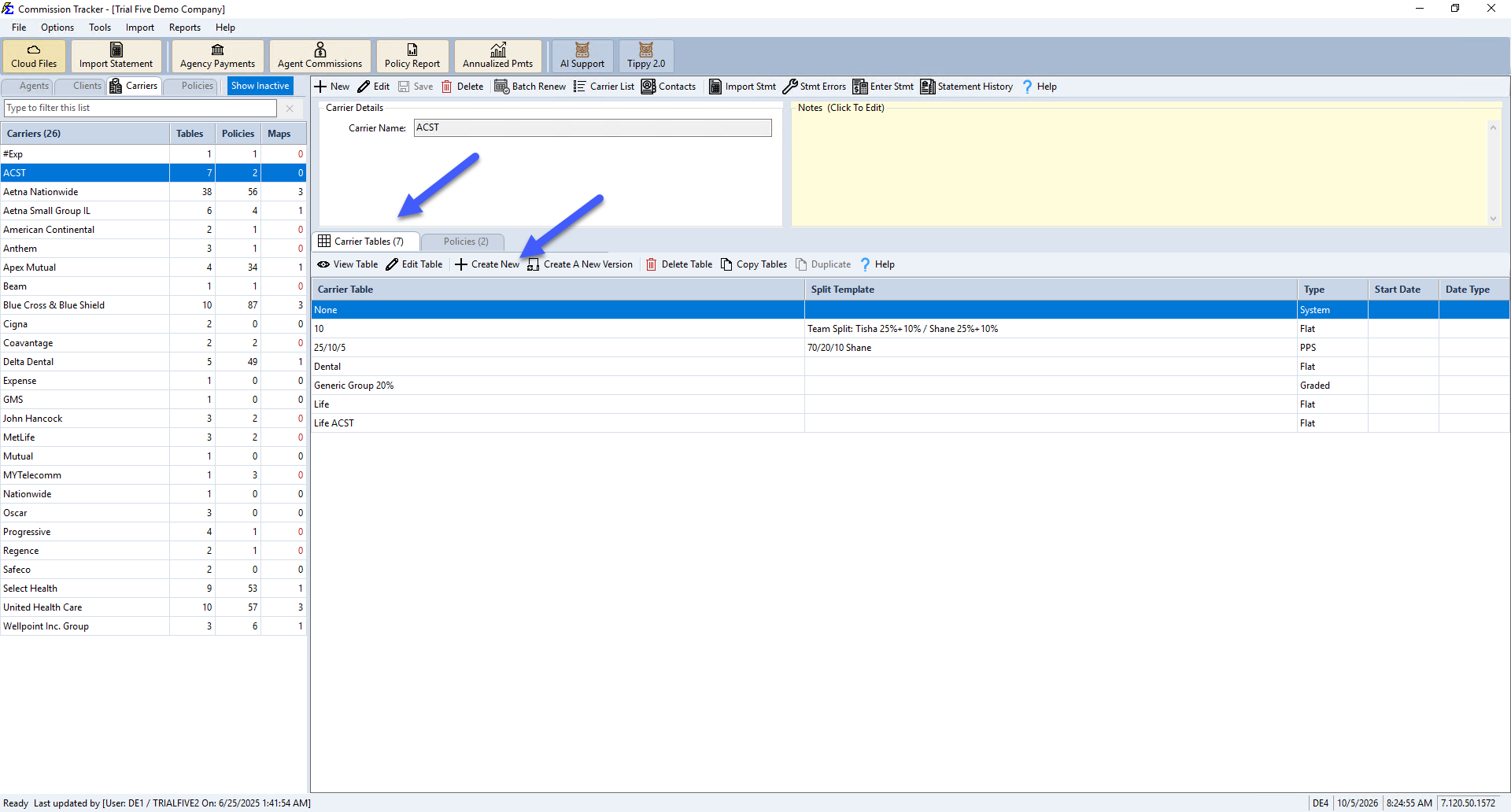
Carrier Commission Tables are the "brain" of Commission Tracker. They calculate what you are owed (Agency Revenue) and what you owe your agents (Agent Payouts).
Why Use Carrier Commission Tables?
- Calculate Expected Revenue: Tables define the percentage or dollar amount you expect from the carrier.
- One-Time Setup: You only create a table once; you then assign multiple policies to that same table.
- Automated Logic: When a payment is posted, the table determines the correct rate based on the policy year (New vs. Renewal).
Global Agent Splits
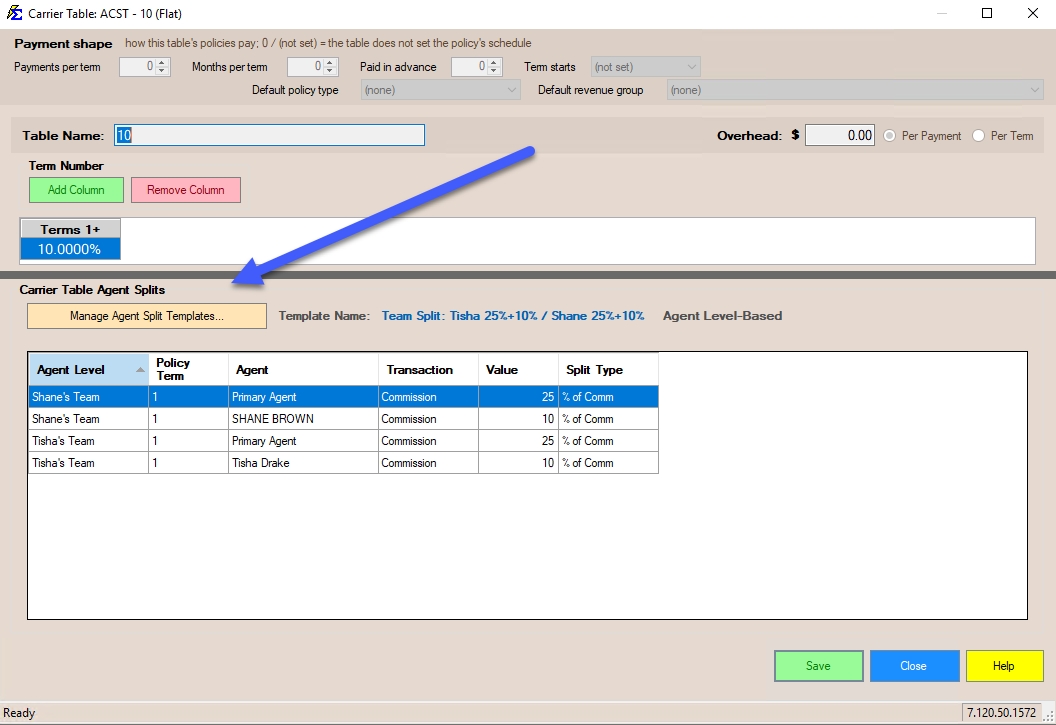
A Carrier Commission Table can have an Agent Split Template assigned to it under its Carrier Table Agent Splits section. Once a template is assigned, every policy attached to that table automatically pays the assigned agents at those rates — you don't need to add splits to every individual policy. Splits themselves are created and edited in the Agent Split Template Manager (click Manage Agent Split Templates... on the table), not entered directly on the table.
Tips for Success
- Prioritize ICS: Always try to get an Excel file from your carrier first to save time.
- Standardize Tables: Use clear names for Carrier Commission Tables (e.g., "UHC Medicare 2024") to ensure policies are linked correctly.
- Verify Splits: Double-check your Agent Splits at the table level to ensure everyone is paid accurately across all associated policies.
🔗 Related Topics
- Import Carrier Statements (ICS) — Step-by-step guide to importing Excel and CSV statements.
- Reconcile Carrier Statement — Guide to the PDF reconciliation tool.
- Receiving Payments — Manual payment entry for individual policies.
- Create Carrier Commission Tables — Setting up Flat, Graded, Scheduled, and PPS tables.
- Agent Split Template Manager — Create and edit the templates that drive Carrier Commission Table agent splits.
Need help? Contact support@commission-tracker.com