Import Carrier Statements (Excel Statements)
The Import Carrier Statement (ICS) tool automates the entry of commission payments from digital carrier files. It supports Excel formats (.xls and .xlsx) as well as .csv files. For a PDF statement, convert it to Excel with PDFx first and import the Excel file here. For a short or paper statement, type it in with Reconcile Carrier Statement (the carrier's Enter Stmt button).
💡 Why Use This
Use Import Carrier Statements when:
- Your carrier provides a digital file — ICS is the fastest way to post an entire carrier statement in one step rather than entering each policy individually.
- You receive the same file format each month — The system remembers your column mappings so subsequent imports require minimal setup.
- You need a full audit trail — Every import is saved as a named session that can be reviewed or reversed in its entirety.
🗺️ How to Access
- Click Carriers in the navigator strip and select the carrier.
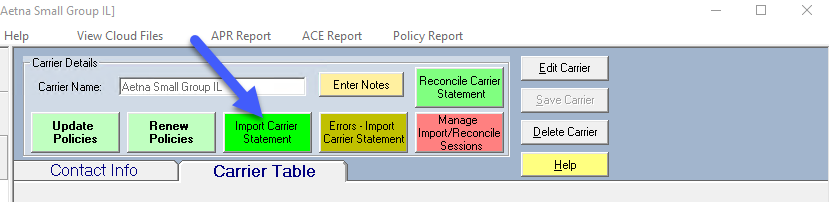
- Click Import Stmt on the carrier's toolbar.
- The Select File To Import window opens. Select your file and click Open. Cloud users: copy the file on your own computer first, then click Paste in this window to put it on the server (see Selecting a File for Import).
Newer versions only
Newer versions also have an Import Statement button on the main toolbar and Import > Import A Statement File... in the menu. You pick the file first and Commission Tracker finds the map that fits it; if no map fits, it asks which carrier the statement is from. This is in newer versions of Commission Tracker. If you do not see it, your server has not been updated yet.
Before You Import: Key Rules
Review these requirements before starting an import:
- Required columns — You must map Policy #, Premium, and Commission, plus any other field shown in bold in the ICS Mapping window. Billing Date can be mapped, or typed in on the import window when the whole statement is for one billing month. All other columns are optional.
- CSV column headings — The first row of a CSV file must contain column names. Excel files can specify any row as the header row during mapping.
- Missing policies — If a Policy # is not found in the database, it will appear as an error. Click Create All Policies in the ICSE screen to add it, then click Retry Payments.
- Multi-carrier files — While you must select a specific carrier to start the import, your file can contain multiple carriers if you map a Carrier Name column.
- Adjustments — The first payment posted for a policy in a specific billing month is the primary commission. Any additional payments for the same policy and billing month are posted as adjustments.
- Sessions — Every import is tracked as a named session. If you need to undo the entire import, click Manage Statements on the carrier's toolbar (newer versions: Statement History) or use Import > Manage Import/Reconcile Sessions (newer versions: Import > Statement History). See Manage Import or Reconcile Session.
Enable Duplicate Policy Numbers Before a Multi-Carrier Import
If your file contains multiple carriers, two different carriers may coincidentally use the same policy number. Before importing, enable Allow Duplicate Policy Numbers in the Options Menu and configure Policy Matching so ICS can tell the policies apart — see Duplicate Policy Numbers for details.
Step-by-Step Import Process
1. Select Carrier and File
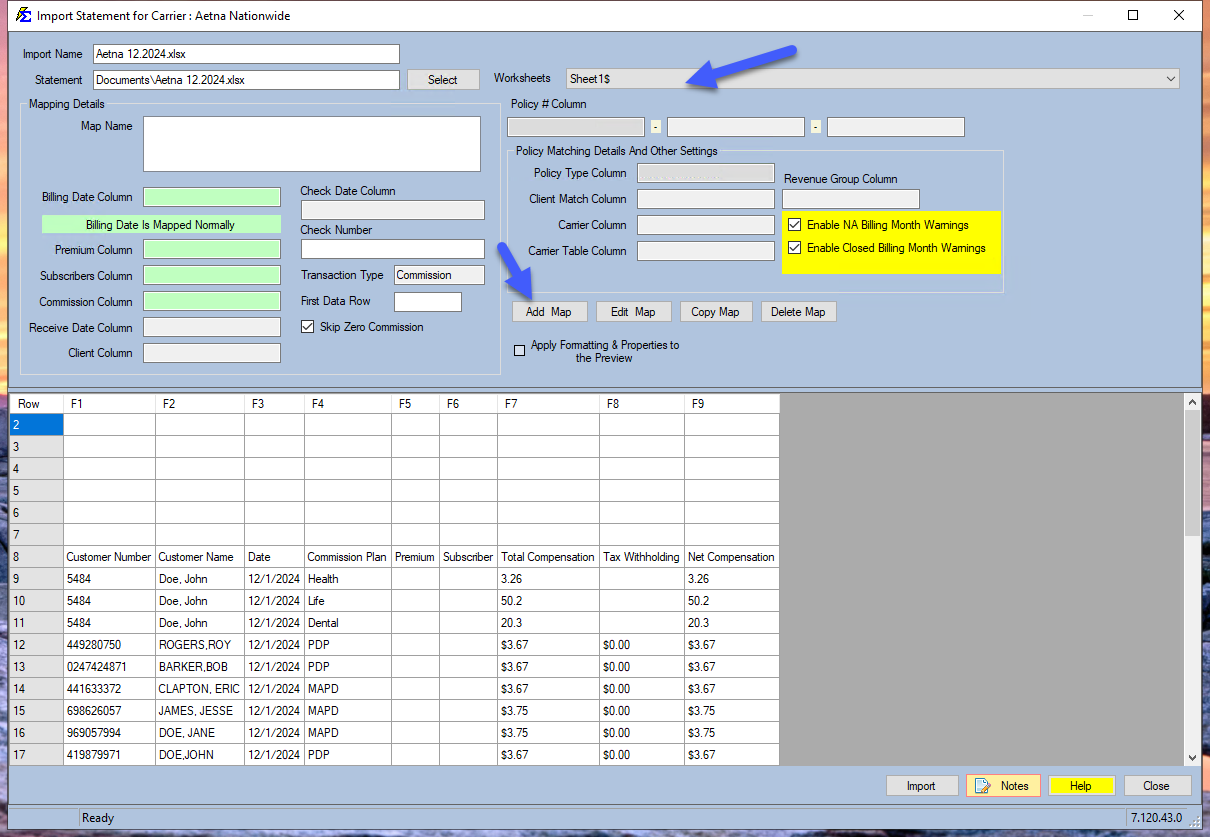
Select your carrier and click Import Stmt on the carrier's toolbar. The Select File To Import window opens: select your file and click Open. The Import Statement for Carrier window opens with your file's rows. (To pick a different file, click Select beside Statement.)
2. Define Column Mappings
Map the columns in your file to the fields in Commission Tracker. The system remembers these mappings for future imports from the same carrier, and selects the map you used last.
- If the carrier has no map yet (or sent a new layout), click Add Map. To change an existing map, select it in the list and click Edit Map. The ICS Mapping window opens.
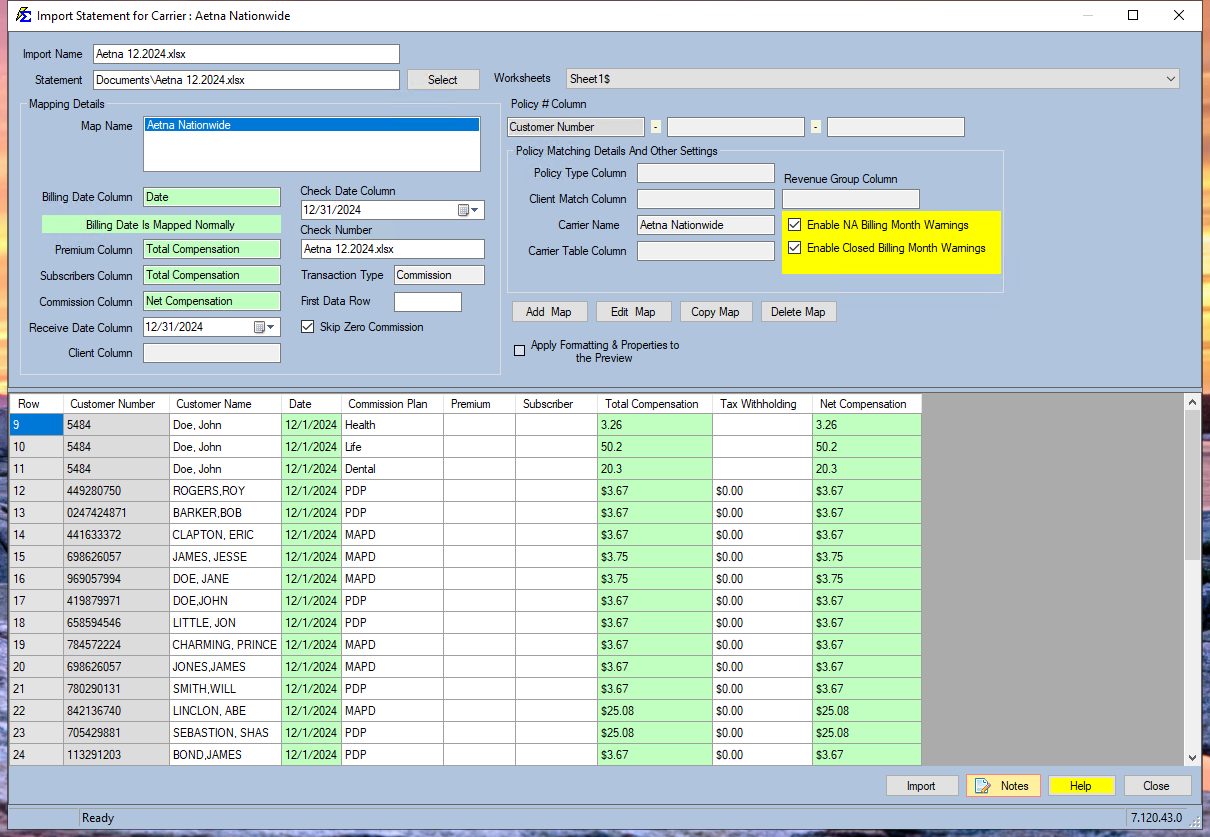
- Set Column Heading Row # to the row number that holds your column headings. ICS highlights this row in green and ignores all rows above it (shown in gray).
- For each field, pick the matching column heading from its list. The window notes "(Columns In Bold Are Required)". Billing Date, Receive Date, Check Date and Check Number can be mapped or typed in on the import window before importing.
- Click Accept to save the map.
You can save multiple distinct maps for one carrier if they send different file formats.
3. Finalize and Import
- Once your mapped columns appear in green, check the Billing Date, Receive Date, Check Date, and Check Number for any your map does not read from the file.
- Click Import.
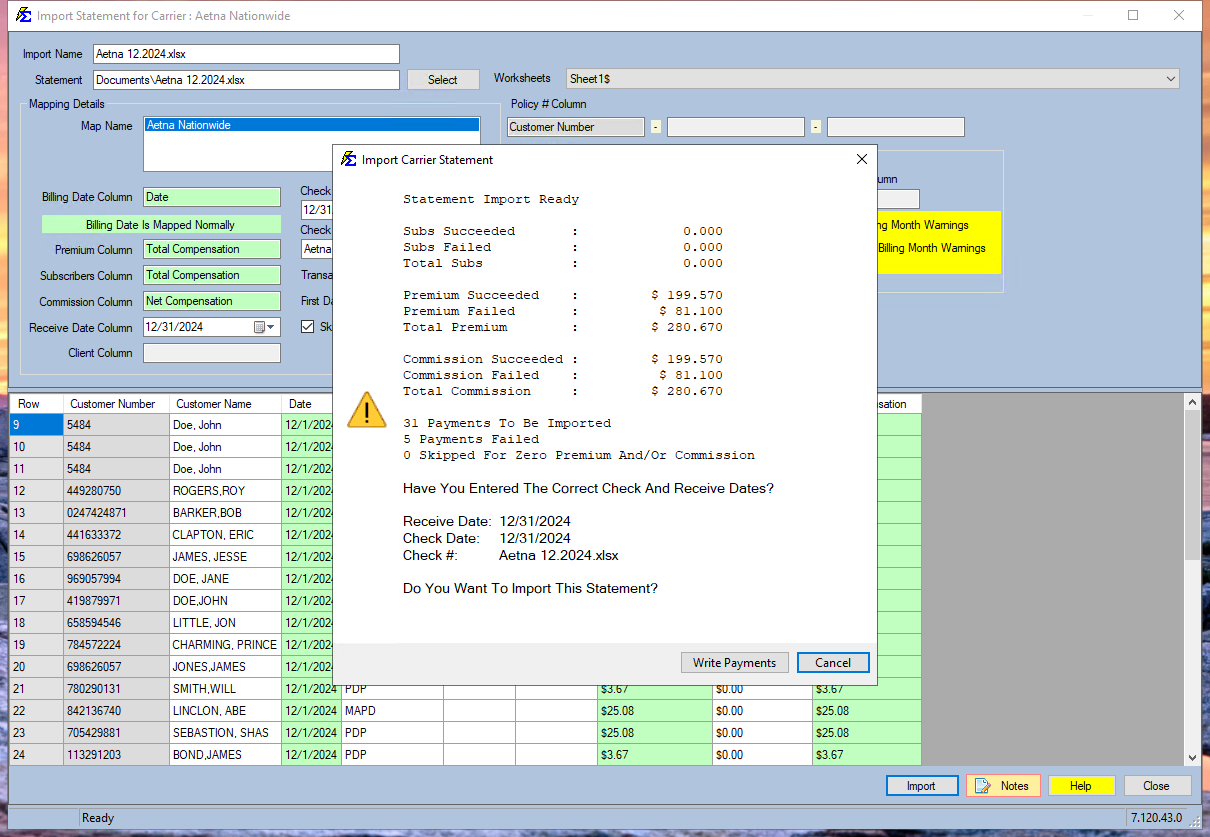
- A summary box opens that ends with "Do You Want To Import This Statement?". Check the counts, then click Write Payments to post the payments. (Cancel stops the import and posts nothing.)
- When the import finishes, a second summary shows what posted. If any payments failed, click View Errors to open the ICSE screen; otherwise click OK.
Nothing Posts Until You Click Write Payments
Clicking Import only reads the file and shows the summary. The payments are posted when you click Write Payments in the "Do You Want To Import This Statement?" box.
Post-Import Actions
After the import completes, the system displays an import summary with View Errors (shown only when payments failed) and OK. After the import you can:
- Resolve Errors — View payments that failed to import (such as missing policies) and correct them in the ICSE screen. Click View Errors in the summary, or later click Stmt Errors on the carrier's toolbar.
- Review Success — Generate a report of all successfully imported payments to verify against your statement.
- Audit — Check the Agency Payments Received report using the Import/Reconcile filter to confirm totals.
- Reverse Session — Remove the entire import if errors are found in the source file: click Manage Statements on the carrier's toolbar (newer versions: Statement History).
Partial Imports
If you cancel an import mid-way, reverse the partial session immediately to avoid incomplete data in Payment History.
🔧 Troubleshooting
Policies are showing as errors after import. The Policy # in your file did not match any existing policy in the database. Open the ICSE screen (the carrier's Stmt Errors button), click Create All Policies to create the missing policies, and then click Retry Payments.
My column mappings aren't saving between imports. Mappings are saved per carrier. Verify you selected the same carrier before importing. If the carrier's file format changed (different column names or order), you may need to create a new mapping using Add Map.
I imported the wrong file or need to start over. Click Manage Statements on the carrier's toolbar (newer versions: Statement History), select the import and click Reverse. See Manage Import or Reconcile Session. All payments from that import will be removed and the billing months will return to Open status.
A payment shows $0.00 commission, but the statement has an amount.
The commission ICS posts is the cell in your map's Commission Column on that row, exactly as the file has it. It is not calculated from the carrier table (the carrier table only sets the expected commission). A blank cell, or a cell that is not a plain number (for example 12.50 CR, N/A, or an amount with words beside it), is read as 0. Amounts such as $1,234.56, (12.50) and 12.50- are read correctly. To fix it:
- Select the map and click Edit Map. Check that Commission Column points to the column that holds the commission dollars, not a rate or a total column.
- Open the file and look at that row's commission cell. If it is not a plain number, change it to one (use a minus sign for a takeback) and save the file.
- If the gear beside Commission Column has steps turned on, check them (for example, a Multiply by a fixed value of
0gives0). See Mapping Gears. - Reverse the import (Manage Statements, newer versions: Statement History) and import the corrected file.
Payments are posting as adjustments instead of primary commissions. A payment for that policy and billing month already exists. If the previous payment was incorrect, delete it from Payment History first, then re-run the import.
🔗 Related Topics
- Import Carrier Statement Mapping Gears — Configure advanced column mapping options.
- Errors — Import Carrier Statement (ICSE) — Resolve policies and payments that failed to import.
- Create Policies — Create missing policies discovered during an import.
- Manage Import or Reconcile Session — Reverse a full import session.
- Reconcile Carrier Statement — Manual entry for PDF-based carrier statements.
- Payment History — View and manage all posted payments.
- Duplicate Policy Numbers — Required setup for multi-carrier files with overlapping policy numbers.
- Options Menu — Enable Allow Duplicate Policy Numbers and other global settings.
Need help? Contact support@commission-tracker.com