Manage Agents & Web Portal Access
The Manage Agents screen is your central hub for administrative tasks. From here, you can handle bulk updates to agent records, manage your software licenses, and configure credentials for the Agent Web Portal.
💡 Why Use This
Use this screen when you need to:
- Set Up Agent Portal Access — Assign login credentials and send welcome emails to agents.
- Batch Edit Agent Records — Update multiple agents at once instead of editing them one-by-one.
- Monitor License Usage — Track how many active agents are using your licensed slots.
🗺️ How to Access
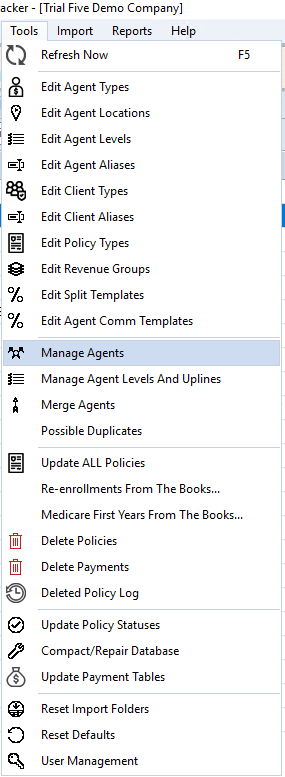
Navigate to Tools → Manage Agents.
Video Tutorial: Batch Editing Agents
If the video below does not play, you can watch it on YouTube here.
Web Portal Setup & Communication
Giving your agents access to their commission data is a two-step process handled within this screen.
Assign Credentials
Assign each agent a unique Email Address and Password. This acts as their login for the web portal.
Configure & Send Welcome Emails
- Email Configuration — Click this button to customize the template agents receive.
- Email Agents — Click this to bulk-send login instructions to your selected agents.
Report Formats
The Agent Portal only generates reports in PDF format. However, when emailing reports directly from the software, you can choose other formats (Excel, CSV, etc.).
Agent Licenses & Active Status
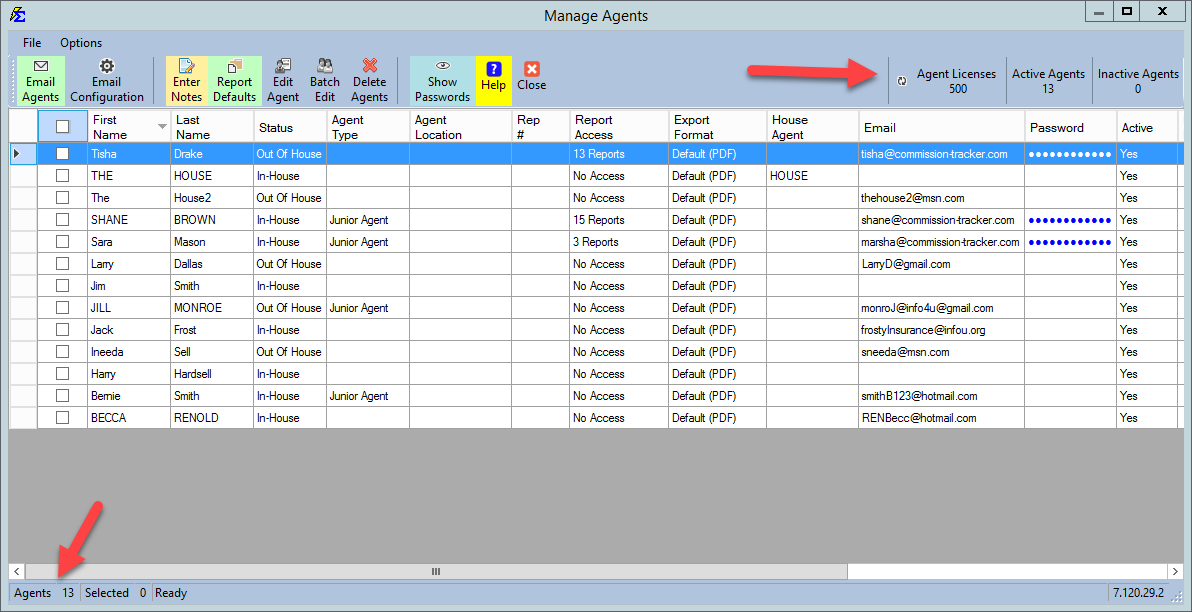
In the top right corner of the screen, you can monitor your system capacity.
- Agent Licenses — The total number of active slots purchased.
- Active Agents — Agents currently enabled in the system.
- Inactive Agents — Agents who are stored in the database but do not count toward your license limit.
License Requirement
You cannot run the Agent Commissions Earned Report if your Active Agent count exceeds your License count. Either purchase more licenses via the on-screen prompt or mark agents as Inactive until your counts match. The system will not calculate commissions for agents marked as Inactive.
Using Batch Edits
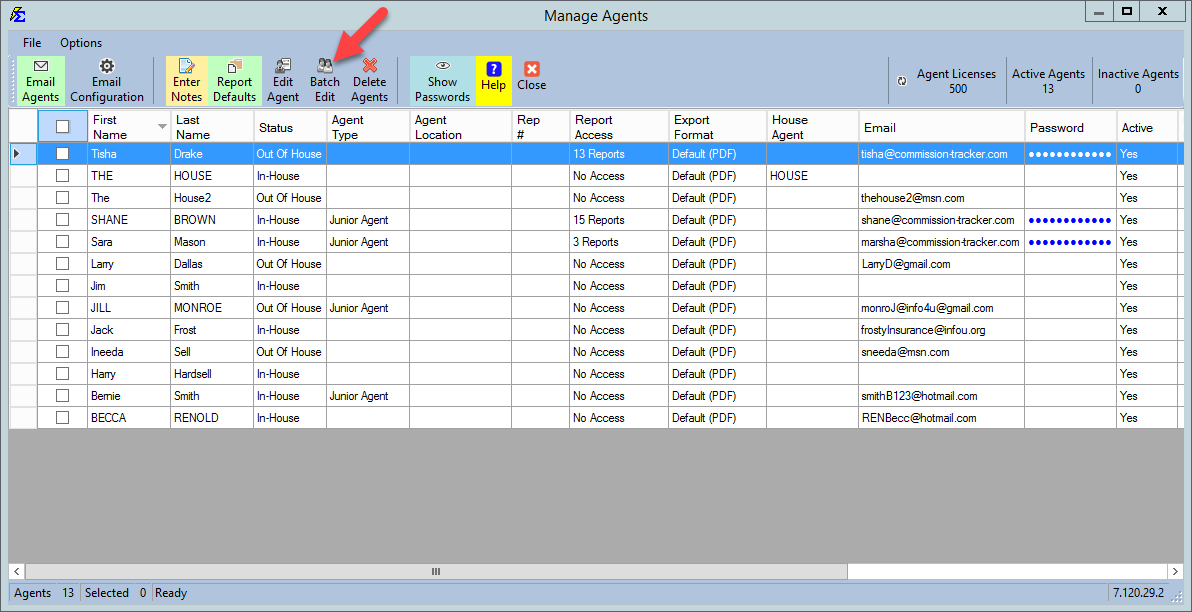
Instead of updating agents one-by-one, use the Batch Edit tool to save time.
Selecting Multiple Agents
- Manual Check — Click the checkbox in the row for each agent.
- Keyboard Shortcut — Hold Ctrl and right-click or drag your mouse over multiple rows.
- Select All — Check the checkbox in the column heading to apply the selection to the Batch Edit tool.
Available Batch Actions
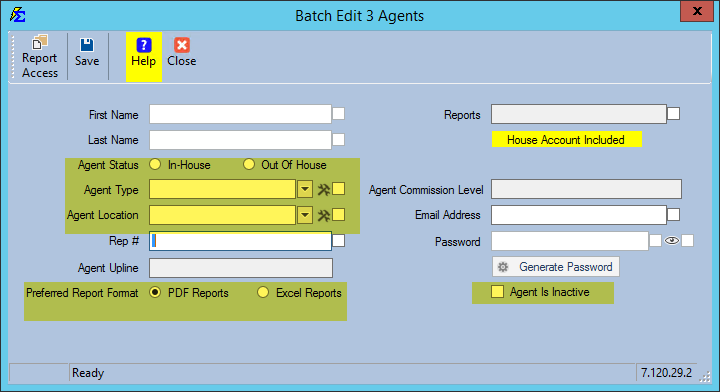
Within the Batch Edit window, you can simultaneously update:
- Agent Status & Type
- Location Assignments
- Active/Inactive Status
- Preferred Report Formats
Tips
- Sort with Ease — Click any column heading (Name, ID, Status) to instantly sort your list alphabetically or numerically.
- Keep Emails Current — Ensure agent email addresses are accurate; the software uses these to send the Agent Commissions Earned Report directly.
- Report Defaults — Use the Report Defaults button to restrict which reports your agents can see when they log into the portal.
🔗 Related Topics
- Agent Portal Configuration — Deep dive into portal settings.
- Agent Web Portal Guide — What the agent sees on their end.
- Create New Agent — Initial agent profile setup.
Need help? Contact support@commission-tracker.com