Months In Term
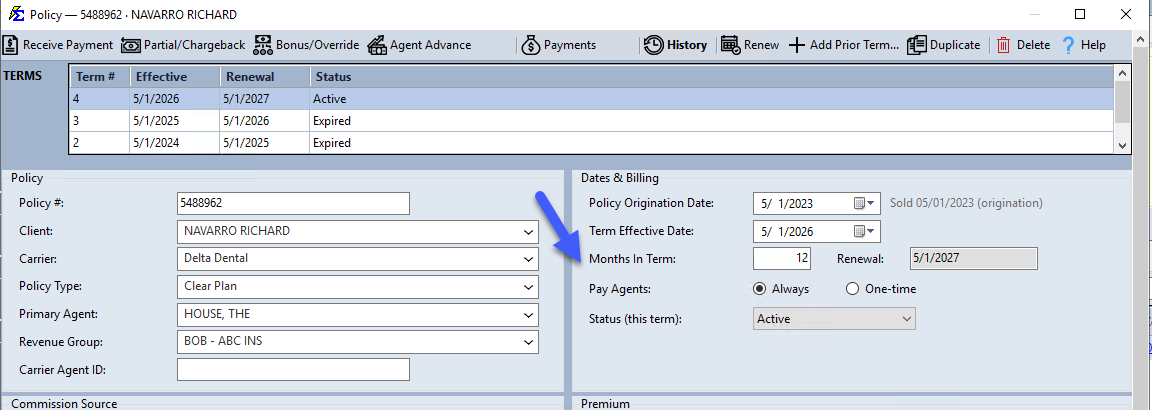
The Months In Term field determines the lifespan of a policy term. The system adds this number to the Term Effective Date to automatically calculate the Renewal Date.
💡 Why Use This
Set this field correctly when:
- Creating any policy — The term length drives the renewal date calculation, which appears in reports and renewal tracking.
- Working with non-standard term lengths — Most health and life policies use 12 months, but some lines use 6-month or even 1-month terms.
- Running Upcoming Renewals reports — Accurate term lengths ensure your renewal date list is correct, so you can proactively reach out to clients.
🗺️ How to Access
Open any policy from the policy grid (select it and click Edit, or double-click it). The Months In Term field is in the Dates & Billing group, with the Renewal date directly below it.
Calculation Logic
By adding the number of months specified to the Term Effective Date, the system calculates the exact date the policy is set to renew.
Example: A 12-month term starting on 5/1/2026 results in a renewal date of 5/1/2027.
Common Term Lengths
- 12 months — Standard for most health, life, and dental policies.
- 6 months — Common for some P&C lines.
- 1 month — Used for month-to-month policies where each payment is its own term.
🔧 Troubleshooting
The renewal date shown on reports is wrong. Verify that the Months In Term matches the actual contract length. Also confirm the Term Effective Date is correct, since the renewal date is calculated from both values together.
My policy has an unusual term length not listed here. You can enter any whole number of months. If your carrier uses a non-standard contract (e.g., 18 months), enter that number directly.
🔗 Related Topics
- Policy Information — Overview of all policy fields.
- Term Effective Date — The start date the renewal calculation uses.
- Term Number — How term numbers affect commission rates.
Need help? Contact support@commission-tracker.com