Carrier Table Agent Splits: Agent Uplines
The Agent Upline feature allows you to create dynamic hierarchical relationships between agents. Instead of hard-coding a specific manager for every rule, you define an "Upline" (a mentor, recruiter, or manager) for each agent. The Carrier Table then uses that hierarchy to determine who receives an override.
💡 Why Use This
Use Agent Upline splits when:
- Managers receive overrides on their agents' sales — Define the upline relationship once; the table pays the correct manager automatically for every policy.
- Agent reporting relationships change — When an agent moves to a new manager, update only the Manage Agent Levels and Uplines screen. Every policy using an Upline table immediately begins paying the new manager.
- You want to avoid hard-coding manager names into every split table — Upline rules pay "whoever is above this agent" rather than a specific named person.
🗺️ How to Access
Upline splits are configured in two places:
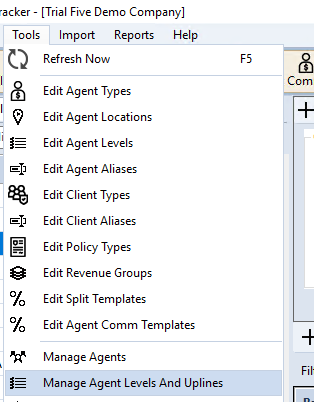
- Define the hierarchy — Tools → Manage Agent Levels and Uplines
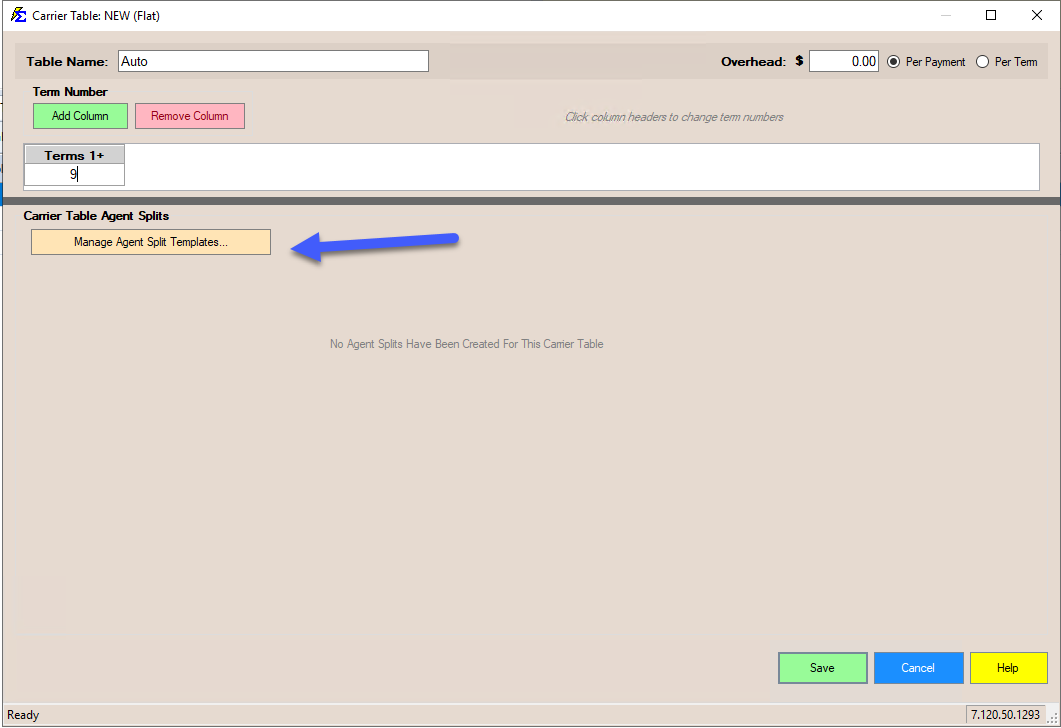
- Enable and configure upline payouts — Open a Carrier Commission Table, navigate to the Agent Splits tab, and click Manage Agent Split Templates....
The Logic of Uplines
Upline splitting separates two distinct pieces of information:
- The Relationship (Who) — Defined in the Manage Agent Levels and Uplines screen.
- The Payout (How Much) — Defined within the Agent Split Template assigned to the Carrier Table.
Step 1: Defining the Hierarchy
Before the table can pay an upline, tell the system which agents report to which managers.
- Navigate to the Tools menu.
- Select Manage Agent Levels and Uplines.
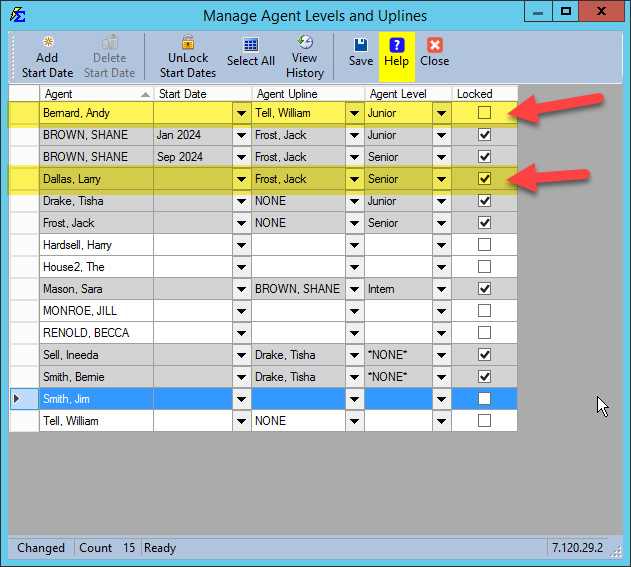
- Locate the writing agent and select their manager in the Upline Agent column.
Organizational Hierarchy Example
- Andy Bernard reports to William Tell.
- Larry Dallas reports to Jack Frost.
Step 2: Building the Upline Payout Template
Once the hierarchy relationships are set, build a template using the Fixed Payout Upline type and assign it to your Carrier Commission Table.
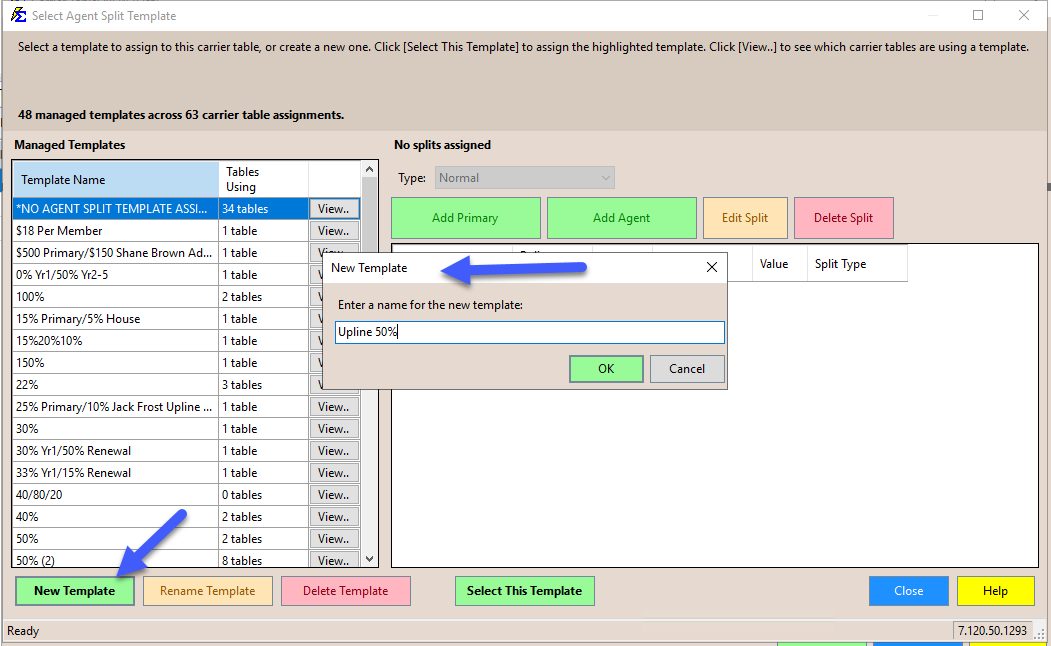
- Open your Carrier Commission Table, select the Agent Splits tab, and click Manage Agent Split Templates....
- Click New Template, enter a name (e.g.,
Upline 50%), and click OK.
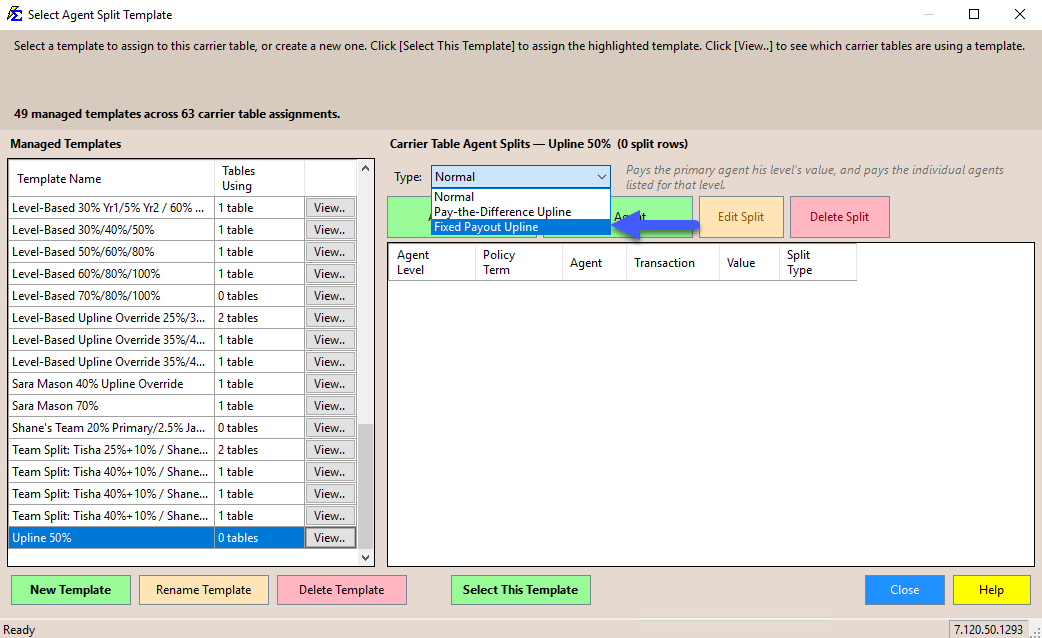
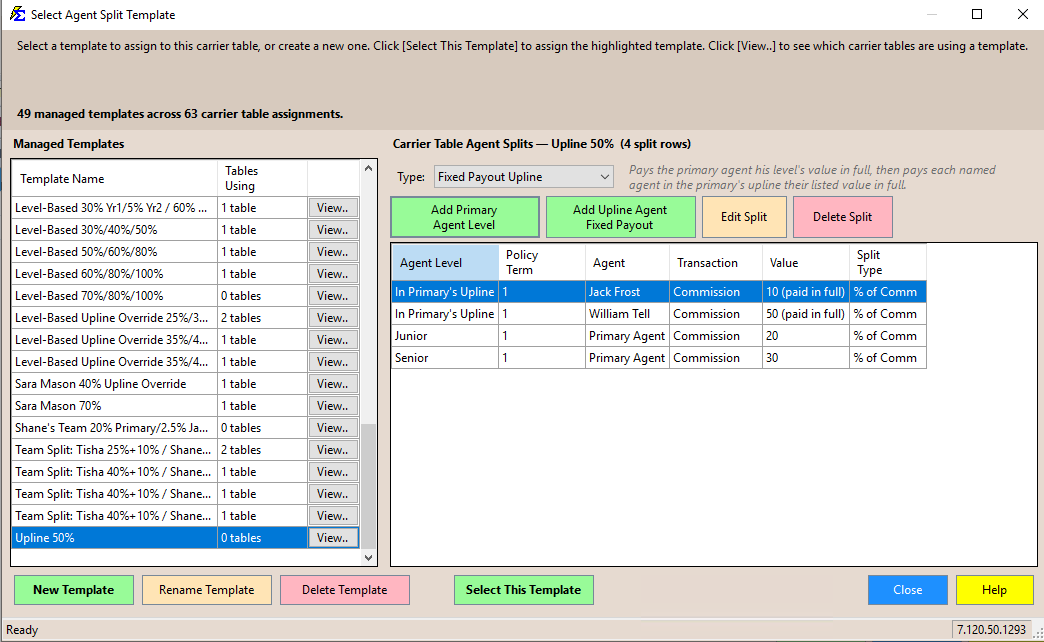
With the new template selected, change the Type dropdown from Normal to Fixed Payout Upline. This tells the system to pay each named agent's upline their listed value in full, based on the hierarchy from Step 1, rather than treating them as a Primary Agent override.
Another Upline Type Exists
A Pay-the-Difference Upline type is also available on the Type dropdown. Documentation for that option is coming soon.
Step 3: Setting the Override Amounts
Define how much the upline agent should receive. You are setting the rule for the "Upline Role," not a specific named person.
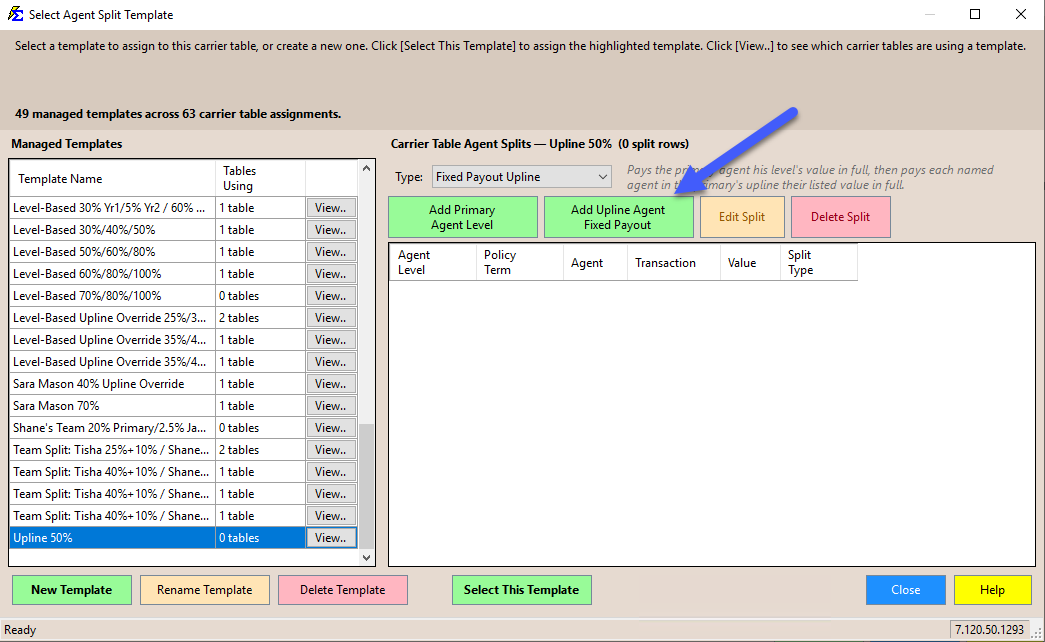
- Click Add Upline Agent Fixed Payout.
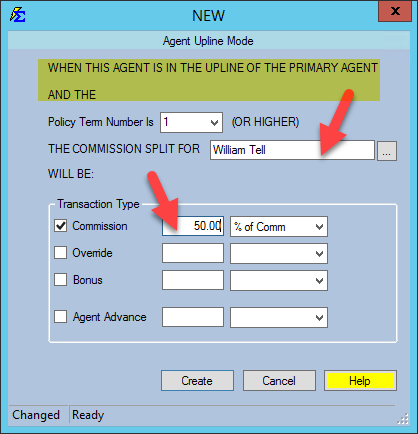
- Select the agent who serves as the Upline (e.g., William Tell) and set their commission value.
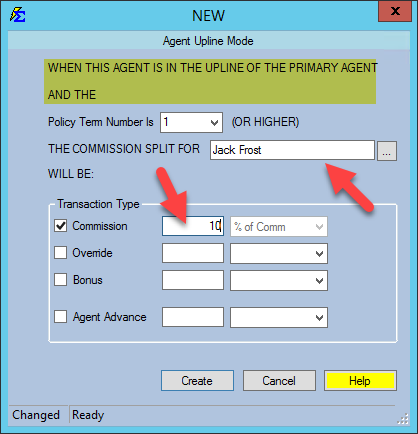
- Repeat for each upline agent (e.g., Jack Frost).
- The system labels each row In Primary's Upline — the value is followed by (paid in full) — because the payout is triggered by the hierarchy, not the agent's rank.
Final Table Review
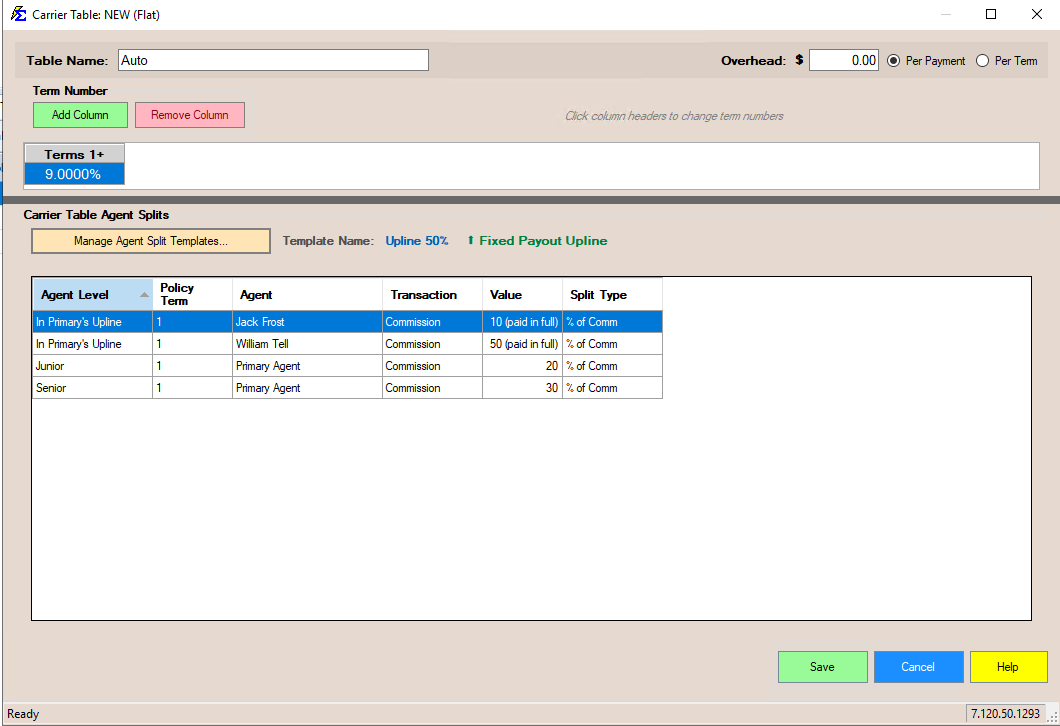
Once the template is complete, select it and click Select This Template to assign it to the Carrier Commission Table. The table now acts as a dynamic engine that pays whoever is "above" the writing agent in the hierarchy.
How It Calculates
| Writing (Primary) Agent | Their Payout | Their Upline | Upline Payout |
|---|---|---|---|
| Andy Bernard | 20% | William Tell | 50% |
| Larry Dallas | 30% | Jack Frost | 10% |
| Any Other Agent | Based on Level | None | 0% |
What Happens During Processing
- Depth — Upline hierarchies are not limited to one level. You can have multiple tiers (Agent → Manager → Director) and set payout rules for each tier.
- Flexibility — If an agent changes managers, update only the Manage Agent Levels and Uplines screen once. Every policy that uses an Upline table will automatically begin paying the new manager correctly.
Pay-the-Difference Upline
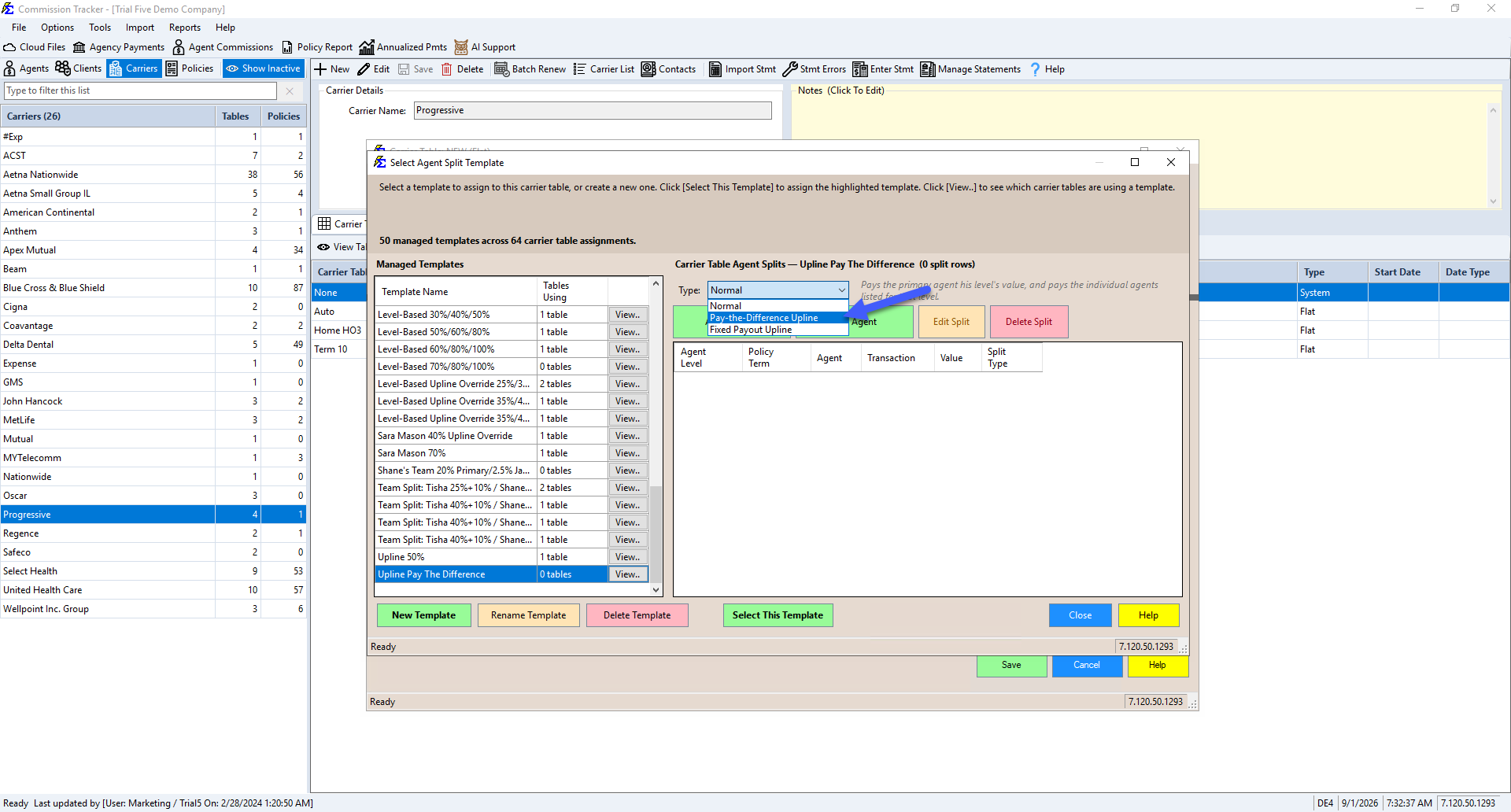
Besides Fixed Payout Upline (above), the Type dropdown on an Agent Split Template also offers a Pay-the-Difference Upline option. The software's own on-screen description of it reads:
"Walks the primary agent's upline — each level is paid its value minus the level below it."
Unlike Fixed Payout Upline, this type does not name specific agents (like William Tell or Jack Frost) directly on the split row. Instead, you assign a value to an Agent Level, and the software resolves who is "at that level" within the primary agent's upline chain and pays them the difference between their level's value and the value assigned to the level below them.
Setting Up a Pay-the-Difference Upline Template
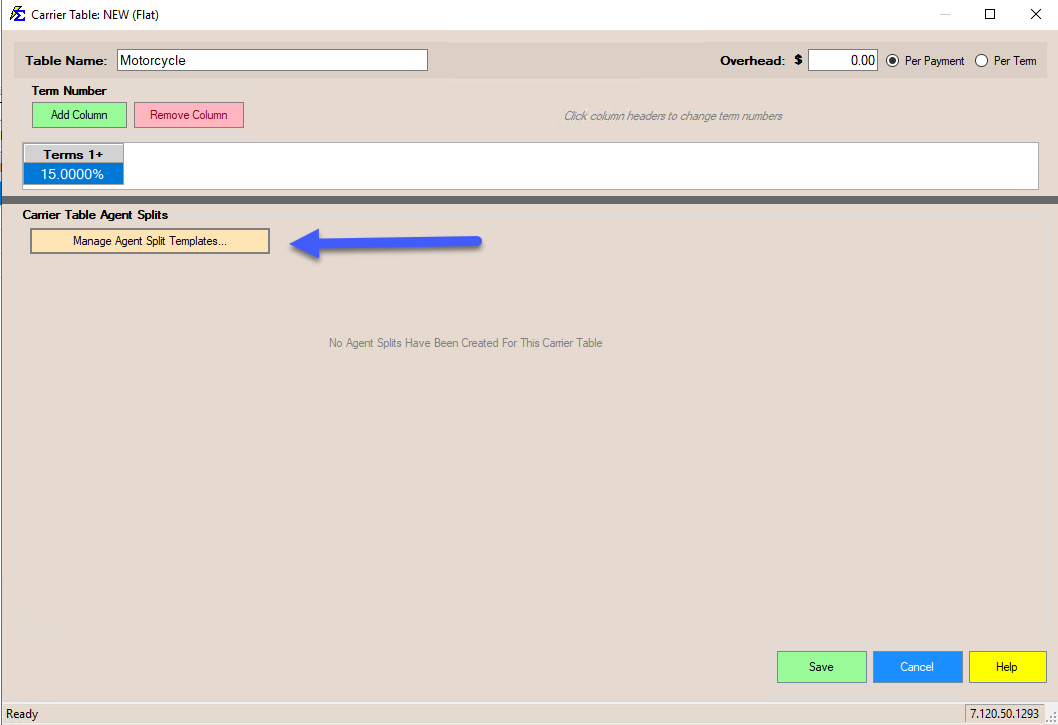
- Open your Carrier Commission Table, select the Agent Splits tab, and click Manage Agent Split Templates....
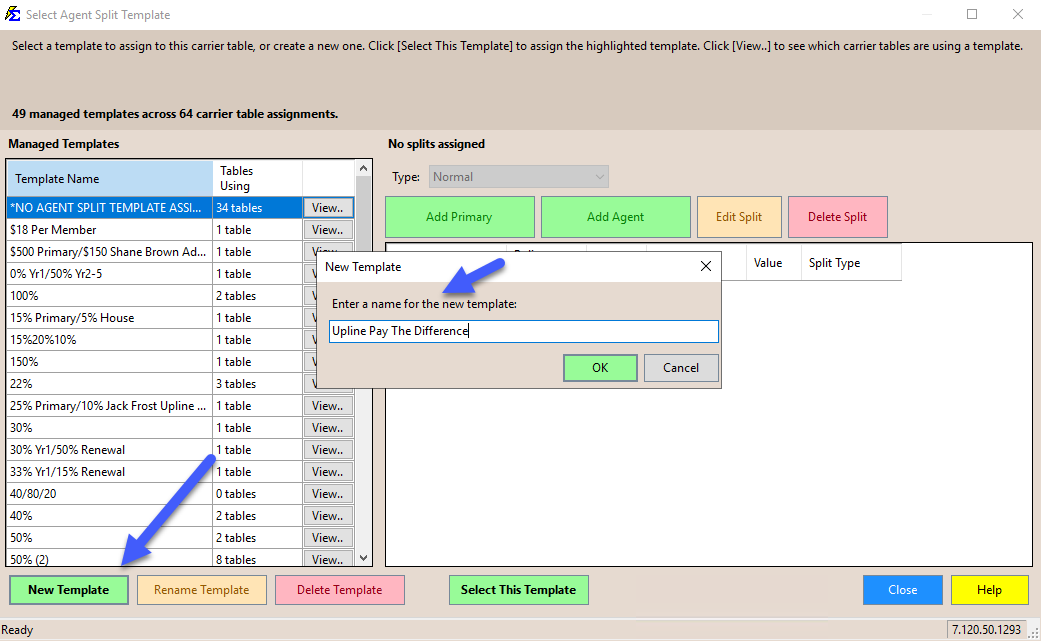
- Click New Template, enter a name (e.g.,
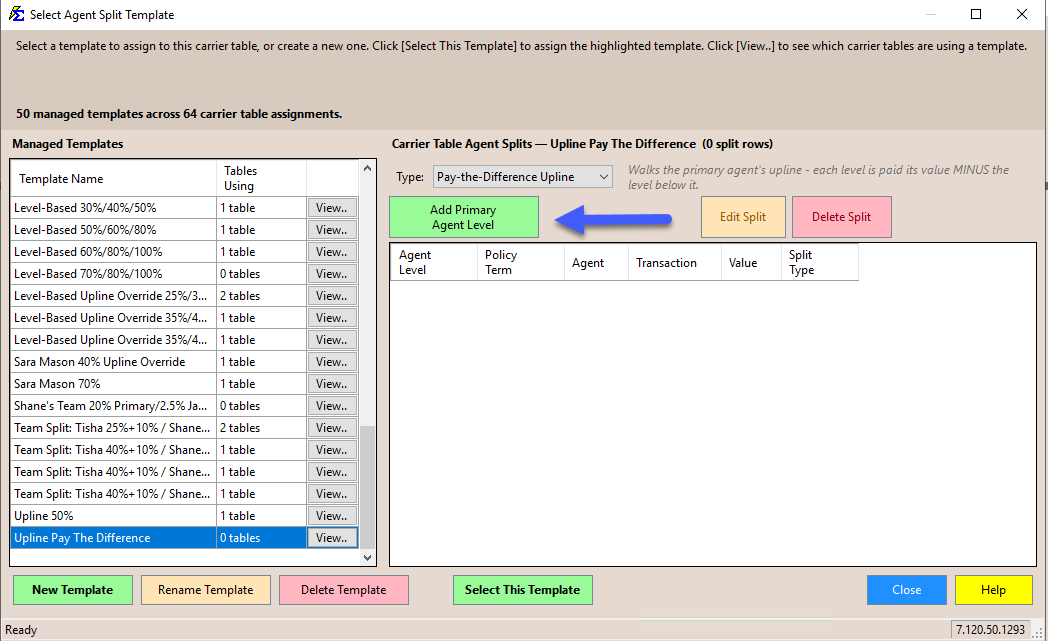
Upline Pay The Difference), and click OK. - With the new template selected, change the Type dropdown to Pay-the-Difference Upline.
- Click Add Primary Agent Level, choose an Agent Level, and enter a Value.
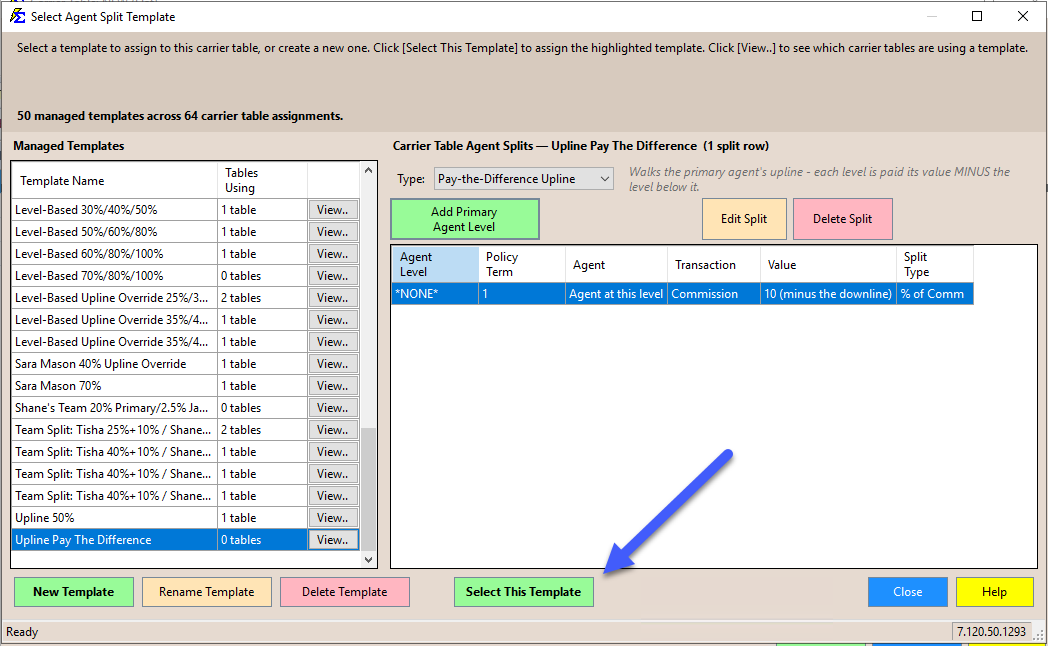
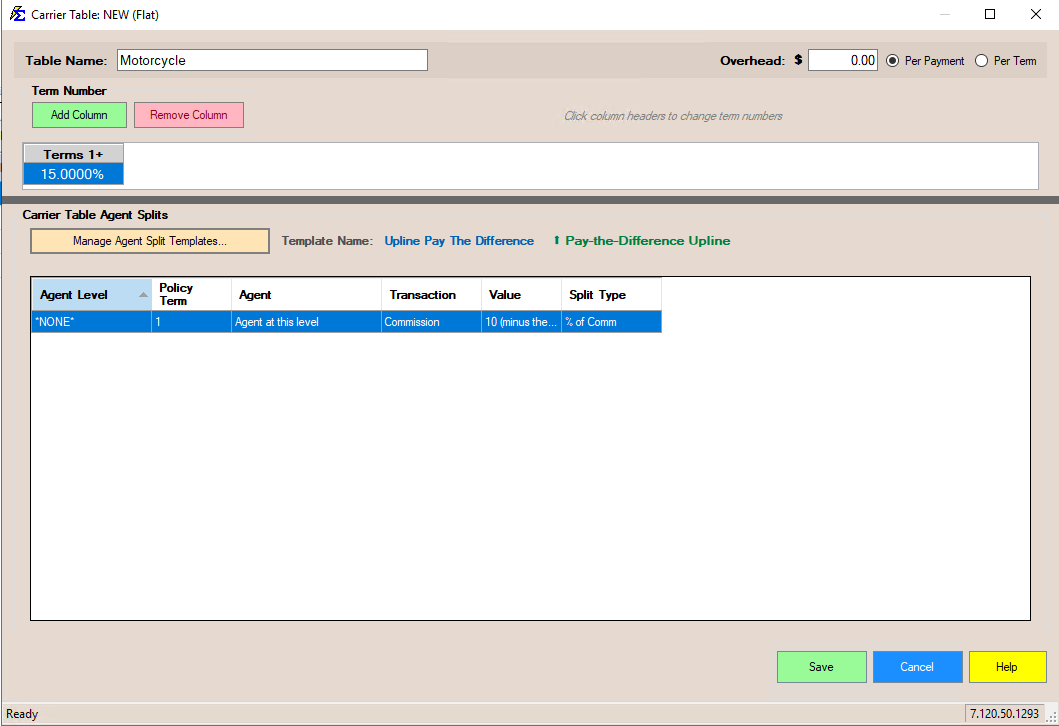
- The split row's Agent column shows Agent at this level, and the Value column displays your entered amount followed by (minus the downline) — confirming that this level's payout is reduced by whatever is assigned to the level below it.
- Click Select This Template to assign the template to the Carrier Commission Table.
How the Payout Is Calculated Across Several Levels
Add one row per Agent Level with Add Primary Agent Level, giving each higher level a larger value than the level below it. When a payment is received, the system works up the primary agent's upline one person at a time:
- The primary agent is paid the full value of the row for their own Agent Level.
- The primary agent's upline (from Manage Agent Levels and Uplines) is paid the value of the row for their Agent Level, minus the value already paid to the person below them.
- The system repeats step 2 for the next person up the chain, and so on, until it reaches someone with no upline.
- Whatever is left of the commission goes to The House.
Each person's Agent Level and upline are the ones in effect on the policy's Policy Origination Date.
Example: A template has three rows — Agent level 20%, Manager level 30%, Director level 35% (all % of Commission). Andy (an Agent) writes a policy; his upline is Mary (a Manager), and Mary's upline is Dan (a Director). On a $1,000 commission payment:
| Person | Level value | Paid | Amount |
|---|---|---|---|
| Andy (primary agent) | 20% | 20% | $200.00 |
| Mary (Andy's upline) | 30% | 30% − 20% = 10% | $100.00 |
| Dan (Mary's upline) | 35% | 35% − 30% = 5% | $50.00 |
| The House | — | the remaining 65% | $650.00 |
An upline whose level has no row
If someone in the chain has an Agent Level that has no row in the template, they are paid nothing and the system moves on to the next person up. That next person is paid their level's value minus the value of the last person who was paid. For example, if the template above had no Manager row, Mary would be skipped and Dan would be paid 35% − 20% = 15%.
Agent Sharing
When the policy uses Agent Sharing, the system walks the upline chain once for each sharing agent, starting from that agent, and scales every payment in that chain by the sharing agent's percentage.
🔧 Troubleshooting
The upline is not receiving a payment. Verify that the template assigned to the Carrier Commission Table has its Type set to Fixed Payout Upline and that the writing agent has an Upline Agent assigned in the Tools menu.
I want to use both Agent Levels and Uplines together. Yes, this is supported. You can pay an agent based on their Junior/Senior rank while simultaneously paying their manager via the Upline rule.
🔗 Related Topics
- Carrier Table Agent Splits — Standard split setup.
- Carrier Table Agent Splits (Using Agent Levels) — Automate splits by agent rank.
- Manage Agent Levels and Uplines — Set up and maintain the agent hierarchy.
- Agent Split Template Manager — Full reference for creating, editing, and assigning templates.
- Carrier Commission Tables — Overview of carrier table setup.
Need help? Contact support@commission-tracker.com