ACE Email Setup
The ACE Email Setup form configures how commission statements are delivered to your agents — including the sender identity, delivery method, and email branding. Complete this setup before sending bulk agent emails from the ACE Report.
💡 Why Use This
Use ACE Email Setup to:
- Define your sender identity — Set the "From" address that agents see and can reply to.
- Configure the delivery method — Choose between the Commission Tracker System Server or a custom SMTP.
- Customize email branding — Design the Subject, Header, and Footer to match your agency's style.
🗺️ How to Access
- Run the Agent Commissions Earned Report.
- Click Show Report.
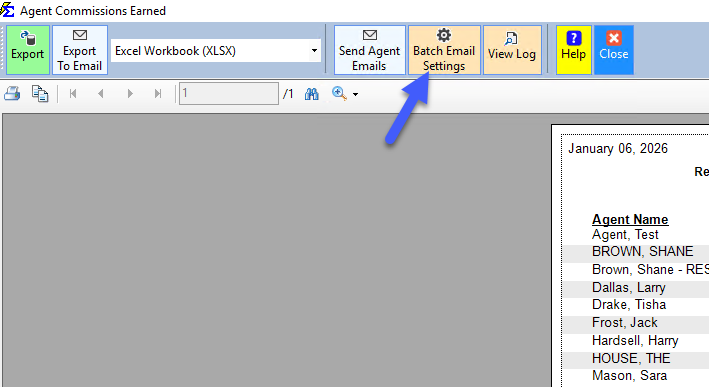
- Click the Batch Email Settings button on the report window's toolbar.
Form Fields
Sender Information
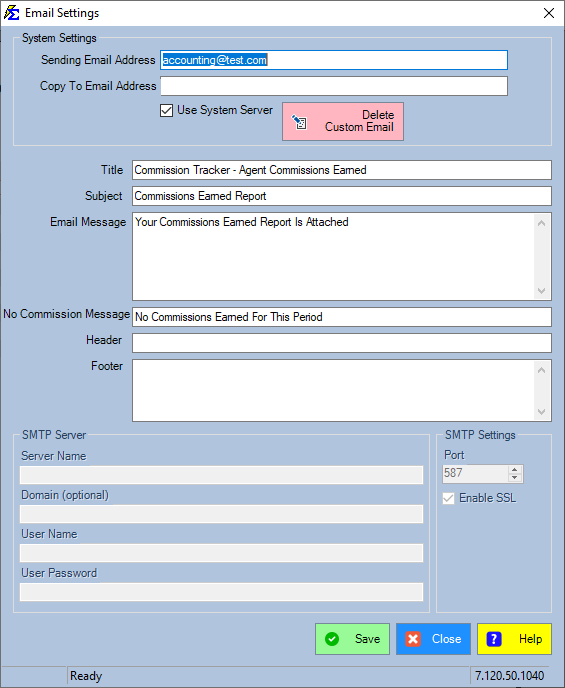
- Sender (From) — The email address that appears in the "From" field. If an agent replies, this address receives the reply. Required.
- Copy To — An optional address to receive a copy of every email sent to agents.
Can Sender and Copy To be the same address?
With the System Server (the default), yes. The email goes out from a Commission Tracker address and your Sender address is the reply address, so a copy to that same mailbox is an ordinary message.
With your own SMTP server, use a different Copy To address. There the email goes out from your Sender mailbox, and a copy to the same mailbox is a message from you to yourself, which some mail servers delay or drop.
Server Configuration
Select System Server for the best deliverability. The Commission Tracker System Server is optimized to navigate spam filters and ensure reliable delivery of commission statements. Custom SMTP servers are available for advanced users but may result in higher spam placement.
Email Customization
- Title and Subject — The email's identity in the agent's inbox.
- Email Message — The main text of the commission email.
- Header and Footer — Ideal for agency branding, logos, or legal disclaimers.
- No Commission Message — Sent only to agents who earned $0.00 for the pay period, if you choose to notify them.
Step-by-Step: Configuring Email Setup
- Navigate to the ACE Email Setup screen (via Batch Email Settings in the ACE Report window).
- Enter your Sender email address.
- Optionally enter a separate Copy To address.
- Select System Server for optimal delivery.
- Customize the Subject, Header, and Footer text for your agency.
- Click Save.
What Happens When You Save
- The system updates the metadata for all future outgoing commission emails.
- If the System Server is selected, the "From" headers are validated for delivery.
- Your custom branding (Header and Footer) appears on all agent statements sent via ACE.
Advanced Features
The Enable Custom Email option allows advanced users to design HTML email messages for full formatting control. Contact support@commission-tracker.com for assistance with custom HTML or custom SMTP configuration.
🔧 Troubleshooting
Agent emails are going to spam. Switch to the System Server in the Server Configuration section. Custom SMTP servers are more likely to be flagged for bulk commission emails.
Emails are failing even though settings look correct. Reopen Batch Email Settings, verify all required fields are filled in, and click Save before retrying. Confirm the Sender address is a valid deliverable email address.
Agents are not receiving the No Report email. Confirm the No Commission Message field is filled in and that you selected the option to send $0.00 emails when initiating the bulk send from the ACE Report.
🔗 Related Topics
- Agent Commissions Earned Report — The report where ACE Email is initiated.
- Email or Export Reports — General export and email options for all reports.
Need help? Contact support@commission-tracker.com