AutoRenew Policies
The AutoRenew Policies feature automatically scans for policies that have expired or are approaching expiration, and offers to create the next term each time Commission Tracker starts. This keeps your policy data current without requiring manual renewal for every individual policy.
💡 Why Use This
Use AutoRenew when:
- You want to stay current without manual intervention — The system prompts you at startup so you never miss a renewal.
- You have a large book of business with staggered renewal dates — AutoRenew catches policies as they expire rather than requiring you to monitor each one.
- You prefer to review before renewing — The View List option lets you see what's eligible and selectively approve renewals before committing.
🗺️ How to Access
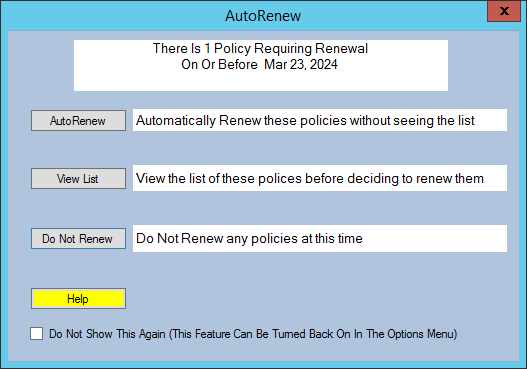
AutoRenew runs automatically at startup. When eligible policies are found, a prompt appears when you launch Commission Tracker.
How AutoRenew Works
Each time Commission Tracker starts, the system scans your database for policies expiring within the next 30 days or already past their renewal date.
- Eligible statuses — Only Active and Expired policies are included. Terminated, Inactive, and Prospect policies are skipped.
- Settings carry over — All policies are renewed using the exact settings of the current term, including the Estimated Premium and Agent Commission Split Table.
Processing Renewals
Option 1: Renew All Now
Click AutoRenew to renew all eligible policies automatically, without seeing the list.
Processing Time
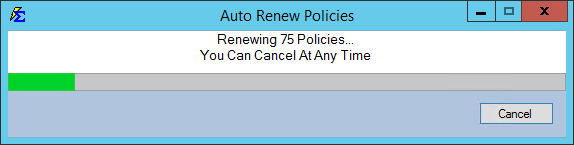
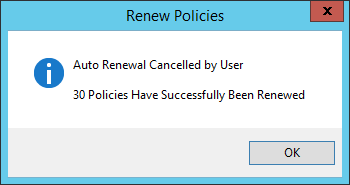
Renewing a large number of policies at once may take 10–20 minutes. Allow the software to finish the task completely to ensure data consistency.
Option 2: View List (Selective Renewal)
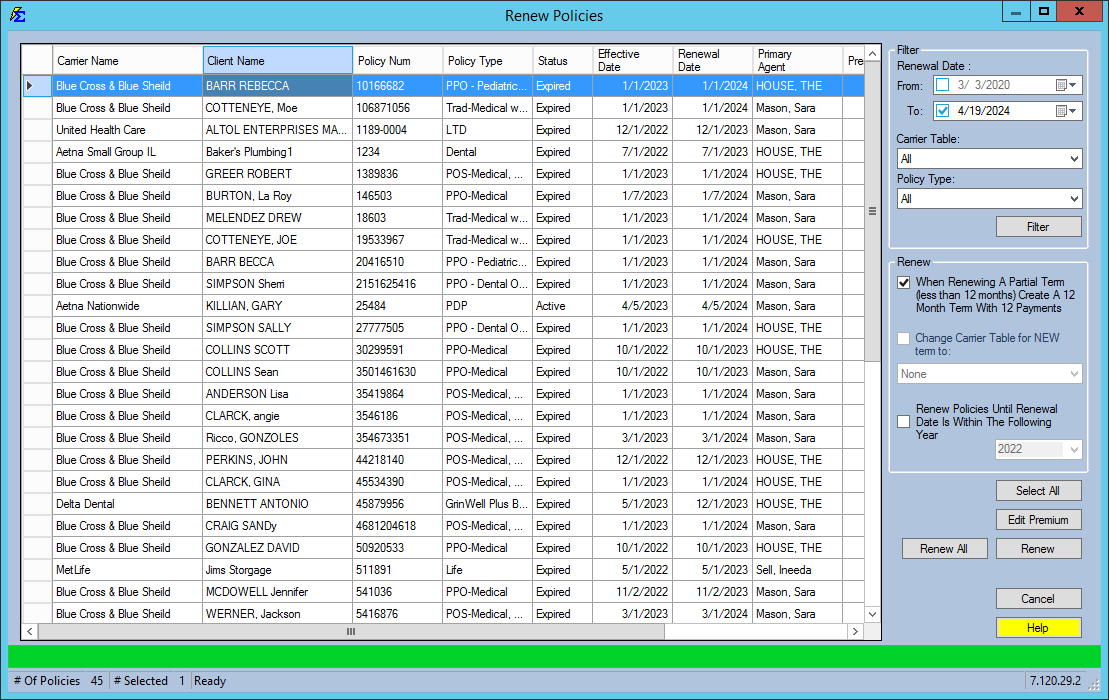
Click View List to see all eligible policies across all carriers before renewing.
- Use checkboxes to select only specific policies.
- Click any column heading to sort by Client, Carrier, or Expiration Date.
- This view aggregates policies from every carrier — unlike Renew Policies (by Carrier), which is limited to one carrier at a time.
Option 3: Do Not Renew
Click Do Not Renew to skip the prompt for now. You will be prompted again the next time Commission Tracker starts.
Turning the prompt off
Checking Do Not Show This Again on the prompt turns AutoRenew off. To turn it back on, check the Automatically Renew Policies row in the Options menu (see Disabling AutoRenew).
Previewing Before Renewing
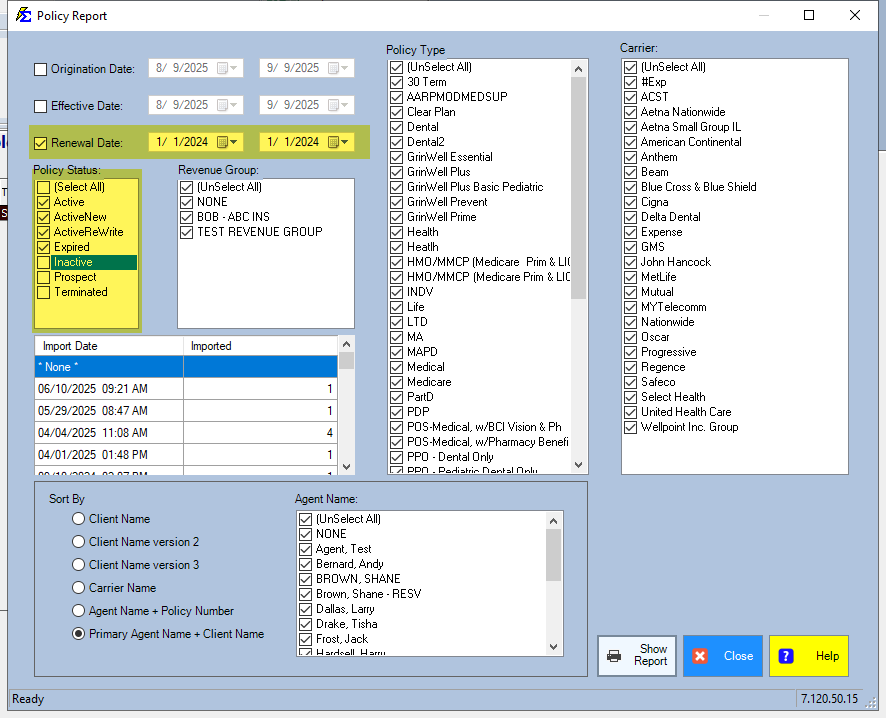
To see which policies are eligible before committing to a renewal:
- Click Do Not Renew on the AutoRenew prompt.
- Navigate to Reports → Policy → Policy Report (see Policy Report).
- Set the Renewal Date filter:
- Start Date — One year in the past.
- End Date — One month from today.
- Uncheck Inactive, Prospect, and Terminated statuses.
- Run the report to see all policies currently eligible for AutoRenewal.
Disabling AutoRenew
If your agency prefers to handle renewals manually:
- Click Options on the menu bar at the top of the main window (it is its own menu, between File and Tools).
- Uncheck the Automatically Renew Policies checkbox.
- Click Save.
The startup prompt will no longer appear. Renewals must then be done manually or via Renew Policies (by Carrier).
🔧 Troubleshooting
A specific policy was not included in the AutoRenew scan. Check the policy's status. Only Active and Expired policies are eligible. If the policy is Terminated or Inactive, it is intentionally skipped. Also confirm the renewal date falls within the next 30 days — policies expiring further out are not included yet.
I accepted AutoRenew by accident and need to undo a renewal. Open the policy in question, navigate to the Policy Term list, and delete the newly created term. The policy reverts to its previous term and expiration date. Repeat for each policy that was incorrectly renewed.
AutoRenew is no longer prompting at startup. Click Options on the menu bar and confirm the Automatically Renew Policies checkbox is checked. If it is not, check it and click Save to re-enable the prompt.
🔗 Related Topics
- Renewing Policies — Overview of all renewal methods.
- Manually Renew a Policy — Renew a single policy from the Policy screen.
- Renew Policies (by Carrier) — Batch-renew all policies for a specific carrier.
- Policies (NEW!) Report — Preview which policies are eligible before renewing.
- Options Menu — Enable or disable the AutoRenew function.
Need help? Contact support@commission-tracker.com