Searching within a Report
The report search feature lets you find specific text or values within any report preview without scrolling through the entire output.
💡 Why Use This
Use the search feature when:
- You need to find a specific client or policy — Jump directly to the matching row in a large report rather than scrolling.
- You are auditing for missing values — Search for "0.00" to quickly find policies with no commission posted for the period.
- You are verifying a specific payment — Locate a policy number or agent name immediately within a long report.
🗺️ How to Access
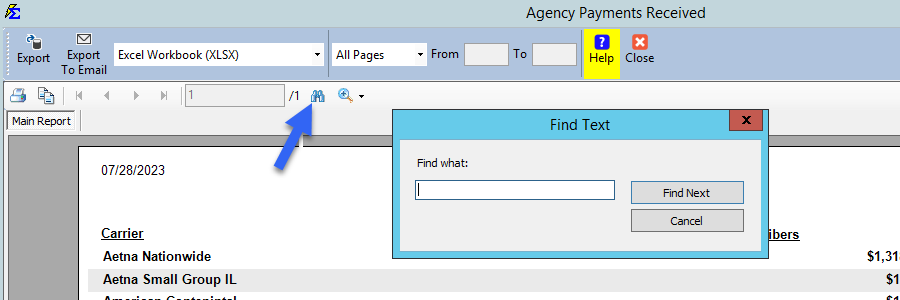
The search icon (binoculars) is located in the report preview toolbar for all reports.
How to Search
- Open any report and click Show Report.
- Locate the Binoculars icon in the toolbar.
- Type the word or phrase into the search box.
- The system jumps to the first matching entry in the report.
🔧 Troubleshooting
The search didn't find the value I'm looking for. Confirm the value appears exactly as you typed it. Report searches are typically case-insensitive but must match the displayed text, including spaces and special characters. Try searching for a shorter portion of the value (for example, just the last name rather than the full name).
The binoculars icon is not visible. Make sure the report is in Preview mode. The search toolbar is only available in the preview window, not on the report setup screen.
🔗 Related Topics
- Reports — Overview of all available reports.
- Email or Export Reports — Save or send the report after finding what you need.
- Preset Date Range — Narrow the report date range before searching.
Need help? Contact support@commission-tracker.com