Carrier Table Agent Splits
Defining Agent Commission Splits at the Carrier Table level is the most efficient way to manage payouts. Instead of manually configuring splits for every individual policy, you define a single rule for a specific product (e.g., "Dental") that applies to all associated policies automatically.
💡 Why Use This
- Automation — New policies created or imported will automatically inherit these split rules.
- Scalability — When using the Import Carrier Statements feature, hundreds of policies can be set up to pay agents correctly in seconds, provided they have a Primary Agent and a Carrier Table assigned.
- Consistency — Ensures that all agents are paid the same percentage for the same product type across your entire agency.
🗺️ How to Access
- Open the Carrier record.
- Navigate to the Carrier Commission Table you want to configure.
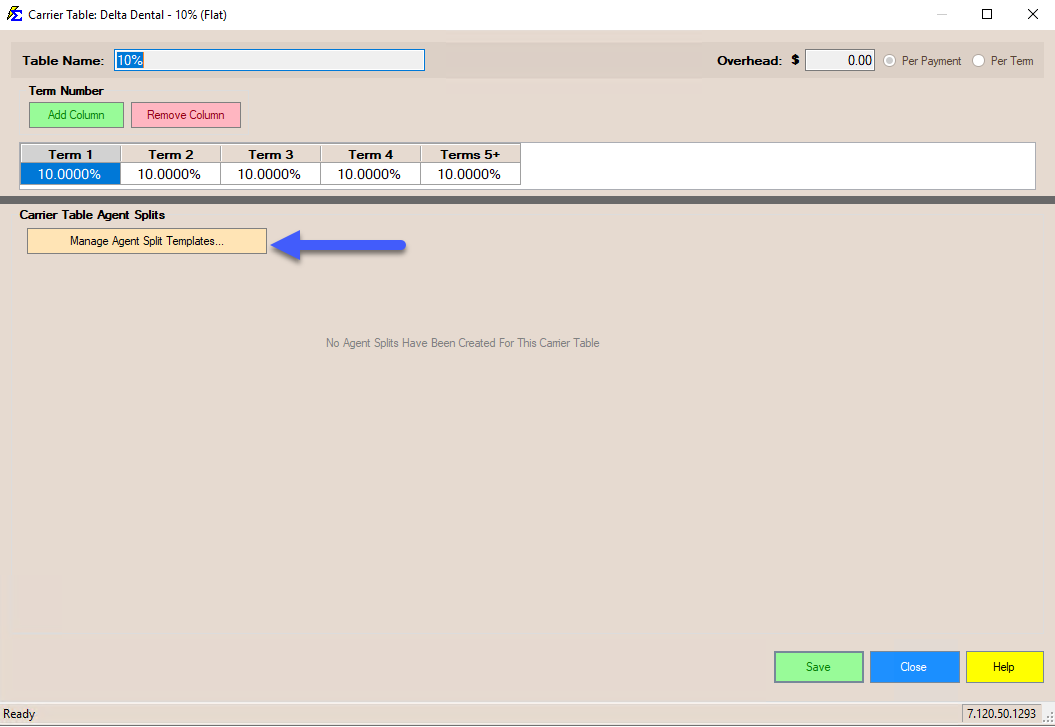
- Click the Agent Splits tab, then click Manage Agent Split Templates....
Basic Agent Split
By default, if no split is defined, 100% of the commission is retained by The House. When you define a split, you are telling the system what portion of the agency's commission should be redirected to agents.
Example: Primary Agent Split
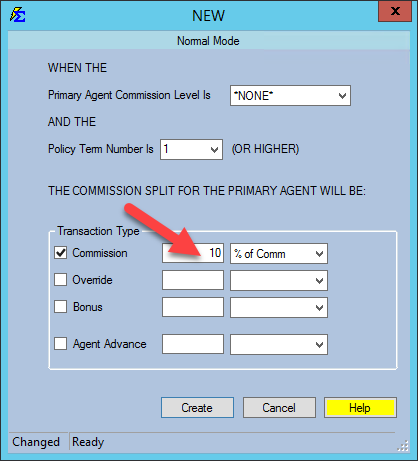
In this scenario, a "Dental" table is set to receive 10% from the carrier. We want to pay the Primary Agent 10% of that 10%.
- On the Agent Splits tab, click Manage Agent Split Templates....
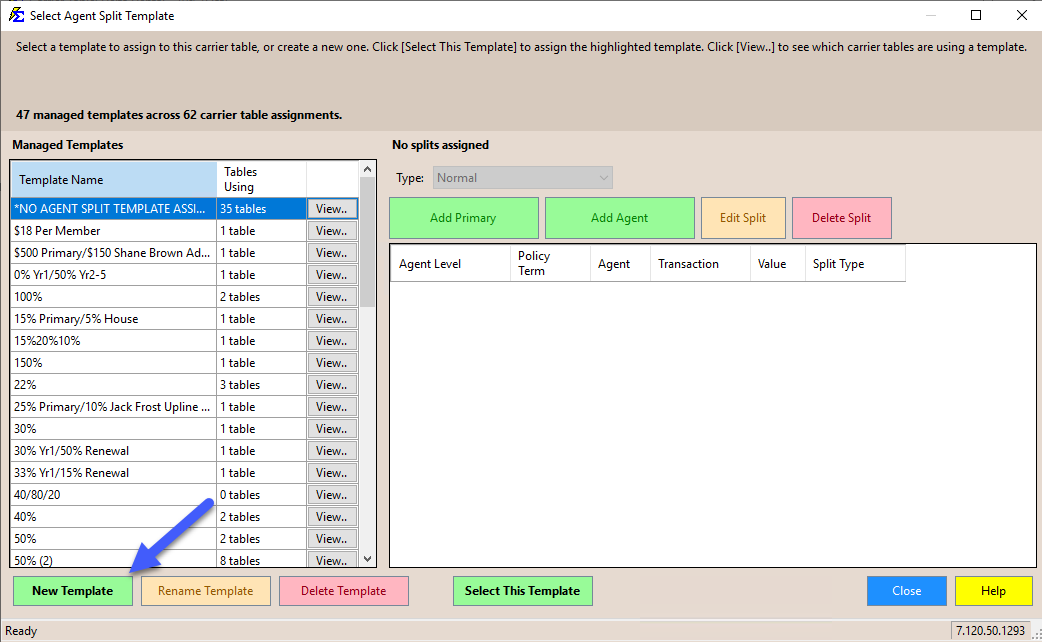
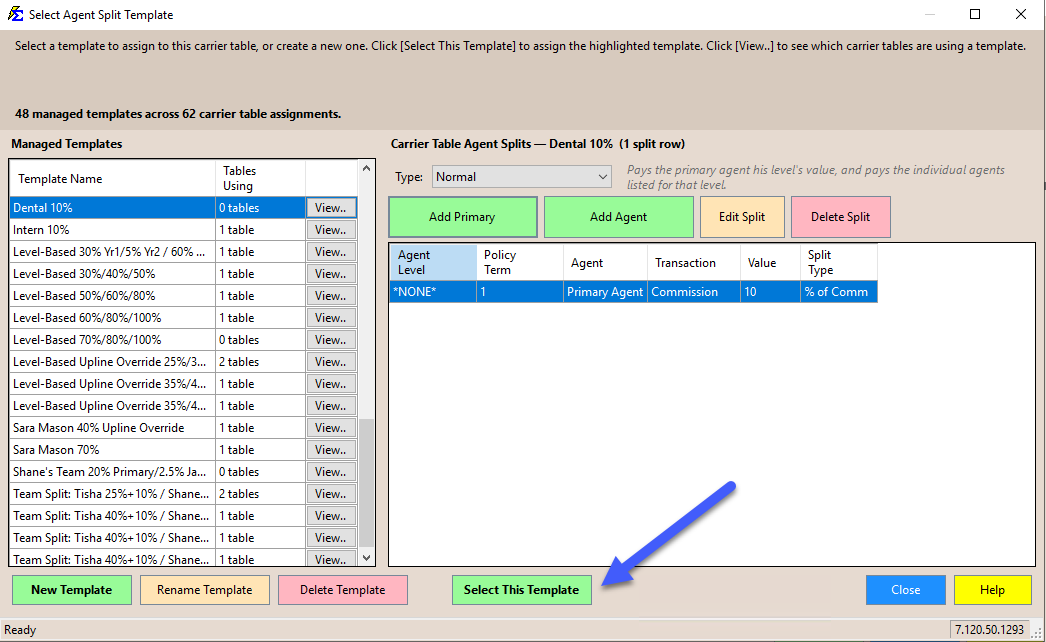
- In the Select Agent Split Template window, click New Template.
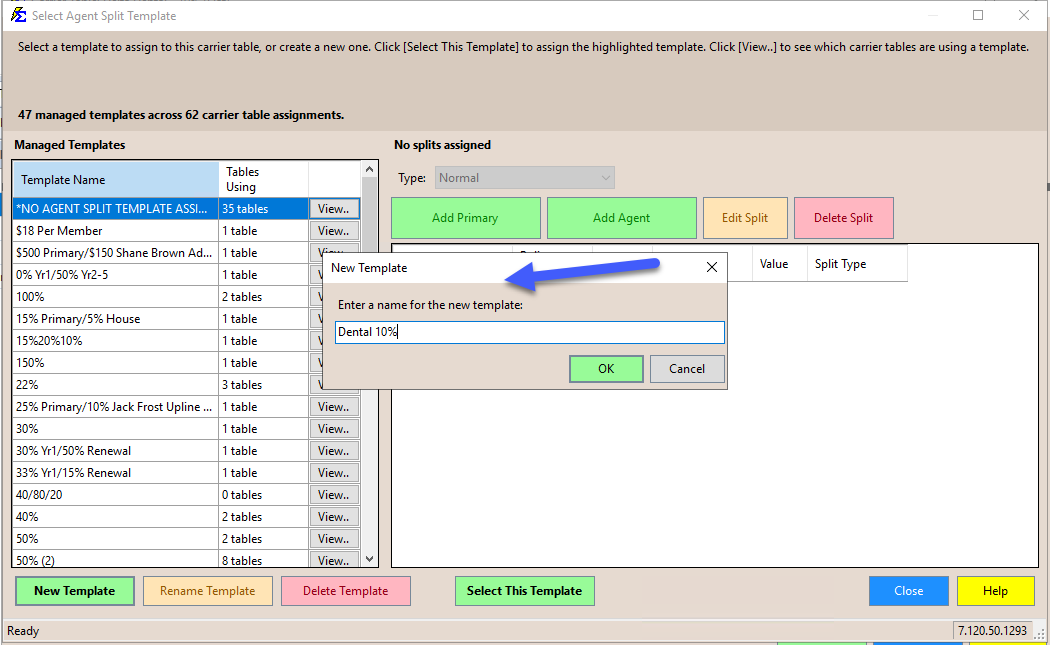
- Enter a name for the template (e.g.
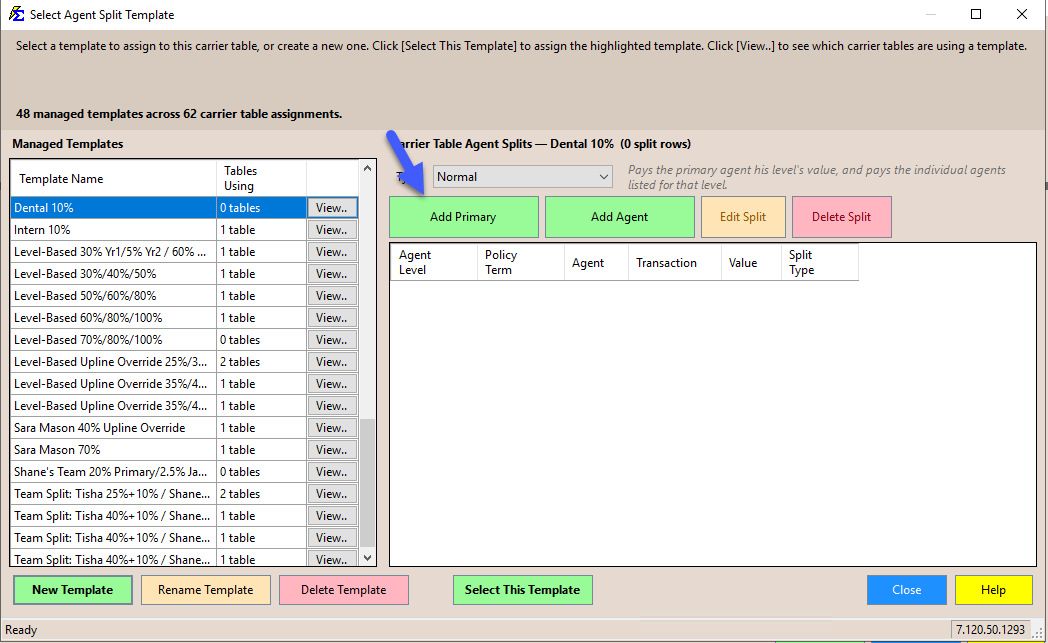
Dental 10%) and click OK. - With the new template selected, click Add Primary and enter 10% as the commission.
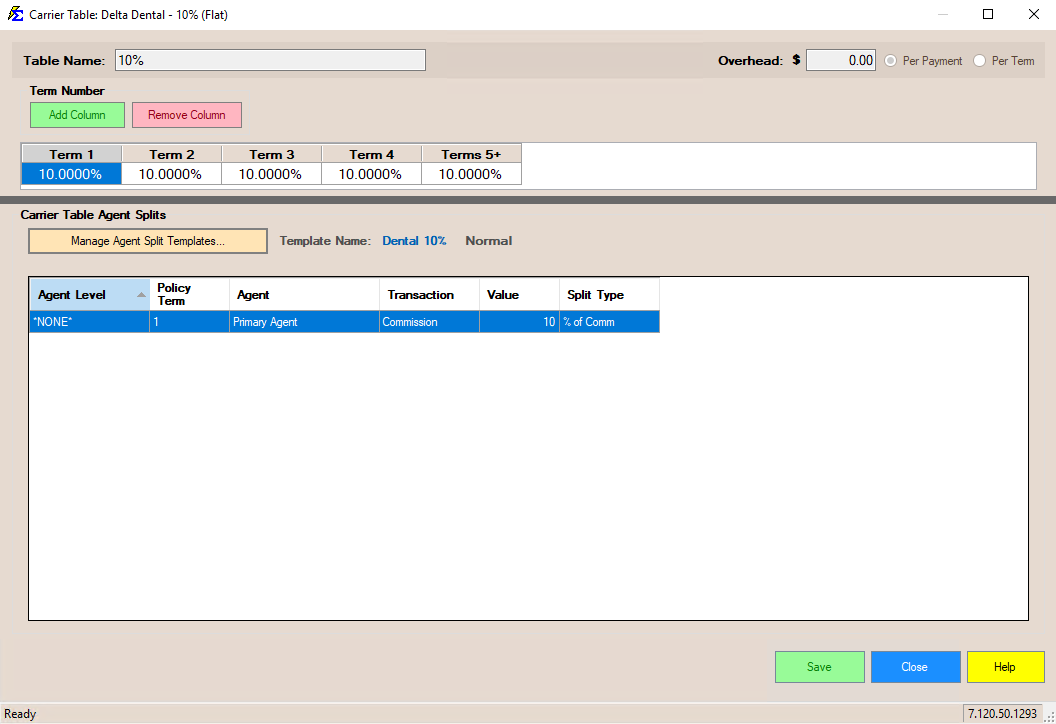
- The split row now confirms the Primary Agent will receive 10%. Click Select This Template to assign the template back to the Carrier Commission Table.
The system internally calculates that 90% remains with The House. You do not need to create a separate entry for The House.
Templates Are Reusable
The template you just created isn't limited to this one Carrier Table — it can be assigned to any other table that should use the same splits. See Agent Split Template Manager for the full reference.
Adding Individual Agent Splits (Overrides)
You can also assign a specific agent to receive a commission on every policy using a specific table, regardless of who the Primary Agent is. This is commonly used for manager overrides or referral fees.
Create the Primary Split First
Always create the Primary Agent split before adding Individual splits.
Example: Adding a Manager Override
If William Tell receives 5% on every Dental policy sold:
- Open Manage Agent Split Templates... and select the template from the example above.
- Click Add Agent.
- Select William Tell from the agent list.
- Set his percentage to 5%.
The Final Calculation:
- Primary Agent: 10%
- William Tell: 5%
- The House: 85% (Automatic)
See Agent Split Template Manager for the full Add Primary / Add Agent reference.
Advanced Term Splits
Commission rates can change over the life of a policy (e.g., paying more in Year 1 than in Year 2). Use the Year field on each split row in the Template Manager to define different splits for different terms within the same template.
Important Logic Rules
The House Rule
If the Primary Agent on a policy is set to The House, then 100% of the commission will stay with the agency, even if you have complex Carrier Table Agent Splits defined. The House selection overrides all other agent split logic.
Hierarchy of Splits
If a policy has a Policy-Specific Split defined, it will override the Carrier Table Split. Use Policy-Specific splits only for exceptions to your standard rules.
🔧 Troubleshooting
Agents are not receiving any commission even though splits are defined on the Carrier Table. Check the Primary Agent field on the policy. If it is set to The House, all commission stays with the agency regardless of the split table configuration.
A newly imported policy is not paying agents correctly. Verify the policy has both a Primary Agent and a Carrier Commission Table assigned. Both are required for the table-level splits to apply automatically.
🔗 Related Topics
- Agent Commission Splits — Overview of all split methods.
- Carrier Table Agent Splits (Using Agent Levels) — Automate splits based on agent rank.
- Carrier Table Agent Splits (Using Agent Uplines) — Configure manager override payouts.
- Policy-Specific Agent Commission Split Table — Override splits for individual policies.
- Agent Split Template Manager — Create reusable split templates.
Need help? Contact support@commission-tracker.com