Flat Carrier Table
The Flat Carrier Table is the most common method for calculating carrier commissions. It allows you to define a set commission percentage based on the age of a policy (the Policy Term).
Instead of building complex formulas, you simply enter your percentages into a grid. This ensures your Expected Commission matches what the carrier is likely to pay as a policy matures.
💡 Why Use This
Use a Flat Carrier Table when:
- Your carrier pays a percentage of premium — Flat tables calculate commission as a percentage of the premium amount.
- Rates differ between new business and renewals — You can set a higher first-term rate and a lower renewal rate in the same table.
- The rate steps down over multiple years — You can define up to 10 distinct term ranges for complex step-down schedules.
🗺️ How to Access
- Click Carriers in the navigator strip and select the carrier.
- Click the Carrier Tables tab.
- Pick Flat in the list beside Create New, then click Create New (newer versions: click Create New, pick Flat in the New Carrier Table window, then click Next).
Basic Term Logic
In a Flat Table, the columns represent the Policy Term #.
- Column 1 — Represents the first year (New Business).
- Column 2+ — Represents renewals.
Scenario: 15% Initial / 5% Renewal
In this example, the carrier pays a higher percentage for the first term and a lower percentage for all subsequent renewals.
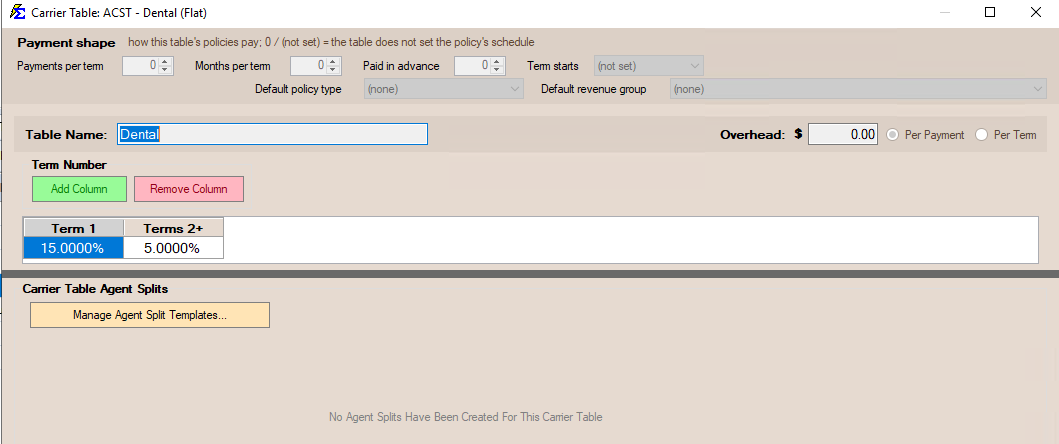
| Policy Term | Actual Premium | Calculation | Expected Commission |
|---|---|---|---|
| Term 1 | $100.00 | $100 x 15% | $15.00 |
| Term 2 | $100.00 | $100 x 5% | $5.00 |
Advanced Term Scaling
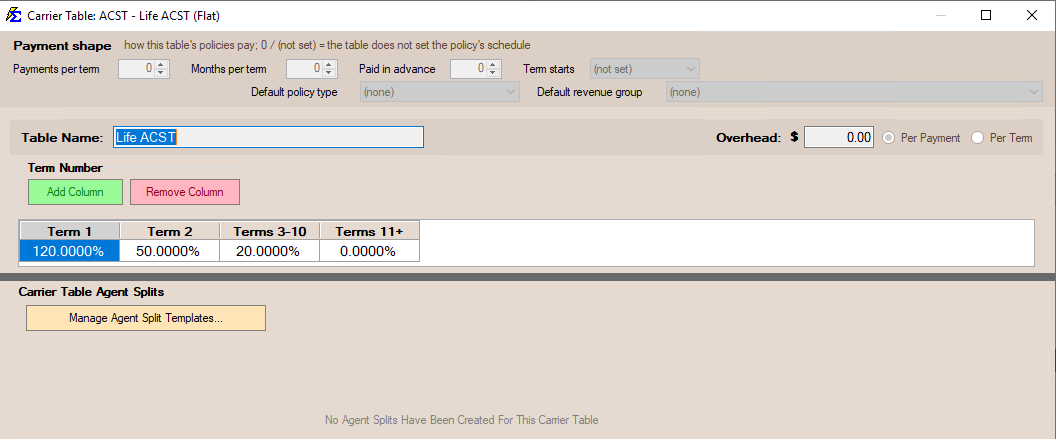
You can define up to 10 distinct term ranges if a carrier uses a more complex "step-down" schedule. If a carrier stops paying commission after a certain number of years, enter 0% for the remaining terms.
Example Setup:
- Term 1 — Pays 120% of premium.
- Term 2 — Pays 50% of premium.
- Terms 3–10 — Pays 20% of premium.
- Terms 11+ — No commission is paid.
Key Benefits
- No Formulas Required — Simply enter the percentage for each term year.
- Automated Transitions — As you Renew Policies and the Term Number increases, Commission Tracker automatically switches to the next column's percentage.
- Precise Projections — Helps you identify underpayments by comparing the Expected Commission from the table against the Actual Commission received.
🔧 Troubleshooting
My commission is calculating at the Year 1 rate for a renewal policy. Check the Term # in the Premium group of the Policy window (see Commission Source and Premium). If the policy was not advanced to Term 2 during the renewal process, the system will continue to use the Column 1 percentage.
The policy has reached Term 11 but I only have 10 columns defined. The system will continue to use the percentage defined in the last available column (Column 10) unless that column is set to 0%.
🔗 Related Topics
- Create Carrier Commission Tables — Overview of all table types.
- Carrier Commission Table Versions — Manage rate changes over time without affecting history.
- Carrier Table Agent Splits — Define how agents are paid from carrier revenue.
- Graded Carrier Table — Tiered percentage tables for accumulated premium thresholds.
Need help? Contact support@commission-tracker.com