User Management
User Management, located under the Tools menu, controls database access and security permissions. Administrators use it to change each user's Commission Tracker password, name and email, restrict what specific actions each user can perform, and see when each user logged in.
Adding a New Person
User Management does not have an Add button. To add a new person, contact support@commission-tracker.com and we will create their login. The new person then appears in the User Management list, where you can set their password and restrictions.
💡 Why Use This
Use this utility when:
- Setting up new team members — After support creates a new person's login, set their password, name and email before they begin using Commission Tracker.
- Restricting access — Limit what users can see or do based on their role (e.g., prevent agents from viewing other agents' earnings or deleting records).
- Former employees — Change the person's password right away, and contact support to remove their login.
- Reviewing session activity — Click Session Logs to see when users were active in the system.
🗺️ How to Access
- Navigate to Tools → User Management.
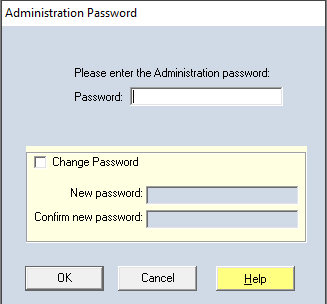
- The Administration Password box opens. Enter the administration password (default:
password) and click OK.
Change the Default Password
To change the administration password, open the Administration Password box, type the current password in Password:, check Change Password, type the new password in New password: and Confirm new password:, and click OK. The new password can contain only letters and numbers. Use a strong password that is not shared outside your administrative team.
Managing Users
User List and Credentials
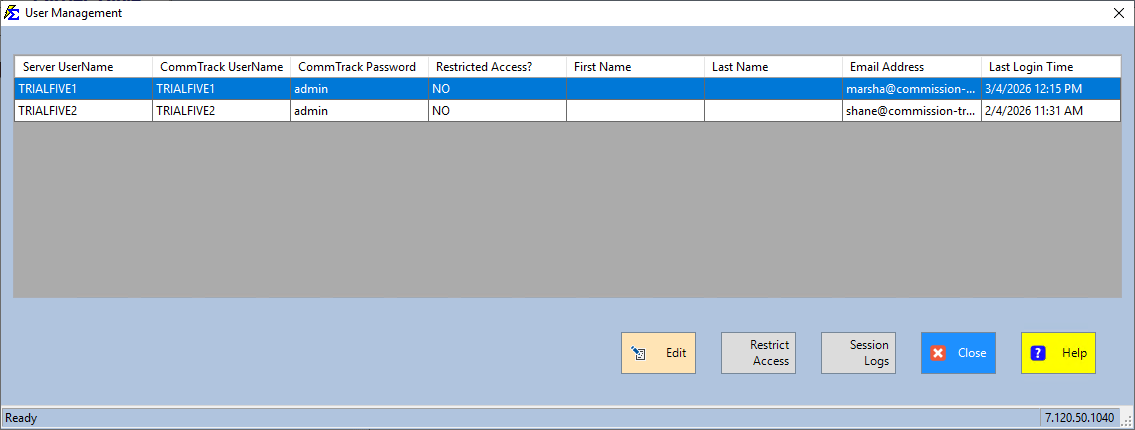
The grid lists every user on your account, one row per login: Server UserName, CommTrack UserName, CommTrack Password, Restricted Access?, First Name, Last Name, Email Address and Last Login Time. From here you can update existing users; to add a new person, contact support.
- CommTrack UserName and CommTrack Password — Each person's Commission Tracker login. You can change the password; the user name cannot be changed here.
- Email Address — Each user must have an email address. It is required at login: if it is blank here, the user must type it on the login screen before they can log in.
- First Name and Last Name — Each user must have their first and last name. These are also required at login every time they access the software.
Adding and Editing Users
- Adding a user — There is no Add button. Contact support@commission-tracker.com and we will create the new person's login.
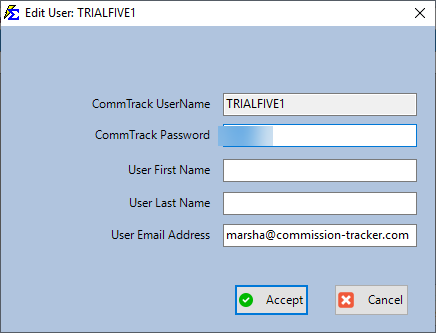
- Editing a user — Select the user and click Edit (or double-click the row). The Edit User window shows CommTrack UserName, CommTrack Password, User First Name, User Last Name and User Email Address. Make your changes and click Accept. The CommTrack UserName cannot be changed here.
Permissions and Security
Permission Toggles
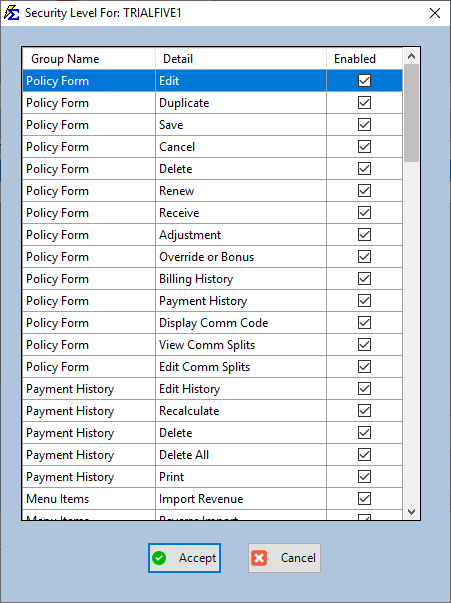
Select the user and click Restrict Access. The Security Level For: window lists each action by Group Name and Detail. Uncheck Enabled on a row to block that action for this user, then click Accept. A user with any action blocked shows YES in the Restricted Access? column. Common restrictions include:
- Delete permissions — Prevent accidental or unauthorized deletion of policies or payments (the Delete rows under Policy Form, Payment History, Agents, Carriers and Clients).
- Reporting access — Restrict access to sensitive financial or agent-specific reports (the Reports rows).
- Administrative tools — Limit who can reverse statements and edit revenue groups and policy types (the Menu Items rows), and who can create, edit or delete Carrier Commission Tables (the Carriers rows).
Session Log
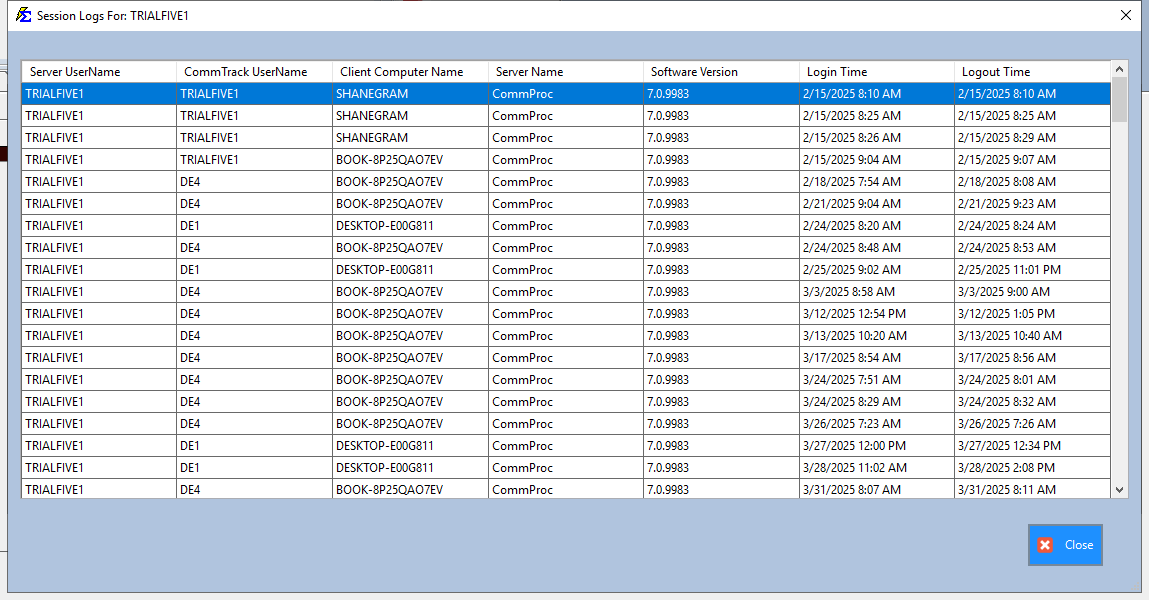
Select the user and click Session Logs. The log records:
- Which user was logged in to the software (Server UserName and CommTrack UserName).
- When they logged in and when they logged out (Login Time and Logout Time).
- The Client Computer Name, Server Name and Software Version of each session, for audit purposes.
🔧 Troubleshooting
A former employee's account is still showing as active. User Management cannot remove or disable a login. Open User Management, select the user, click Edit, change the CommTrack Password, and click Accept so the old password no longer works. Then contact support@commission-tracker.com to remove the login. Click Session Logs to check for recent logins.
I need to add a new person. There is no Add button in User Management. Contact support@commission-tracker.com and we will create the new person's login.
I forgot the administration password (the Tools password).
Contact support@commission-tracker.com for assistance resetting the administration password. Do not share the default password (password) with general users — it should be changed immediately on first use.
A user cannot access a report or function they need. Select that user in User Management and click Restrict Access. The relevant row may be unchecked. Check Enabled on that row and click Accept.
🔗 Related Topics
- Tools Menu — Overview of all Tools Menu functions.
- Deleted Policy Log — Audit who deleted policy records.
Need help? Contact support@commission-tracker.com