Create New Policy
The Policy record is the heart of Commission Tracker. It connects the Client to the Carrier and defines exactly how commissions are calculated and split.
💡 Why Use This
Every commission payout requires a policy record. Create a policy when:
- Adding new coverage for a client — The policy record links the client to their carrier and drives all commission calculations.
- Tracking expected revenue — The policy defines the commission math, enabling the system to identify underpayments or missing payments.
- Splitting commissions between agents — Agent assignments and splits are configured at the policy level.
Prerequisites
Before creating a new policy, ensure the following records already exist in your system:
- Agents — To define who receives the commission split.
- Carriers — To define who is providing the coverage.
- Carrier Commission Tables — (Optional) To automate the "Expected" commission math.
- Policy Types — To categorize the product (e.g., Dental, Vision).
- Client — The individual or group purchasing the coverage.
🗺️ How to Access
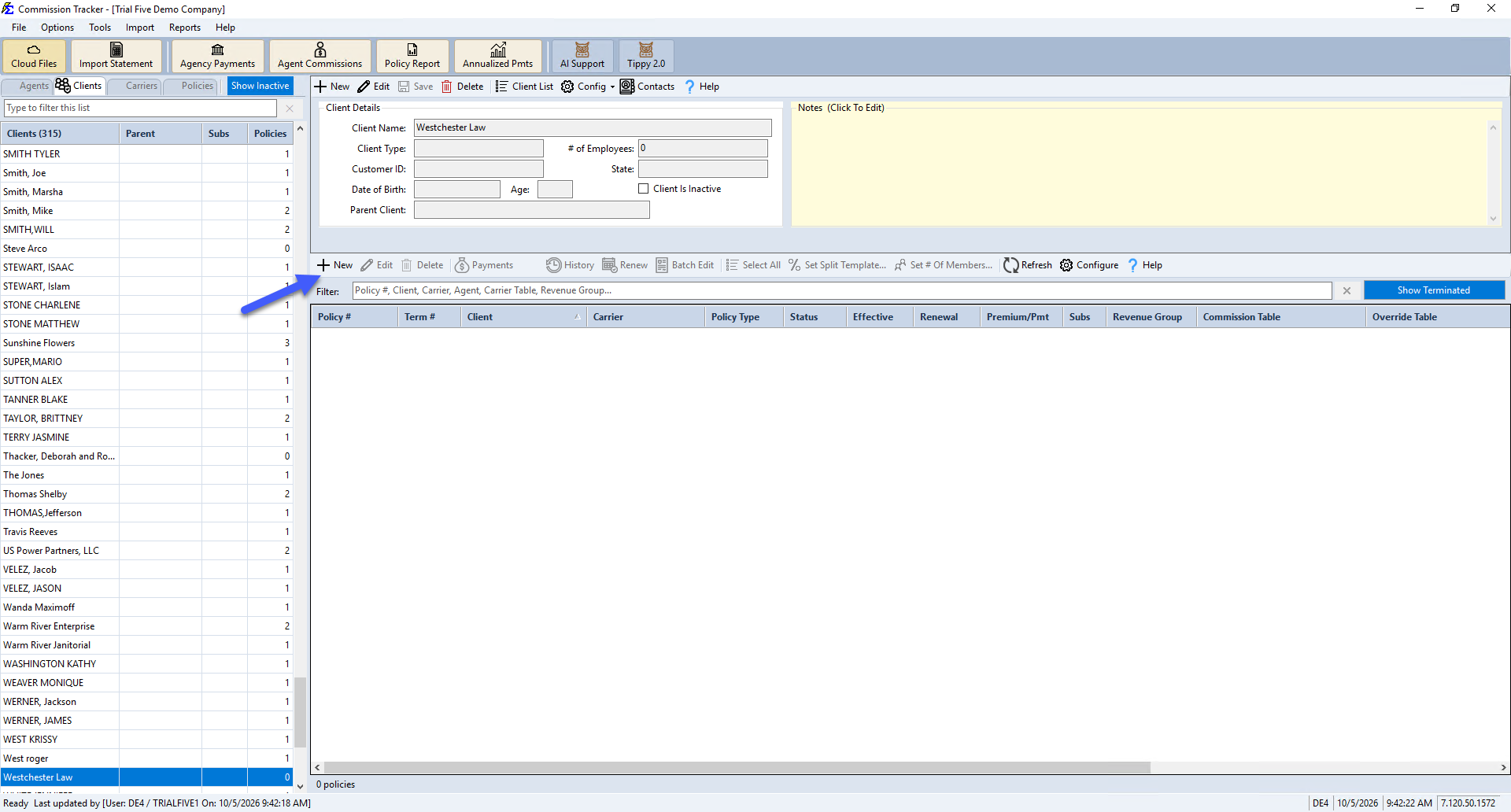
A policy must be attached to a client. To begin:
- Click Clients at the top-left of the Policy List screen and select the Client.
- In the policy grid beside the client's details, click New.
Essential Setup Sections
The Policy window is divided into four groups, with the TERMS band across the top and the AGENT SPLITS band across the bottom. Fill in all four groups to ensure accurate revenue tracking:
1. Policy and Dates & Billing
The Policy group holds the policy's identity: Policy #, Client, Carrier, Policy Type, Primary Agent, Revenue Group, and Carrier Agent ID. The Dates & Billing group holds the Policy Origination Date, Term Effective Date, Months In Term, Renewal date, Pay Agents setting, and Status (this term). See Policy Information.
2. Commission Source and Premium
The Commission Source group defines the "Math Engine" for the policy. Here you link a Carrier Commission Table or enter a manual Commission Per Payment to define what the agency expects to earn. The Premium group holds the premium and the payment schedule. See Commission Source and Premium.
3. Agent Splits
The AGENT SPLITS band at the bottom of the window shows how the commission is split between agents. Click Edit Splits to change it. See Agent Commission Splits.
Additional Features
- Duplicate Policy Numbers — Learn how the system handles identical policy numbers across different carriers or clients.
- Auto Receive Payments — Speed up your workflow by setting the system to automatically post payments for consistent, flat-rate accounts.
- Policy Examples — View step-by-step configurations for common policy types like Life, Group Health, and Medicare.
🔧 Troubleshooting
My "Expected" commission is showing as zero. Check the Commission Source group. If no carrier table is selected beside Carrier Table: and the Expected Commission amount is $0, the system has no math to perform. Either assign a carrier commission table or select Expected Commission and enter a manual amount.
I need to change the agent on a policy after it has been created. Open the policy and click Edit Splits in the AGENT SPLITS band. You can update the agent splits at any time. Changes apply to future payments unless you perform a historical recalculation.
🔗 Related Topics
- Policy Information — The Policy and Dates & Billing groups.
- Commission Source and Premium — Configure the commission math engine.
- Carrier Table Agent Splits — Define how agents are paid from carrier revenue.
- Policy Example 1 — See a step-by-step policy configuration walkthrough.
Need help? Contact support@commission-tracker.com