Windows Connection Instructions
Connecting to Commission Tracker Cloud is a two-step authentication process. First, you establish a secure connection to the Cloud Server; second, you log in to the Commission Tracker software itself.
Video Tutorial
If the video below does not play, please copy and paste this link into your web browser: https://youtu.be/xyAmFvWrlac
Step 1: Connecting to the Cloud Server
1. Launch the Connection
Locate the RDP icon sent in your Welcome Email and save it to your Windows Desktop. Double-click the icon to begin.

2. Verify the Publisher
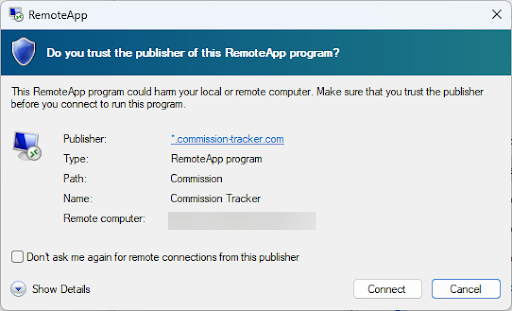
A security prompt may appear.
-
Safe Connection: If the publisher is listed as ".commission-tracker.com", you have the latest file. Check "Don't ask me again" and click Connect.
-
Legacy Connection: If the publisher is "Unknown," you are using an expired file. Click Connect; you will be prompted to enter your email later so we can send you the updated
_v2version.
New Windows Security Prompt (April 2026)
A Microsoft Windows update released April 14, 2026 added an extra security prompt that asks you to check boxes for the resources (like Clipboard and Printers) you want to share with the remote session. If you see this after clicking Connect, see Windows April 2026 Update – RDP Connection Changes for a full walkthrough. This only affects Windows users whose machines installed that update — if you don't see it, no action is needed.
3. Enter Cloud Credentials
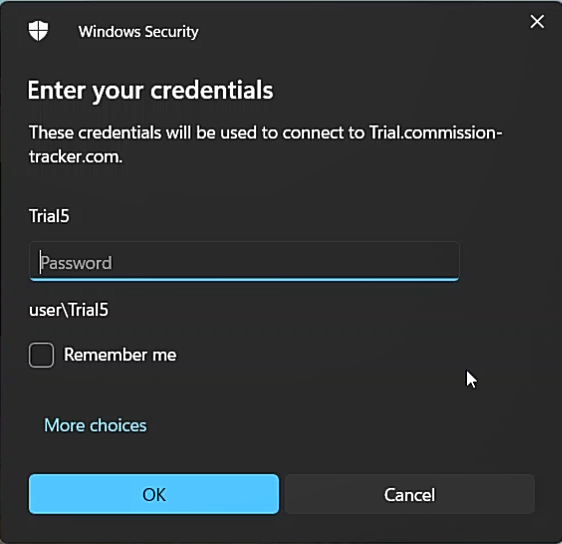
On the Windows Security screen, enter the password provided in "Step 1" of your Welcome Email.
-
The Username is pre-filled.
-
Check "Remember me" to skip this step in the future.
-
Click OK.
Step 2: Logging into Commission Tracker
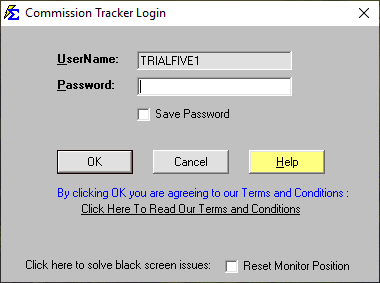
Once the server connection is established, the Commission Tracker login window will appear automatically.
1. Enter Software Credentials
Refer to "Step 2" of your Welcome Email for these credentials.
-
Default Password:
admin -
Check "Save Password" for faster access next time.
2. Finalize Setup
Click OK to launch the software.
Change Your Password
We highly recommend changing your default password immediately by navigating to User Management.
Updating Your Connection File
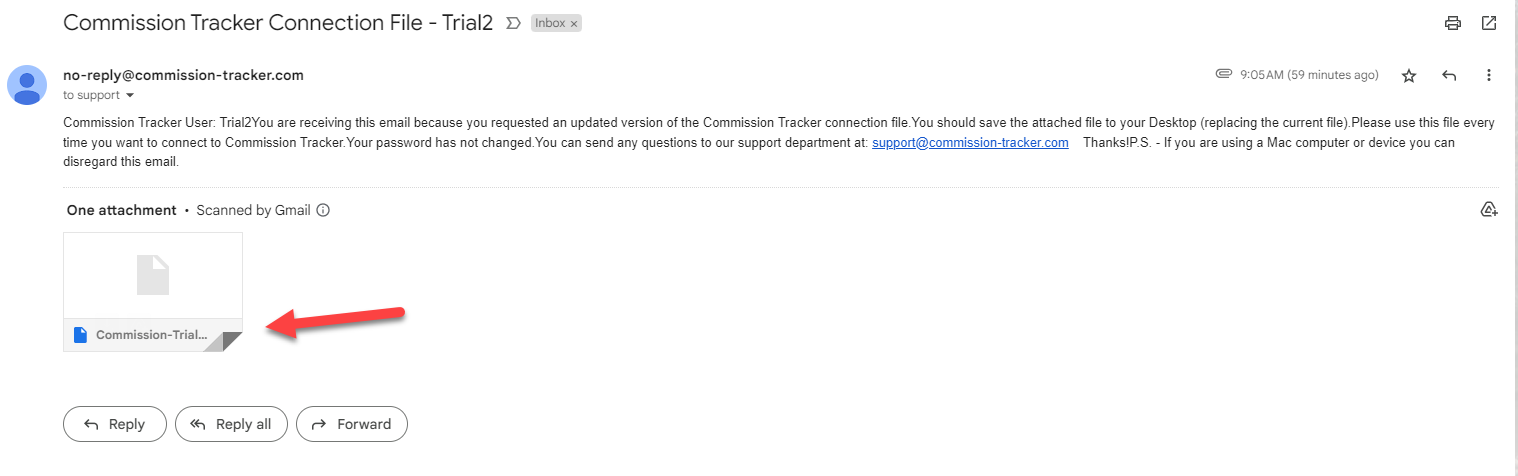
If your connection was flagged as "Unknown," a screen will appear asking for your email address. Enter it here to receive the updated 2025 RDP file.
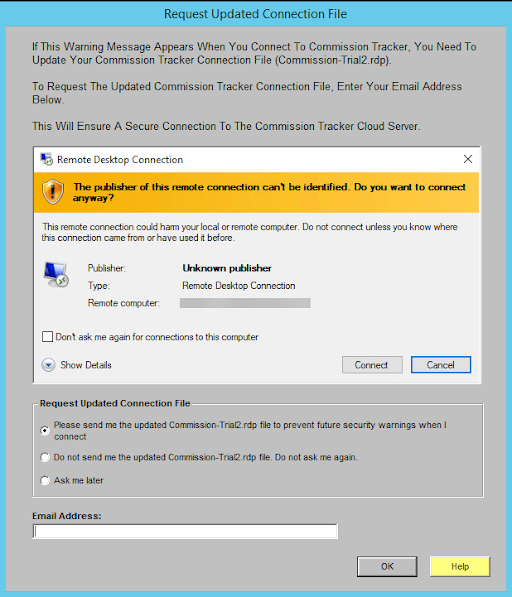
Once you receive the email, download the new file and replace the old icon on your desktop.
🔗 Related Topics
- Windows April 2026 Update – RDP Connection Changes — Details on the new security prompt and which boxes to check.
- Connection Issues — Troubleshooting steps for login errors, lag, or disconnected sessions.
- Mac Connection Instructions — Setup guide for macOS users.
- Connection File Update — Instructions for replacing your RDP shortcut file.
- Connecting To Commission Tracker Cloud — Overview of cloud access and resources.
Need help? Contact support@commission-tracker.com