Carrier Commission Table Versions
Carrier Commission Table Versions allow you to manage rate updates from insurance providers without affecting historical data. This feature ensures that payments received prior to a rate change remain accurate, while new payments or policies automatically adopt the updated commission schedule.
💡 Why Use This
Use versioning when:
- A carrier changes their commission rate — Never edit a table that has already been used to post payments. Creating a version preserves your historical financial records while applying the new rate going forward.
- New business gets a different rate than existing policies — Effective Date versioning applies the new rate only to policies that start on or after the specified date.
- A global rate change affects all active clients — Billing Month versioning switches every active policy to the new rate from a specific month forward.
🗺️ How to Access
- Navigate to the Carrier Table you wish to update.
- Click the Create A New Version button.
Types of Versioning Logic
When creating a new version, you must decide how the system should trigger the switch to the new rates:
| Date Type | Logic Application | Best Used For |
|---|---|---|
| Billing Month | Applies the new rate to all payments for a specific month and forward, regardless of when the policy was written. | Global rate increases or decreases that affect every active client simultaneously. |
| Effective Date | Applies the new rate only to new or renewing policies that start on or after the specified date. | Changes to new business commission or renewals where older "legacy" policies are grandfathered in. |
Billing Month Clarification
The Billing Month refers to the month the carrier is paying you for, not necessarily the date you physically receive the statement.
Step-by-Step: Creating a New Version
- Navigate to the Carrier Table you wish to update.
- Click the Create A New Version button.
- In the popup window, define the Start Date and the Date Type (Billing Month or Effective Date).
- Update the commission percentages or tiers in the newly created version.
- Click Save.
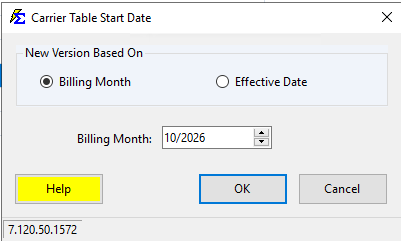
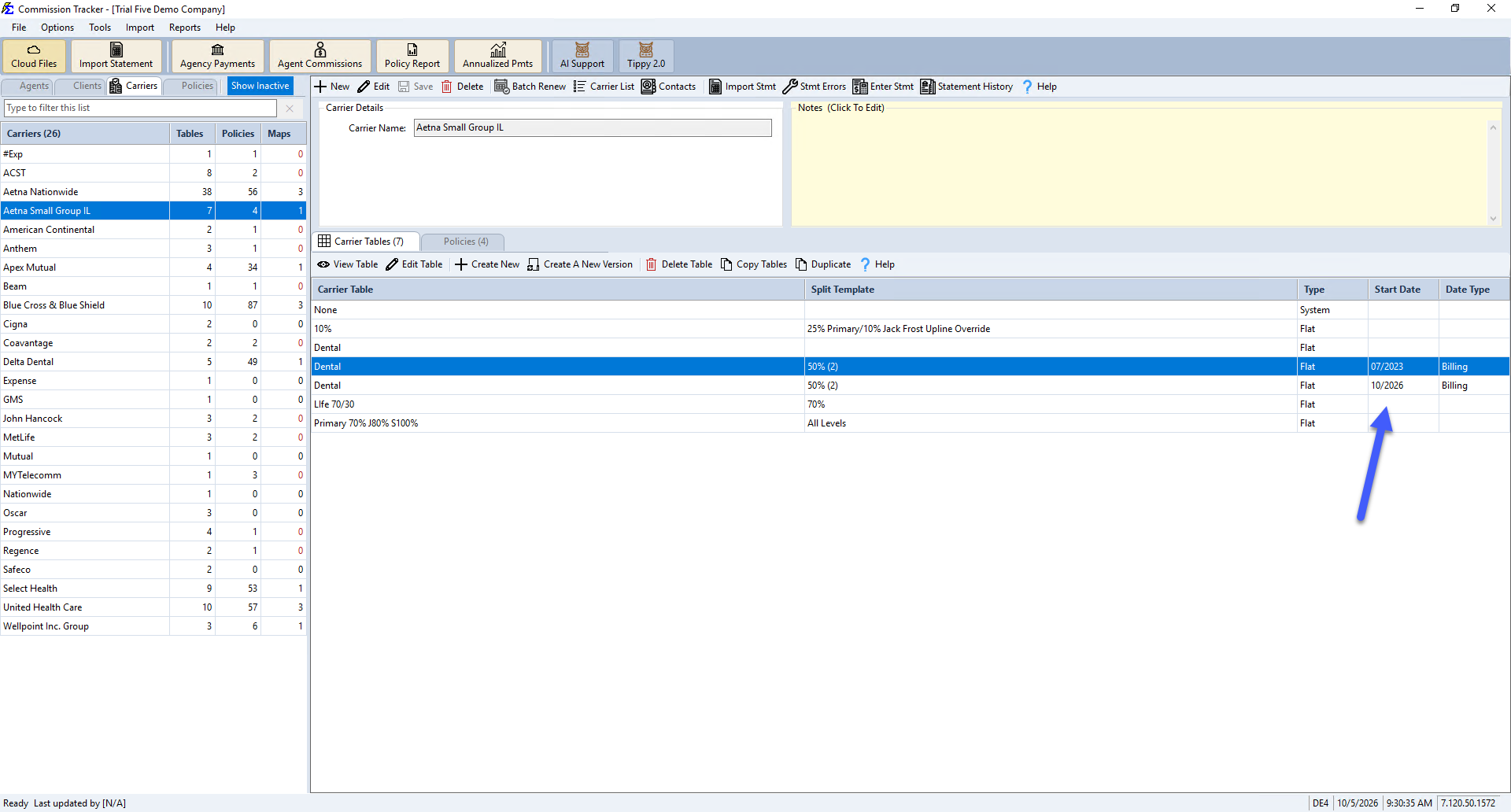
Example: Aetna Small Group Rate Increase
In this scenario, Aetna Small Group IL updated their Dental rate from 9% to 10% effective for all February 2025 billing.
- Action — Highlight the existing Dental table and create a new version.
- Settings — Set the Start Date to
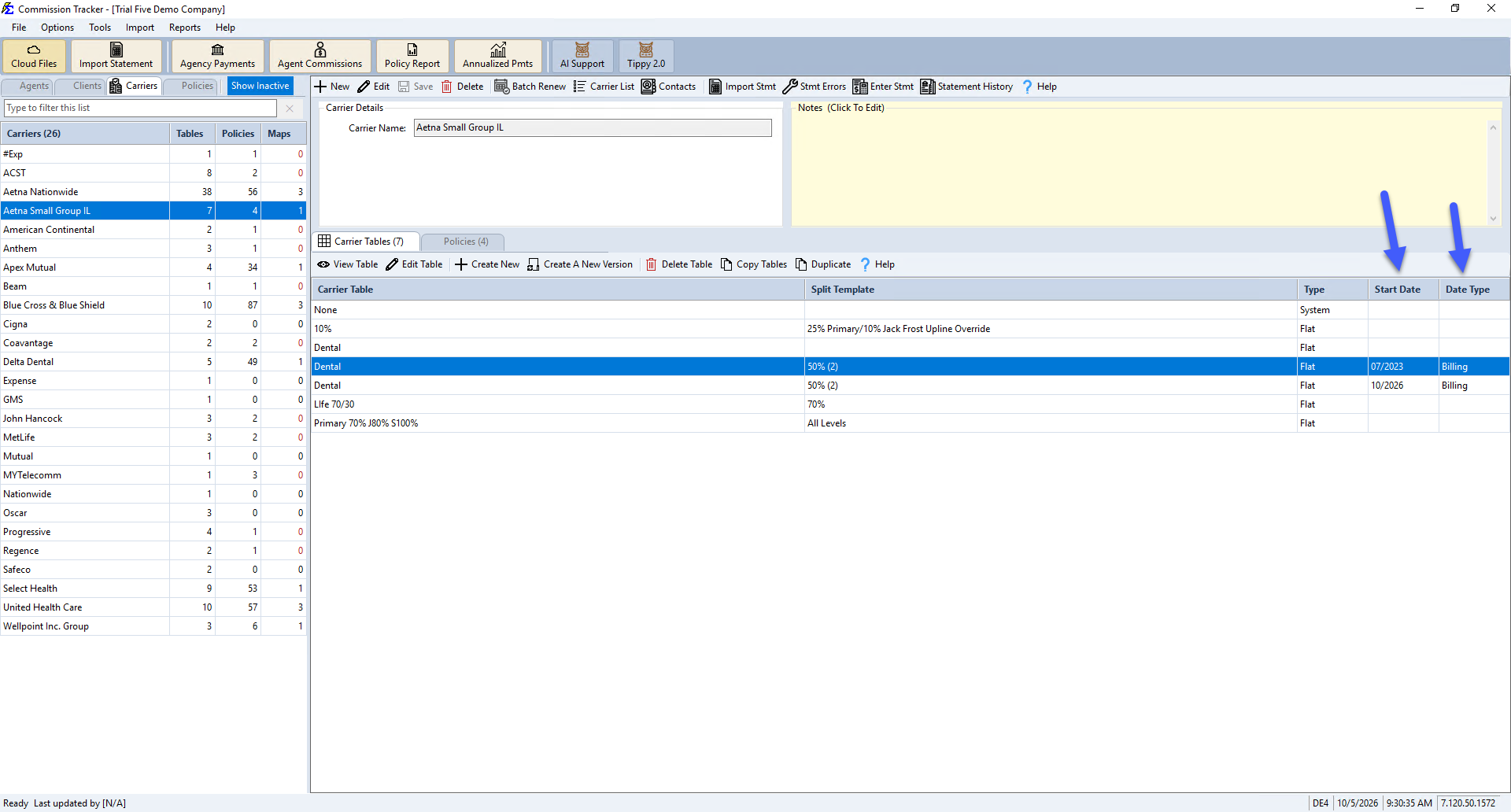
02/01/2025and the Type to Billing Month. - Result — Two "Dental" tables will now appear in your list. The software automatically uses the 9% version for any payments through January 2025 and the 10% version for anything February 2025 or later.
🔧 Troubleshooting
I created a version with the wrong date. You can edit the Start Date and Type on the table properties. Ensure no payments have been posted using the incorrect logic yet, as this could cause reconciliation discrepancies.
I'm not sure if I need to update my policies to point to the new version. No policy updates are needed. The software automatically looks at the name of the table assigned to each policy and checks the versioning logic to determine which rate to apply at the time of payment.
🔗 Related Topics
- Create Carrier Commission Tables — Overview of all table types.
- Flat Carrier Table — Percentage-based commission tables.
- Graded Carrier Table — Tiered percentage commission tables.
- Carrier Table Agent Splits — Define how agents are paid from carrier revenue.
Need help? Contact support@commission-tracker.com