Pay Per Subscriber (PPS)
A Pay Per Subscriber carrier table is used when your commission is based on the number of individuals (subscribers or members) covered by a group policy rather than a percentage of premium.
The system uses the # of Subscribers (members) field on the Policy screen to calculate the total expected revenue for each billing period.
💡 Why Use This
Use a Pay Per Subscriber table when:
- Your carrier pays per head — Commission is calculated on the number of members, not a percentage of premium.
- Group sizes fluctuate monthly — The dynamic option allows the subscriber count to be pulled from each carrier statement automatically.
- Your contract uses tiered PPS rates — The system applies bracket logic so the rate per member decreases as the group grows.
🗺️ How to Access
- Open the Carrier record.
- Click the Carrier Tables tab.
- Pick PPS in the list beside Create New, then click Create New (newer versions: click Create New, pick Pay Per Subscriber in the New Carrier Table window, then click Next).
Tiered Calculation Example
The system uses a "bracket" logic to calculate totals. This allows you to handle contracts where the rate per head decreases as the group size increases.
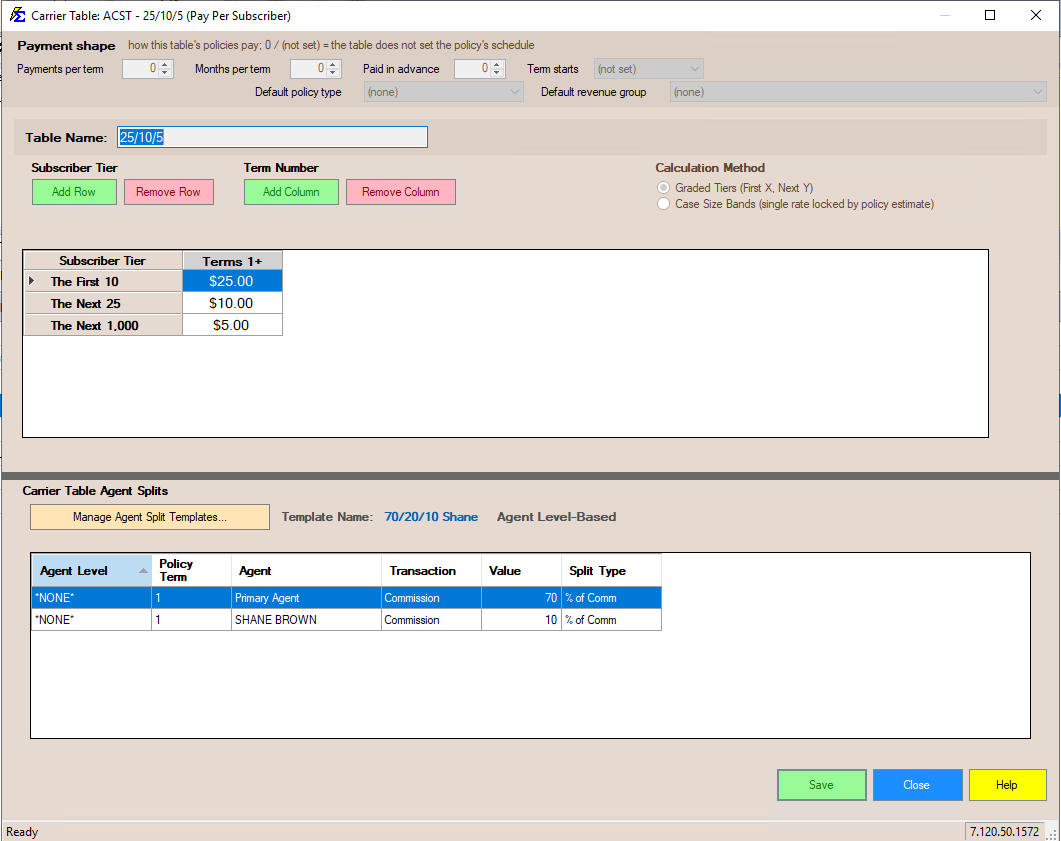
Carrier Table: 25/10/5 Calculation
| Tier Category | # of Subscribers | Rate per Member | Subtotal |
|---|---|---|---|
| The First | 10 | $25.00 | $250.00 |
| The Next | 25 | $10.00 | $250.00 |
| The Next | 15 | $5.00 | $75.00 |
Example Calculation (50 Total Subscribers)
- Tier 1: 10 × $25.00 = $250.00
- Tier 2: 25 × $10.00 = $250.00
- Tier 3: 15 × $5.00 = $75.00
- Total Monthly Commission: $575.00
Logic Configuration
The Carrier Table screen offers two calculation method options. These are fundamentally different ways of applying your tier rates — not just a choice of where to read the subscriber count from.
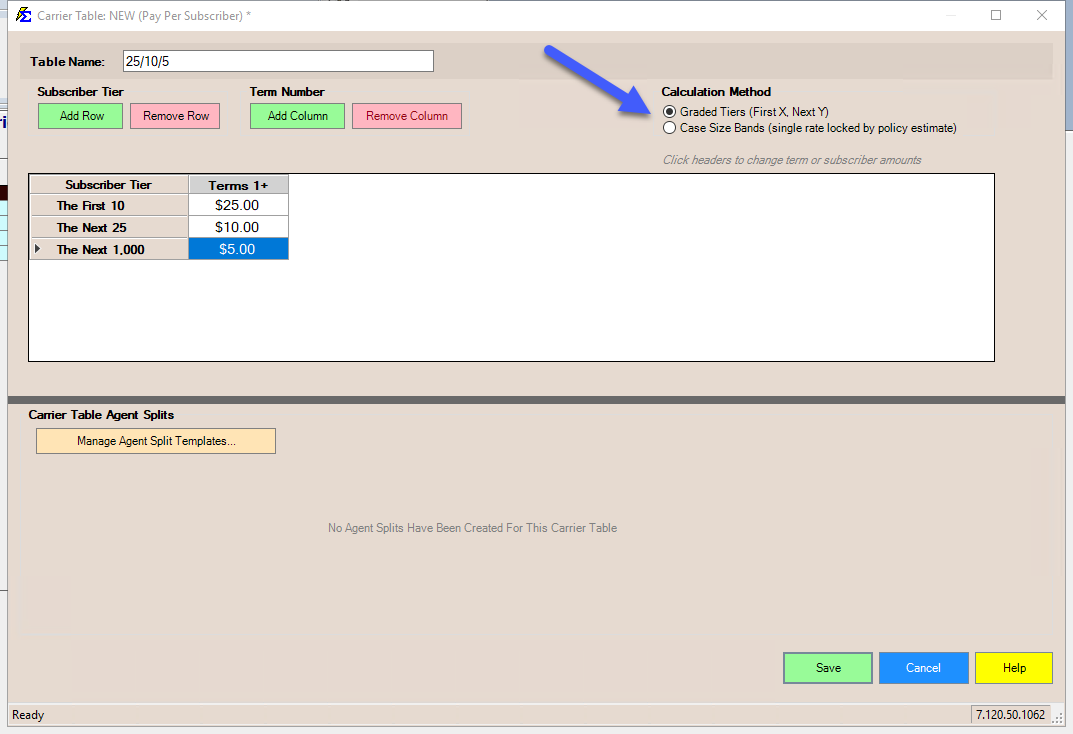
Graded Tiers
Subscribers fill the rate tiers sequentially, the same way the bracket example above works. The first N subscribers are paid at Tier 1, the next N at Tier 2, and so on until all subscribers are accounted for.
Use this when your contract pays a higher per-head rate for the first few members and a lower rate for additional members.
Case Size Bands
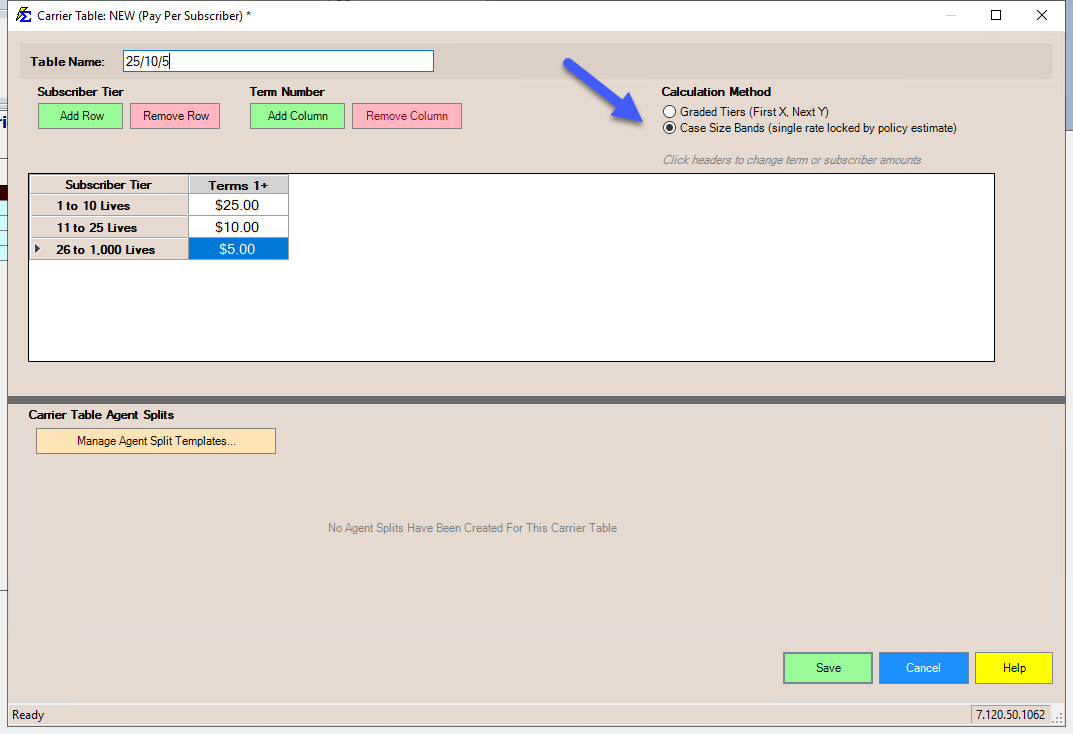
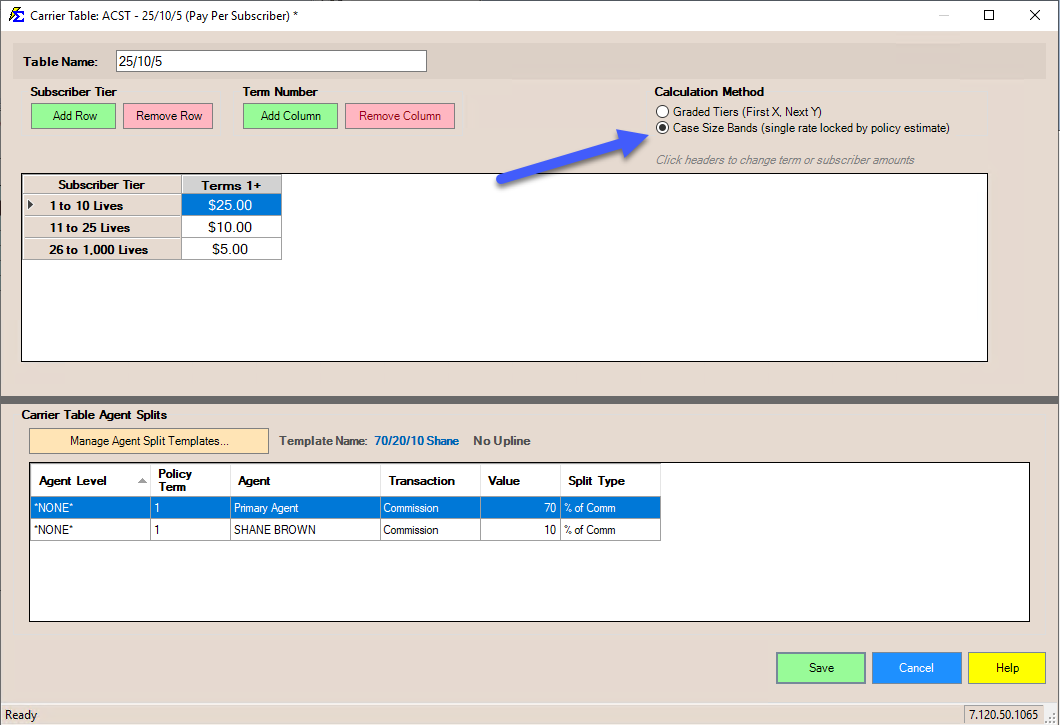
The total subscriber count determines which single rate band the entire group falls into. That one rate applies to all subscribers — not just the ones in that tier.
Use this when your carrier pays a flat per-head rate based on group size category (e.g., groups of 1–10 get $25/member, groups of 11–25 get $20/member for all members).
Side-by-Side Example
Using the same 25/10/5 carrier table and 50 total subscribers, the two modes produce very different results:
| Graded Tiers | Case Size Bands | |
|---|---|---|
| How it works | Subscribers fill each tier in order | Total count places the group in one band; that rate applies to all members |
| Calculation | 10 × $25 + 25 × $10 + 15 × $5 | 50 members falls in the $5 band → 50 × $5 |
| Total Commission | $575.00 | $250.00 |
The same 50 subscribers produces a $325 difference depending on which mode is configured.
Same Count, Different Result
These two modes can produce significantly different commission amounts from the same subscriber count. Confirm with your carrier contract which method applies before configuring the table.
Best Practices
- Term Logic — Set rates for Term 1 and Term 2+. Carriers often pay a higher PPS rate for the first year of a new group.
- Verify Imports — If using the Graded Tiers option, ensure your Data Map includes a column for the number of members/subscribers.
- Zero-Member Groups — If a statement shows 0 members, the system will calculate $0 commission, even if the policy screen shows a higher number (when the dynamic option is active).
🔧 Troubleshooting
The system is calculating $0 commission even though members are enrolled. Verify the subscriber count is populated — either on the Policy screen or in your import file depending on how the count is being sourced. If the count reads as 0, the system will calculate $0 regardless of which logic mode is active.
Commission is not changing when the group size changes. If the Carrier Table is set to Case Size Bands, the commission rate only changes when the total subscriber count crosses into a different band. Small fluctuations within the same band will not change the rate. Switch to Graded Tiers if you need the calculation to respond proportionally to every change in count.
I'm getting a different commission total than I expected. Confirm which logic mode (Graded Tiers vs Case Size Bands) is configured on the Carrier Table, then verify it matches your carrier contract. The two modes can produce significantly different results from the same subscriber count.
🔗 Related Topics
- Create Carrier Commission Tables — Overview of all table types.
- Flat Carrier Table — Percentage-based commission tables.
- Carrier Commission Table Versions — Manage rate changes over time without affecting history.
- Import Carrier Statements (Excel Statements) — Import commission files with subscriber counts.
Need help? Contact support@commission-tracker.com