Carrier List Report
The Carrier List Report serves as a master directory of all insurance providers configured in your system. Use it to audit carrier contact information, verify website portal URLs, and ensure your carrier database is organized and up to date.
💡 Why Use This
Use this report when:
- Auditing carrier data — Review addresses, phone numbers, and website links for all carriers in one view.
- Updating portal references — Quickly verify the login URLs stored for each carrier's commission portal.
- Cleaning up the database — Identify duplicate carrier entries or records with missing contact information.
- Exporting directories — Create a PDF or flat file of your carrier partners for internal agency use.
🗺️ How to Access
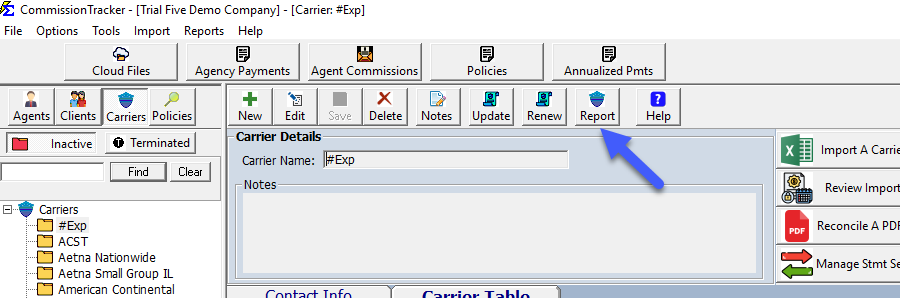
- Navigate to the Carrier screen from the main menu.
- Click the Report or Print icon in the carrier toolbar.
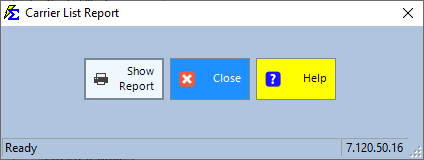
- On the selection screen, choose to run the report for all carriers or filter for specific providers.
- Click View Report.
Interacting with the Report
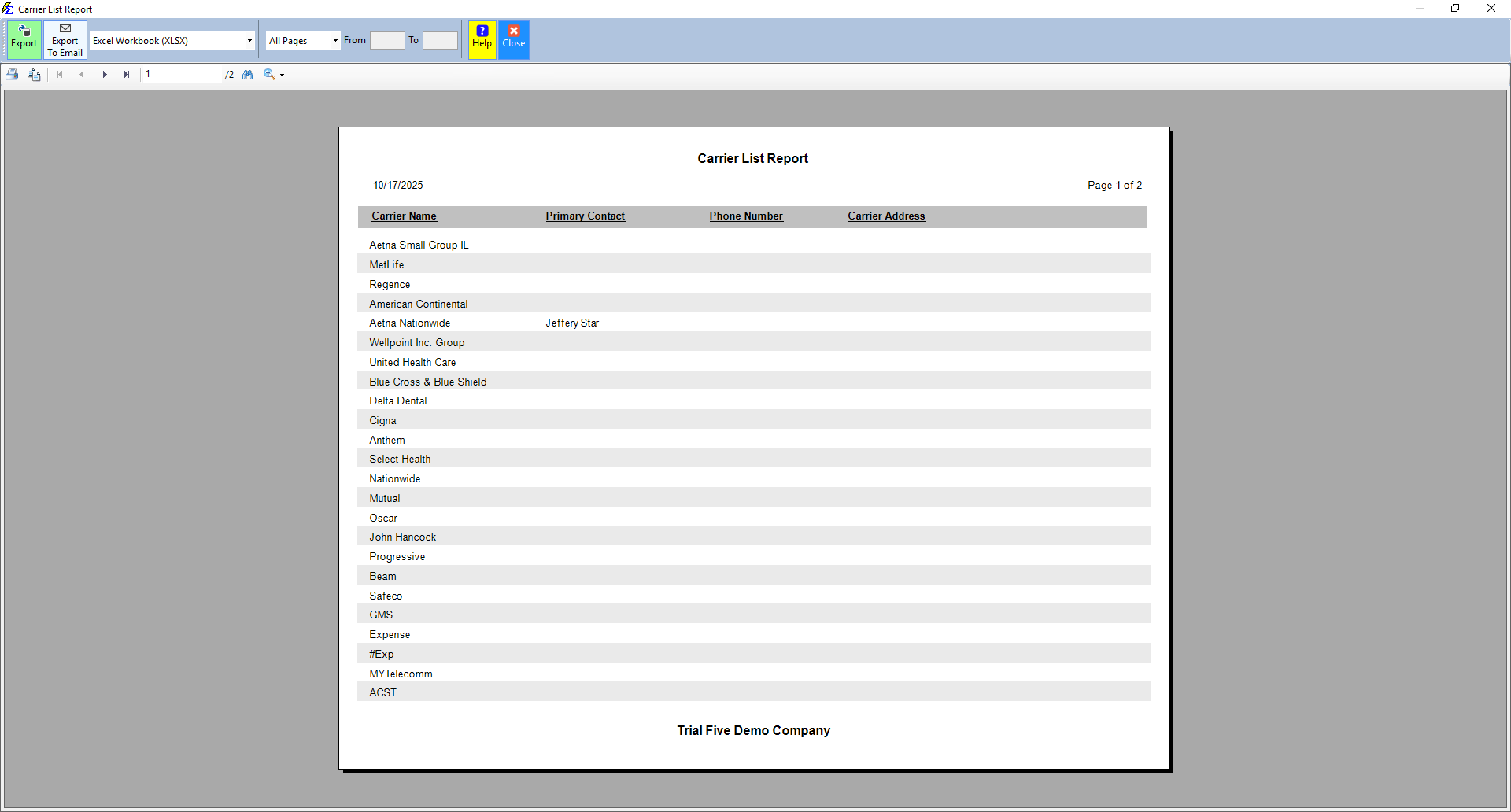
Once generated, the report displays an interactive grid of your carrier data.
- Sorting — Click any column header (e.g., Carrier Name, City, State) to sort the list alphabetically or geographically.
Exporting the Report
- PDF Export — Produces a formatted document including all visible columns and headers, suitable for printing in an agency handbook.
- Excel Export — Generates a clean data grid without headers, making it easy to sort, filter, or mail-merge carrier data in a spreadsheet.
🔧 Troubleshooting
A carrier is missing from the list. Confirm the carrier has been saved correctly on the Carrier screen. If you have applied a filter (such as a specific State), verify that the missing carrier has that field populated. Carriers without matching filter values will be excluded.
I need to see which policies are tied to these carriers. This report shows carrier contact information only. To see policies grouped by carrier, use the Book of Business report with the Carrier grouping option.
A carrier's contact information is outdated. Navigate to the Carrier screen, open the carrier record, and update the relevant fields. The Carrier List Report will reflect the changes the next time it is run.
🔗 Related Topics
- Book of Business — Policies grouped by carrier, including premium and commission totals.
- Commissions by Carrier — 12-month revenue breakdown by carrier.
- Carrier Commission Tables — Manage commission rates for each carrier.
Need help? Contact support@commission-tracker.com