Reconcile Carrier Statement (PDF Statements)
The Reconcile Carrier Statement tool is a high-speed alternative to manual payment entry for carriers that provide PDF or paper statements instead of Excel or CSV files. It displays all outstanding expected commissions for a carrier so you can quickly check off and verify each payment against the statement.
Try PDFx First
Before using Reconcile, try converting your PDF statement to Excel with the PDFx converter and importing it via Import Carrier Statements instead. It's faster for most statements — reserve Reconcile Carrier Statement for small PDFs where PDFx conversion isn't practical.
💡 Why Use This
Use Reconcile Carrier Statement when:
- Your carrier only provides a PDF or paper statement — You can't use Import Carrier Statements, but Reconcile lets you enter the whole statement on one screen.
- You want to verify totals before posting — Enter the carrier's statement totals at the bottom of the screen to confirm your entries match before writing payments.
- Speed is a priority — The keyboard-driven workflow lets you process an entire statement without using the mouse.
🗺️ How to Access
- Click Carriers in the navigator strip and select the carrier.
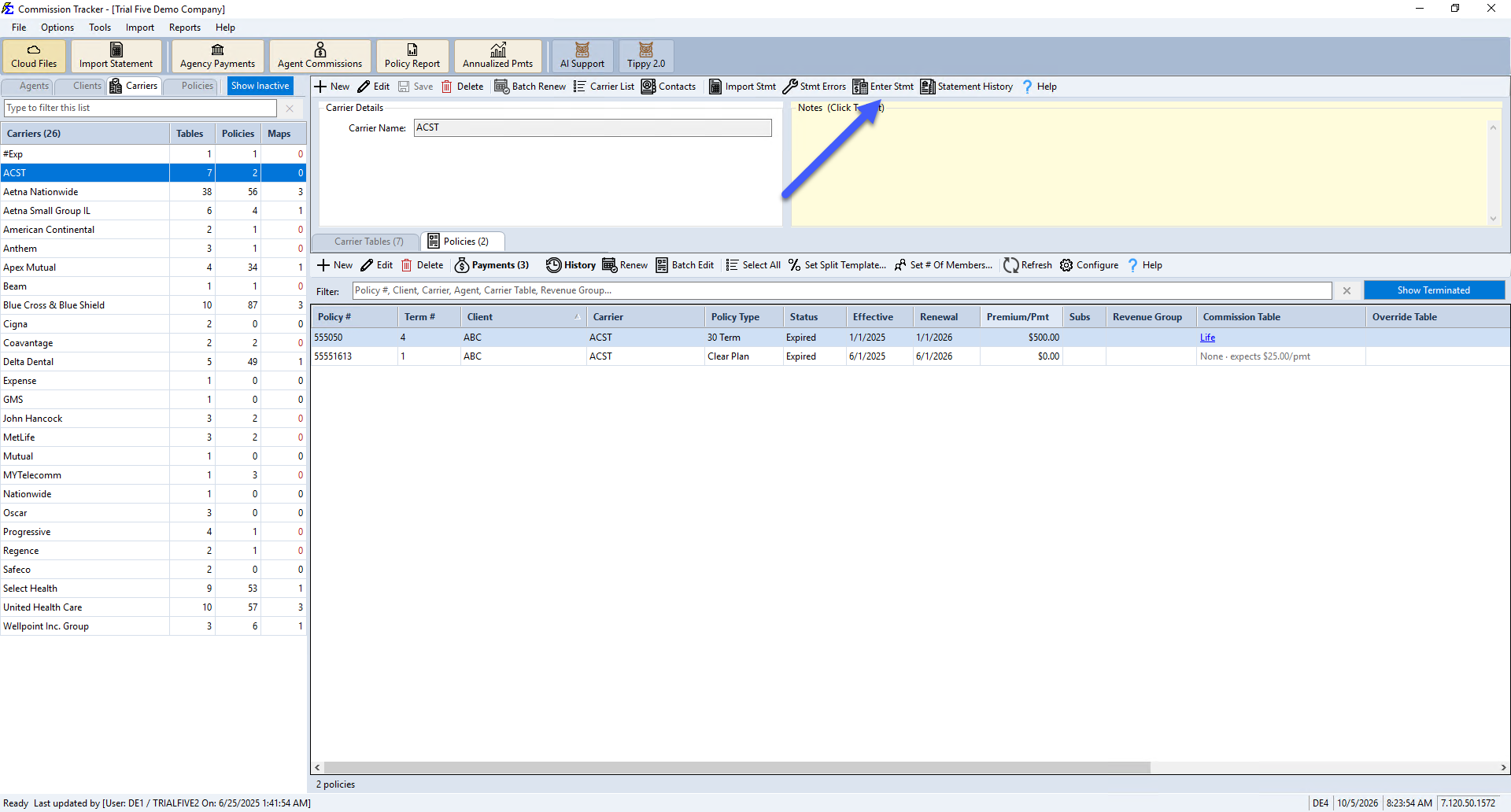
- Click Enter Stmt on the carrier's toolbar.
Video Tutorial
If the video below does not play, copy and paste this link into your browser: Watch on YouTube
The Reconciliation Workflow
1. Start a Session
Select a carrier and click Enter Stmt on the carrier's toolbar.
2. Show Outstanding Commissions
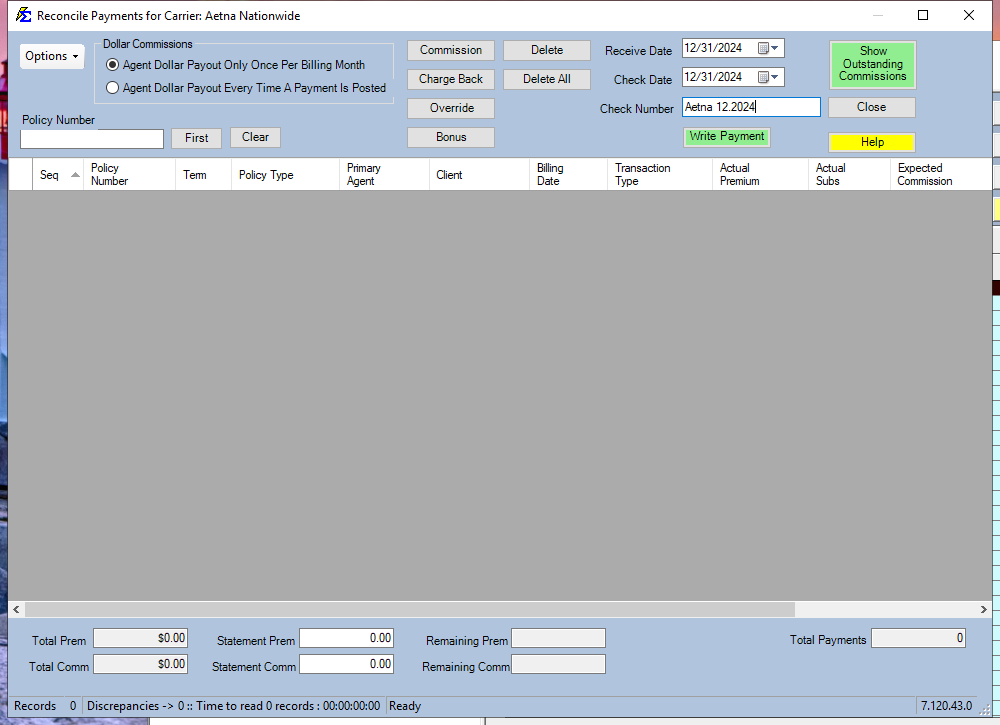
Click Show Outstanding Commissions to pull a list of all expected payments based on your Billing Date filters.
3. Enter Payments (Keyboard Workflow)
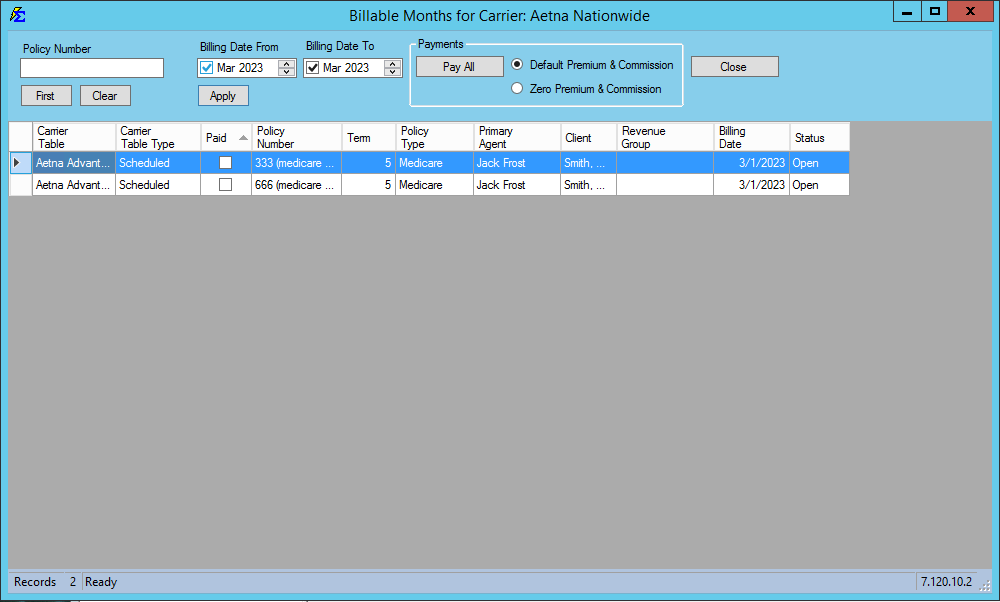
This screen is designed for speed. You can process rows without touching the mouse:
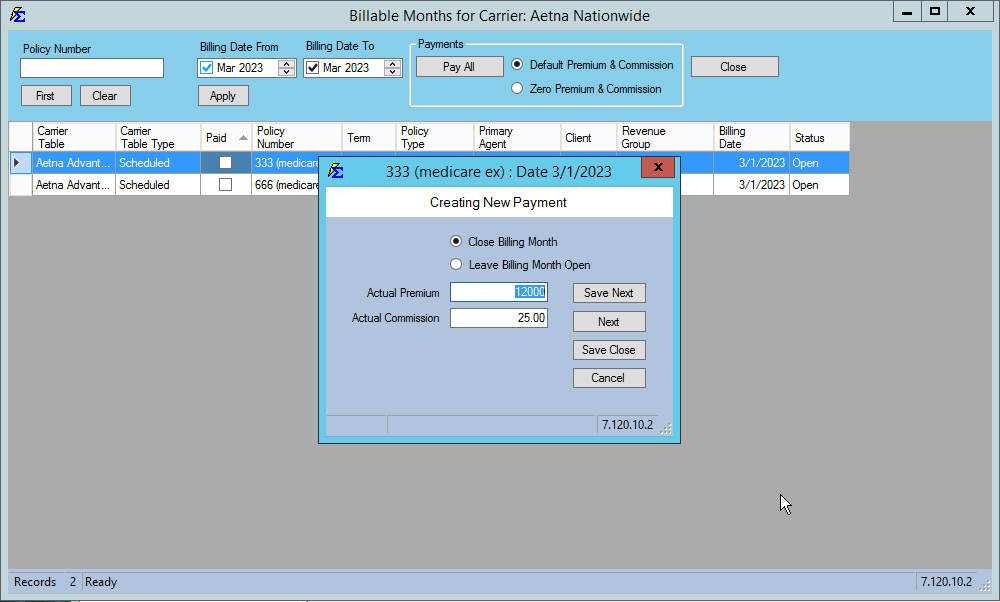
- Manual Entry — Use the arrow keys to navigate, press
Enteron a row, and type the actual Premium and Commission from your statement. - Bulk Action — Click Pay All to instantly process all visible rows using either the Estimated values or Zero values.
4. Verify Totals
Enter the Statement Totals from your PDF into the boxes at the bottom of the screen. The system compares your entered total against the carrier's total so you can confirm everything matches before finalizing.
The Final Step: Write Payments
Entries Are Not Saved Until You Write Payments
Entering data on the reconcile grid does not post payments to your database. You must complete this step to finalize the session.
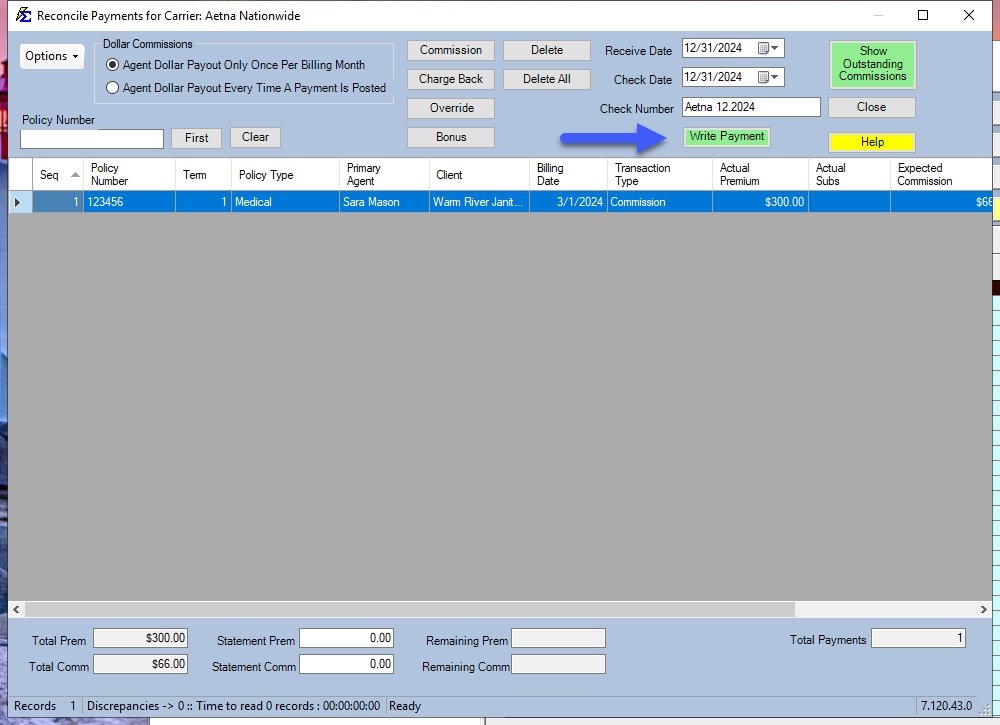
- Return to the main Reconcile screen.
- Enter the Receive Date, Check Date, and Check Number.
- Click Write Payments.
Advanced: All Carrier Mode
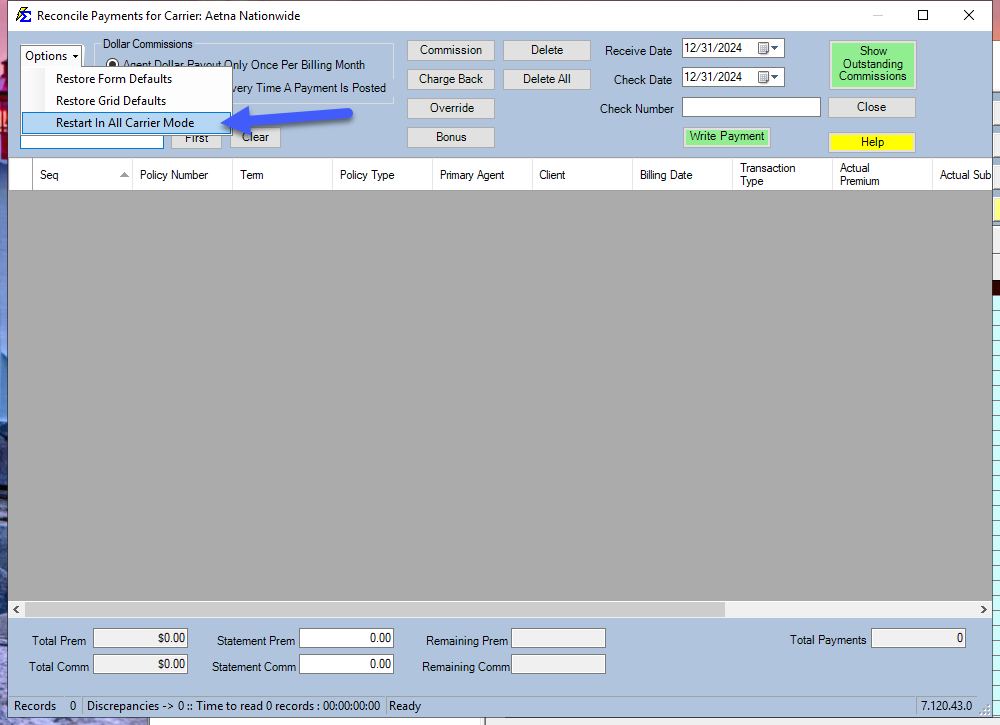
If a single PDF or check includes commissions for multiple carriers, enable All Carrier Mode.
- Go to Options and click Restart In All Carrier Mode.
- When searching by policy number, the system searches across your entire database regardless of carrier.
Post-Session Actions
| Feature | Action |
|---|---|
| Session Report | See a summary of all payments posted in the session: open the Agency Payments Received report, select the session and click Show Report. See Report of Import or Reconcile Session. |
| Reverse Session | Remove all payments from the session if a major error was made: click Manage Statements on the carrier's toolbar (newer versions: Statement History). See Manage Import or Reconcile Session. |
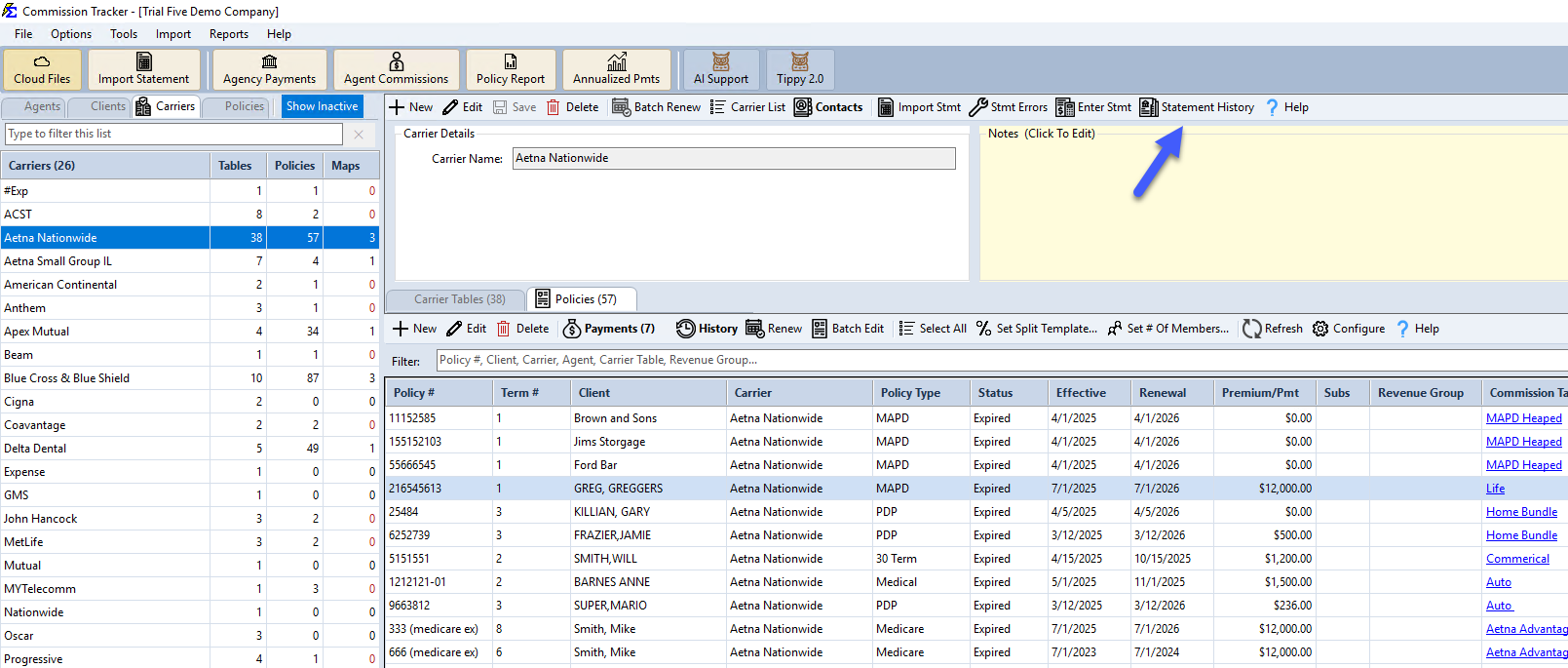
The picture shows a newer version, where the button reads Statement History. On other servers it reads Manage Statements.
Tips for Speed
Use Keyboard Shortcuts
Use Enter and arrow keys to navigate rows. Sorting columns to match the order of your PDF statement reduces eye movement and speeds up entry. You can also drag and drop columns to put Commission next to Policy Number.
🔧 Troubleshooting
My session disappeared before I clicked Write Payments. Your progress is automatically saved when you close the screen. Select the carrier and click Enter Stmt again, and your in-progress session will reload.
The statement totals don't match after entering all rows. Review your entries for data entry errors or rows that were accidentally skipped. The verification totals at the bottom of the screen will show the discrepancy. Correct the entries before clicking Write Payments.
I need to undo an entire reconcile session I already wrote. Click Manage Statements on the carrier's toolbar (newer versions: Statement History), select the session and click Reverse to remove all posted payments. See Manage Import or Reconcile Session.
🔗 Related Topics
- Receiving Commission Payments — Overview of all payment entry methods.
- Import Carrier Statements (Excel Statements) — Faster bulk import for carriers that provide digital files.
- Partial Payments and Chargebacks — Record negative or partial amounts within a reconcile session.
- Report of Import or Reconcile Session — Verify what posted after a session.
- Manage Import or Reconcile Session — Reverse a session if needed (newer versions: Statement History).
Need help? Contact support@commission-tracker.com