Policy-Specific Agent Commission Split Table
Recommended Practice
It is generally more efficient to use Carrier Table Agent Splits to define splits at the carrier level. Use the Policy-Specific Split only when you need to create a unique exception for one specific policy.
💡 Why Use This
Use a Policy-Specific Split when:
- Unique Negotiations — A specific policy has a split that differs from your standard carrier-level agreement.
- Mid-Term Changes — An agent leaves or joins a case in the middle of a policy year.
- Exceptions — You need to override the global carrier table rules for a single client.
🗺️ How to Access
- Open the policy you want to configure.
- In the AGENT SPLITS band at the bottom of the Policy window, click Edit Splits. The Agent Commission Splits window opens.
- Click Add New Split.
You can also right-click the policy in the policy grid and select Edit Splits.
Video Tutorial
If the video below does not play, please copy and paste this link into your browser: Watch on YouTube
Commission Calculation Types
When setting up a split, choose how the system calculates the agent's pay:
| Type | Description |
|---|---|
| % of Commission | Agent earns a percentage of the Gross Commission received by the agency. |
| % of Premium | Agent earns a percentage of the total Policy Premium. |
| Dollar Amount | Agent earns a flat fee (e.g., $5.00) regardless of the premium size. |
Flat Dollar Logic
A Dollar Amount split will only pay an agent once per Billing Month, even if the agency receives multiple carrier payments for that month.
Step-by-Step: Creating a Unique Split
- Create or save the policy first.
- Click Edit Splits in the AGENT SPLITS band, then click Add New Split. The Agent Commission Start Date window opens.
-
Set the New Split Start Date.
Start Date Note
This date refers to the payment Billing Date, not the Receive Date.
-
Select Add A Policy Specific Agent Split Table and click OK.
- In the split table, add the agents and assign their percentages or dollar amounts.
- Click Save.
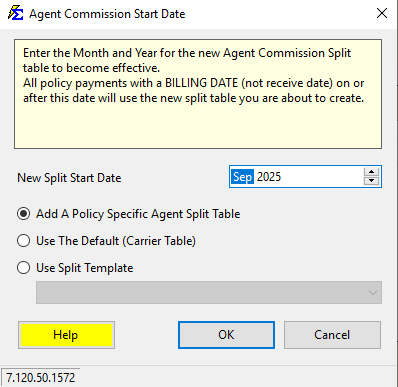
In step 4 you can instead select Use Carrier Table Agent Split. From that start date forward, the policy goes back to using the splits from its carrier table instead of a one-off Policy Specific table.
Managing Split History (Timeline)
You can create a timeline of splits that change over time. The system always uses the split associated with the payment's Billing Date.
| Start Date | Example Allocation | Preview |
|---|---|---|
| Sep 2025 | House: 25% / Jack Frost: 75% | 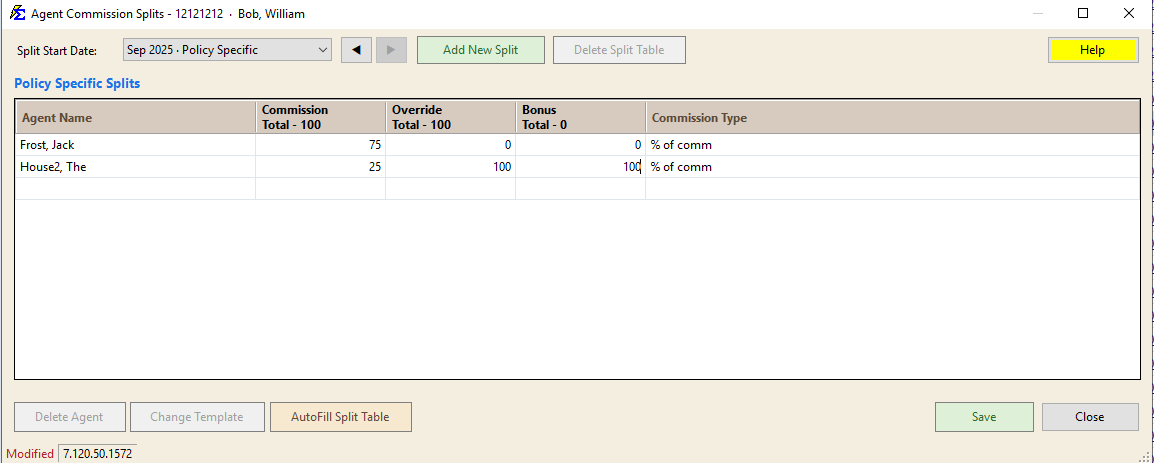 |
| Sep 2025 | House: 95% / Jack Frost: 5% | 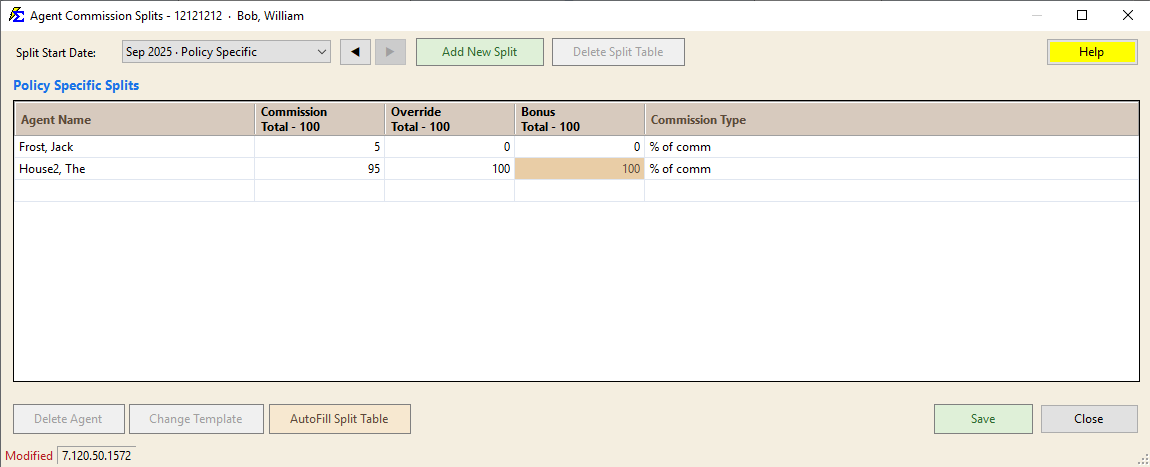 |
| Sep 2025 | House: 100% (Agency retains all) | 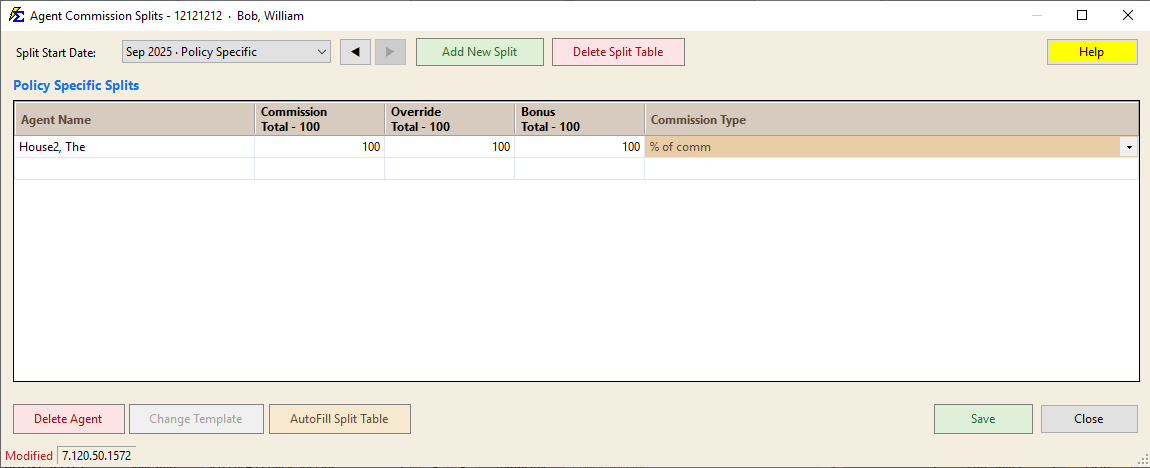 |
What Happens When a Payment is Received
- The system looks at the Billing Date of the incoming payment.
- It checks the Agent Commission Split Table for that policy.
- It identifies which split was active on that Billing Date.
- It calculates the payout and makes the data available for the Agent Commissions Earned report.
🔧 Troubleshooting
I get an error saying I cannot change a split because it has been used.
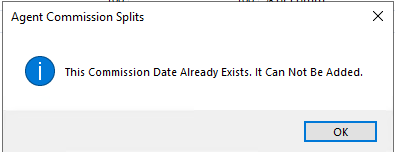
You cannot modify a split if a payment has already been posted using those rules. To fix this, delete the payment in Payment History, update the split, then re-post the payment.
An agent is not being paid even though they are in the split table. Check the Split Start Date of the split table in the Agent Commission Splits window (use the ◀ and ▶ buttons to step between split tables). It must be equal to or earlier than the payment's Billing Date. If a payment is billed for January but your split table doesn't start until March, no one will be paid for that January payment.
An agent left mid-year and I need to stop their pay without losing history. Click Edit Splits, then Add New Split, and set the New Split Start Date to the month they left. In the new split table, select that agent and click Delete Agent, reallocate their percentage to The House or a new agent, then click Save. All historical payments remain unchanged.
🔗 Related Topics
- Agent Commission Splits — Overview of all split methods.
- Carrier Table Agent Splits — The recommended default split method.
- Agent Split Template Manager — Create reusable split templates for carrier tables.
- Payment History — View and manage posted payments.
Need help? Contact support@commission-tracker.com