Agent Contact Info
Agent contact details — name, title, email, address, and phone number — are all managed together in the Contacts window. This replaces the separate Contact Info, Address, and Phone Number sections that used to appear directly on the Agent screen.
💡 Why Use This
- Keep every contact in one list — Store the agent's own details plus any additional contacts (like a manager or assistant) instead of a single set of fields.
- Send reports to the right inbox — Set a Primary contact so automated ACE Reports reach the correct recipient.
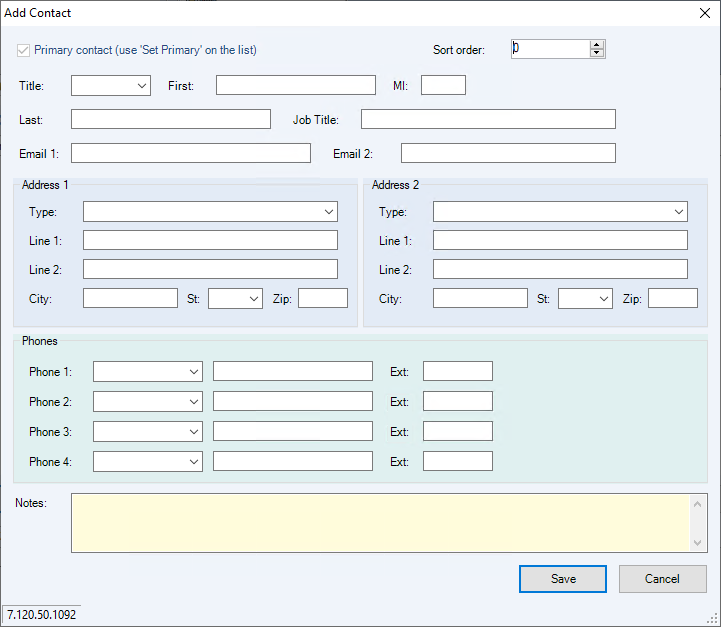
- Store complete details — Each contact can hold two addresses, four phone numbers, and two email addresses.
🗺️ How to Access
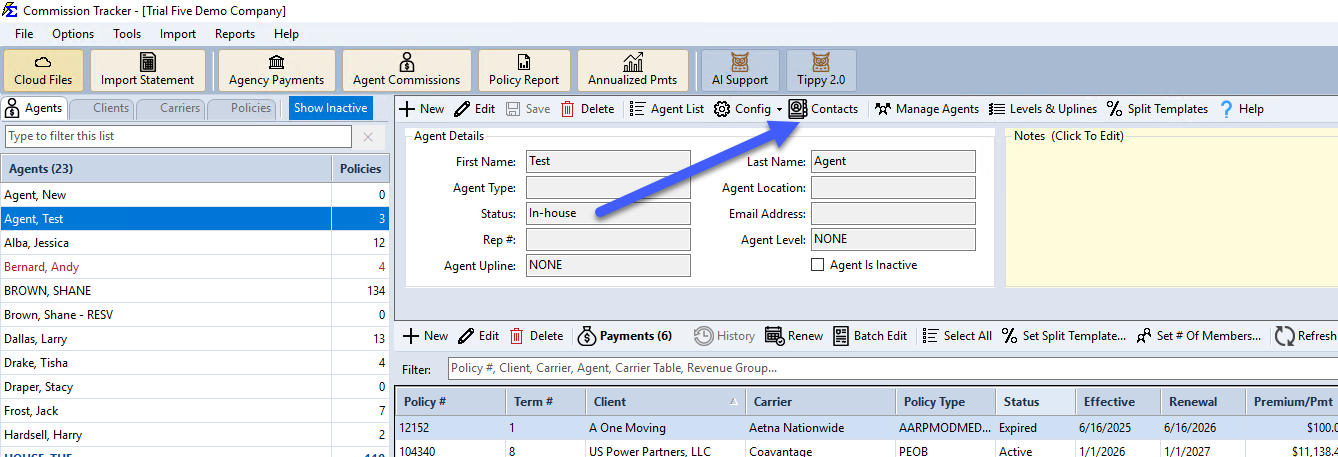
Open the agent's record in the Agent List, then click the Contacts button on the toolbar (next to Config).
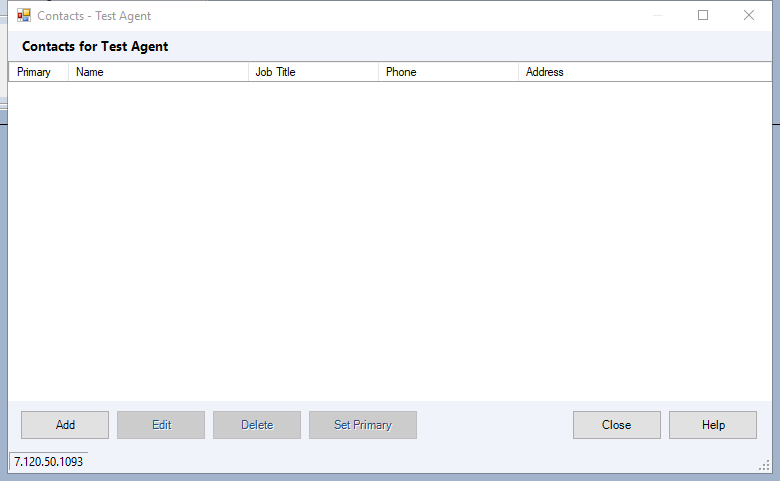
The Contacts Window
All contacts for the agent appear in a single editable list, with the primary contact flagged and sorted to the top.
Click Add or Edit to fill in a contact's name, title, up to two addresses, up to four phone numbers, up to two email addresses, and notes.
🔧 Troubleshooting
The agent is not receiving their emailed statements. Check the Primary contact's email fields for typos, and confirm the correct contact is flagged as Primary.
🔗 Related Topics
- Create New Agent — Initial agent profile setup.
- Agent Commissions Earned Report — Email commission statements directly to agents.
- Contacts — Full walkthrough of adding, editing, and managing contacts, including migration details for existing data.
Need help? Contact support@commission-tracker.com