Import Agent Advances
The Import Agent Advances utility bulk-loads advance payments or draws for your agents directly from an Excel file — an efficient alternative to manually entering individual advances on the policy screen.
💡 Why Use This
Use Import Agent Advances when:
- You need to load advances for multiple agents at once — Entering advances one at a time is impractical for large batches.
- You are setting up advances for a new pay period — Bulk-load the advance amounts from a prepared spreadsheet before running commissions.
🗺️ How to Access
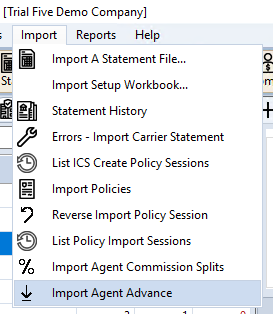
Navigate to Import → Import Agent Advance.
Get the Template First
Email support@commission-tracker.com to request the latest standardized Excel template. Your file must match the required format for the import to succeed.
Step-by-Step Import
- Populate the template with your agent and policy data.
- Navigate to Import → Import Agent Advance.
- Click Select File and locate your completed Excel template.
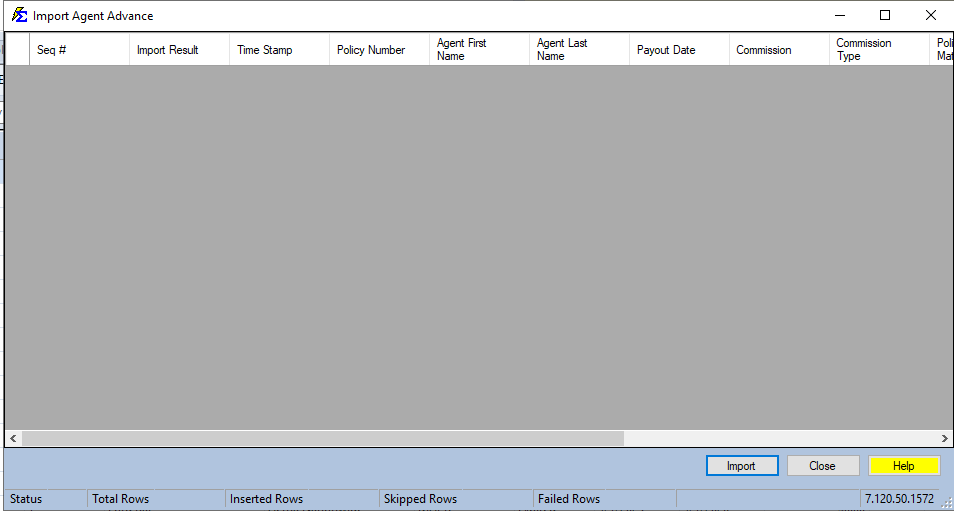
- Review the data in the grid to confirm agent names and dollar amounts are correct.
- Click Import to commit the advances to the system.
Import Field Reference
| Field | Description |
|---|---|
| Seq # | Sequence number for tracking. |
| Import Result / Time Stamp | Status fields (leave blank initially). |
| Policy Number | The unique identifier used to link the advance to a specific policy record. |
| Agent First Name / Agent Last Name | Must match the agent's name exactly as it appears in your Manage Agents list. |
| Payout Date | The effective date for the advance transaction. |
| Commission | The dollar amount being advanced. Enter negative values to record a deduction against overpayments. |
| Commission Type | How the advance amount is calculated (e.g., Dollars or % of Premium). |
Additional Matching Columns
The grid scrolls further right to additional policy-matching columns beyond what's shown above, similar to Import Agent Commission Splits.
Important: Duplicate Policy Numbers
Duplicate Policy Numbers Compatibility
If your agency has Allow Duplicate Policy Numbers enabled in the Options Menu, this import may attach the advance to the wrong policy record. The import uses Policy Number as the primary identifier — if multiple policies share the same number, the system cannot reliably determine which one to use.
Contact support@commission-tracker.com for guidance before running a bulk import in this configuration.
🔧 Troubleshooting
Import failed with "Agent Not Found." Agent names in your Excel file must match Commission Tracker character-for-character, including spacing and punctuation. If the agent doesn't exist yet, create the agent first, then re-run the import.
I need to correct an overpayment. Enter a negative amount in the Commission column. This creates a deduction against the agent's next commission run.
I can't find the advances after importing. Open a policy for that agent and click Agent Advance on the Policy window's toolbar (or right-click the policy in the policy grid and select Agent Advance), or run an Agent Commissions Earned Report to verify the imported advances appear correctly.
🔗 Related Topics
- Importing Policies — Bulk policy import from Excel files.
- Import Agent Commission Splits — Bulk-import commission split data.
- Manage Agents — Verify agent names before importing.
- Agent Commissions Earned Report — Verify advances appear in commission reports.
- Options Menu — Check Duplicate Policy Numbers setting.
Need help? Contact support@commission-tracker.com