Commission Tracker Connection File Update
To maintain the highest level of security and performance, the Commission Tracker Connection File (also known as the RDP file) must be updated annually. This file contains the encrypted credentials and gateway settings required to establish a secure handshake with our Cloud Servers.
💡 Why Use This
If your RDP file is outdated, Windows will display security warnings when connecting, and your session may become unstable or blocked. Use this guide to verify your file version and get the latest update.
Identifying the Current Version
You can verify if you are using the most recent version by checking the filename of your desktop shortcut.
- Current Version: The file should include
_v2at the end of the name. - Legacy Versions: If your file does not include this suffix, you are using an outdated connection method and must update immediately to avoid security warnings.
Requesting the Updated File
Each individual user at your agency requires their own unique connection file. There are three ways to get the latest file:
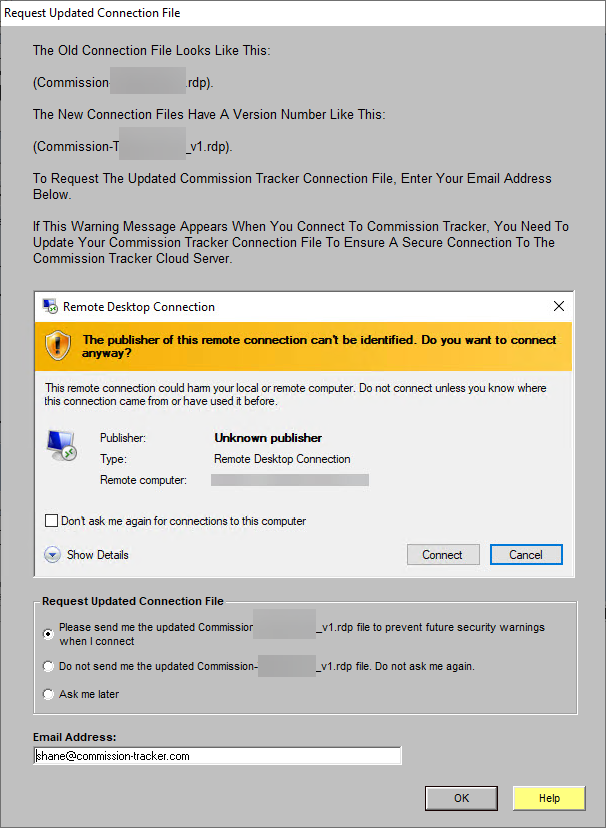
- Automatic Prompt — Launch Commission Tracker using your current shortcut. If your file is outdated, a screen will appear asking for your email address. Enter it and click Submit — we will email you the updated file automatically.
- Help Menu — Inside Commission Tracker, open the Help menu and select the option to download the latest RDP connection file.
- Contact Support — If you have disabled the automatic prompt, email support@commission-tracker.com and request the latest RDP file directly.
Once you receive the new file, move it to your desktop for easy access.
💡 Why This Update Is Required
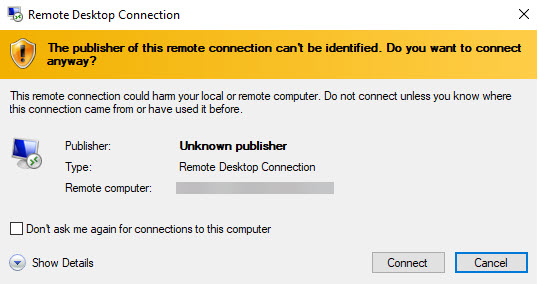
If you continue to use an outdated connection file, your operating system will trigger a security alert. This warning indicates that the certificate or connection protocols are no longer recognized as the most secure standard.
Critical: Connection Security
Continuing to connect through an insecure file can lead to session instability, login failures, or blocked access by your local network's firewall.
🔧 Troubleshooting
I have two RDP shortcuts on my desktop and I'm not sure which to use.
Use the one with _v2 in the filename. Delete the older shortcut once you have successfully logged in with the updated file to avoid confusion.
I'm on a Mac and don't know how to use the new file. You will need to import the new RDP file into the Microsoft Remote Desktop app. See the Mac Connection Instructions for details.
I can't save the file to my desktop. Your company's IT policy may be restricting file saves to the desktop. Contact your local administrator to help save the new file.
I'm still seeing security warnings after updating.
Confirm the filename ends in _v2 and that you deleted the old shortcut. If warnings persist, contact support@commission-tracker.com.
🔗 Related Topics
- Windows Connection Instructions — Full setup guide for PC users.
- Mac Connection Instructions — Full setup guide for Mac users.
- Connection Issues — Troubleshooting steps for login errors, lag, or disconnected sessions.
- Windows April 2026 Update — RDP Connection Changes — Guidance for the April 2026 Windows security prompt change.
Need help? Contact support@commission-tracker.com