Agent Commissions Earned Report (ACE Report)
The Agent Commissions Earned (ACE) Report calculates exactly what is owed to each agent for a specific pay period. Once generated, you can email commission statements as PDF attachments to all agents simultaneously: Send Agent Emails in the report window makes one PDF per agent, holding only that agent's commissions, and emails each agent their own.
💡 Why Use This
Use the ACE Report when you are ready to:
- Finalize payouts — Determine the total commission due to each agent for the period.
- Distribute statements — Send professional PDF summaries to your team via bulk email.
- Audit agency expenses — Review total payout liabilities for a specific date range.
Agent Licenses Required
You must have an Agent License for each agent you wish to include in these reports.
🗺️ How to Access
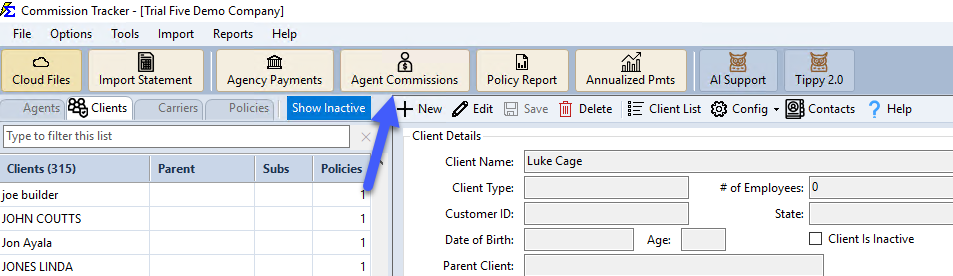
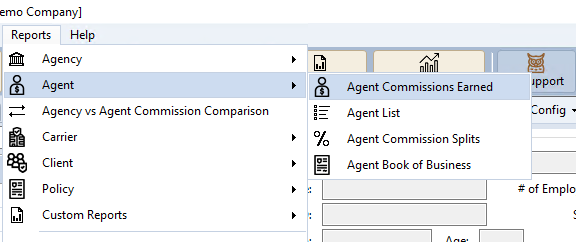
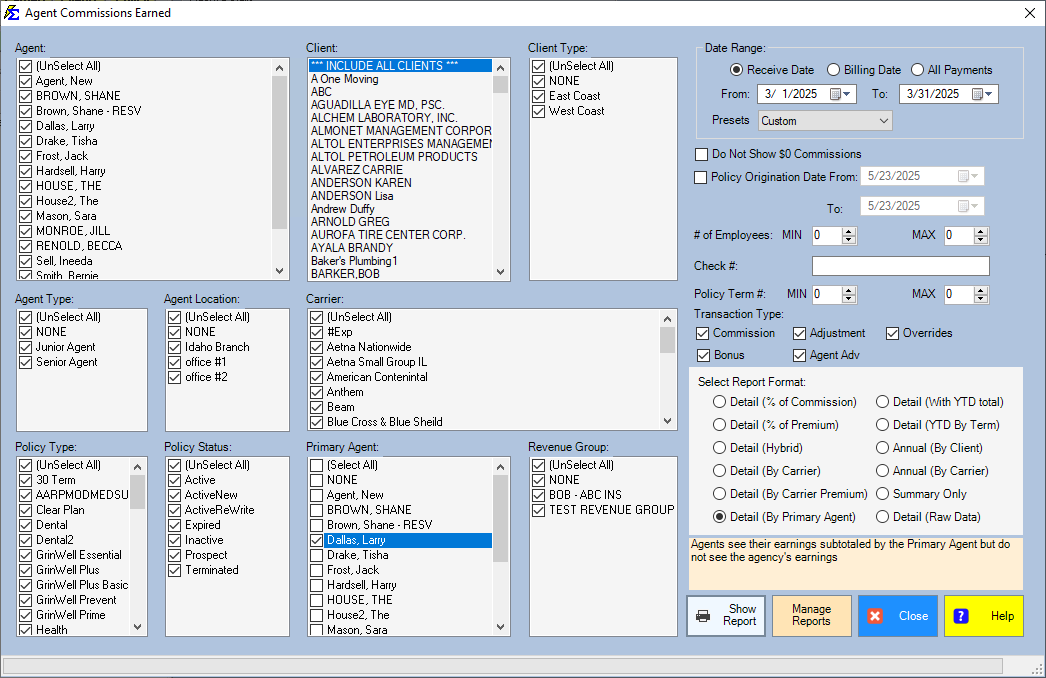
Click the Agent Commissions button on the main toolbar, or navigate to Reports → Agent → Agent Commissions Earned.
Selecting a Report Format
Commission Tracker offers several formats. All formats produce the same agent totals — the primary difference is the level of detail shown.
- Detail Versions — Show policy-level data including Carrier, Client, and Premium.
- Summary Version — Shows only the total commission owed per agent.
In the Date Range: box, choose which date the report uses: Receive Date (the day the payment was received), Billing Date (the month the payment is for) or All Payments (no date limit). See Billing Date vs Receive Date.
Newer versions only
This is in newer versions of Commission Tracker. If you do not see it, your server has not been updated yet.
Click Reset to put the whole filter screen back to the way it opens.
Saved Settings
Newer versions only
This is in newer versions of Commission Tracker. If you do not see it, your server has not been updated yet.
The filter screen has a Saved settings row at the top. Set the filters the way you run this report each cycle, type a name and click Save; next time, pick the name and the whole screen fills in. Saved settings are shared by everyone in your company, and the report remembers the last one you used.
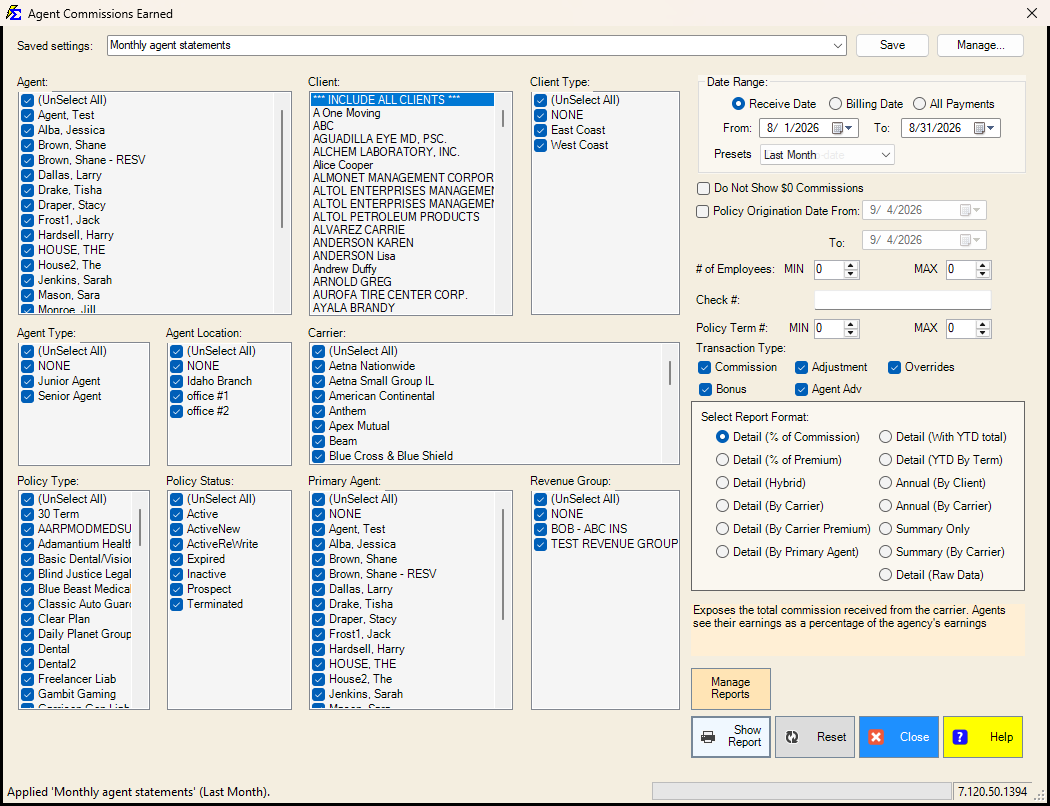
- The Presets box next to the dates (Last Month, This Year-to-date, ...) is what a saved setting remembers, so "Monthly agent statements" is always the month before the one you run it in. Choose Custom to save fixed dates. The Policy Origination Date filter has no Presets box; it is saved with the dates you typed.
- Everything on the screen is remembered: the agents, client, client types, agent types and locations, carriers, policy types, statuses, primary agents, revenue groups, the date choice (Receive Date, Billing Date or All Payments), the $0 commissions box, the employee and term ranges, the check number, the transaction types and the report format.
- Lists left at (Select All) stay "all", so an agent or carrier added later is included automatically.
Saved settings fill the filter screen only. Send Reports cannot email Agent Commissions Earned; use Send Agent Emails in the report window (Phase 2 below).
See Saved Report Settings for saving, renaming and deleting.
Phase 1: Email Setup
Before emailing reports in bulk, complete these two configuration steps.
1. Agent Email Addresses
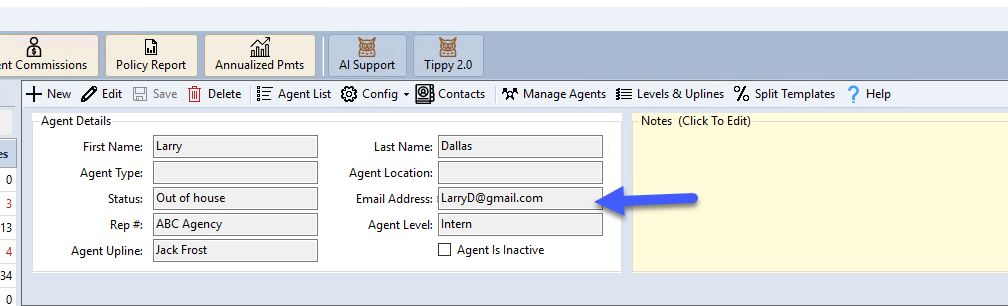
Enter each agent's email address in their Agent Profile. To send to multiple addresses (such as the agent and their manager), separate them with a semicolon (;).
2. Report Settings
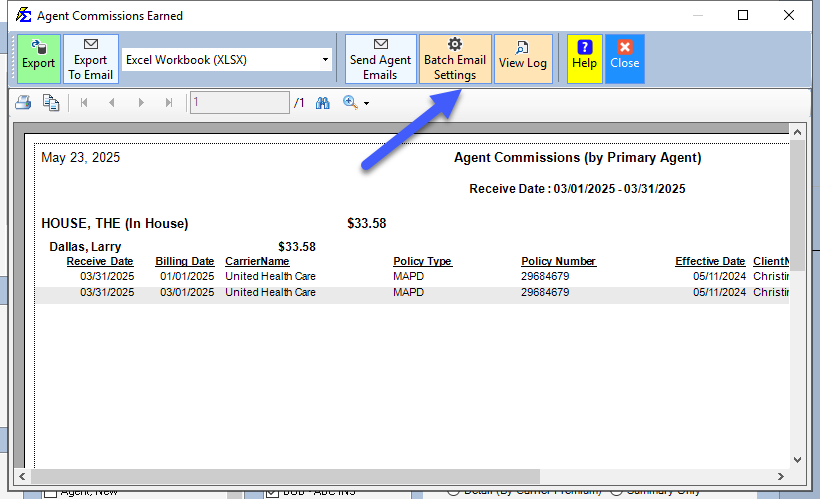
After clicking Show Report, click the Batch Email Settings button in the report window to configure your "From" address and server preferences.
- Sender — The "From" address that agents will see and reply to.
- Server — Use the System Server to ensure high deliverability and avoid spam filters.
- Custom Email — Advanced users can design HTML messages. Contact support@commission-tracker.com for help.
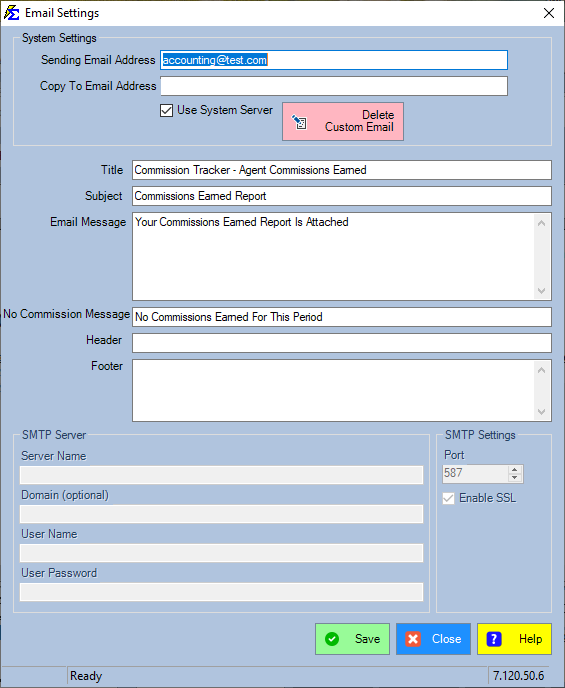
For full email configuration details, see ACE Email Setup.
Phase 2: Sending Agent Emails
Once settings are saved, initiate the bulk email process.
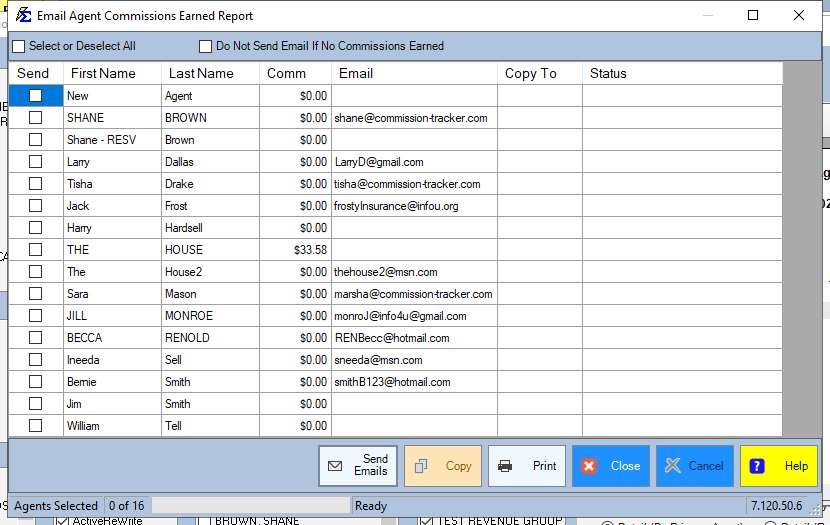
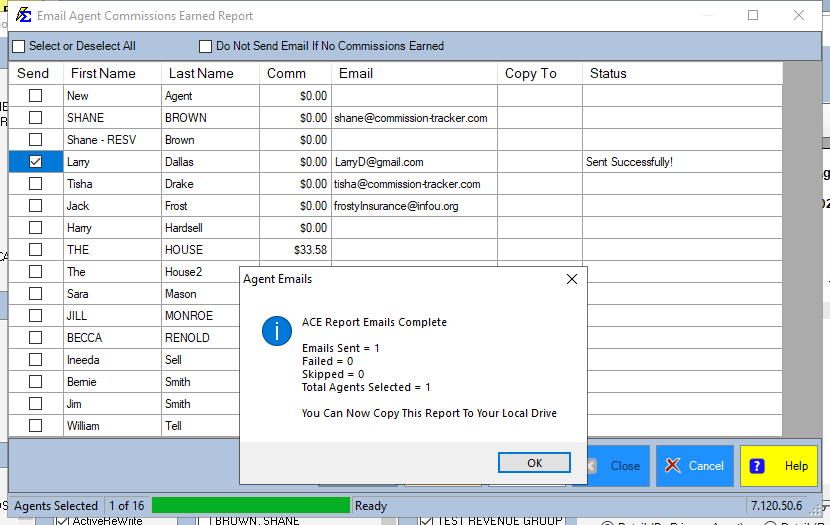
- Click Send Agent Emails.
- Choose to send to All Agents or select individuals from the list.
- Decide whether to send "No Commission" emails to agents who earned $0.00.
- Monitor the Status column to confirm successful delivery.
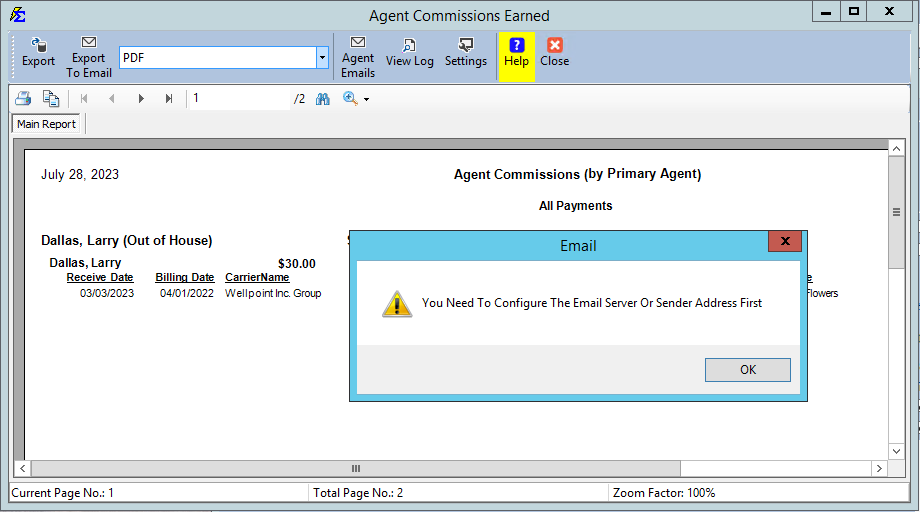
Email Send Error
If you see an error during the send process, re-open Batch Email Settings, ensure all required fields are completed, and click Save before trying again.
Phase 3: Archiving Reports
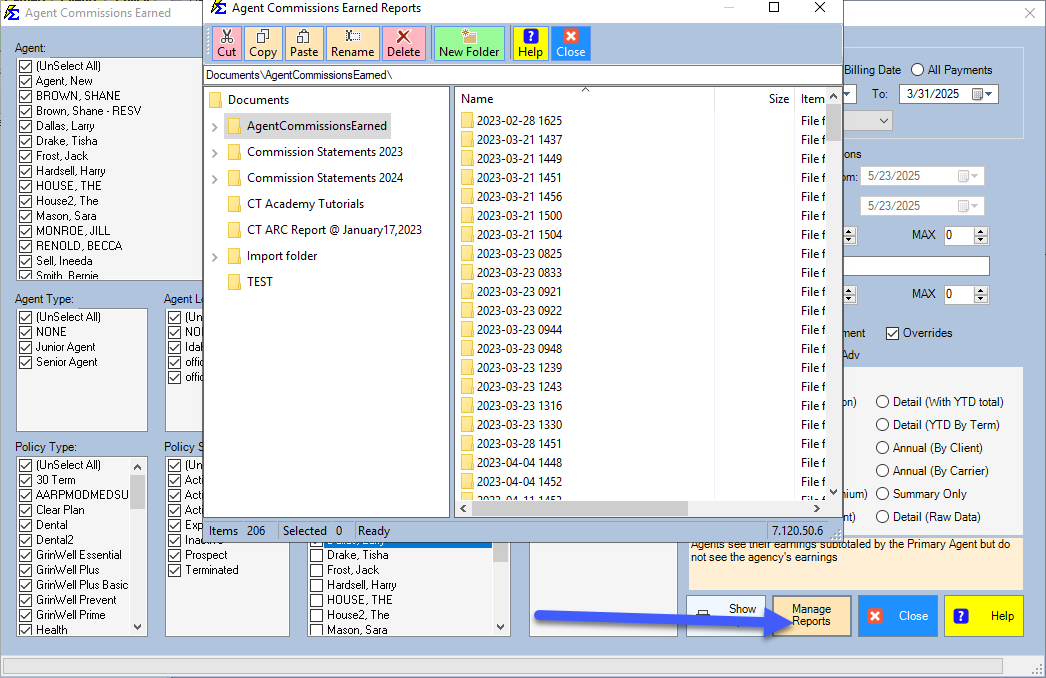
Every email session creates PDF files (one per agent) stored on your local computer for auditing and backup.
- Location —
Documents\Commission Tracker\AgentCommissionsEarned\ - Archiving — Click the Copy button on the send screen to download all PDFs to a specific folder.
- Manage Reports — If you didn't copy them during the send, use Manage Reports later to access the folders organized by timestamp.
🔧 Troubleshooting
An agent is missing from the report. Confirm the agent has an Agent License assigned. Also verify the report date range covers the period when payments were posted.
An agent's commission total looks wrong. Check Payment History for the affected policies to confirm the payments posted correctly and that their dates fall within the report's date range. The ACE Report filters by the date you pick in the Date Range: box: Receive Date (the day the payment was received), Billing Date (the month the payment is for) or All Payments. A payment received in May for March is in a May report by Receive Date and in a March report by Billing Date.
Emails are going to spam. Switch to the System Server in ACE Email Settings. Custom SMTP servers are more likely to be flagged by spam filters for bulk commission emails.
The email failed to send. Reopen Batch Email Settings, verify the Sender address is filled in and valid, and click Save before retrying. If you use your own SMTP server rather than the System Server, make sure the Copy To address is not the same mailbox as the Sender.
🔗 Related Topics
- ACE Email Setup — Configure From address, server, and email branding.
- Agent Licenses — Required for each agent included in the report.
- Preset Date Range — Quickly set the report date range.
- Email or Export Reports — Export the report to PDF or Excel.
- Payment History — Verify posted payments if totals look incorrect.
Need help? Contact support@commission-tracker.com