Graded Carrier Table
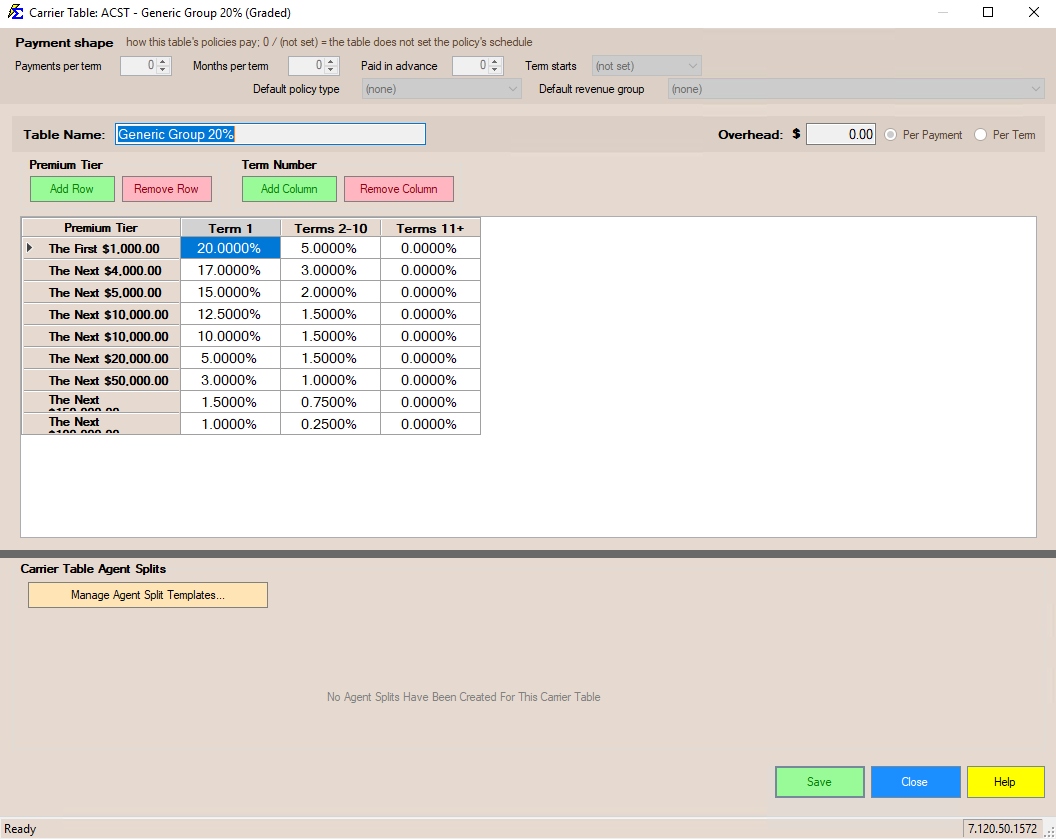
The Graded Carrier Table is used for complex contracts where commission percentages change as the accumulated premium increases during a policy term. Commission Tracker simplifies this process by providing a grid that mirrors your carrier contracts — no complex formulas required.
💡 Why Use This
Use a Graded Carrier Table when:
- Your carrier uses tiered percentage rates — The commission rate changes as the accumulated premium crosses certain thresholds during a term.
- Rates differ between new business and renewals — You can define separate tier schedules for Year 1 and Years 2–10+ in a single table.
- The contract has a complex step-down structure — The grid mirrors your carrier contract schedule directly.
🗺️ How to Access
- Navigate to the Carrier screen and select your carrier.
- Click the Carrier Tables tab.
- Pick Graded in the list beside Create New, then click Create New (newer versions: click Create New, pick Graded in the New Carrier Table window, then click Next).
How the Calculation Works
The system looks at the Policy Term and the Accumulated Premium to determine the correct rate for each dollar received.
Example Calculation
Scenario:
- Policy Term: 1 (Year 1)
- Premium Received: $1,500
Calculation Logic:
- Tier 1 — The first $1,000 pays 20% = $200.00
- Tier 2 — The remaining $500 pays 17% = $85.00
- Total Expected Commission: $285.00
Understanding the Columns
| Column | Purpose |
|---|---|
| Premium Tier | Defines the "threshold" or "bucket" for the premium amount. |
| 1 | Defines the percentages used for the first term of the policy (Initial Year). |
| 2–10 | Defines the percentages used for policy terms 2 through 10 (Renewal Years). |
| Terms 11+ | Ensures commissions are tracked (or ceased) for policies older than 10 years. Setting this to 0% will stop expectations after Year 10. |
Step-by-Step Instructions
- Navigate to the Carrier screen and select your carrier.
- Click the Carrier Tables tab, pick Graded in the list beside Create New, then click Create New (newer versions: click Create New, pick Graded, then click Next).
- In the Premium Tier column, enter your contract's threshold amounts.
- Enter the corresponding Percentages in the Term columns (1, 2-10, etc.).
- Click Save.
Keyboard Efficiency
Use the Arrow Keys to move between cells and the Enter key to save your progress. The grid is designed for heads-down data entry so you never have to touch your mouse while building the table.
🔧 Troubleshooting
My commission is not calculating at the correct tier. Verify that the Premium Tier threshold amounts in the table match your carrier contract exactly. Also confirm the policy's Term # is correct — the wrong term number will pull from the wrong column.
I need to update rates mid-contract without losing historical data. Use Carrier Commission Table Versions to create a new version with the updated rates. This preserves historical calculations while applying the new rates to future payments.
🔗 Related Topics
- Create Carrier Commission Tables — Overview of all table types.
- Flat Carrier Table — Percentage-based commission tables for standard contracts.
- Carrier Commission Table Versions — Manage rate changes over time without affecting history.
- Carrier Table Agent Splits — Define how agents are paid from carrier revenue.
Need help? Contact support@commission-tracker.com