Converting PDFs to Excel with PDFx
The PDFx Converter transforms PDF documents into Excel spreadsheets directly within your Cloud Files. This lets you use the automated Import Carrier Statements tool even when a carrier only provides PDF statements.
💡 Why Use This
Use PDFx when:
- Your carrier only provides PDF statements — PDFx converts the file to Excel so it can be imported through ICS rather than entered manually.
- You want to avoid manual data entry — Converting a PDF to Excel eliminates the need to type each line item from a paper or digital PDF statement.
- You reconcile PDFs regularly — Once converted, you can create a reusable column mapping for that carrier to speed up future imports.
🗺️ How to Access
Click Cloud Files on the main toolbar. The PDFx button is at the right end of the Cloud Files window's toolbar, next to the words "Select a PDF Statement To Convert To Excel".
Step-by-Step: Converting a PDF to Excel
- Copy your PDF file and paste it into the Cloud Files folder using the Paste method. See Selecting a File for Import for upload instructions.
- Select the PDF file (you can select more than one), then click the PDF-to-Excel button at the right end of the toolbar. The button has a picture and no words; its tooltip reads "Convert selected PDF file(s) to Excel".
- The CommTrack PDF Converter window opens and lists its progress. Wait until the list says "Processing completed." and the Close button turns green.
- Click Close.
- Your new Excel file is now listed in Cloud Files, in the same folder as the PDF. Its name is the PDF's name with an ending added, such as
_CLEAN(T). The ending tells you which file to import; see Which File to Import below.
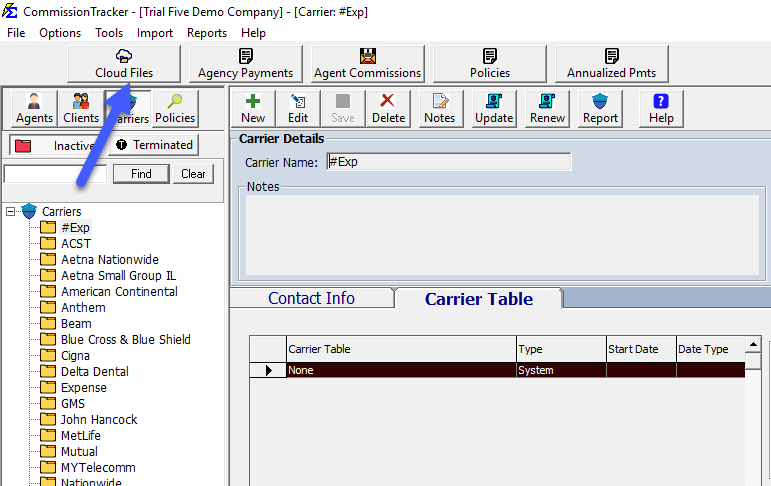
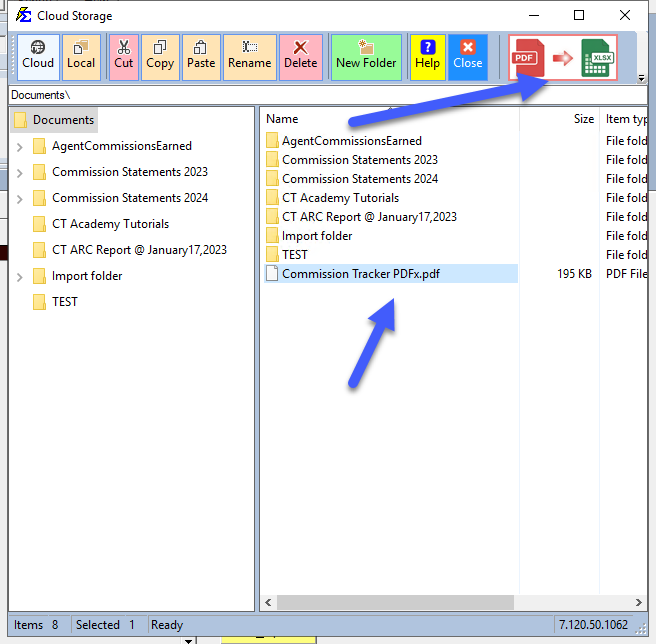
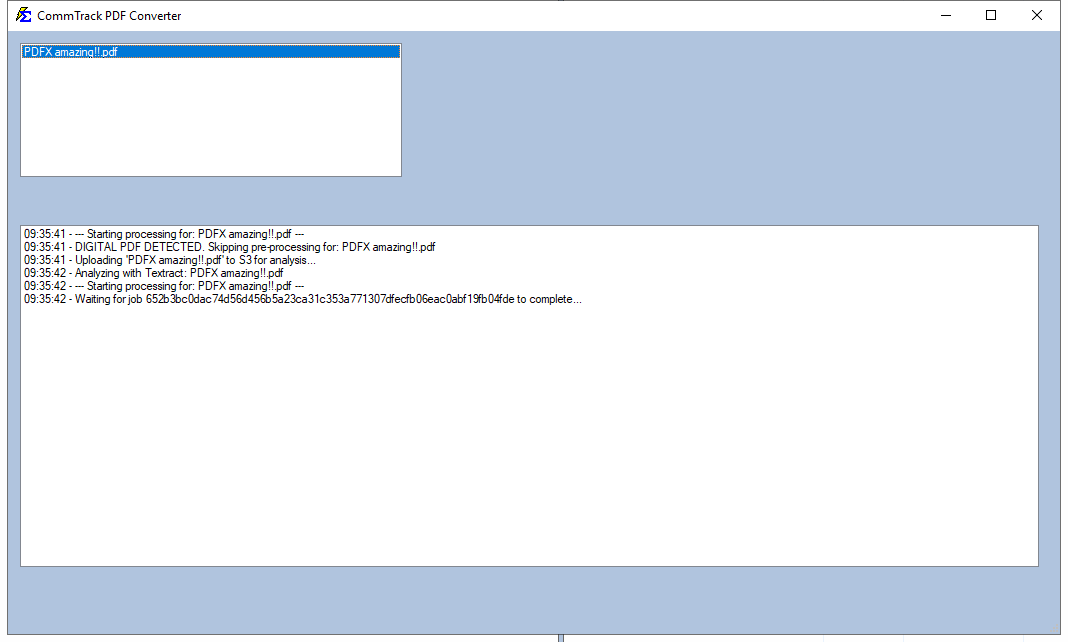
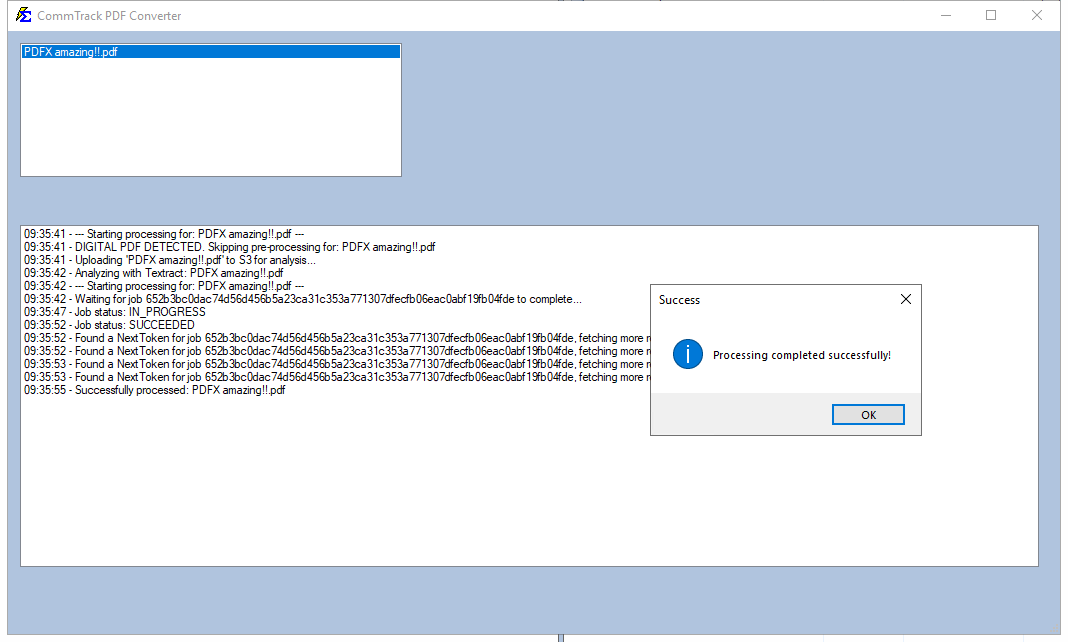
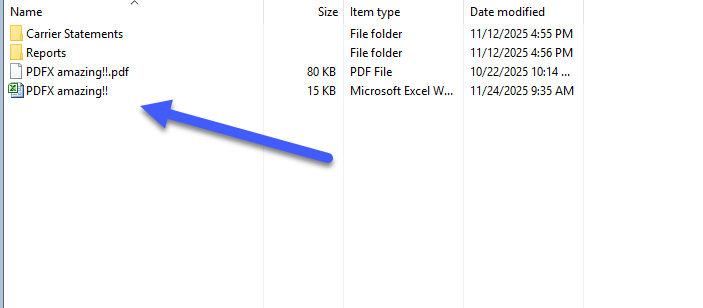
Some of these pictures were taken on an earlier version, which showed a "Processing completed successfully!" box with OK and gave the Excel file the same name as the PDF. Current versions write "Processing completed." in the converter's list, turn Close green, and add an ending to the Excel file's name.
Which File to Import
The converter can leave more than one Excel file next to your PDF. The ending on each file's name tells you what it holds:
| Name ends with | What it is | What to do |
|---|---|---|
_CLEAN(T) or _CLEAN(A) |
The statement cleaned and laid out for import. It passed all of its checks. | Import this file. |
_REVIEW(T) or _REVIEW(A) |
The statement cleaned and laid out for import. It passed its checks, with a few minor points flagged. | Open it and look over the Validation sheet, then import it. |
_FAIL(T) or _FAIL(A) |
The statement cleaned, but it did not pass its checks, so its numbers may not match the PDF. | Check it against the PDF before importing, or contact support. |
_RAW(T) or _RAW(A) |
The tables exactly as read from the PDF, before any cleaning. | You will often see this file next to a cleaned one; import the cleaned one. If this is the only file, Commission Tracker does not know this statement's layout yet: check the layout as described below before importing. |
The letter in brackets only shows which reader was used on the PDF. It does not change how you import the file.
After Conversion
Verify the Layout Before Importing
Open the converted Excel file briefly to confirm that columns such as Policy Number, Billing Date, Premium, and Commission are in separate, distinct columns. PDF formatting can sometimes cause data to merge into a single column.
Once verified, proceed to Import Carrier Statements to map the columns and post the payments. If your mapping is already saved for this carrier, the import will go quickly.
🔧 Troubleshooting
The converted Excel file has all data in one column. The PDF layout may not have had clearly defined columns. Try opening the Excel file and using Excel's Text to Columns feature to split the data, then re-import. For complex PDFs that convert poorly, use the Reconcile Carrier Statement tool instead.
I clicked the PDF-to-Excel button and got "is not a PDF file and was ignored" or "Please select one or more PDF files to convert." Select the .pdf file itself in the Cloud Files list before clicking the button. Folders and other file types are skipped.
The conversion stopped or showed an error. If an "An error occurred during processing" box appears, click OK, click Close on the converter, and try the conversion again. If it continues to fail, the PDF may be password-protected or use an image-based (scanned) format that PDFx cannot parse. Contact support for assistance with these file types.
🔗 Related Topics
- Import Carrier Statements (Excel Statements) — Import the converted Excel file to post commissions.
- Selecting a File for Import — How to upload files to Cloud Files.
- Reconcile Carrier Statement — Alternative for PDFs that don't convert cleanly.
- View Cloud Files — Manage files stored in your cloud environment.
Need help? Contact support@commission-tracker.com