Errors — Import Carrier Statement (ICSE)
The Import Carrier Statement Errors (ICSE) screen is where you resolve payments that could not be automatically posted during an import. Whether a policy is missing, expired, or has a date mismatch, ICSE provides the tools to correct the issue and finalize the revenue entry.
💡 Why Use This
Use the ICSE screen when:
- Policies are missing from your database — Create them directly from the error list without leaving the screen.
- Policy terms have expired — Renew policies in bulk so payments can be posted to the new term.
- Billing dates don't align — Adjust dates on individual error records before retrying.
- You want to clear the error queue after fixing issues — Use Retry Payments to re-validate and post corrected records.
🗺️ How to Access
- Right after an import — When payments failed, the import summary shows a View Errors button. Click it to open the errors for that import.
- For one carrier — Select the carrier and click Stmt Errors on the carrier's toolbar.
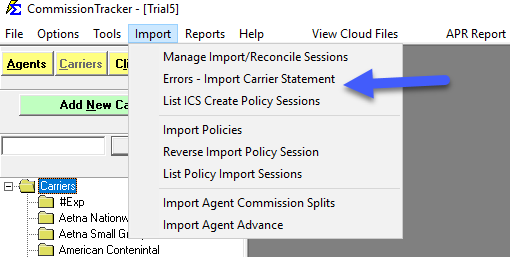
- For all carriers — Click the Import menu and select Errors - Import Carrier Statement.
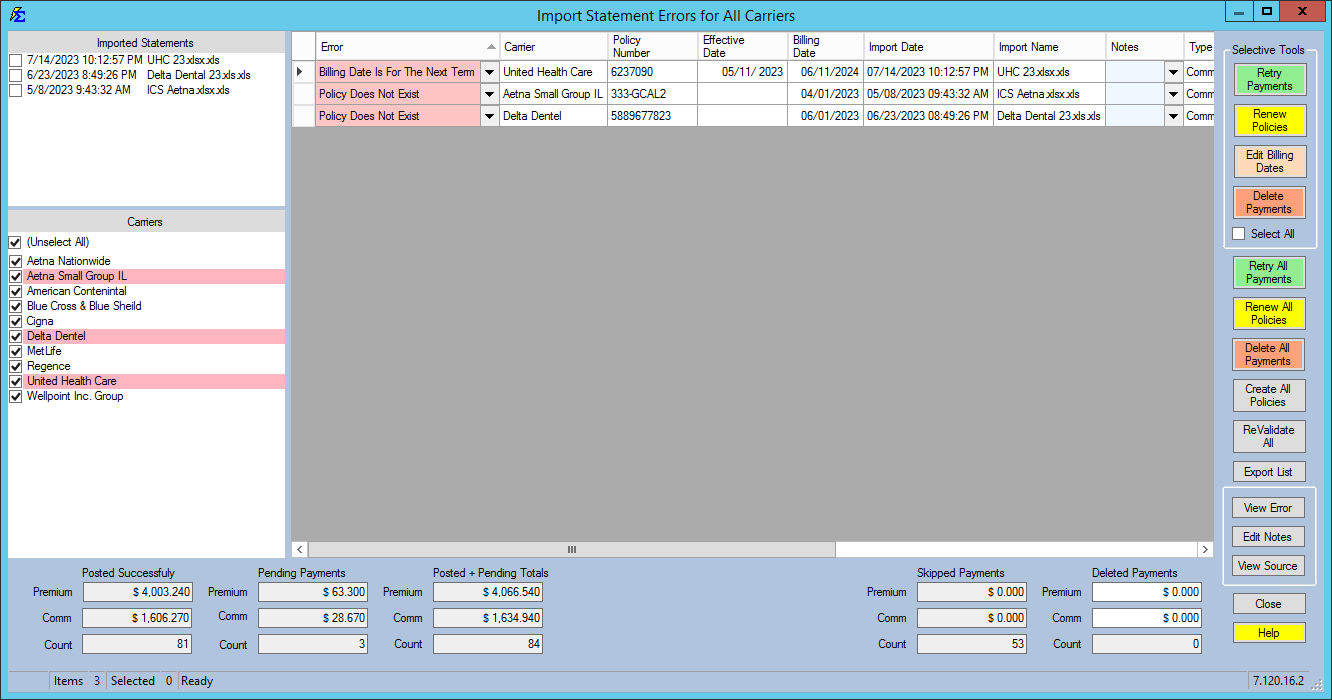
Opened from the Import menu, the screen displays errors for all carriers; use the filter on the left to narrow your focus to a specific carrier or import session. Opened from a carrier or from View Errors, it shows only that carrier or that import (the window title says which).
Error Statuses and Resolutions
| Status | Meaning | Resolution |
|---|---|---|
| Blank | No errors detected. | Select the row and click Retry Payments to post. |
| Policy Does Not Exist | The policy number is not in your database. | Click Create All Policies to launch the bulk creation utility (Create Policies). |
| Billing Date: Next Term | The current term is exhausted; the payment belongs to the next term. | Select the rows and click Renew Policies. |
| Billing Date: Older Term | The payment date predates the policy's effective date. | Fix the policy's term date first if the statement's date is right (see the warning below). Only if the statement's date is wrong, select the rows and click Edit Billing Dates. |
| Billing Month: NA / Closed | Warning: unexpected or duplicate date. | Review the record. If valid, click Retry Payments to override. |
| No Date Range Match | System synchronization error. | Run Update Payment Tables from the Tools menu. |
Older Term Error: Fix the Policy's Term Date First
The error text reads "Billing Date Is For An Older Non-Existent Term". It means the statement's billing date is earlier than the policy's start date in Commission Tracker. If the carrier's date is right, the policy's date is wrong: open the policy, pick its first term in the TERMS band, correct the Term Effective Date in the Dates & Billing group, click Save, then come back and click Retry Payments. Do not move a correct billing date forward to make the error go away, because the payment would then post to the wrong month. Use Edit Billing Dates only when the date on the statement itself is wrong.
Audit Tools
Select a row, then click one of these buttons to investigate why a payment failed:
- View Error — Displays the full technical reason for the failure if multiple errors exist.
- Edit Notes — Document your research or actions taken for other team members to reference.
- View Source — Displays the original row from the carrier file to verify the raw data as submitted.
Processing Actions
After fixing the underlying issue, use these buttons to clear the queue:
- Retry Payments — Re-validates selected rows. If the error is resolved, the payment moves to Payment History.
- Delete Payments — Removes the error from the list. Use this if you plan to post the payment manually or if the data is a duplicate.
- Reverse Session — If an entire import needs to be undone, click Manage Statements on the carrier's toolbar (newer versions: Statement History) to remove both the posted payments and these errors simultaneously. See Manage Import or Reconcile Session.
You Don't Have to Close ICSE
You can work in other parts of Commission Tracker while ICSE is open. If you have two monitors, keep the error list on one screen and your Policy or Carrier screens on the other for a faster workflow.
Renewing Multiple Policies at Once
You can check Select All and click Renew Policies — the system is smart enough to only process policies that have the "Billing Date: Next Term" error. Policies with other error types are skipped.
🔧 Troubleshooting
Errors are reappearing after I click Retry Payments. The underlying issue was not fully resolved. Select the row and click View Error for the full error detail, correct the issue (create the policy, renew the term, or fix the policy's term date or the billing date), and retry again.
I see "No Date Range Match" errors after a routine import. Run Update Payment Tables from the Tools menu. This resyncs the payment table with the current policy term dates and resolves most synchronization-related errors.
A policy was created but Retry Payments still shows "Policy Does Not Exist." The policy number in the carrier file may not exactly match the number entered during policy creation. Open the newly created policy and verify the Policy Number field matches the number in the error row precisely, including any leading zeros or formatting.
I want to remove all errors for a session and start the import over. Click Manage Statements on the carrier's toolbar (newer versions: Statement History) to reverse the entire session. See Manage Import or Reconcile Session. This removes both the ICSE errors and any payments that were successfully posted in the same session. If no payment from that import posted at all, it may not be listed there: show only that import's rows here (use the filter on the left) and click Delete All Payments, which deletes every row in the list.
🔗 Related Topics
- Import Carrier Statements (Excel Statements) — Full import process overview.
- Create Policies — Create policies discovered during import.
- Renew Policies — Renew expired policy terms to accept new payments.
- Retry Payments — Re-validate and post payments after correcting errors.
- Edit Billing Date — Adjust billing dates on error records.
- Manage Import or Reconcile Session — Reverse an entire import session.
- Options Menu — Enable settings such as Allow Policy With Zero Premium.
Need help? Contact support@commission-tracker.com