Database Errors
On rare occasions, internal data files may become damaged due to network interruptions or hardware issues, resulting in a corrupt database. These errors require immediate attention — stop entering data and resolve the issue before continuing normal work.
💡 Why Use This
Refer to this page when Commission Tracker displays one of the following messages:
- "Unrecognized database format"
- "Run-time error '3343'"
These messages indicate database file corruption and must be resolved before the software can function correctly.
Identifying Corruption Errors
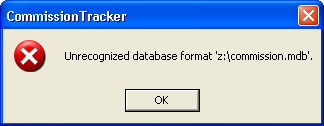
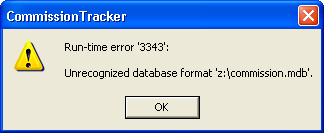
Stop Entering Data Immediately
If you see a corruption error, do not continue working in Commission Tracker. Continuing to enter data in a corrupt database can cause further data loss. Run the Repair utility or contact support before proceeding.
Resolution Steps
There are three ways to resolve a database corruption error, in order of escalation.
1. Manual Repair (Self-Service)
Attempt to fix the file structure yourself using the built-in utility:
- Navigate to Tools → Compact/Repair Database.
- Follow the prompts to allow the system to reorganize and fix the data tables.
2. Technical Support Recovery
If the manual repair does not resolve the error:
- Contact support@commission-tracker.com immediately.
- Provide a screenshot of the exact error message you are seeing.
- The technical team will attempt a deep-layer recovery of your specific file.
3. Database Restoration
If the file is corrupted beyond repair:
- Commission Tracker backs up your database every 60 minutes automatically.
- Contact support — the team can restore your system to the most recent healthy state, minimizing data loss.
Common Causes of Corruption
| Cause | Prevention |
|---|---|
| Network instability | Ensure a stable internet or RDP connection when performing large imports. |
| Improper shutdowns | Always exit Commission Tracker using the Exit or Close commands rather than forcing the application to quit. |
| Interrupted imports | Do not close the software while an Import Carrier Statement is actively processing. |
🔧 Troubleshooting
The Compact/Repair utility ran but the error is still appearing. The corruption may be beyond self-service repair. Contact support immediately with a screenshot of the error — do not attempt further data entry until the issue is resolved.
I do not see the Compact/Repair option in the Tools menu. This option may not be visible depending on your user permissions. Contact your administrator or support to run the repair with elevated access.
🔗 Related Topics
- Database Backup — Request a manual backup before major operations.
- Error Messages — Overview of all error types in Commission Tracker.
- Tools Menu — Access the Compact/Repair Database utility.
Need help? Contact support@commission-tracker.com