UnDelete (Repost) Payments
The Repost feature restores a deleted payment while automatically applying the policy's current agent splits and carrier table settings. This makes it the preferred method for correcting "wrong agent paid" errors without re-entering check or import data.
💡 Why Use This
Use Repost when you need to:
- Restore a payment deleted in error — Bring back a payment that was accidentally removed without re-entering it from scratch.
- Fix an incorrect agent split — Delete the payment, update the split table, then repost so the corrected splits are applied automatically.
- Correct carrier table settings — Delete the payment, update the carrier table assignment on the policy, then repost to recalculate commissions under the new table.
🗺️ How to Access
- Open the policy and click Payments.
- Click the Deleted Payments button (it turns pink when any payments have been deleted).
- Locate the payment record you want to restore.
- Click Repost, Edit And Repost, or Repost All.
Repost Options
| Option | When to Use |
|---|---|
| Repost | Restore the payment exactly as it was originally posted, using the policy's current split and carrier table settings. |
| Edit And Repost | Modify the payment amounts or dates before restoring. Use this if the original data was also incorrect. |
| Repost All | Restore all deleted payments for the policy at once. Use only when all deletions need to be reversed. |
Step-by-Step: Fix Wrong Agent and Repost
- Open the policy from the Policy List.
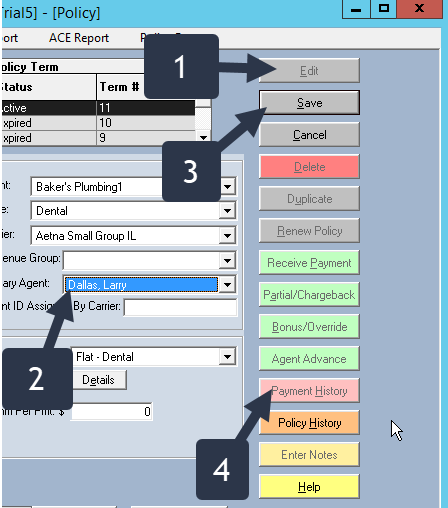
- Click Payment History, then click Delete on the incorrect payment.
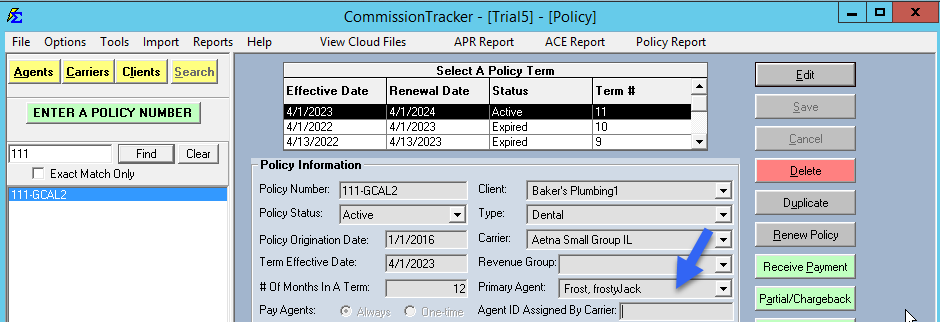
- Return to the policy record and update the Policy-Specific Agent Commission Split Table or carrier table assignment as needed. Click Save.
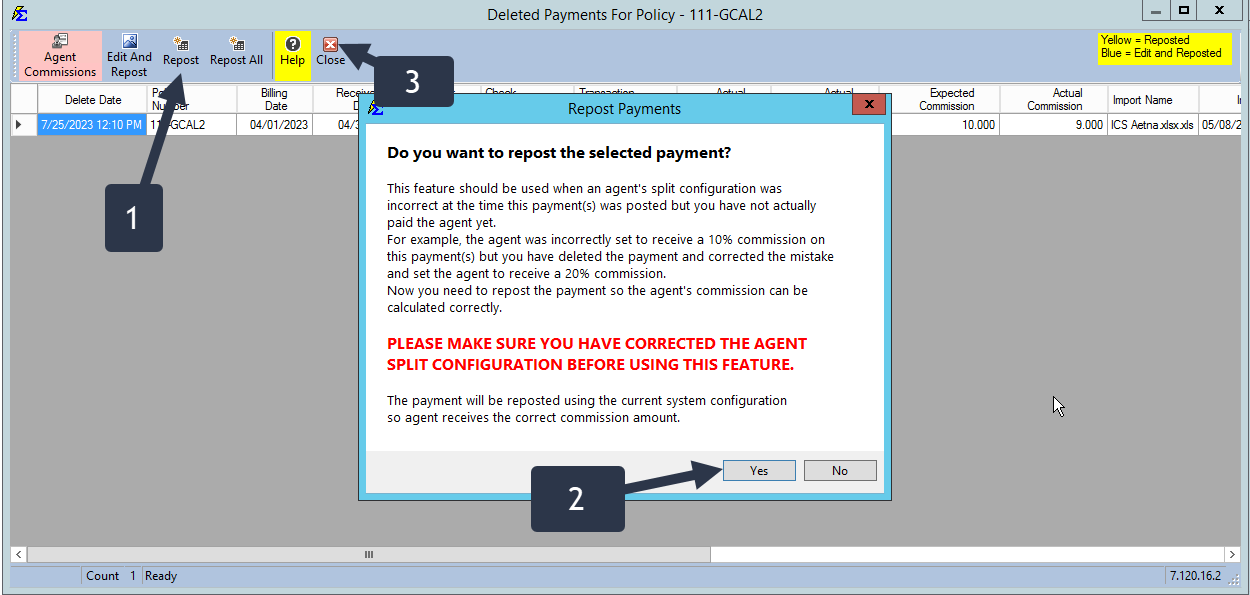
- In Payment History, click the Deleted Payments button.
- Locate the deleted record and click Repost.
Repost Uses Current Settings
Reposting always applies the policy's split table and carrier table as they exist at the time of the repost — not as they were when the payment was originally posted. Make sure all corrections are saved before clicking Repost.
🔧 Troubleshooting
The Repost button is not visible. Confirm you are in the Deleted Payments screen, not the main Payment History screen. The Repost option only appears on deleted records.
After reposting, the agent split still looks wrong. Verify that the Policy-Specific Agent Commission Split Table was saved with the correct splits before you clicked Repost. If the split was not updated first, delete the payment again, correct the split table, and repost a second time.
I need to repost a payment but the amounts were also wrong. Use Edit And Repost to modify the amounts before the record is restored. This prevents you from having to delete and re-enter manually.
🔗 Related Topics
- Deleted Payments Audit — View the audit log of all deleted payments and agent commission impact.
- Payment History — View, correct, and manage all posted payments.
- Policy-Specific Agent Commission Split Table — Update splits before reposting.
- Agent Commissions Earned Report — Verify corrected agent earnings after reposting.
Need help? Contact support@commission-tracker.com