Policy Import Preview
The Policy Import Preview screen displays a preview of your Excel file and lets you select the correct worksheet for processing before the import begins.
💡 Why Use This
Use the Policy Import Preview to:
- Select the correct worksheet — If your Excel file has multiple tabs, choose the one that contains your policy data.
- Verify the file content — Confirm that dates, dollar values, and column layout look correct before mapping begins.
- Swap to a different file — If you selected the wrong file, use Select File to replace it without restarting the import process.
🗺️ How to Access
The Policy Import Preview screen opens automatically after you select a file in Import → Import Policies (NEW VERSION).
Features
- Worksheet Selection — Choose the specific tab from your Excel file to import.
- Select File — Swap the source file if an error is spotted.
- Save Session — Save your progress and return to finish the import later.
- Import Session — Proceed with the selected worksheet and advance to the mapping screen.
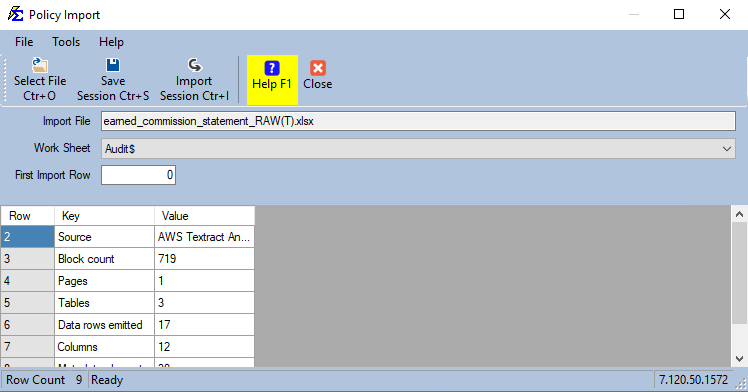
Verify Before Proceeding
Use the preview grid to confirm that dates and currency values appear in the correct columns. If data looks misaligned, the file may need to be reformatted before importing.
🔧 Troubleshooting
My data looks garbled or misaligned in the preview. The source file may have merged cells, extra header rows, or non-standard formatting. Open the file in Excel, clean up any merged cells or blank rows at the top, save it, and re-select the file.
I selected the wrong worksheet. Use the worksheet dropdown to switch to the correct tab without leaving the Preview screen.
I need to stop and finish the import later. Click Save Session to preserve your progress. The session can be resumed the next time you open Import Policies.
🔗 Related Topics
- Importing Policies — Full overview of the policy import process.
- Mapping Data — The next step after previewing the file.
- Reverse Import Policy Session — Undo a completed import if something went wrong.
Need help? Contact support@commission-tracker.com