Client Matching
Client Matching is an automatic verification step that identifies potential duplicate client records before they are created during an import. When a carrier reports a client name that is phonetically or structurally similar to an existing record (such as "Doe, John E" vs. "John Doe"), the system pauses to let you decide whether to link the names or treat them as separate clients.
💡 Why Use This
Client Matching prevents database clutter by catching likely duplicates at import time rather than requiring manual cleanup later. Use it when:
- A carrier uses a different name format — The imported name is close but not identical to an existing client.
- You want to confirm fuzzy matches before they become aliases — Review the system's suggestions and approve only the ones that are correct.
- You are processing a new carrier's statement for the first time — New carriers frequently use name formats that differ from your database.
🗺️ How to Access
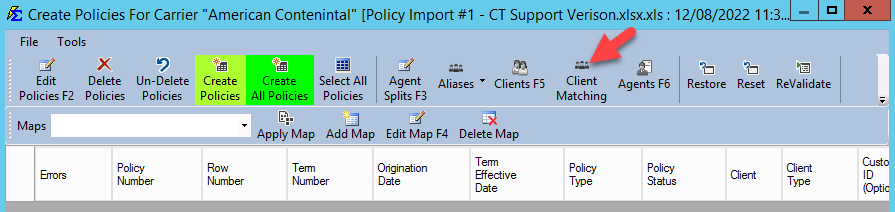
The Client Matching screen appears automatically during the Create Policies workflow when the system detects names that may match existing records.
Using the Matching Interface
When potential matches are found, the Client Matching screen opens during the import process.
Manual Selection (Individual Matches)
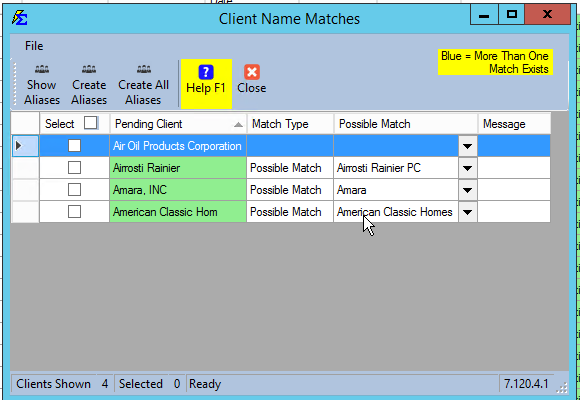
Review the list and use the checkboxes to approve specific matches.
- Possible Match column — Shows which existing client the system recommends linking.
- Create Aliases — Processes only the rows you have checked.
Handling Multiple Possibilities
If the system finds more than one existing client that could be a match, the cell is highlighted in light blue.
- Click the dropdown arrow in the light blue cell to select the correct existing client from the list of candidates.
Bulk Matching
If you have reviewed the full list and are confident in all the system's recommendations, click Create All Aliases to process every row at once.
The Result
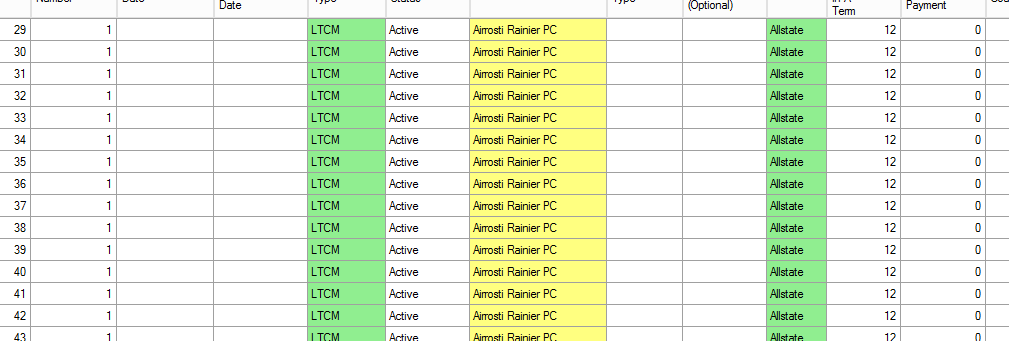
Once a match is confirmed, the system creates a Client Alias. In future imports, that client name will be highlighted in Yellow on the Create Policies screen, indicating the alias was recognized and automatically mapped to the correct master record.
Example: Alias in Action
After you alias "Airrosti Rainier" to "Airrosti Rainier PC," every future import containing "Airrosti Rainier" automatically maps to "Airrosti Rainier PC" without prompting you again.
🔧 Troubleshooting
The system suggested a match that is actually a different person. Leave the checkbox unchecked for that row. The system will treat the name as a new client and create a separate record. No alias will be created.
Client Matching didn't appear during my import even though I expected duplicates. The system uses phonetic and structural similarity to detect matches. If the names are too different (for example, an abbreviation vs. the full name), the system may not flag them. Create the alias manually via Tools → Client Alias after the import.
I accidentally approved the wrong alias. Navigate to Tools → Client Alias, select the master client, and delete the incorrect alias. Future imports will no longer convert that name automatically.
🔗 Related Topics
- Client Alias — Manually create and manage client name aliases.
- Agent Matching — The equivalent process for agent name deduplication.
- Create Policies — The import workflow where Client Matching occurs.
- Mapping Data — Configure how client names are read from carrier files.
Need help? Contact support@commission-tracker.com