Agent Commission Splits Report
The Agent Commission Splits Report is an auditing tool for reviewing how commissions are allocated across your agency. Use it to verify that every policy has a valid split and to see a clear view of which agents are assigned to which clients.
💡 Why Use This
Use this report when:
- Auditing data integrity — Identify policies where splits do not total 100%.
- Reviewing agent assignments — See a master list of all policies assigned to a specific Primary Agent.
- Exporting split data — Generate a flat file of split percentages for external analysis in Excel.
🗺️ How to Access
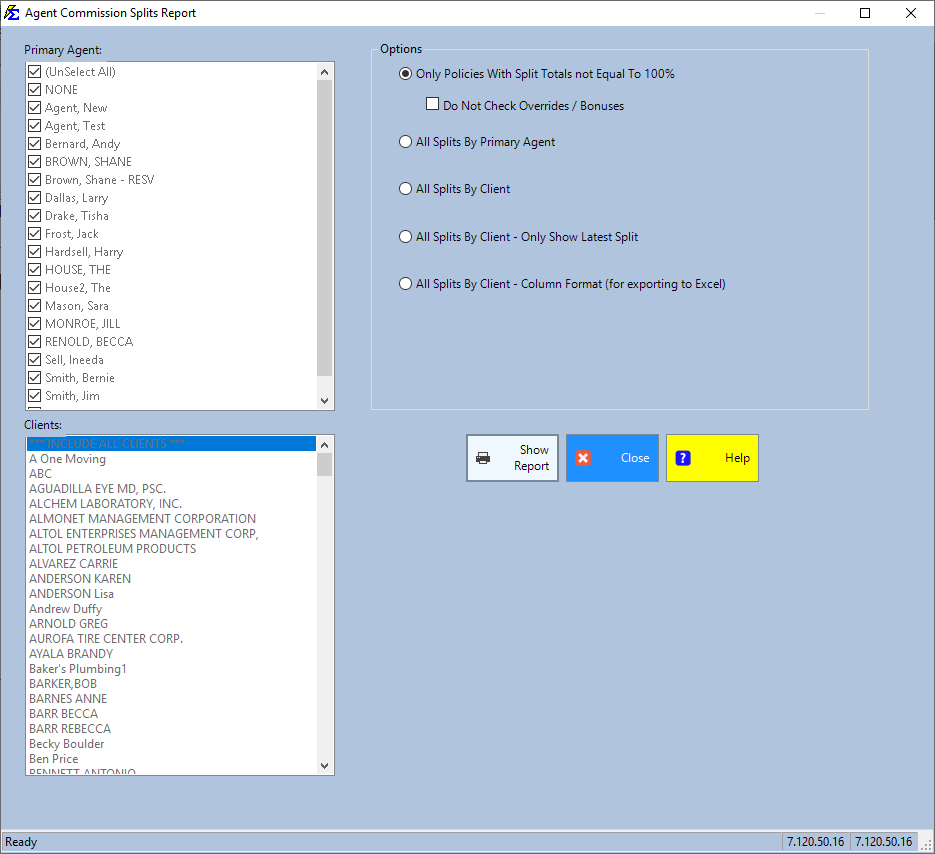
- Navigate to Reports → Agent → Agent Commission Splits.
- Under Options, pick one report format; the format decides which list matters (the Primary Agent: list for All Splits By Primary Agent, one client or INCLUDE ALL CLIENTS in the Clients: list for the three All Splits By Client formats).
- Click Show Report.
Saved Settings
Newer versions only
This is in newer versions of Commission Tracker. If you do not see it, your server has not been updated yet.
The filter screen has a Saved settings row at the top. Set the format, the agents or the client the way you run this report, type a name and click Save; next time, pick the name and the screen fills in. Saved settings are shared by everyone in your company, and the report remembers the last one you used.
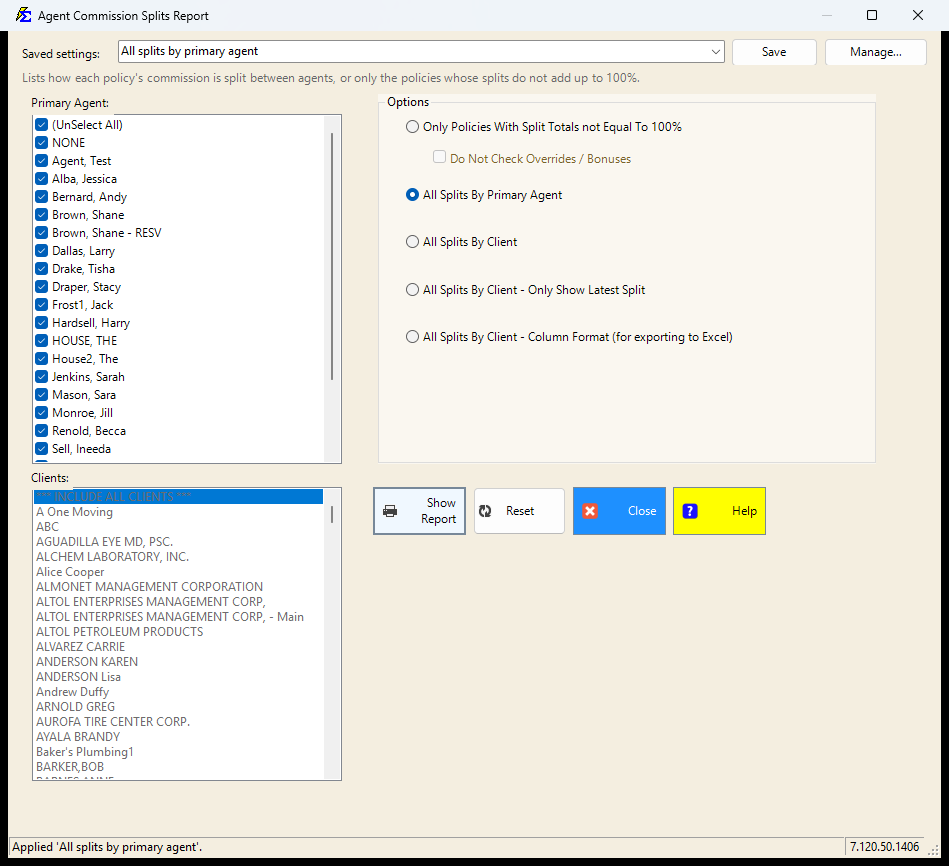
- Everything on the screen is remembered: the format, the checked primary agents, the selected client and the Do Not Check Overrides / Bonuses box.
- Agents left at (Select All) and the client left at INCLUDE ALL CLIENTS stay "all", so an agent or client added later is included automatically.
- There are no dates on this report, so there is no period to choose.
- Reset puts the screen back to the way it opens: Only Policies With Split Totals not Equal To 100%, the box off, every agent, all clients.
See Saved Report Settings for saving, renaming and deleting.
Available Report Formats
The five formats are options under Options: you pick one at a time, and they cannot be combined.
Data Integrity Audit (Exception Only)
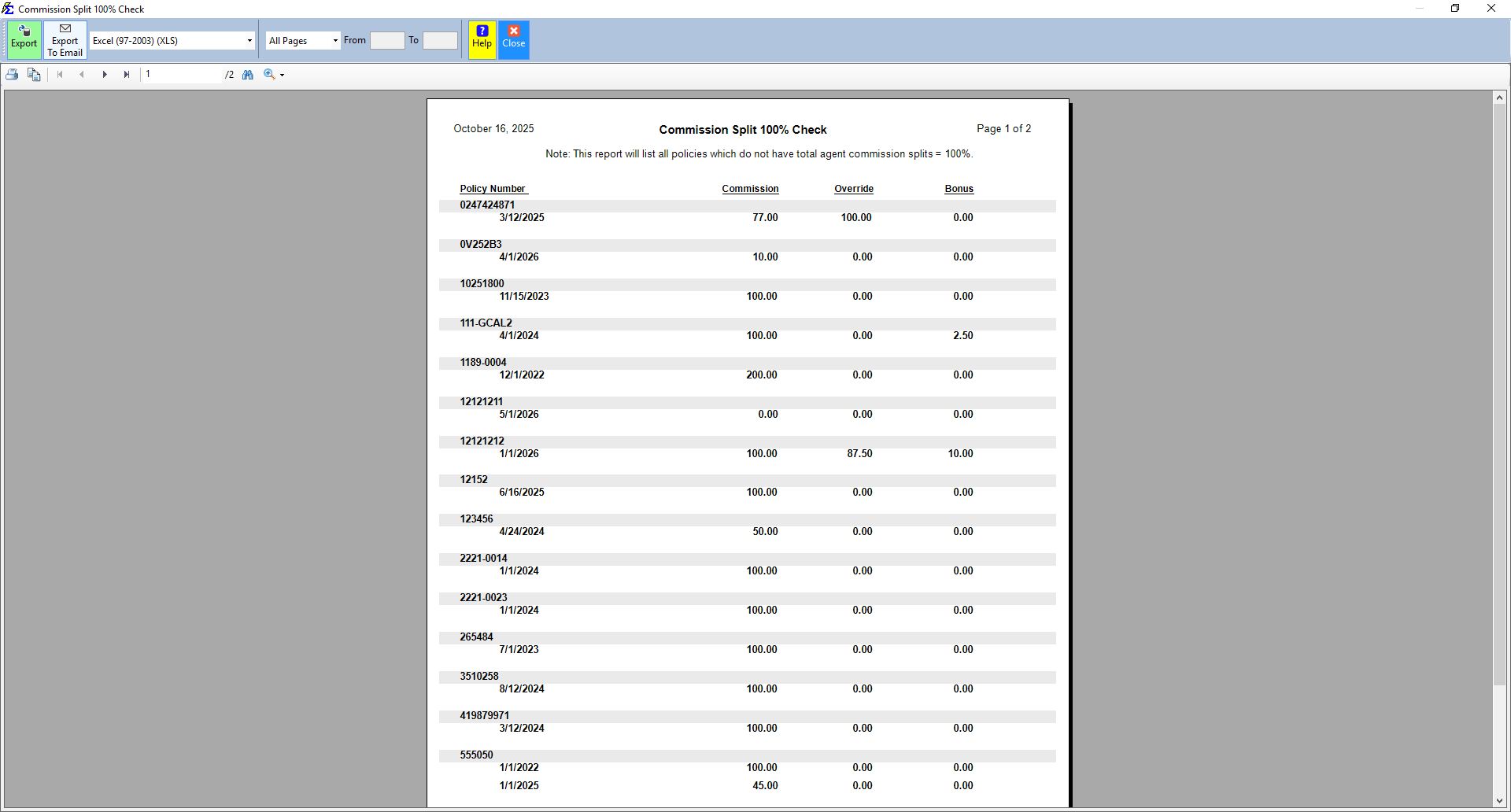
Select Only Policies With Split Totals not Equal To 100% to see only policies that need fixing — where splits are incomplete or exceed 100%. Use this first to find problems quickly.
By Primary Agent
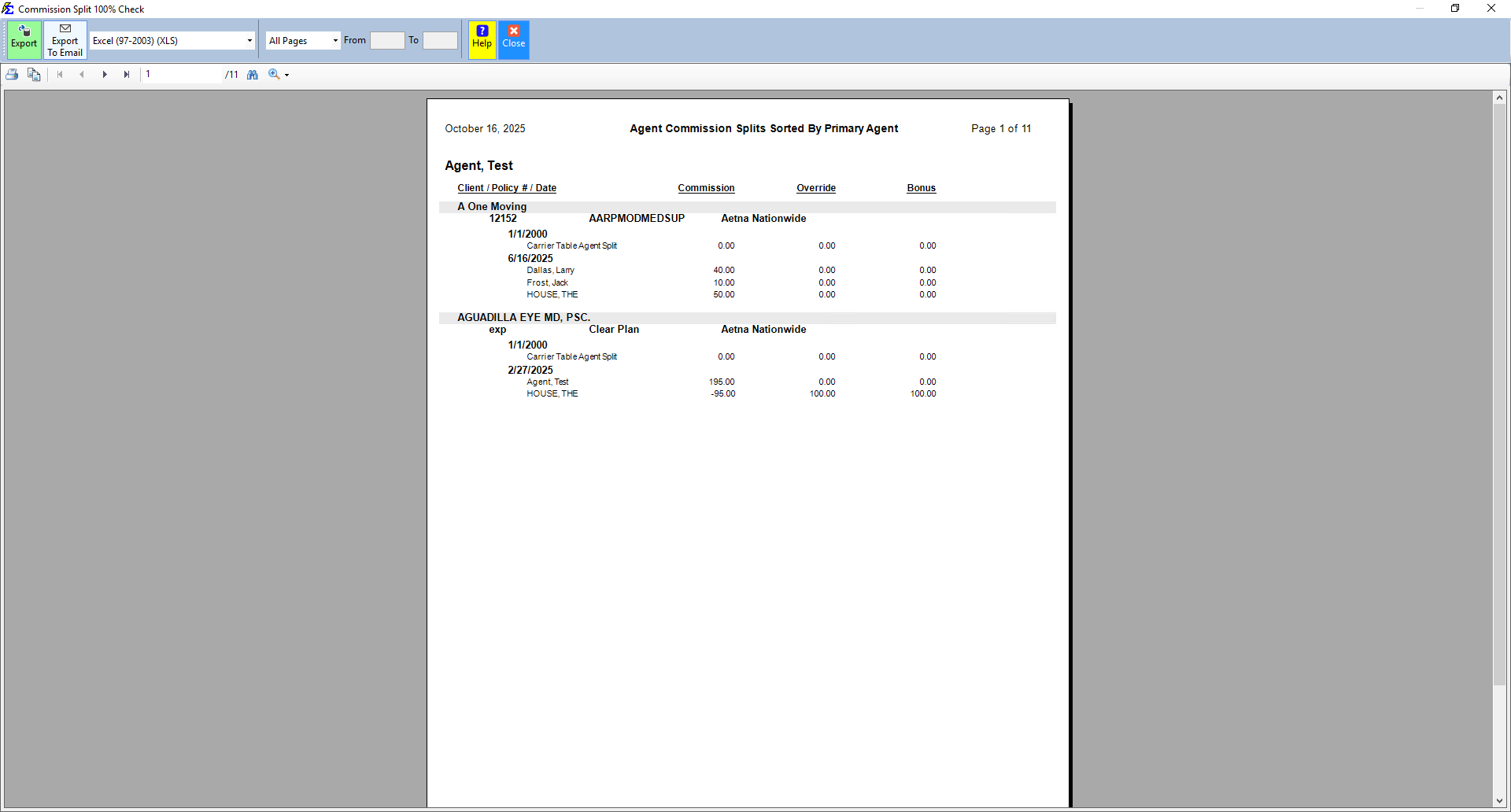
Select All Splits By Primary Agent to group all policies under the Primary Agent assigned to each policy. Tick the agents you want in the Primary Agent: list.
By Client
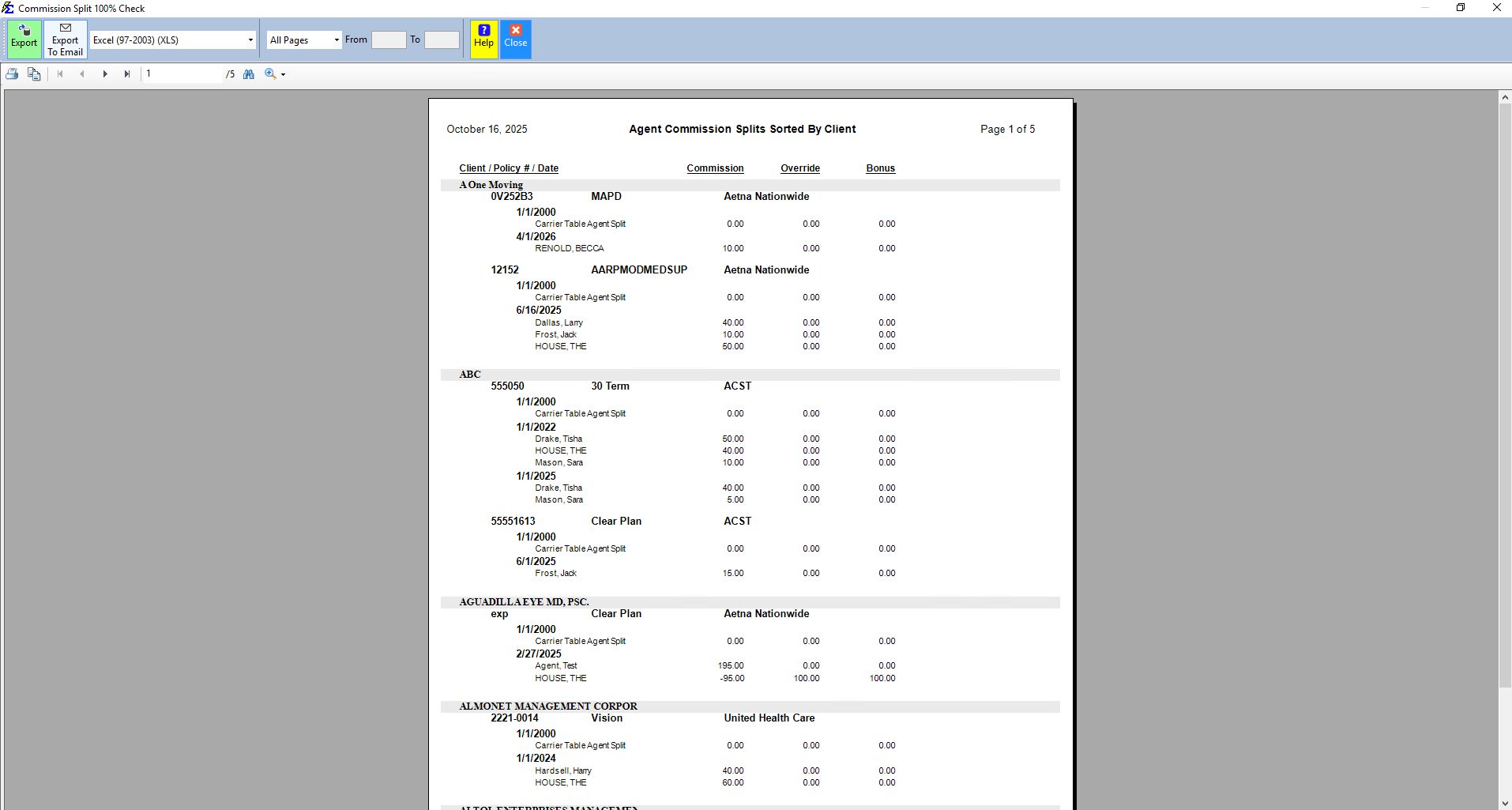
Select All Splits By Client to group policies by the client they belong to, regardless of agent assignment. In the Clients: list, pick one client or INCLUDE ALL CLIENTS.
Latest Split Only
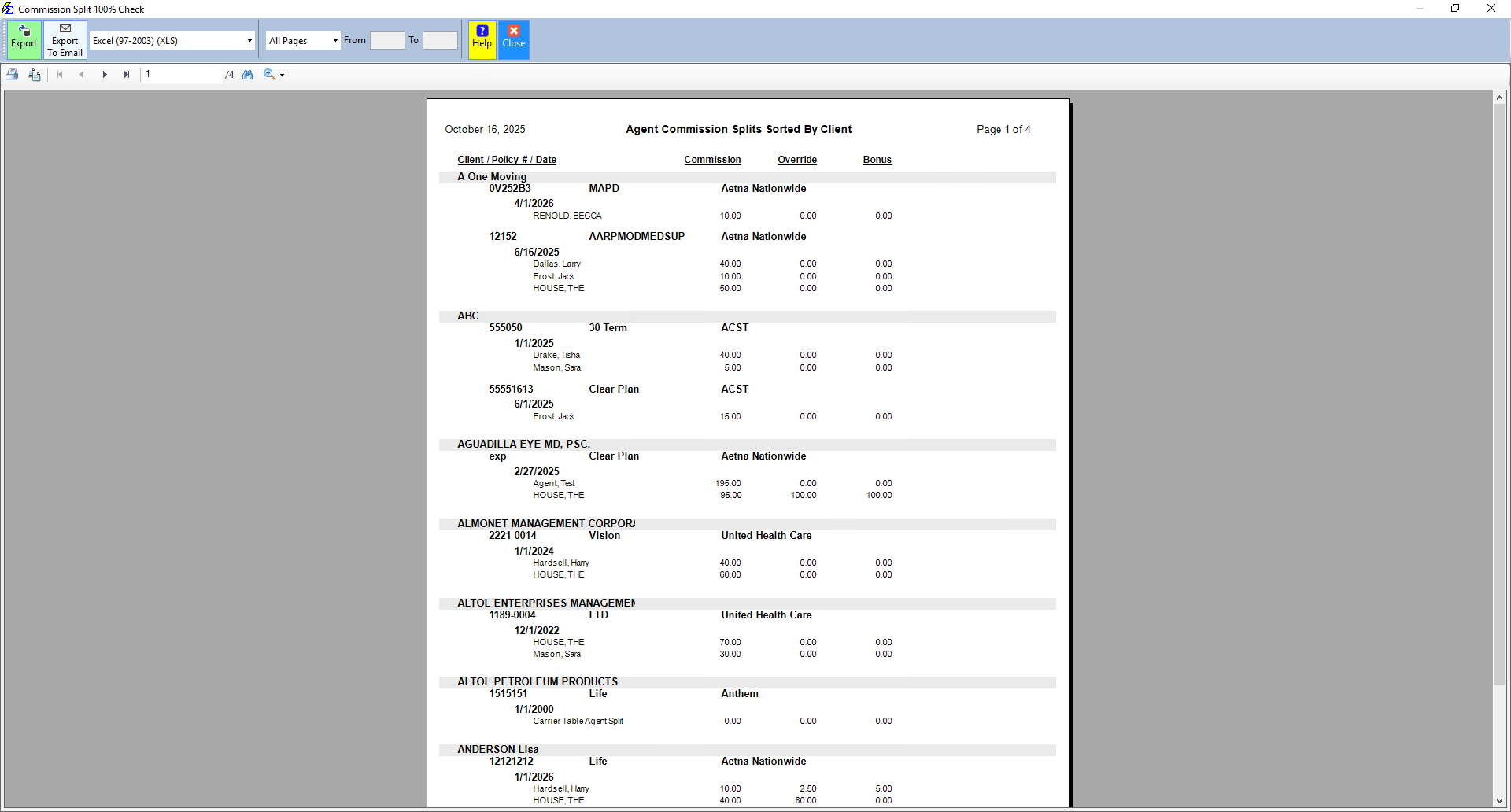
Select All Splits By Client - Only Show Latest Split to hide the history of split changes and show only the split currently in effect. Useful when policies have multiple split records over time.
Column Format (for Excel)
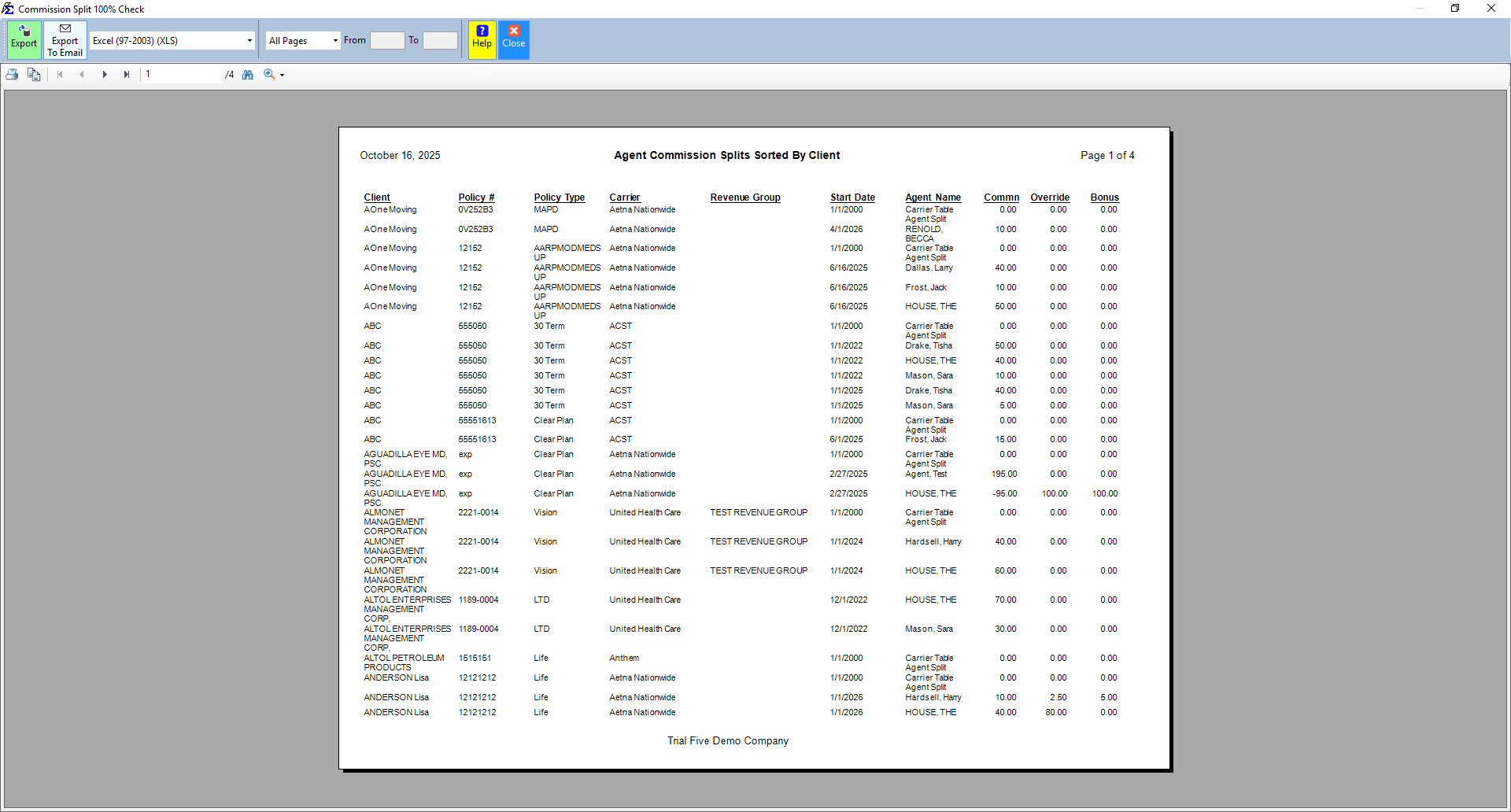
Select All Splits By Client - Column Format (for exporting to Excel) to remove grouping headers and produce a flat grid. Use this when exporting to Excel for sorting or filtering in a spreadsheet.
Step-by-Step: Finding Split Errors
- Navigate to Reports → Agent → Agent Commission Splits.
- Select Only Policies With Split Totals not Equal To 100%.
- Click Show Report.
- Note the policy numbers listed in the results.
- Open each policy and update the Agent Commission Split Table so splits total exactly 100%.
How This Report Generates
- The system scans the Agent Commission Split Table for every policy in the database.
- It calculates the sum of all percentages for each split record.
- It formats the data according to your chosen option (grouping, columnar, or latest only).
🔧 Troubleshooting
An agent shows 0% for a policy I know they are on. Check the Commission Start Date on the policy's Agent Commission Split Table. If the start date is in the future, the agent will not appear as an active split for current reporting periods.
I want to see splits for just one carrier. This report has no Carrier filter. Run All Splits By Client - Column Format (for exporting to Excel), click Export in the report window to save it as an Excel file, and filter the Carrier column in Excel.
"You Must Select Agents First!" This message appears when you run All Splits By Primary Agent or one of the All Splits By Client formats while no agent is ticked in the Primary Agent: list (or only NONE is ticked). Tick the agents you want, or click (Select All), and click Show Report again. The By Client formats check this list too, even though it is greyed out for them: pick All Splits By Primary Agent for a moment, click (Select All), then pick your By Client format again.
"You Must Select Clients First!" This message appears when nothing is selected in the Clients: list. Pick one of the All Splits By Client formats, click a client or INCLUDE ALL CLIENTS at the top of the list, and click Show Report again.
The report shows more split records than I expected. If All Splits By Client - Only Show Latest Split is not selected, the report includes all historical split records. Select that option to see only the currently active split for each policy.
🔗 Related Topics
- Agent Commission Split Table — Manage and correct splits on individual policies.
- Agent Split Template Manager — Manage reusable split templates.
- Agent List — Directory of all agents in the system.
Need help? Contact support@commission-tracker.com