Auto Receive Payments
The Auto Receive Payments feature is a time-saving utility used when adding policies that have been active for several months. It allows you to quickly mark past months as "paid" so the system doesn't flag them as missing or overdue in your Accounts Receivable reports.
💡 Why Use This
Use Auto Receive when:
- Onboarding Existing Business — Moving a client into Commission Tracker who has been with your agency for a long time.
- Cleaning Up Backlogs — Skipping the manual entry of historical payments that have already been settled and paid out to agents.
- Setting a "Start Date" — You want Commission Tracker to begin tracking actual revenue from the current month forward without showing months of missing payments.
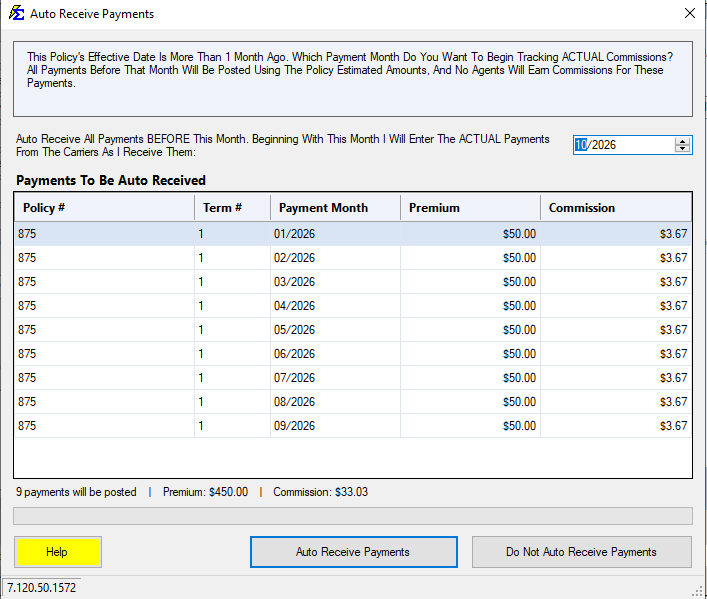
This pop-up appears automatically whenever you create a new policy with an Effective Date more than one month prior to today's date.
Important Accounting Rules
Payments created via the Auto Receive tool behave differently than standard manual entries:
- No Agent Payouts — These payments will never be paid to any agent. They are recorded for agency history only.
- Payment History Label — They appear in history with a Check Number of AutoRcv.
- Estimated Data — They use the default Premium and Commission values from the Policy screen rather than actual statement data.
- A/R Cleanup — Once auto-received, these months will no longer appear in Accounts Receivable or on the Reconcile Carrier Statement screen.
Step-by-Step: Using Auto Receive
1. Set the Effective Date
Create a new policy and set the Effective Date to a past date (e.g., today is 07/01/2023 and the Effective Date is 01/01/2023).
2. Configure the Pop-up
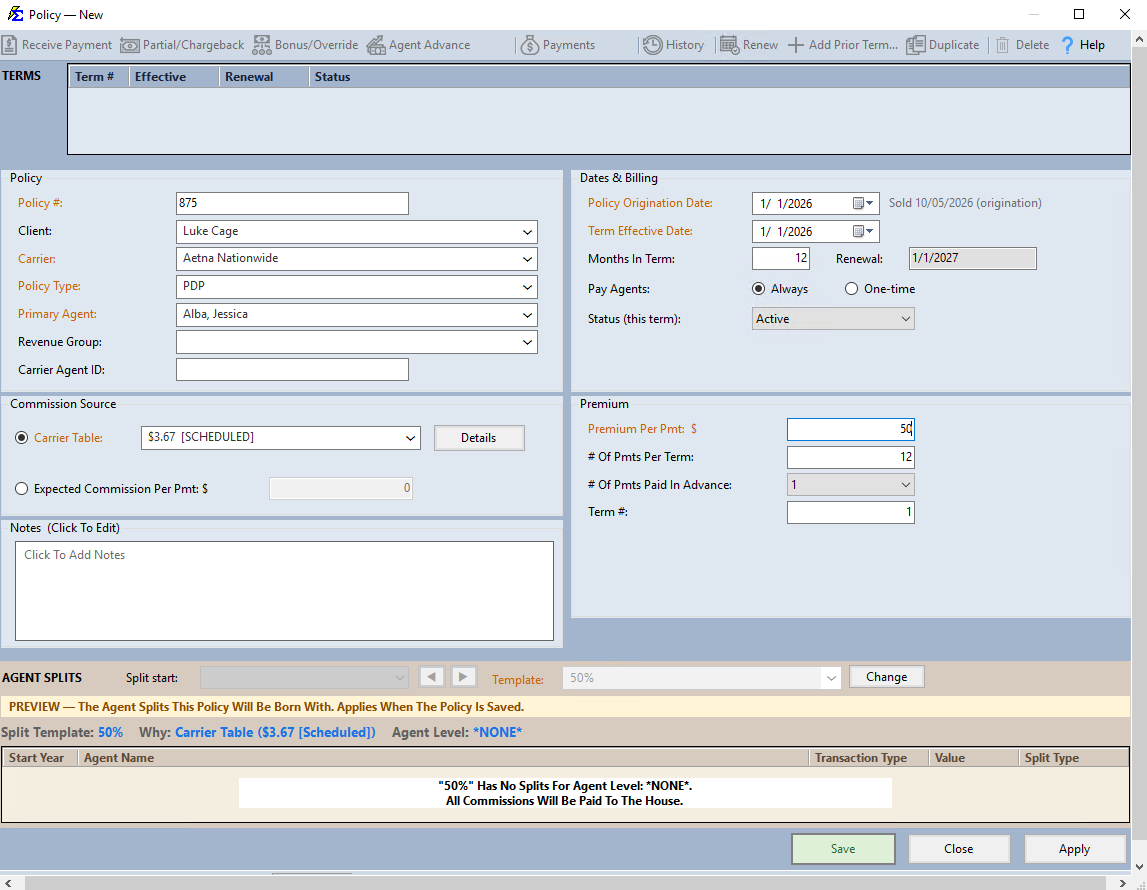
When you save, the Auto Receive box appears. Select the month and year you want the system to be "current" as of.
Example: If you set the month to 07/2023, the system will automatically post 6 payments (January through June).
3. Verify in Payment History
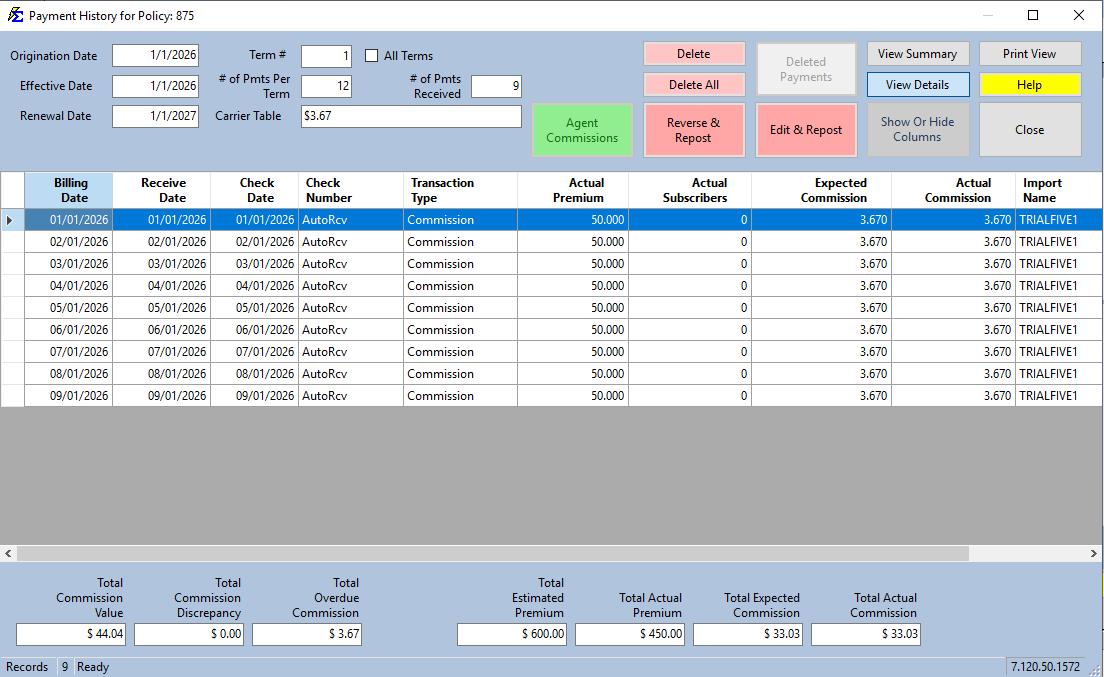
Open the Payment History for the policy. You will see the AutoRcv entries with Receive Dates and Check Dates set to match the Billing Date.
What Happens Next
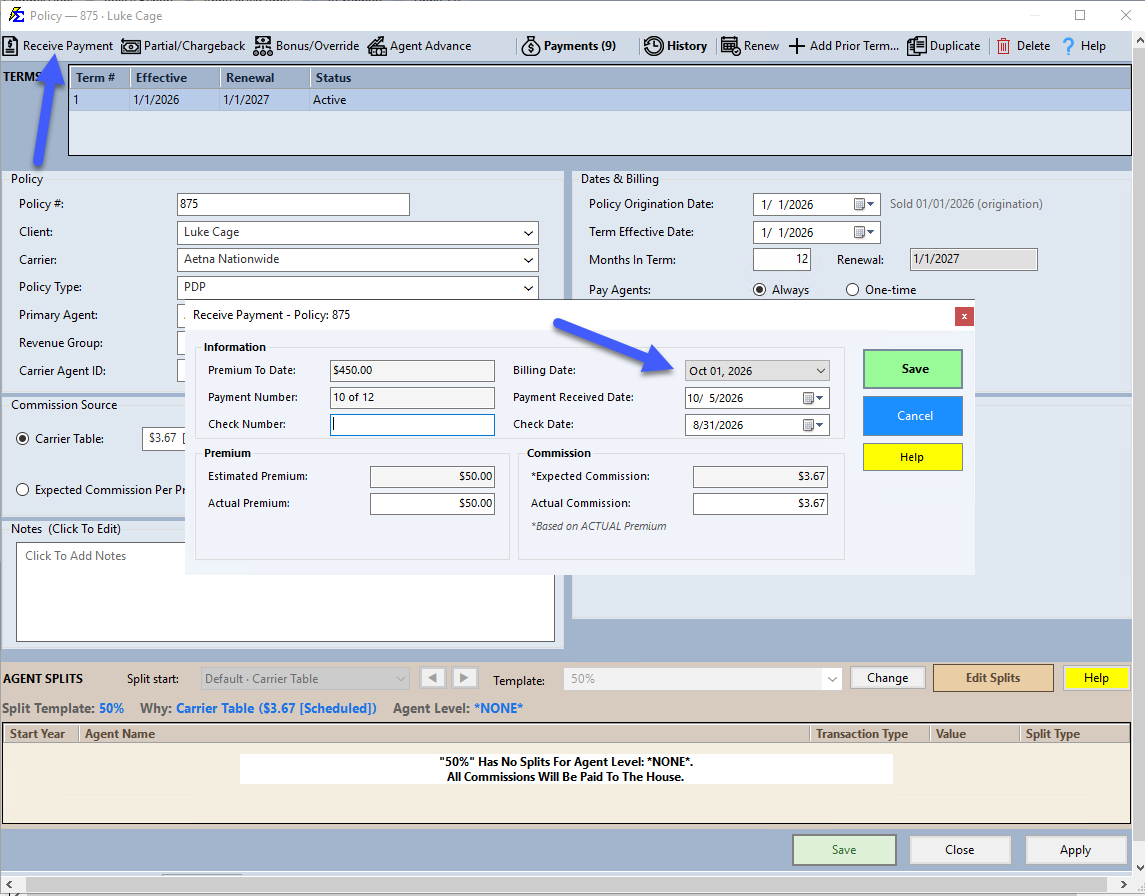
Once the past months are auto-received, the policy is caught up. When you next click Receive Payment, the system will automatically suggest the next logical billing month (e.g., July 2023), ready for you to enter actual statement data.
🔧 Troubleshooting
These payments are not showing up on my Agent Commission reports. Auto Receive assumes you have already paid your agents for this historical period outside of the software. To pay an agent through Commission Tracker, you must enter the payment manually or via import.
I need to undo an Auto Receive. Go into the Payment History for that policy and delete the AutoRcv entries individually. You can then enter the actual carrier check details instead.
Should I use Auto Receive for a policy that started last month? You can, but if you want 100% accurate commission data for that month, click Do Not Auto Receive Payments and enter the actual carrier check details manually.
🔗 Related Topics
- Receiving Payments — Enter your first real payment after auto-receiving historical months.
- Payment History — View and manage all posted payments including AutoRcv entries.
- Accounts Receivable — Track expected vs. received commission payments.
- Policy Example 1 — A walkthrough showing Auto Receive used for takeover business.
Need help? Contact support@commission-tracker.com