Agent Alias
The Agent Alias feature maps name variations from carrier statements to your existing Agent records. When different carriers report the same agent using different names (such as "Dave Jones" vs. "David Jones"), an alias tells the system to treat them as the same person — preventing duplicate agent records.
💡 Why Use This
Use Agent Alias when:
- A carrier uses a name variation — The name on the statement doesn't match your existing Agent record, causing import errors or duplicate creation.
- Preventing duplicate agents — Stop multiple records for the same person from appearing in your database.
- Standardizing data across carriers — Map various nicknames or formatting differences back to one primary Agent profile.
🗺️ How to Access
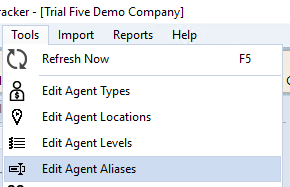
- Via Tools Menu — Go to Tools → Edit Agent Aliases to manage aliases globally.
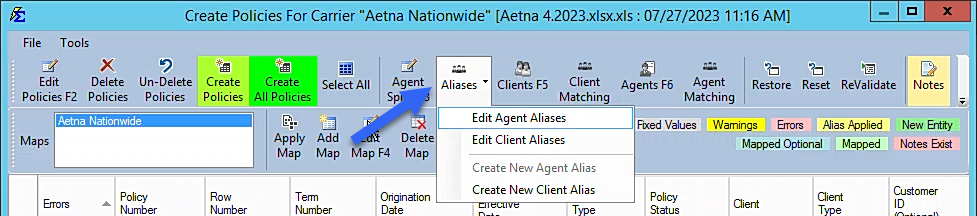
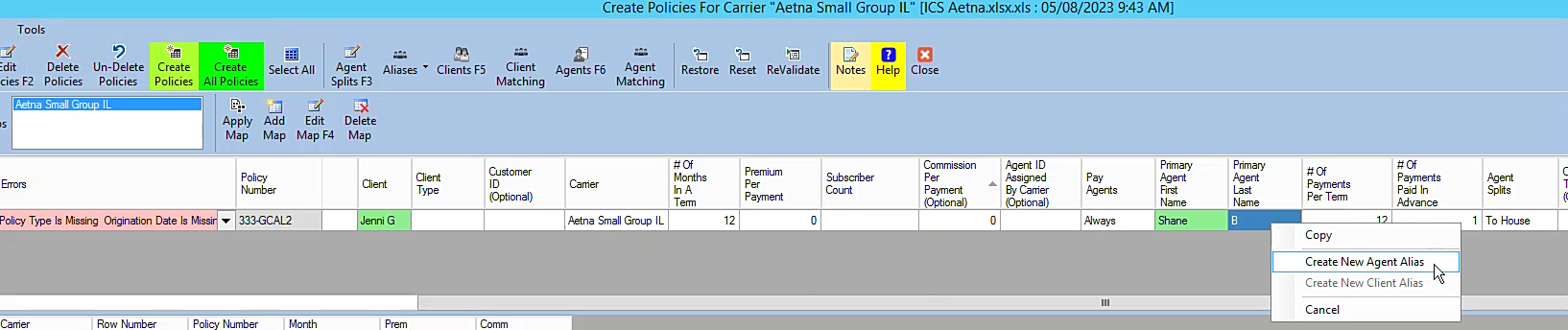
- During Import — Right-click an agent name in the Create Policies screen to create an alias on the fly.
Video Tutorial
If the video below does not play, copy and paste this link into your browser: Watch on YouTube
Methods for Creating Aliases
Method 1: Via the Tools Menu
Use this method when you know a carrier uses a specific name variation and want to set up the alias before importing.
- Navigate to Tools → Edit Agent Aliases.
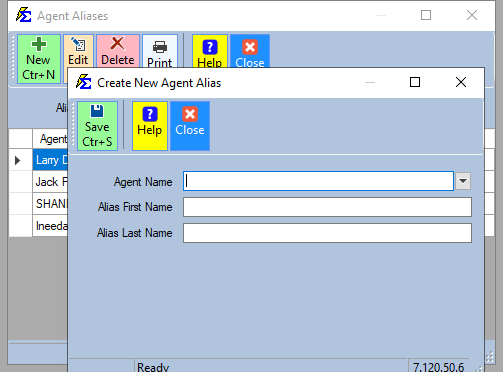
- Select the primary (master) agent from the dropdown.
- Type the alias name used by the carrier.
- Click Save.
Method 2: During Import (Create Policies Screen)
Use this method when you recognize a name during an import that should match an existing agent.
- In the Create Policies screen, locate the agent name in the lower grid.
- Right-click the agent's first or last name.
- Select the matching master agent from the list.
Method 3: Quick Create (Right-Click in Create Policies)
Within the Create Policies screen, right-click any agent name to immediately create an alias without navigating to the Tools menu.
Alias Rules
- Uniqueness — You cannot create an alias that is identical to an existing Agent name in the database.
- No Overlap — You cannot create an Agent name that is already being used as an alias for someone else.
- Multiple Aliases — A single agent can have an unlimited number of aliases assigned to them.
What Happens During Import
When you import a carrier statement:
- The system reads the agent name from the file.
- It checks the Agent Alias table first.
- If a match is found, it automatically converts the name to the master agent name.
- The policy import proceeds without prompting you to create a duplicate agent.
🔧 Troubleshooting
The system won't let me save an alias. The name you are trying to use as an alias may already exist as a primary Agent name or as an alias for someone else. Every name in the system must be unique. Check Tools → Edit Agent Aliases to see if the name is already in use.
I want to remove an alias that was created by mistake. Navigate to Tools → Edit Agent Aliases, select the master agent, locate the incorrect alias, and delete it.
🔗 Related Topics
- Client Alias — Map client name variations from carrier statements.
- Create Policies — The import workflow where aliases are frequently created.
- Mapping Data — Configure how agent names are read from carrier files.
- Manage Agents — Create and manage your primary agent records.
Need help? Contact support@commission-tracker.com