Logging In & Security
Accessing Commission Tracker for the first time requires using default credentials. Once logged in, we highly recommend changing the default password and giving every person their own login to maintain security and audit trails. To add a new person, contact support and we will create their login.
💡 Why Use This
Proper login setup ensures each team member has their own account, keeping your Policy History and audit trail accurate. This page also covers how to recover access if you are locked out.
🗺️ How to Access
The login screen appears every time you open Commission Tracker. Cloud users open Commission Tracker with their connection file, then log in.
First-Time Login
When you launch the application for the first time, use the default administrative credentials.
- Account: Filled in for you with your user name. You do not type it.
- Default Password:
admin
Login Requirement
The Password is case-sensitive. Ensure your Caps Lock is off before proceeding.
Logging In
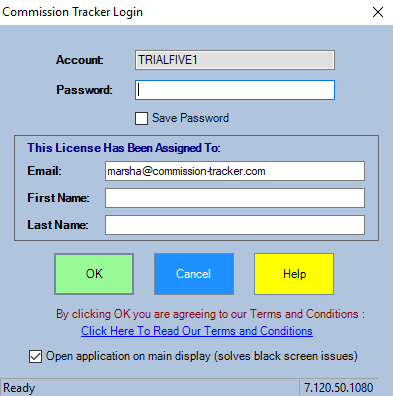
When launching Commission Tracker, you will be prompted to enter your credentials on the login screen. As part of an enhanced security update, the login screen now requires the following:
- Account: — Automatically filled in by the software.
- Password: — Your account password (case-sensitive). Check Save Password to have it filled in next time.
- Email: — The email address associated with your account (under This License Has Been Assigned To:).
- First Name: and Last Name: — Your name as registered in the system.
Enhanced Security
The additional Email and Name fields were introduced to strengthen account verification. This ensures that every session is tied to a confirmed, individual user — protecting the accuracy of your audit trail and keeping your commission data secure.
Managing Users & Passwords
After your initial login, configure your own secure credentials.
- Navigate to Tools → User Management.
- In the Administration Password box, enter the administration password (default:
password) and click OK. - Select your row, click Edit, type your new CommTrack Password, and click Accept.
Adding a New Person
User Management has no Add button. To add a new person, contact support@commission-tracker.com and we will create their login.
Forgot Your Password?
If you are locked out or need a password reset, an administrator can update your credentials through User Management. Contact your system administrator and ask them to reset your password from the User Management screen.
🔧 Troubleshooting
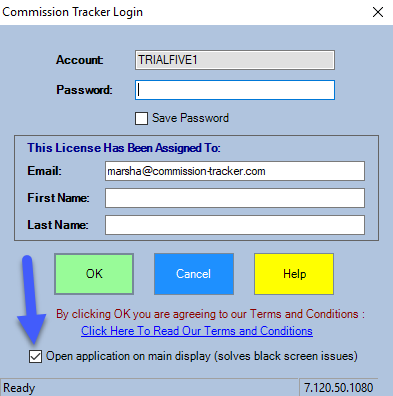
The application opens to a black or empty screen. In some multi-monitor setups, the application may attempt to open on a screen that is no longer connected. Check the box labeled "Open application on main display (solves black screen issues)" at the bottom of the login screen, then click OK, to force the application window back to your primary monitor.
Best Practices
- Change the defaults — Never keep the default
adminorpasswordcredentials active after setup. - Individual logins — Give every employee their own login to track who makes changes to policies or payments. Contact support to add a new person.
- Password resets — If a user is locked out, an administrator can reset their credentials through User Management.
🔗 Related Topics
- User Management — Manage software users and permissions.
- Password FAQ — Understanding your two logins and credential management.
- Connection Issues — Troubleshooting steps for login errors and disconnected sessions.
- Database Backup — Cloud backup procedures.
Need help? Contact support@commission-tracker.com