Receive Bonus / Override
The Receive Bonus / Override form allows you to manually record bonus or override commission payments for a specific policy. This is separate from regular commission payments and is typically used for special carrier incentives or manager overrides.
💡 Why Use This
Use this form when you need to record:
- Bonus Payments — Special incentive payments from carriers that are separate from standard monthly commission.
- Override Payments — Manager or upline override commissions paid on top of the base agent's commission.
This is different from the Receive Payment Button, which is used for regular monthly commission payments.
🗺️ How to Access
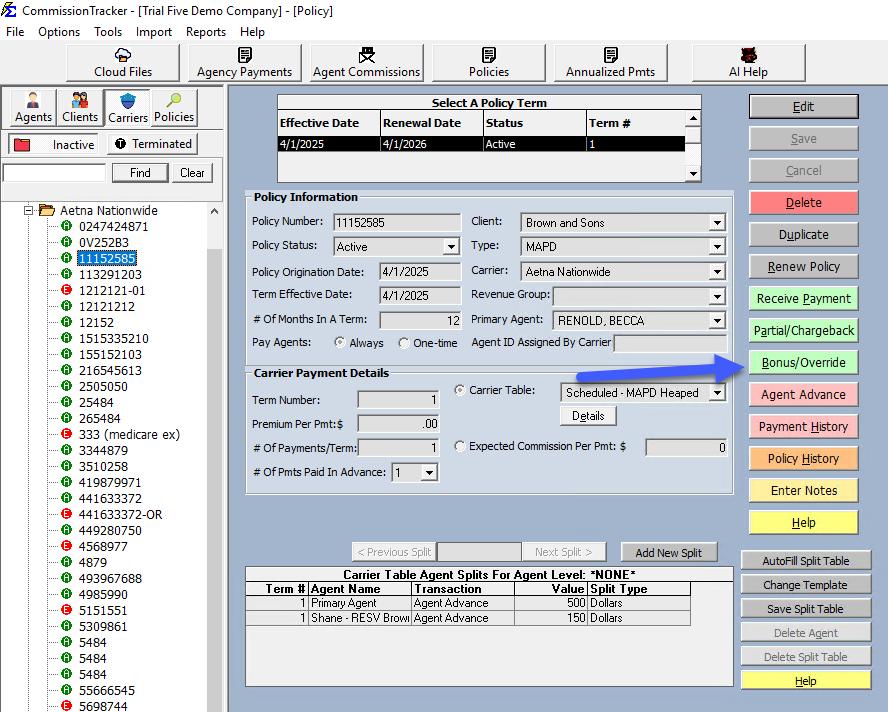
- Open a policy from the Policy List.
- Click the Bonus/Override button in the toolbar.
Form Fields
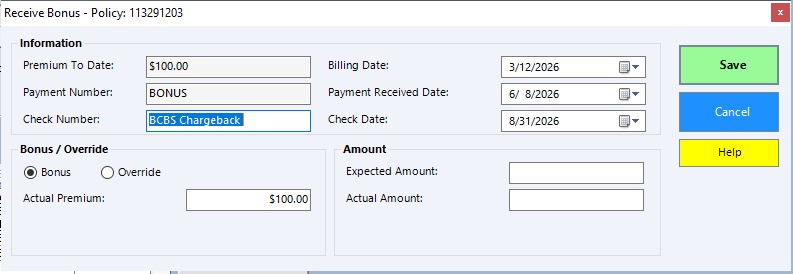
Information Section
- Check Number — The check number from the carrier (optional).
- Billing Date — The date this bonus or override applies to (defaults to policy effective date).
- Receive Date — The date you received the payment (remembered from last use).
- Check Date — The date on the check (syncs with Receive Date until manually changed).
Bonus / Override Section
- Radio Buttons — Select either Bonus or Override. Your selection is remembered for next time.
- Actual Premium — The premium amount this payment is based on (defaults to the policy's premium per payment).
Amount Section
- Expected Amount — The commission amount you expected (enter manually).
- Actual Amount — The actual commission amount received.
Important Notes
Key Differences from Regular Payments
- No Paid-in-Full Check — Unlike regular commission payments, bonus and override payments can be recorded at any time, even if the policy is fully paid.
- Manual Entry — All commission amounts are entered manually; there is no automatic calculation.
- No PPS Mode — This form does not check for Pay-Per-Subscriber policies; all amounts are treated as currency.
- Date Warning — If the Receive Date is more than one year from today, you will receive a confirmation prompt before saving.
Step-by-Step: Recording a Bonus or Override
- Open the policy from the Policy List.
- Click the Bonus/Override button.
- Select Bonus or Override using the radio buttons.
- Enter the Actual Premium if it differs from the default.
- Enter the Expected Amount (what you anticipated receiving).
- Enter the Actual Amount (what you actually received).
- Verify all dates are correct.
- Click Save.
What Happens When You Save
- A new payment record is created with type Bonus or Override.
- Agent commission splits are calculated based on:
- The Policy-Specific Agent Commission Split Table (if defined), OR
- The Agent Split Template assigned to the carrier table (if no policy-specific splits exist), OR
- 100% of the commission stays with The House if neither is defined.
- Commission records are created for each agent in the split table.
🔧 Troubleshooting
There is no Bonus/Override button visible on the policy. Verify that the policy is open and that you have the necessary user permissions. The button appears in the policy toolbar when a policy record is active.
The Billing Date defaulted to an incorrect date. The form defaults to the policy effective date. Click the Billing Date field and select the correct month and year before saving.
The bonus payment is not appearing on agent reports. Confirm that the Receive Date falls within the date range of the report you are running. Agent reports filter by Receive Date, not Billing Date. Also verify the correct transaction type (Bonus or Override) is selected, as some reports filter by type.
I need to correct a bonus or override that was already saved. Navigate to Payment History for the policy, locate the incorrect entry, and use Reverse & Repost or Edit & Repost to correct it.
🔗 Related Topics
- Receiving Commission Payments — Overview of all payment entry methods.
- Receive Payment Button — Standard monthly commission entry for a single policy.
- Chargebacks — Recording negative or returned commission amounts.
- Agent Commission Splits — How commission is distributed among agents.
- Payment History — View, correct, and manage all posted payments.
- Agency Payments Received Report — View bonus and override totals by transaction type.
Need help? Contact support@commission-tracker.com