Receive Payment Button
The Receive Payment Button is the simplest way to record a commission payment for a single policy. Use it whenever you want to post, enter or add one payment by hand for one client's policy. For entering a full carrier statement, consider Reconcile Carrier Statement or Import Carrier Statements.
💡 Why Use This
Use the Receive Payment Button when:
- Entering a single miscellaneous payment — Quick manual entry for a one-off payment without running a full import.
- Posting a payment that wasn't on an import file — Catching up a payment that was missed or that the carrier sent separately.
- Correcting or supplementing imported data — Adding a payment for a specific policy after the main import is complete.
🗺️ How to Access
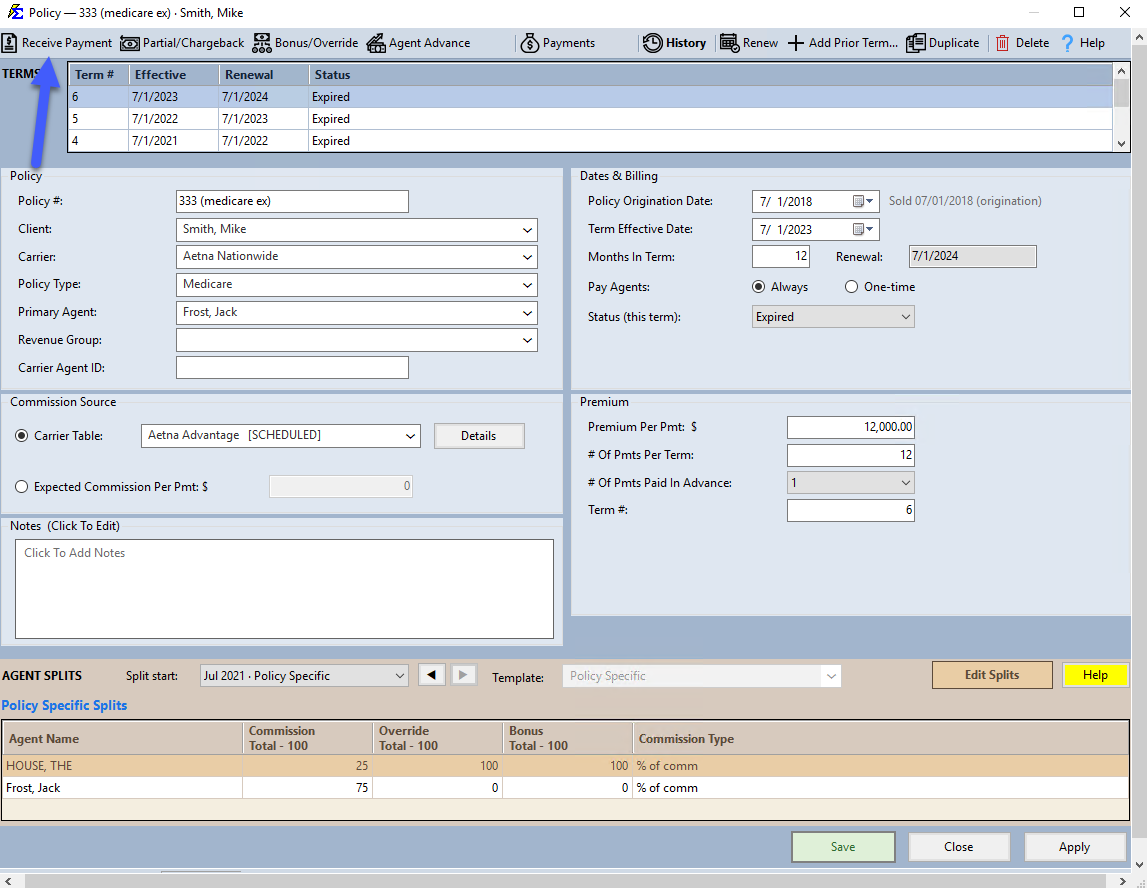
The Receive Payment Button is located on the individual Policy screen. Open a policy and click Receive Payment.
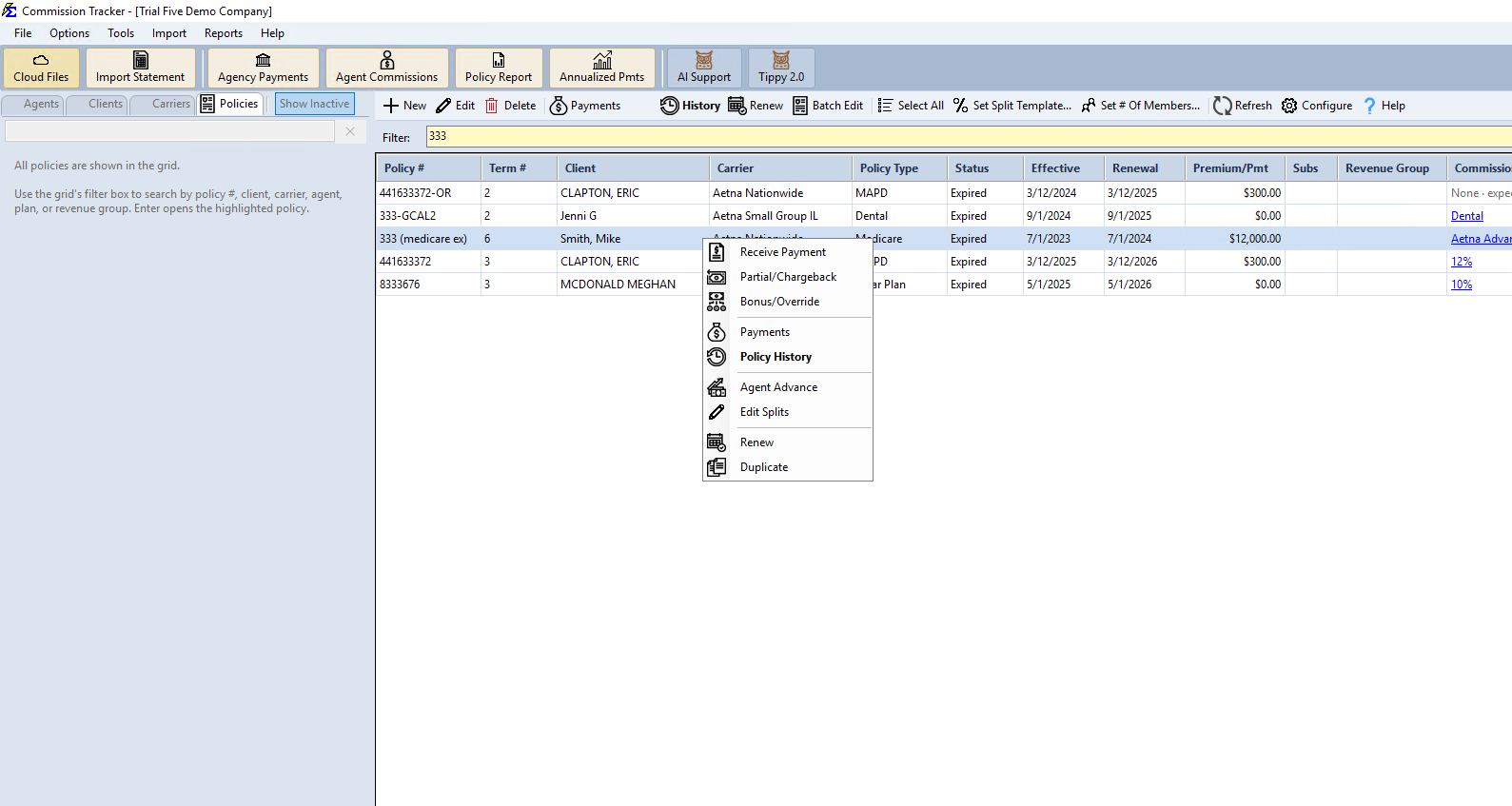
You can also right-click a policy directly in the Policies grid and select Receive Payment from the context menu, without opening the policy first.
If the policy has already received every payment for its term, Commission Tracker says the policy has been paid in full and offers Renew (start the next term) or Partial/Chargeback (an extra, partial or negative amount).
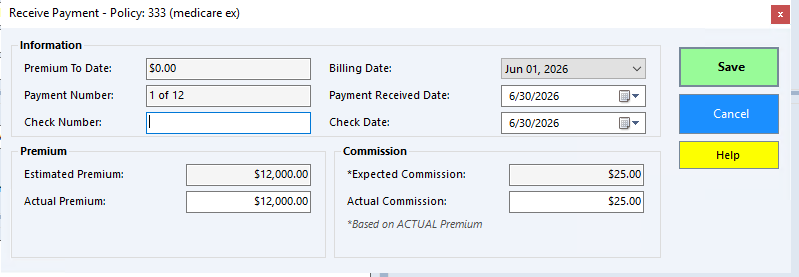
Key Field Descriptions
- Premium To Date — Running total of premium already posted for this term, shown for reference.
- Payment Number — Which payment slot in the term this entry fills (e.g., "1 of 12").
- Billing Date — Select the Month/Year for the payment. Billing dates that have already been paid disappear from this list.
- Payment Received Date — The date the commission is recognized; affects when it appears on agent reports.
- Check Number / Check Date — Optional fields for tracking specific transactions and aiding in year-end audits or carrier disputes.
- Estimated Premium / Actual Premium — The policy's on-file premium estimate alongside the actual premium amount from the carrier statement.
Give the software a moment to calculate
After entering or changing the Actual Premium, pause briefly before continuing. Commission Tracker automatically recalculates both the Expected Commission and Actual Commission based on the premium you entered — but it needs a moment to finish. If you are tabbing through the fields, pause after the premium field and wait for the updated values to appear before pressing Tab again, clicking Save, or pressing Enter. This ensures the correct commission amounts are recorded.
- Expected Commission / Actual Commission — The system-calculated expected amount alongside the actual dollar amount received. Discrepancies between the two can be tracked in reports.
Audit & History
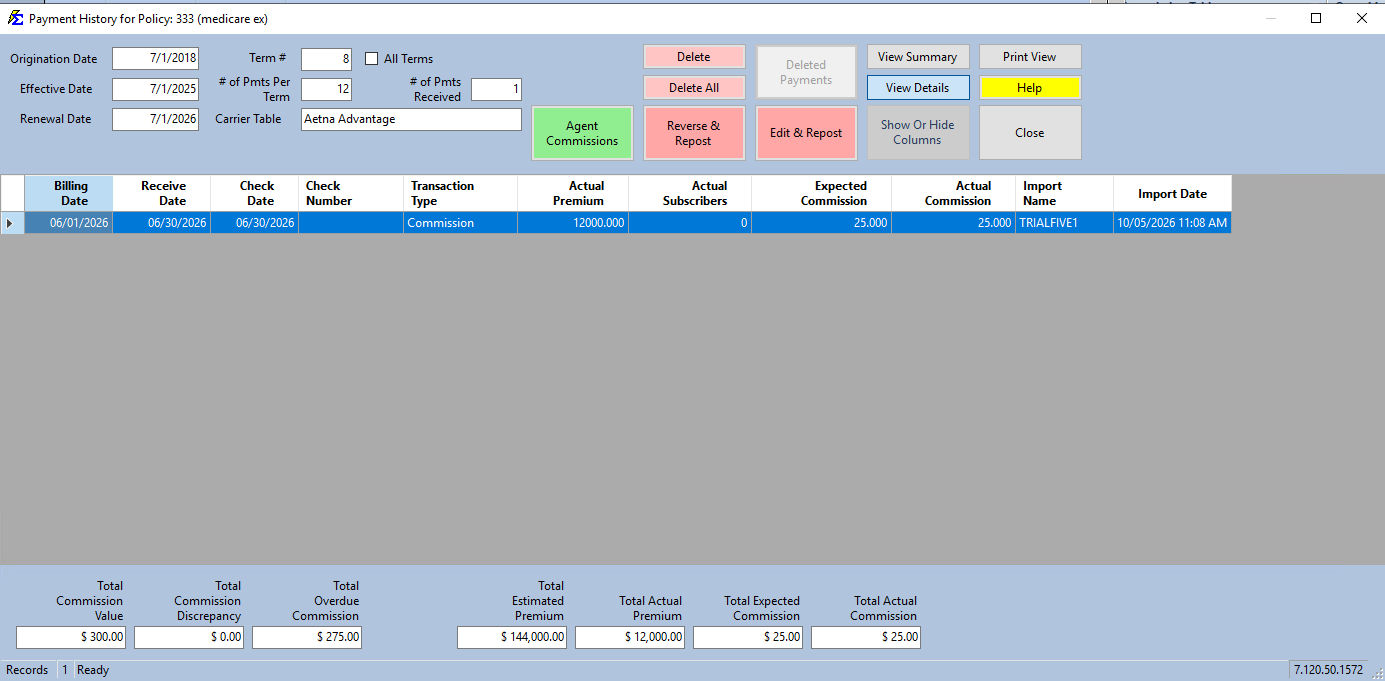
Manual payments log the username and timestamp of the person who entered the data. This is viewable in the Payment History Detail View.
🔧 Troubleshooting
The Billing Date I need is not in the dropdown. Billing dates that have already been paid are removed from the list. If the date is missing, check Payment History to see if that month was already posted. If it was posted in error, delete it first and then re-enter.
The Actual Commission I entered isn't appearing on agent reports. Verify that the Payment Received Date is within the date range of the report you are running. Agent reports filter by the Received Date, not the Billing Date.
🔗 Related Topics
- Receiving Commission Payments — Overview of all payment entry methods.
- Reconcile Carrier Statement — Enter a full statement on one screen.
- Import Carrier Statements (Excel Statements) — Bulk import from Excel or CSV files.
- Payment History — View and manage all posted payments.
Need help? Contact support@commission-tracker.com