Payment History
Payment History is the definitive record of every expected and received payment for a specific policy term. Access it directly from the Policy screen to audit carrier accuracy, verify agent splits, and correct or delete payment entries.
💡 Why Use This
Use Payment History when you need to:
- Audit payments — Verify that what you received matches what was expected for each billing month.
- Review agent splits — See exactly how each payment was distributed among your agents.
- Correct posted payments — Reverse or edit a payment that was entered with incorrect amounts or dates.
- Delete incorrect entries — Remove payments posted in error so they can be re-entered or re-imported.
🗺️ How to Access
- Open a policy from the Policy List.
- Click Payment History on the policy window's toolbar. The window that opens is titled Payment History.
You can also select the policy in the policy grid and click Payments on the grid's toolbar, or right-click the policy and choose Payments.
Status Definitions
Each billing month is assigned a status that determines how it appears on your agency's financial reports.
| Status | Meaning | Report Impact |
|---|---|---|
| Open | No payments have been posted yet. | Appears in Accounts Receivable. |
| Partial | Some money was received, but more is expected. | Stays in Accounts Receivable. |
| Closed | Commission has been received and the month is paid. | Appears in Payment Discrepancy. |
| Orphan | Payment date falls outside the Policy Effective/Renewal dates. | Hidden from most standard term reports. |
About Orphaned Payments
Orphans usually occur when policy dates are changed after a payment has already been posted. To fix an orphaned payment, navigate to the Detail View, delete the existing payment record, and re-enter the payment using the correct Billing Date.
Summary vs. Detail View
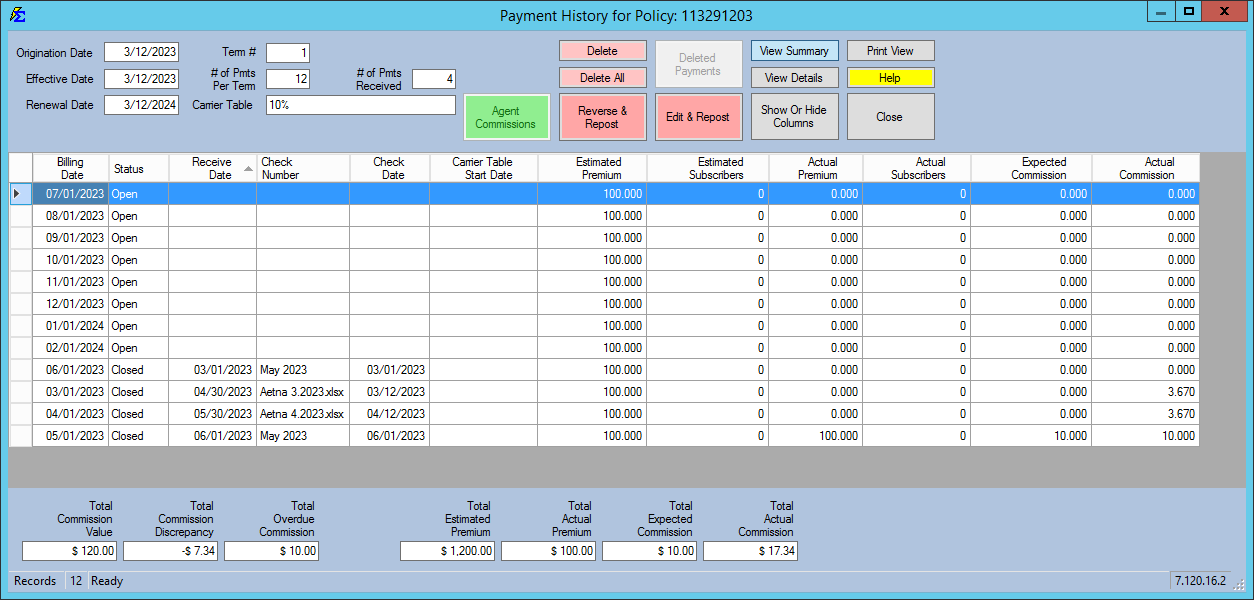
Summary View
Provides a high-level look at each billing month. If a month shows Multiple Payments in the Check Number column, switch to Detail View to see the full breakdown.
Detail View
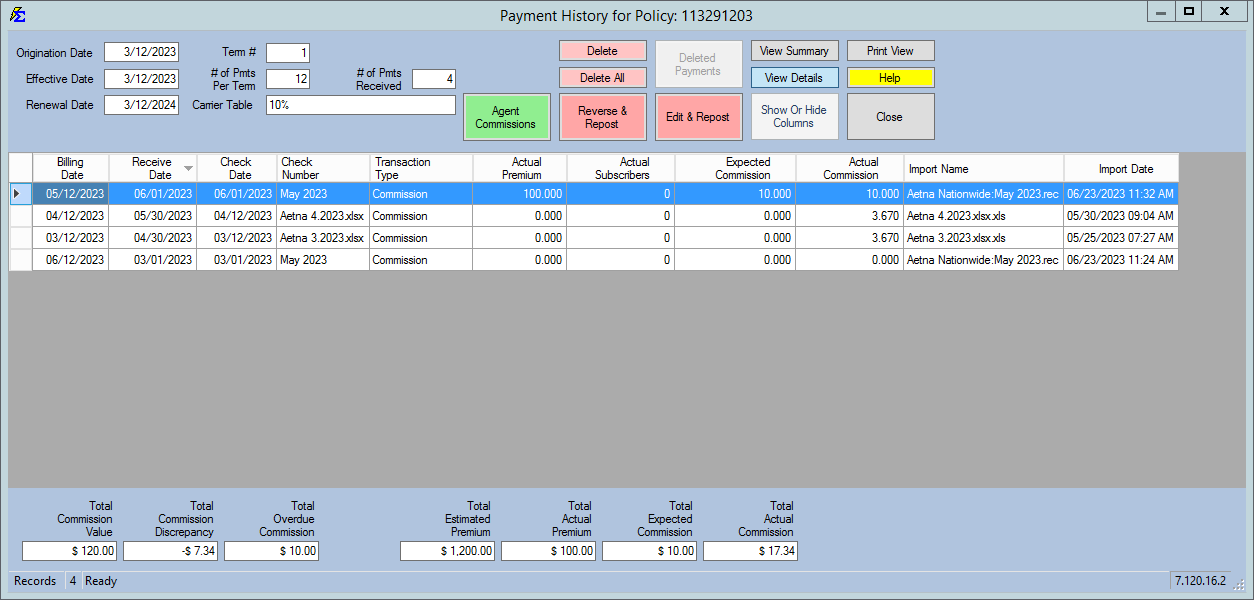
Shows every individual transaction, including chargebacks and adjustments. Use this view to identify the source of each payment entry:
- .xls / .csv — Imported via Import Carrier Statements.
- .rec — Entered via the Reconcile Carrier Statement tool.
- Username — Indicates the payment was entered manually by that specific user.
Understanding Total Values
The bottom of the screen provides a financial snapshot of the policy:
- Total Commission Value — The total "Book Value" of the policy based on your Carrier Commission Table estimates.
- Commission Discrepancy — The difference between what you expected and what you actually received for Closed months.
- Overdue Commission — The total dollar amount currently in Open status for past billing dates.
Correcting Payments: Reverse vs. Edit
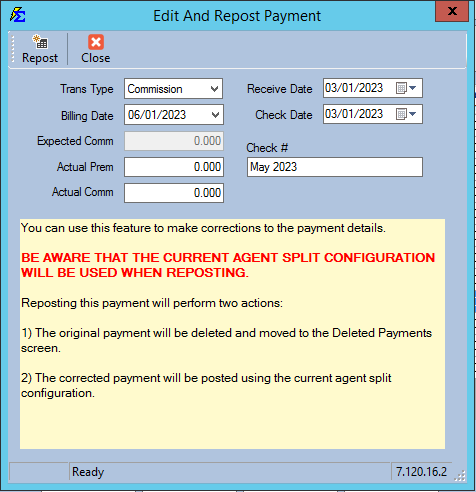
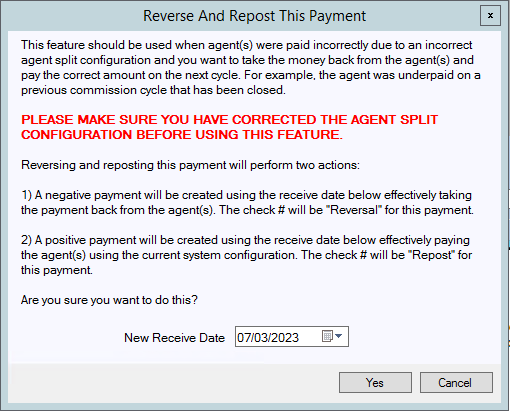
If a payment was posted incorrectly, two options let you correct it without starting from scratch.
| Feature | Action |
|---|---|
| Reverse & Repost | Keeps the original payment and adds two new rows with the New Receive Date you pick: a negative payment with check # Reversal, which takes the money back from the agents, and a positive payment with check # Repost, which pays the agents again using the current agent splits. Use it after you correct a wrong agent split on a payment from a commission cycle that is already closed. |
| Edit & Repost | Lets you correct the payment's details. The original payment is deleted and moved to Deleted Payments, and the corrected payment is posted using the current agent splits. |
Viewing Agent Splits
To see how a specific payment was distributed to your agents, double-click any payment row or click the Agent Commissions button.
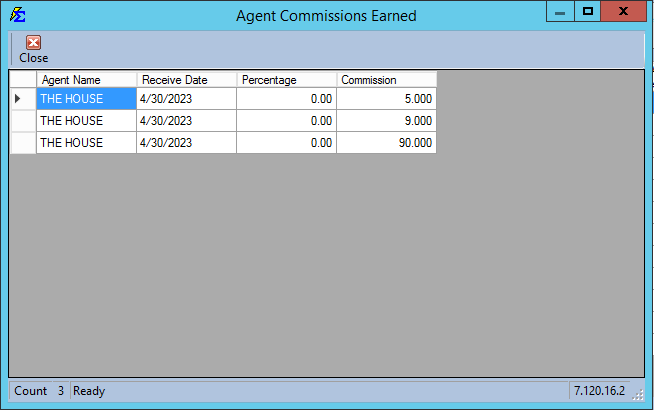
Use Detail View for Splits
Always switch to Detail View before verifying agent commissions. Summary View does not show individual agent commission breakdowns.
🔧 Troubleshooting
A billing month shows "Orphan" status. This happens when policy dates were changed after the payment was posted. In Detail View, delete the orphaned payment record, then re-enter the payment with the correct Billing Date using the Receive Payment Button or Reconcile Carrier Statement.
An agent is not showing in the payment split detail. The agent may not have been included in the Commission Split Table at the time the payment was posted. Check the Policy-Specific Agent Commission Split Table for that policy and verify the split's Start Date covers the payment's Billing Date. If the split was wrong, delete the payment in Payment History, correct the split, and re-post.
I accidentally deleted a payment. Deleted payments are kept. In Payment History, click Deleted Payments, select the payment, and click Repost to post it again.
The Commission Discrepancy total looks wrong. Discrepancy is calculated only for Closed months. If a month is still Open or Partial, it will not appear in the discrepancy total. Check the Payment Discrepancy Report for a detailed breakdown.
🔗 Related Topics
- Receiving Commission Payments — Overview of all payment entry methods.
- Receive Payment Button — Manually enter a single commission payment.
- Import Carrier Statements — Bulk import from Excel or CSV files.
- Reconcile Carrier Statement — Manual statement entry and PDF reconciliation.
- Payment Discrepancy Report — Identify gaps between expected and received commissions.
- Accounts Receivable — View all Open and Partial billing months across policies.
Need help? Contact support@commission-tracker.com