Partial Payments and Chargebacks
The Partial/Chargeback tool handles commission amounts that don't match what was expected — either because a carrier clawed back a previously paid commission (chargeback) or because only a portion of the month's commission was received (partial payment).
💡 Why Use This
Use this tool when:
- A carrier reverses a commission — A client cancelled a policy and the carrier is deducting commission they already paid you.
- You receive an underpayment — The carrier pays part of a commission now and will pay the rest in a future period.
- A month needs to reflect a lapse — The carrier is not paying for a specific month due to client non-payment, and you need to record that adjustment.
🗺️ How to Access
- Open the policy from the Policy List.
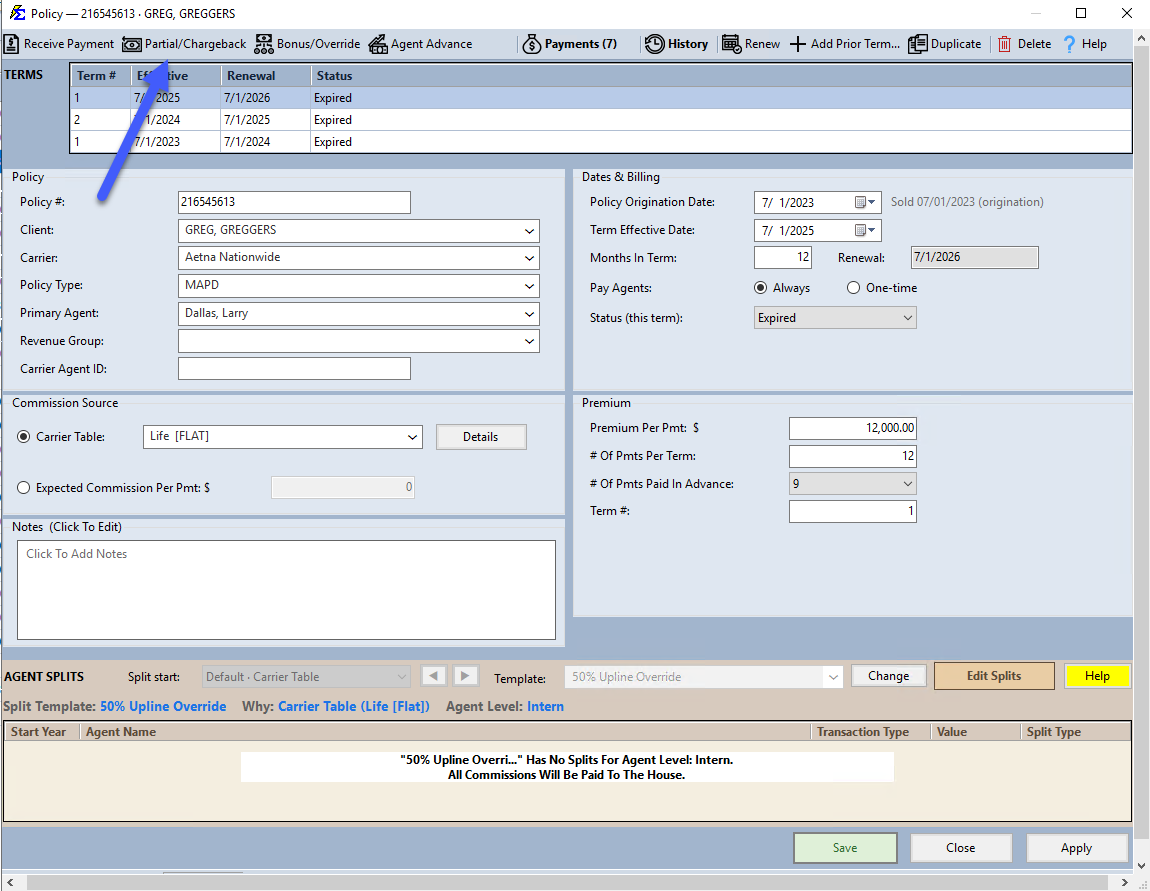
- Click the Partial/Chargeback button in the policy toolbar.
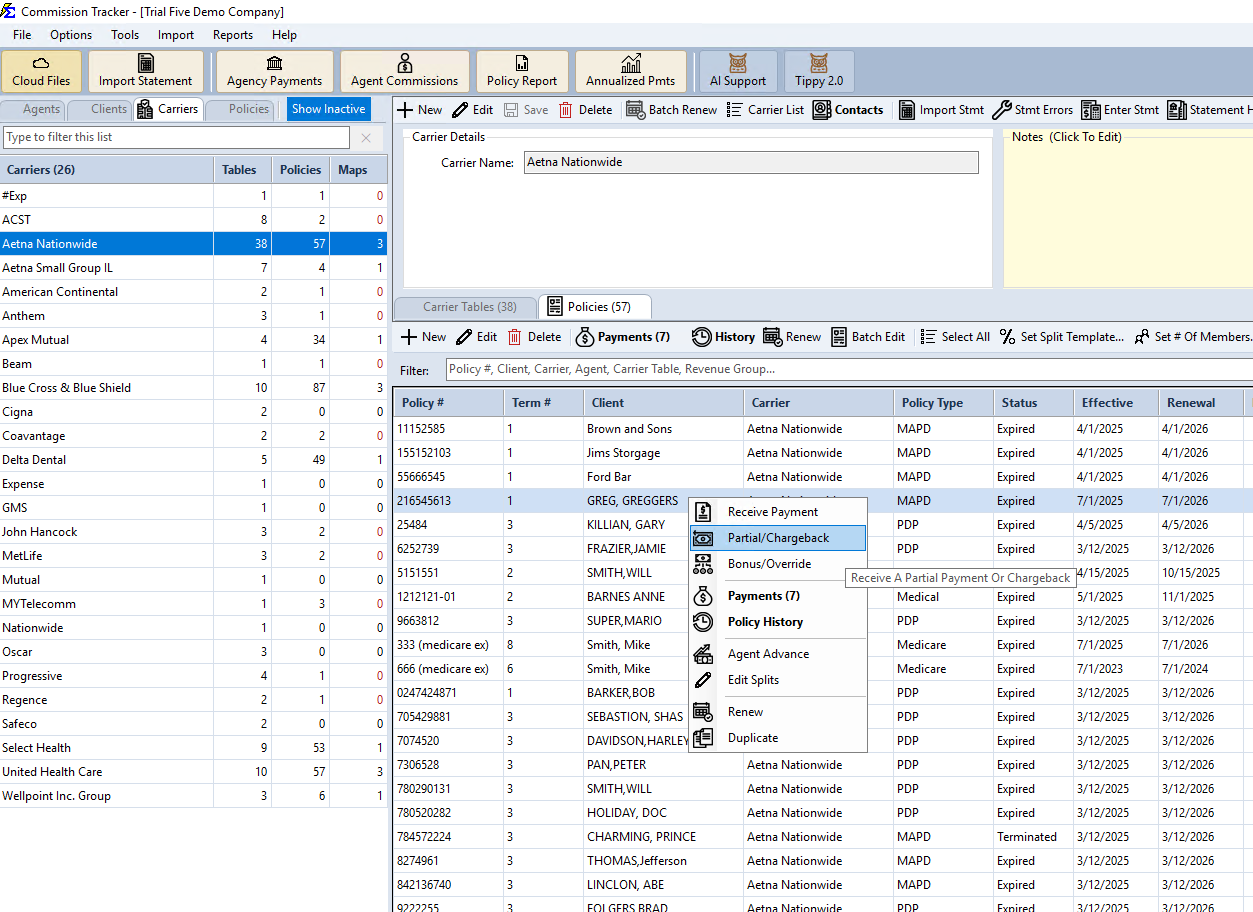
You can also right-click a policy directly in the Policies grid and select Partial/Chargeback from the context menu, without opening the policy first.
Recording a Chargeback
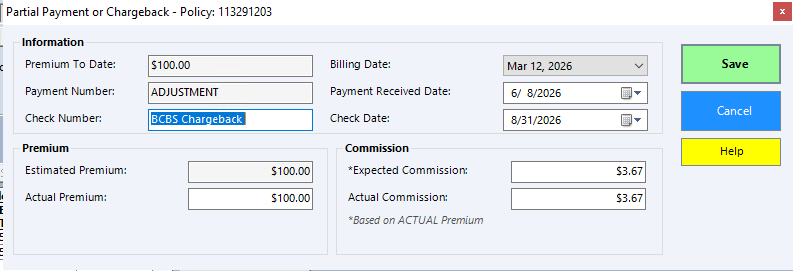
Focus on these three fields to ensure accounting and agent payouts are correct:
- Billing Date — Select the specific month the carrier is charging back. This determines which term the reversal is applied to.
- Receive Date — Enter the date you received the statement showing the chargeback. This date controls which period the deduction appears on Agent Commission reports.
- Actual Commission — Enter the amount as a negative number (for example,
-250.00). This represents the dollar amount the carrier is deducting from your agency.
Give the software a moment to calculate
After entering or changing the Actual Premium, pause briefly before continuing. Commission Tracker automatically recalculates both the Expected Commission and Actual Commission based on the premium you entered — but it needs a moment to finish. If you are tabbing through the fields, pause after the premium field and wait for the updated values to appear before pressing Tab again, clicking Save, or pressing Enter. This ensures the correct commission amounts are recorded.
Premium Adjustments
If your agents are paid based on a percentage of premium, also enter a negative Actual Premium amount. This ensures the split calculation correctly deducts the agent's share of the chargeback.
Recording a Partial Payment
Enter the positive amount received. The system posts what was received as an adjustment. The remaining unpaid balance stays in your Accounts Receivable report until the rest is received.
What Happens After Posting
- Agent Deductions — The system identifies which agents were paid for that billing month and automatically creates a negative entry on their commission records.
- Payment History Audit — A new line item with the negative values is added to the policy's Payment History for a clear audit trail.
- A/R Balancing — The billing month status updates to reflect the reduction in revenue.
🔧 Troubleshooting
A chargeback was entered but it isn't showing on the agent's report. Check the Receive Date of the chargeback entry. If that date falls outside the report's date range, the deduction won't appear until the next reporting period. Change the report date range to include the Receive Date.
The billing month still shows as Closed after entering a chargeback. Chargebacks post as adjustment entries and do not reopen a Closed billing month. The chargeback is visible in Payment History Detail View as a negative line item within the Closed month.
I need to reverse a chargeback I entered by mistake. Navigate to Payment History for the policy, locate the negative entry in Detail View, and delete it. The billing month balance will return to its previous state.
🔗 Related Topics
- Payment History — View chargeback entries and the full payment audit trail.
- Receive Payment Button — Standard monthly commission entry for a single policy.
- Accounts Receivable — View partial payment balances still outstanding.
- Agent Commissions Earned Report — Review how chargebacks affect agent earnings by period.
- Reconcile Carrier Statement — Enter chargebacks as part of a full PDF reconciliation session.
Need help? Contact support@commission-tracker.com