Manage Agent Levels and Uplines
While standard Carrier Table Agent Splits define rules by product, Agent Levels and Uplines allow you to create sophisticated commission hierarchies. By grouping agents into levels (e.g., Junior vs. Senior) or assigning them to an Upline, you can manage complex payouts without editing every single policy.
💡 Why Use This
Use Manage Agent Levels and Uplines when:
- Agents earn different rates based on rank — Define Junior, Senior, and other tiers once so the Carrier Table automatically applies the correct rate to each agent.
- Managers receive overrides on their agents' sales — Set up the reporting hierarchy here so override payouts flow to the correct manager for every policy.
- An agent is promoted — Use future-dated changes to apply the new rate only to new business, preserving historical commission accuracy.
🗺️ How to Access
- Navigate to the Tools menu.
- Select Manage Agent Levels and Uplines.
Hierarchy Concepts
| Feature | Description | Example |
|---|---|---|
| Agent Levels | Assigns agents to a specific commission group. | Junior Agents get 10%, Seniors get 20%. |
| Agent Uplines | Creates a "Reporting To" structure for overrides. | Agent Smith is the Upline for Agent Jones. |
| The House | The default entity for all remaining commission. | The House is automatically in every agent's Upline. |
Agent Promotions (Future-Dated Changes)
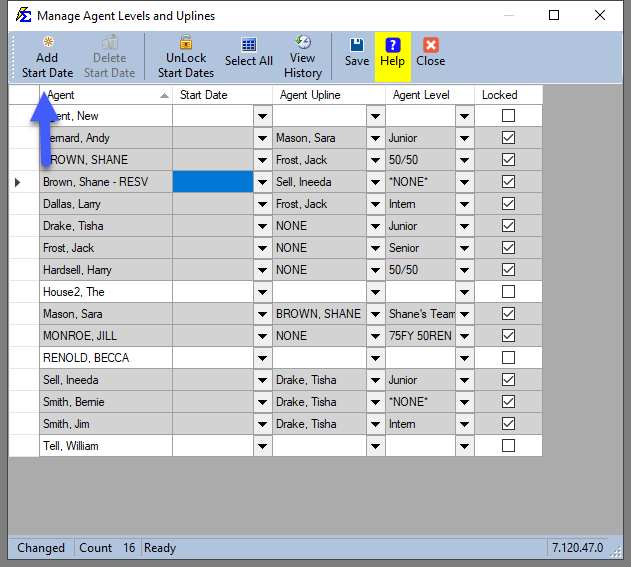
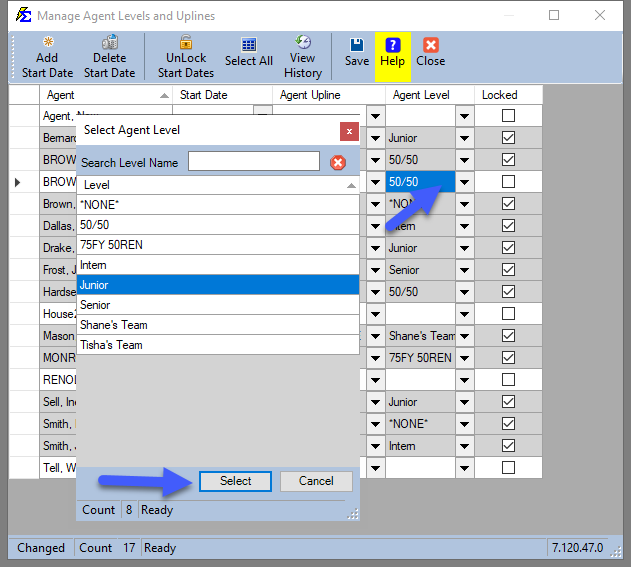
If an agent receives a promotion (e.g., moving from "50/50" to "Junior"), schedule this change so it only affects new business going forward.
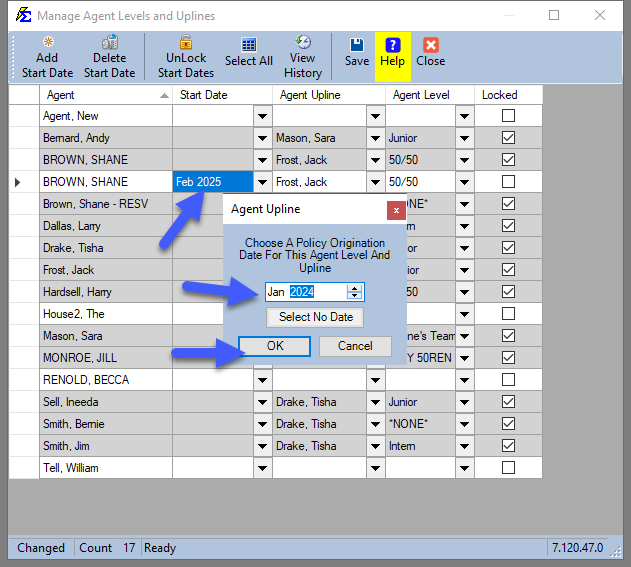
- Select the agent and click the dropdown arrow to enter a New Start Date.
- Select the date the promotion takes effect (e.g., 01/01/2024).
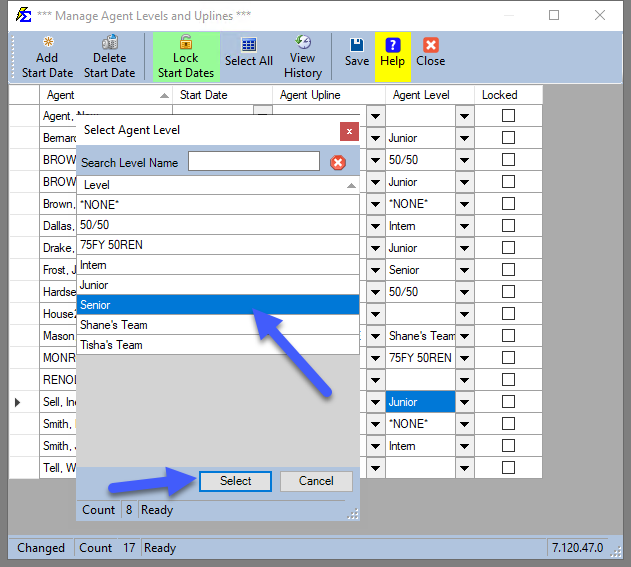
- Under the Agent Level column, select the new level and click Save.
Automated Rate Logic
- Existing Business — Policies written before the start date pay at the old rate.
- New Business — Policies written on or after the start date pay at the new rate.
- Renewals — This logic automatically applies to all subsequent renewals for those respective policies.
Global Changes (Unlock Start Dates)
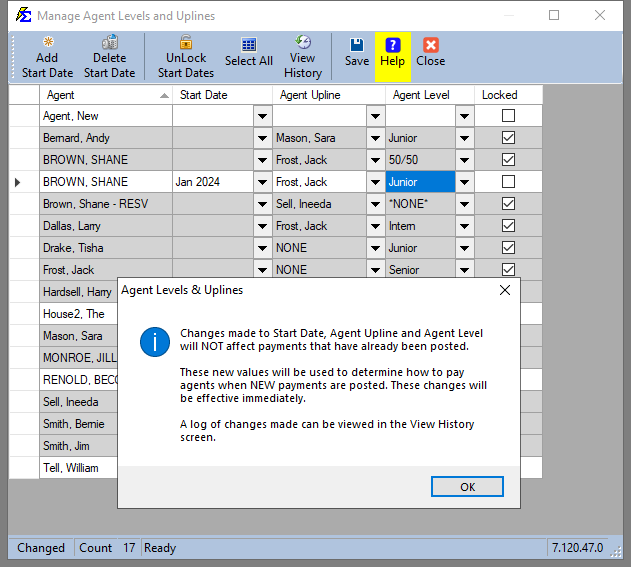
If you need to change an agent's payout structure on all past, present, and future policies, use the Unlock feature.
Immediate System-Wide Impact
This action is immediate and affects all history for that agent within the software. Only use this to correct an error that applies to the agent's entire history.
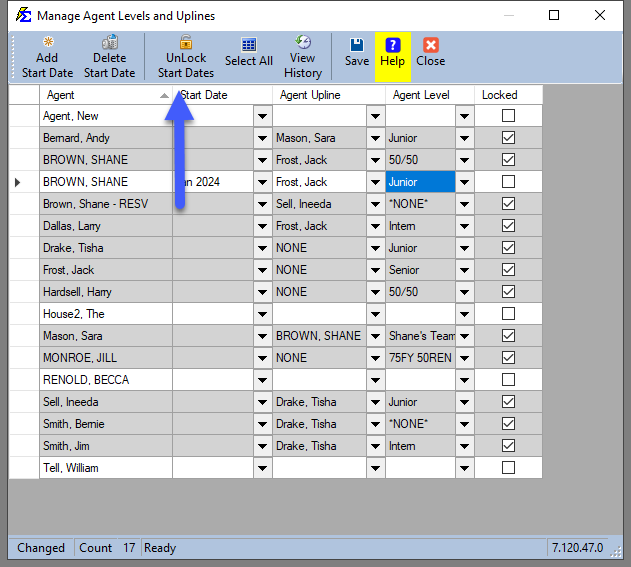
- Click Unlock Start Dates.
- Review the warning pop-up explaining the global impact.
- Select the agent, change their level, and click Save.
Managing Records
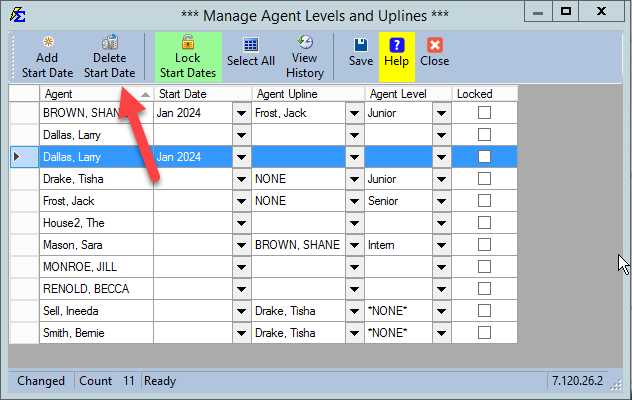
Deleting a Start Date
If a promotion or level change was entered in error, you can remove it:
- Select the agent.
- Click Delete Start Date.
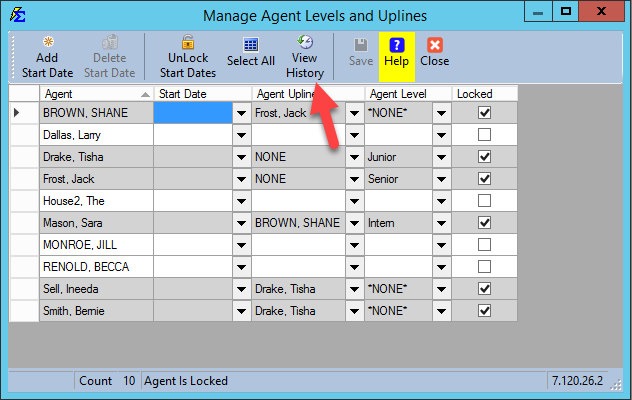
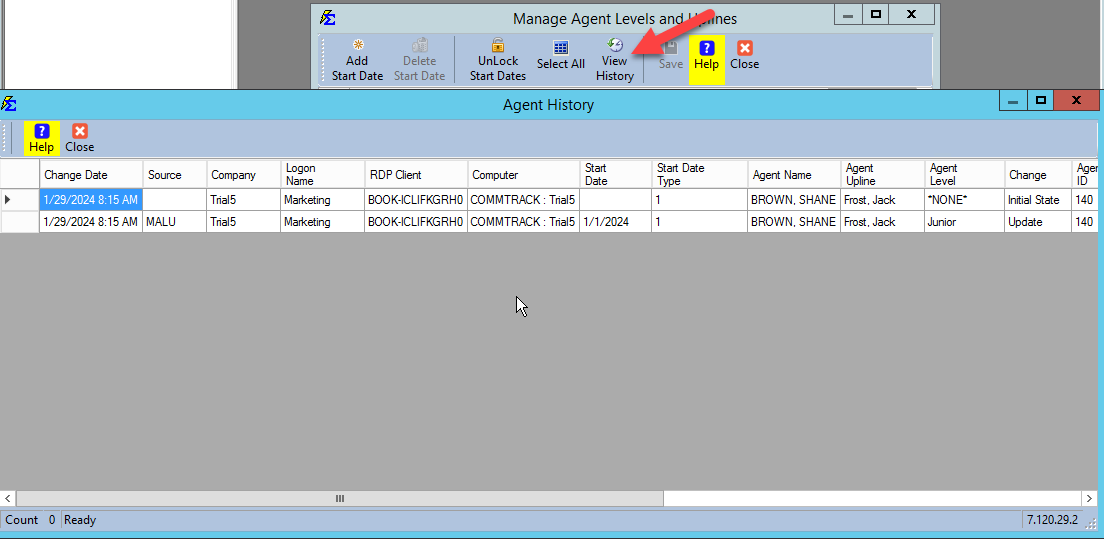
Viewing Change History
To see a comprehensive log of who changed an agent's level and when, use the View History tool.
Best Practices
- Use Start Dates for Promotions — This preserves your historical data so past commissions remain accurate.
- Standardize Level Names — Keep level names simple (e.g., Level 1, Level 2) to avoid confusion when mapping carrier tables.
🔧 Troubleshooting
A promoted agent is still being paid at their old rate. Verify that the new Start Date was saved correctly. Also confirm the policy's Effective Date falls on or after the promotion start date — existing policies written before the start date continue to pay at the old rate.
I need to change an agent's level across all their historical policies. Use the Unlock Start Dates feature. Review the warning carefully — this change is immediate and affects all history for that agent in the database.
🔗 Related Topics
- Carrier Table Agent Splits (Using Agent Levels) — Configure level-based split rules on carrier tables.
- Carrier Table Agent Splits (Using Agent Uplines) — Configure upline override payouts.
- Manage Agent Levels and Uplines View History — Full change history for agent level assignments.
- Multiple Primary Agents (Agent Sharing) — Split a policy between co-writing agents.
Need help? Contact support@commission-tracker.com