Duplicate Policy Numbers
By default, Commission Tracker requires a unique identifier for every policy record. However, in the insurance industry it is common for a single policy number to represent multiple lines of coverage, or for different carriers to issue the same number.
Commission Tracker allows two or more policies to share the same Policy Number, provided they can be distinguished by at least one other key field.
💡 Why Use This
Enable duplicate policy numbers when:
- One number covers multiple product lines — A carrier may use the same policy number for both Dental and Vision coverage under the same group.
- Multiple carriers have issued the same number — Different carriers may coincidentally assign identical numbers to unrelated policies.
- ICS imports need to distinguish between matching numbers — Enabling duplicates also lets you configure secondary matching criteria so imports credit the correct policy.
🗺️ How to Access
- Click Options on the menu bar at the top of the main window (it is its own menu, between File and Tools).
- Locate the Allow Duplicate Policy Numbers checkbox (a Company Level setting).
- Check it and click Save.
Configuration: Enabling Duplicates
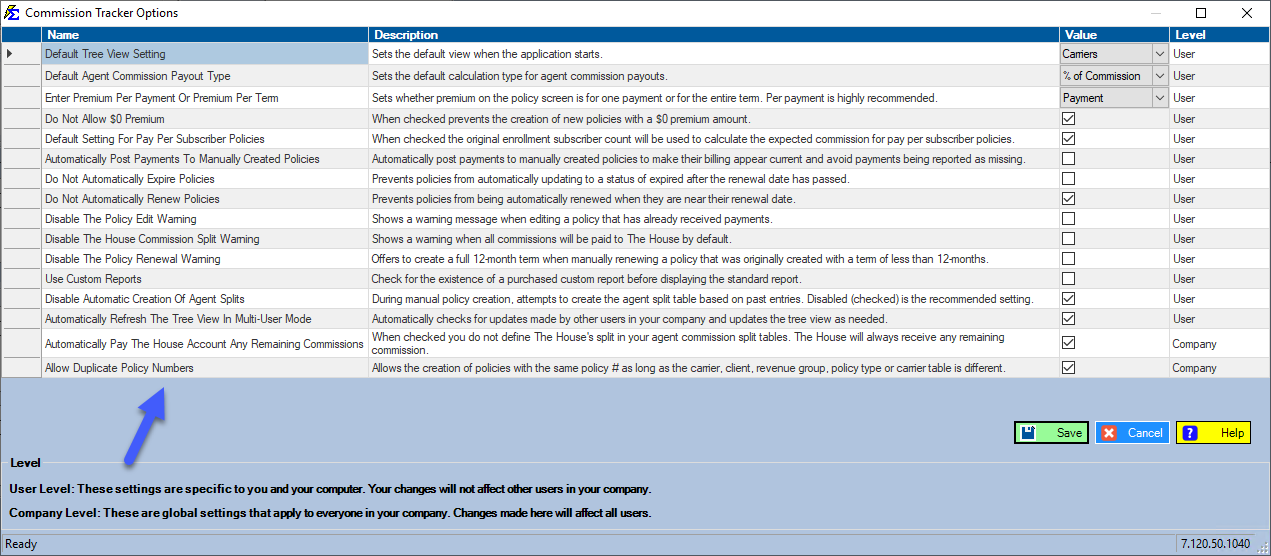
- Turned OFF — The system will block you from saving a policy if the number already exists elsewhere in the database.
- Turned ON — You can save identical numbers as long as at least one of the following fields is different:
- Policy Type
- Client Name
- Revenue Group
- Carrier Name
- Carrier Table
Policy Matching During Imports
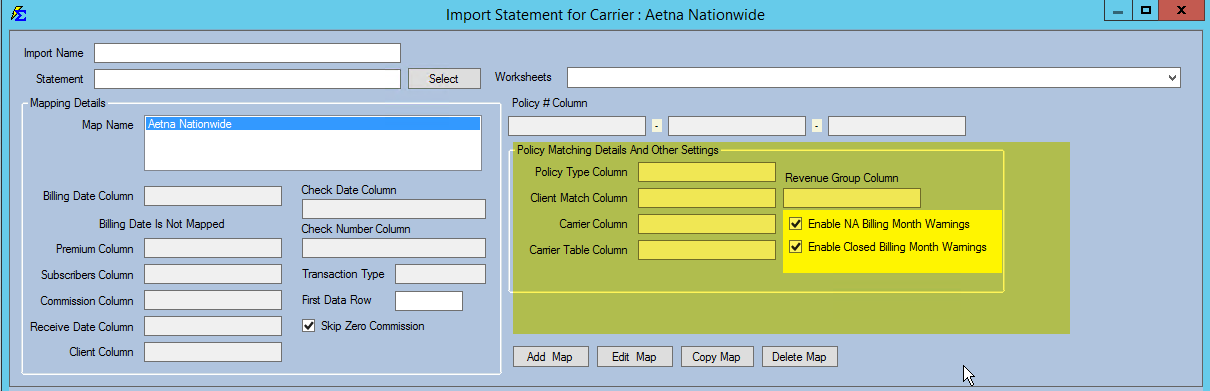
If you allow duplicate policy numbers, the system needs additional logic to determine which policy should receive a payment during the Import Carrier Statement process. Without this, the system cannot determine which of the two identical numbers to credit.
Configure Policy Matching in the Import utility to look for secondary identifiers:
Real-World Example
Consider a scenario where a client has two policies with the same carrier and the same policy number, but different coverage types:
- Policy A — Policy #12345 | Type: Dental
- Policy B — Policy #12345 | Type: Vision
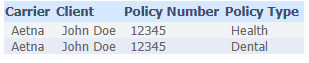
By mapping the Policy Type from your carrier statement during the import, Commission Tracker can successfully distinguish between the two and apply the payment to the correct record.
Best Practices
| Recommendation | Why |
|---|---|
| Use Unique Types | If you have duplicate numbers, ensure your Policy Types are clearly defined (e.g., "Group Life" vs. "Group Health"). |
| Check Client Names | Ensure the client name in the statement matches the client name in the database if using name-based matching. |
| Audit Imports | Regularly check for payments that failed to match due to ambiguous duplicate numbers. |
🔧 Troubleshooting
I turned on the feature, but I'm still getting a "Duplicate Found" error. Check that at least one other field (Carrier, Type, Client) is actually different between the two policies. If every field is identical, the system will still prevent the save to avoid creating a true duplicate.
The carrier statement doesn't provide a Policy Type — how do I distinguish duplicates? Use Revenue Group or Carrier Table as your secondary matching criteria in the import configuration.
🔗 Related Topics
- Create New Policy — Create a new policy record.
- Create New Policy Type — Define the product categories used for matching.
- Import Carrier Statements (Excel Statements) — Configure policy matching during imports.
- Options Menu — Manage global system settings including duplicate policy numbers.
Need help? Contact support@commission-tracker.com