Edit Agent Splits
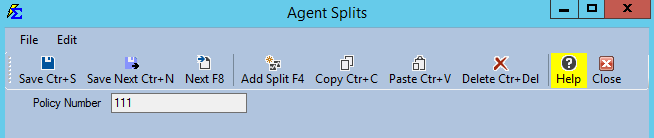
The Edit Agent Splits utility creates Policy-Specific Agent Commission Split Tables for pending policies during the Create Policies workflow. Use it when a policy needs a custom split that differs from your standard Carrier Table Agent Splits.
💡 Why Use This
Use Edit Agent Splits when:
- A specific policy has a unique commission arrangement — The agent split doesn't follow the standard carrier-level defaults.
- You are creating a batch of policies with custom splits — Select multiple pending policies and apply the same split to all of them at once.
- You need to define splits before the policy is committed — Setting splits here ensures agents are paid correctly from the first payment.
🗺️ How to Access
- In the Create Policies upper grid, select one or more pending policies.
- Click the Agent Splits (F3) button in the toolbar.
How the System Determines Who Gets Paid
The Agent Splits column in the policy grid shows which split method is currently active for each pending policy:
| Status | Meaning |
|---|---|
| Carrier Table | Splits are calculated automatically based on the Primary Agent and the linked Carrier Commission Table. |
| Policy Specific | A custom split has been defined for this policy using this screen. |
| To House | No splits are defined; 100% of revenue goes to the agency (House account). |
Step-by-Step: Creating a Custom Split
- Select one or more policies in the upper grid (hold
CTRLto select multiple). - Click Edit Agent Splits (F3).
- Click Add Split to create a new row.
- Select an agent from the dropdown, or type a new name (a green highlight means a new Agent record will be created on save).
- Set the Start Date — the date the split becomes active. Defaults to the Term Effective Date.
- Enter the Commission value and select the Commission Type:
- % of Commission — Agent earns a percentage of the gross commission received.
- % of Premium — Agent earns a percentage of the policy premium.
- Dollar Amount — Agent earns a flat dollar amount per billing month.
Let the House Handle the Remainder
Check Automatically Pay The House Account Any Remaining Commissions in the Options menu (on the menu bar at the top of the main window) so you only need to enter the agent's percentage. The House is automatically assigned whatever remains without adding an extra row.
Toolbar Commands
- Save — Commits the current split configuration to the selected policies.
- Add Split — Creates a new blank row for an additional agent.
- Copy / Paste — Move data between cells for faster entry.
- Delete — Removes the highlighted split row.
🔧 Troubleshooting
An agent name is highlighted in green. The name you typed does not match any existing Agent record. Commission Tracker will create a new Agent profile when you save. If you intended to select an existing agent, type more characters to narrow the search and select from the dropdown.
I applied a split to active policies but future payments still go to the wrong agent. Policy-specific splits set during Create Policies apply to the policies going forward. If payments were already posted with incorrect splits, delete those payments from Payment History and repost them after correcting the split table.
I want to change a split mid-year without losing historical accuracy. Add a new split row with a new Start Date rather than editing the existing row. The system uses the split associated with each payment's Billing Date, so historical payments remain unaffected.
🔗 Related Topics
- Policy-Specific Agent Commission Split Table — Full reference for managing splits on individual active policies.
- Carrier Table Agent Splits — The standard split method configured at the carrier level.
- Automatic House Calculation — Automatically assign remaining commission to the House.
- Create Policies — The main screen where Edit Agent Splits is launched.
Need help? Contact support@commission-tracker.com