Update Policies (by Agent)
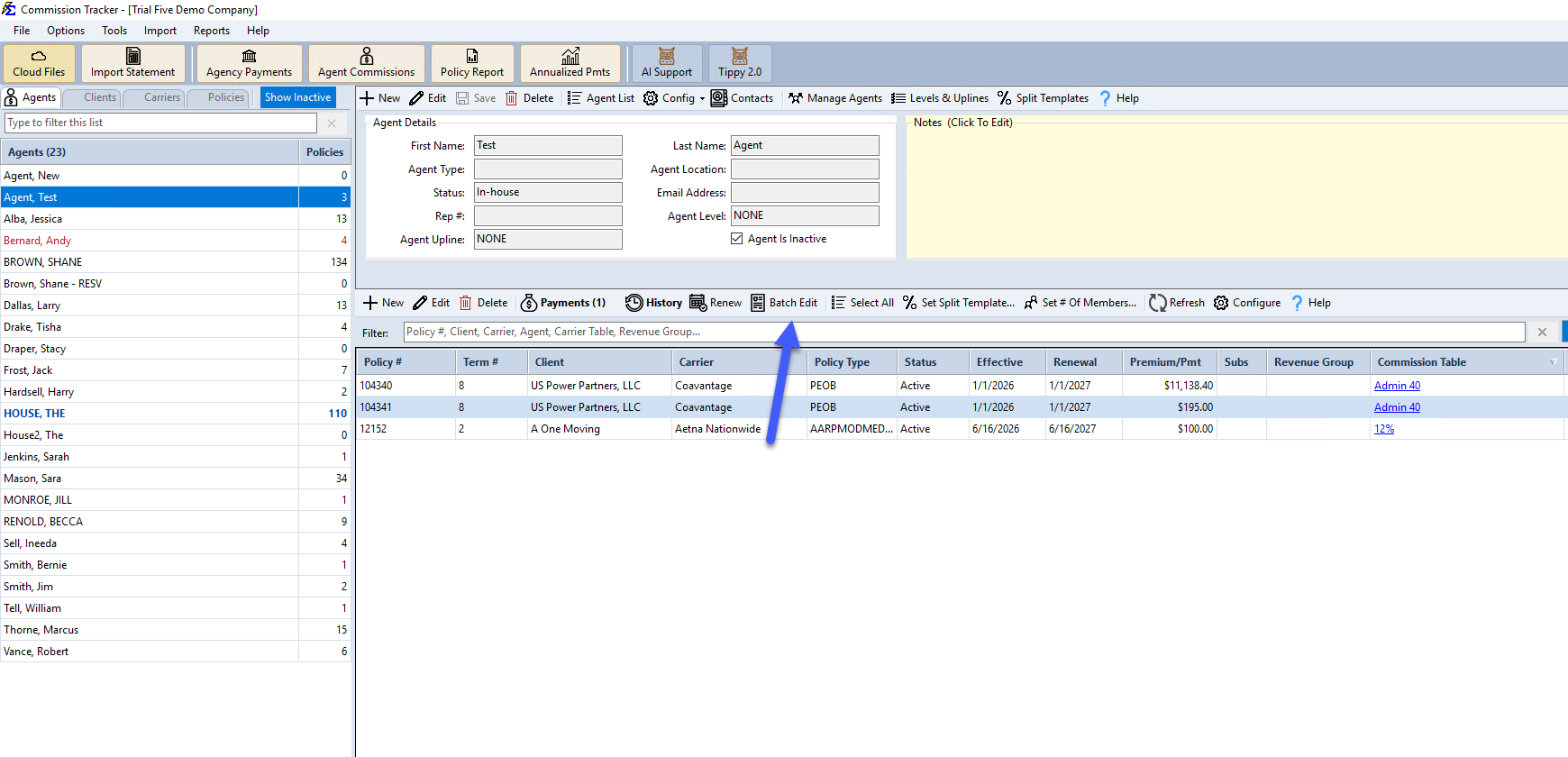
The Batch Edit tool (on the policy grid beside the selected agent) lets you manage an agent's entire book of business by applying bulk changes to status, dates, plans, or other fields across all policies assigned to that agent.
💡 Why Use This
Use Batch Edit when:
- An agent leaves or retires — Terminate or reassign their entire book in one operation.
- An agent's primary status changes — Update policy statuses or splits across their full portfolio at once.
- You need to audit one agent's policies — The grid view gives a consolidated look at every policy assigned to that agent across all carriers.
🗺️ How to Access
- Click Agents at the top-left of the Policy List screen and select the agent. The agent's policies appear in the grid below the agent's details.
- Click Batch Edit on the policy grid's toolbar.
Features
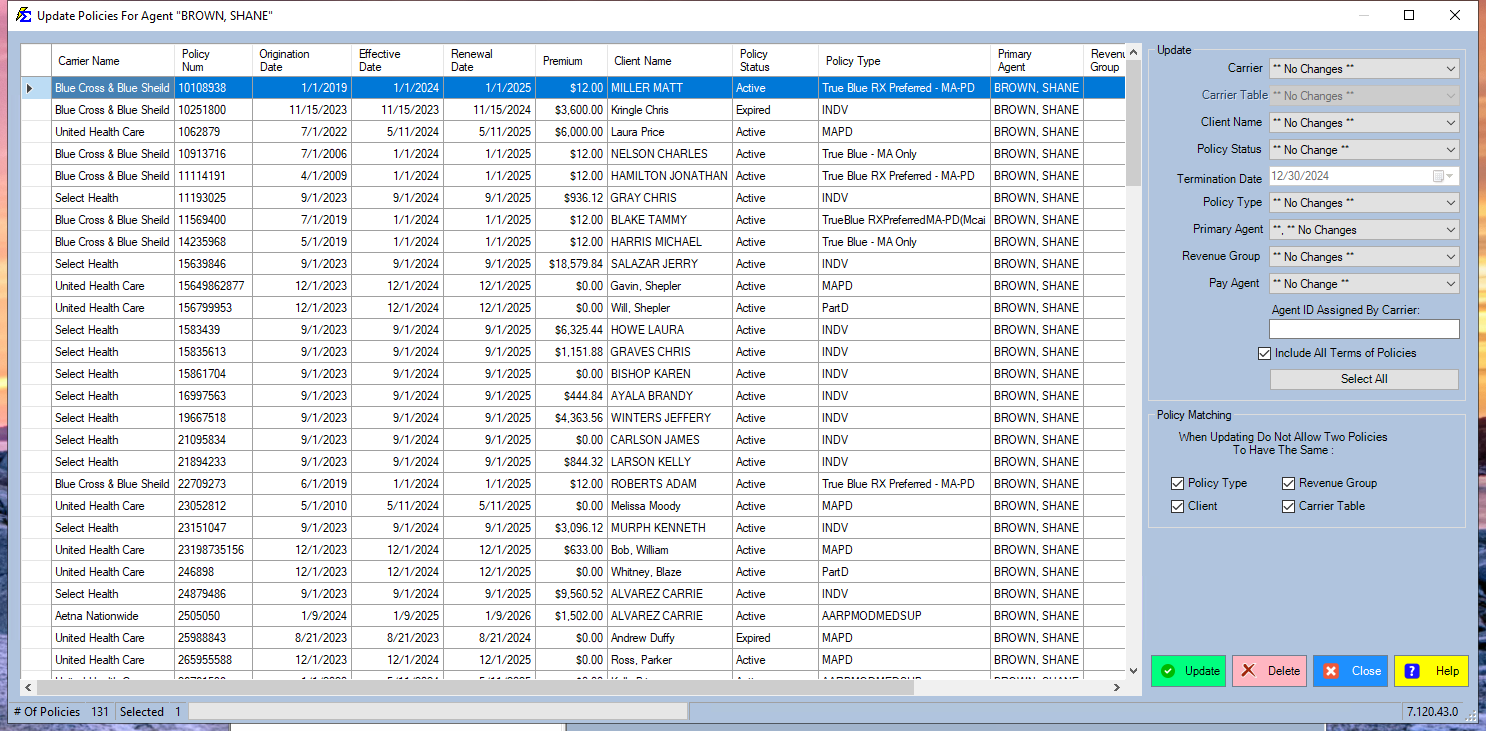
- Bulk Editing — Apply changes to status, plans, or dates across all policies for a single agent.
- Custom View — Sort by clicking column headers and rearrange columns with drag and drop to keep the most relevant data visible.
Verify Termination Dates
When bulk-terminating an agent's policies, always double-check the Termination Date before applying. The Termination Date box starts at today's date — change it to the actual termination date before you click Update. If a wrong date goes in, run Batch Edit again with the right date.
✏️ What You Can Change
The Update box lists every field a batch can set: Carrier, Carrier Table, Client Name, Policy Status, Termination Date (only when Policy Status is Terminated), Pay Agent, Policy Type, Primary Agent, Revenue Group and Agent ID Assigned By Carrier. A box left on ** No Changes ** (or empty) keeps each policy's own value. Tick Include All Terms of Policies to change every term of each selected policy.
Moving policies to another carrier
On this screen the Carrier Table box is locked. To move policies to another carrier, use the old carrier's own Batch Edit, where you can pick the new carrier's matching table. See Moving Policies to Another Carrier.
🔧 Troubleshooting
The policies I expect to see are not in the grid. Confirm the correct agent is selected in the Agents list before you click Batch Edit. Only policies where this agent is the Primary Agent appear in the grid. Policies where the agent is a secondary split recipient are not shown here.
I applied the wrong termination date and need to correct it. Run Batch Edit again with the right value: select the same policies, set Policy Status to Terminated, pick the correct date in Termination Date, and click Update. The new date replaces the wrong one in one pass.
Changed the wrong thing?
There is no undo button, but every change is recorded. Open one of the policies and click History: the change shows as old > new (for example Status: Active > Terminated) with Source Update Policies. Then run Batch Edit again on the same policies, set the field back to its old value, and click Update.
🔗 Related Topics
- Update All Policies — Apply bulk changes across all carriers and agents.
- Update Policies (by Carrier) — Bulk-update policies for a specific carrier.
- Policy Information — Edit individual policy details.
- Manage Agents — View and manage your agent records.
Need help? Contact support@commission-tracker.com