Manage Statements (newer versions: Statement History)
The Manage Statements tool (newer versions: Statement History) reverses an entire Import Carrier Statement or Reconcile Carrier Statement session. It removes all posted payments and clears all unresolved errors associated with that session in a single operation.
💡 Why Use This
Use this tool when:
- You imported the wrong file — A statement was uploaded for the wrong carrier or the wrong date range.
- A file had bad data — The source file had incorrect amounts, dates, or formatting that caused widespread errors.
- You need to start an import over — Rather than deleting payments one by one, reverse the entire session and re-import the corrected file.
🗺️ How to Access
- For a single carrier — Click Carriers in the navigator strip, select the carrier, and click Manage Statements on the carrier's toolbar (newer versions: Statement History).
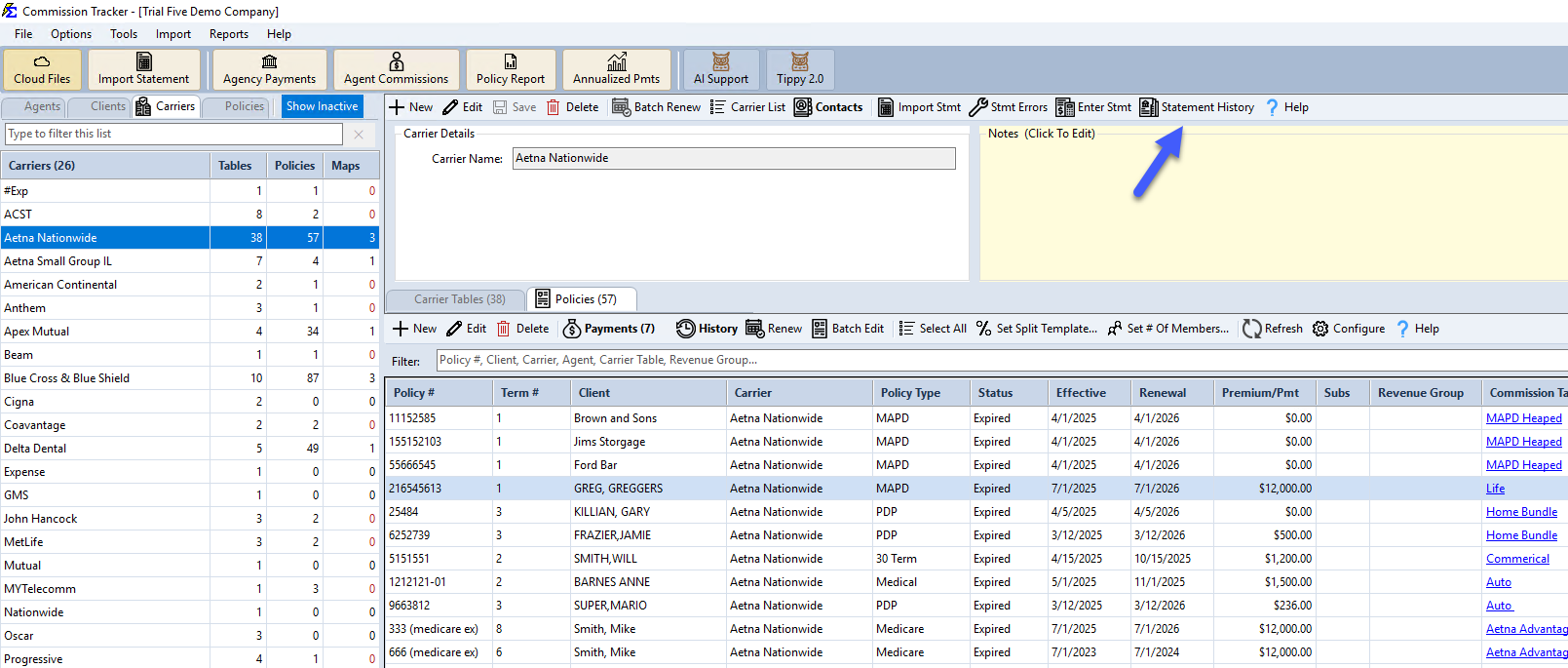
- For all carriers — Click the Import menu and select Manage Import/Reconcile Sessions (newer versions: Statement History).
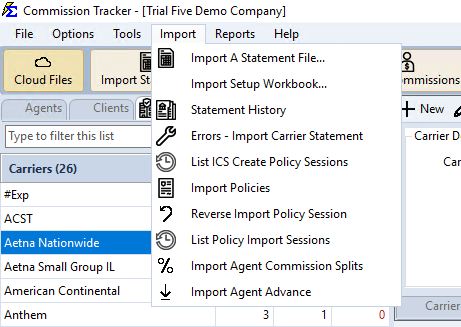
The pictures show a newer version, where both read Statement History. On other servers they read Manage Statements and Manage Import/Reconcile Sessions.
What Happens During a Reversal
- Payments — All successfully posted payments from that session are deleted from Payment History.
- Errors — All unresolved errors in the ICSE screen for that session are removed.
- Policy History — Billing months that were closed by the session return to Open status.
Verify Before Reversing
Confirm the carrier name and timestamp carefully before proceeding. Reversing removes all payment data from that session immediately and cannot be undone automatically — payments must be re-imported or re-entered manually.
Step-by-Step: Reversing a Session
- Open Manage Statements (from the carrier) or Manage Import/Reconcile Sessions (from the Import menu). In newer versions both are named Statement History.
- Locate the session by its Import Date and Import Name. If you do not see it, choose Last 90 Imports or All Imports instead of Last 30 Imports.
- Select the session you want to reverse and click Reverse.
- Click Yes to "Are You Sure You Want To Reverse This Import?". If a policy import session was created from this statement, the box offers Reverse Everything (also deletes that policy import session) or Just Statement.
- Click Done to close the window. Re-import the corrected file if needed.
🔧 Troubleshooting
I reversed the wrong session. Payments removed during a reversal must be re-imported or re-entered manually. Re-run the original import with the correct file, or use the Receive Payment Button to re-enter individual payments.
The session I want to reverse is not in the list. Sessions that were already reversed no longer appear in the list (newer versions keep them in the list with the Status Reversed). Choose All Imports to see older sessions. A statement where no payment posted (every row went to the ICSE screen) is not listed (newer versions can list it with the Status All Rows Parked); clear its rows in the ICSE screen instead. If the session processed correctly and you need to remove specific payments, delete them individually from Payment History.
After reversing, some billing months still show as Closed. If a billing month had payments from multiple sessions, reversing one session will not reopen it — the other session's payments still exist. Review Payment History to confirm all payments for that month have been removed.
🔗 Related Topics
- Import Carrier Statements (Excel Statements) — Re-import after reversing a session.
- Reconcile Carrier Statement — Re-enter a PDF reconciliation session.
- Report of Import or Reconcile Session — View what posted during a session before reversing.
- Payment History — Delete individual payments if a full reversal isn't needed.
- Errors — Import Carrier Statement (ICSE) — Manage error records associated with a session.
Need help? Contact support@commission-tracker.com