Import Agent Commission Splits
The Import Agent Commission Splits tool bulk-loads agent commission split data from an Excel file directly into Commission Tracker. It is an efficient alternative to manually entering splits one policy at a time.
💡 Why Use This
Use Import Agent Commission Splits when:
- You are onboarding many new policies at once — Add splits to a large batch of newly created policies without manual entry.
- You migrated policies from another system — Import the corresponding split structure alongside the policy data.
- You need to standardize splits across a carrier's book — Apply consistent split rules across many policies in one operation.
Designed for New Policies
This tool works best for policies that have not yet received commission payments. Adding splits to policies with existing payments requires careful attention to start dates — see the Critical Rules section below.
🗺️ How to Access
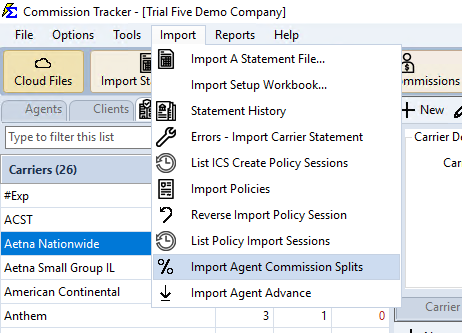
Navigate to Import → Import Agent Commission Splits.
Need a Template?
Email support@commission-tracker.com to request the latest standardized import template with the required column layout.
Required File Format
Your Excel file must include these 11 columns in this exact order:
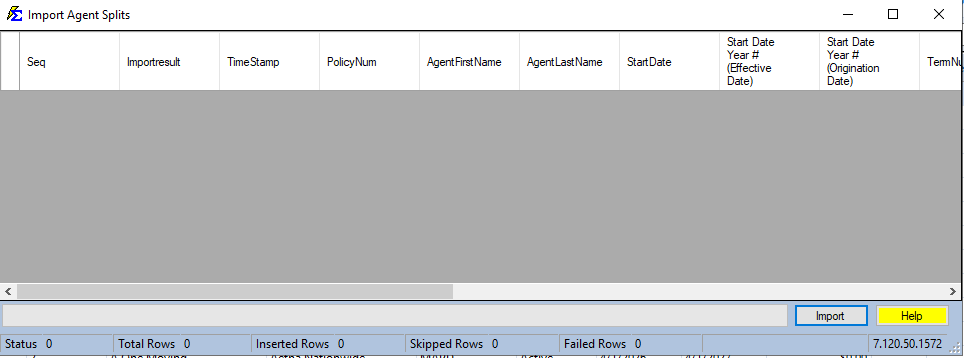
| Column # | Column Name | Description | Example |
|---|---|---|---|
| 1 | Seq# | Sequence number for tracking | 1, 2, 3... |
| 2 | Import Result | Status field (leave blank initially) | |
| 3 | Time Stamp | Status field (leave blank initially) | |
| 4 | Policy # | The policy number to match | POL-12345 |
| 5 | Agent First Name | The agent receiving the split | John |
| 6 | Agent Last Name | The agent's last name | Smith |
| 7 | Start Date | Exact split start date (optional) | 1/1/2024 |
| 8 | Start Date Year # (Effective Date) | Term number based on effective date (optional) | 1, 2, 3... |
| 9 | Start Date Year # (Origination Date) | Term number based on origination date (optional) | 1, 2, 3... |
| 10 | Commission | The split amount or percentage | 10 (not 10%) |
| 11 | Split Type | How the split is calculated | % of comm, % of prem, or dollars |
Optional Additional Columns
- Override — Override amount if applicable.
- Bonus — Bonus amount if applicable.
- Policy Type Match, Carrier Match, Client Match, Carrier Table Match, Revenue Group Match — Used for advanced policy matching when duplicate policy numbers are enabled. See Policy Matching below.
Understanding Start Date Columns
Columns 7–9 are all optional and give flexibility in specifying when the split begins:
- All three empty — The split start date defaults to the Policy Effective Date (earliest term if multiple terms exist).
- More than one has data — The system uses only the first column with data in order: Start Date → Effective Date Year # → Origination Date Year #.
Start Date Year # explained: If a policy's Effective Date is 6/1/2014, entering "1" sets the start to 6/1/2014, "2" sets it to 6/1/2015, "3" sets it to 6/1/2016, and so on.
Critical Rules
Do Not Use the % Symbol
Enter commission percentages as whole numbers only. Enter 10 for 10%, not 10%. Including the percent sign will make your rates 100 times too low.
Payments Already Received Restriction
If a policy has already received commission payments, new splits must start after the most recent payment date. Attempting to create a split before that date will result in a "Payments Already Received" error and the split will not be created.
Policy Matching
The system locates the correct policy using the Policy Number plus any optional matching fields you provide.
Standard Mode (Duplicate Policy Numbers Not Allowed)
The system uses only the Policy Number. Optional matching columns are hidden and not used.
Enhanced Mode (Duplicate Policy Numbers Allowed)
The system uses the Policy Number plus any additional fields you provide for precise matching. Recommended: always include Carrier at minimum.
| Field | Required? | Purpose |
|---|---|---|
| Policy Number | Yes | Primary identifier |
| Carrier | Optional | Distinguishes policies at different carriers |
| Client | Optional | Further narrows when carrier duplicates exist |
| Policy Type | Optional | Narrows by coverage type |
| Carrier Table | Optional | Narrows by commission table |
| Revenue Group | Optional | Narrows by revenue category |
Matching outcomes:
- One match found → split is created.
- No match found → "Policy # Not Found" error.
- Multiple matches found → "More Than One Policy Found" error; add more matching fields.
Error Reference
| Error | Meaning | Resolution |
|---|---|---|
| Policy # Not Found | No matching policy in the database. | Verify the policy number and confirm the policy exists. |
| More Than One Policy Found | Multiple policies match. | Add Carrier, Client, or other matching columns to narrow the result. |
| Payments Already Received | Split start date is on or before the last payment date. | Set the start date to after the most recent payment date. |
| Agent Split Already Exists | A split for this agent and date already exists. | Check for duplicate rows in your file or a prior import. |
🔧 Troubleshooting
The import failed with "Policy # Not Found" for policies I know exist. Confirm the policy number in your file matches exactly what's in Commission Tracker, including any leading zeros or formatting. Spelling and spacing must be exact.
I'm getting "More Than One Policy Found" errors. Your system has duplicate policy numbers enabled. Add the Carrier Match column (and optionally Client Match) to your file to identify the correct policy uniquely.
A split was created with the wrong start date. Delete the incorrect split from the policy's Agent Commission Split Table and re-import with the corrected date.
🔗 Related Topics
- Policy-Specific Agent Commission Split Table — View and edit splits on individual policies.
- Importing Policies — Import policy records alongside splits.
- Duplicate Policy Numbers — Understanding enhanced matching mode.
- Manage Agents — Confirm agent names before importing.
Need help? Contact support@commission-tracker.com