Payment Discrepancy Report
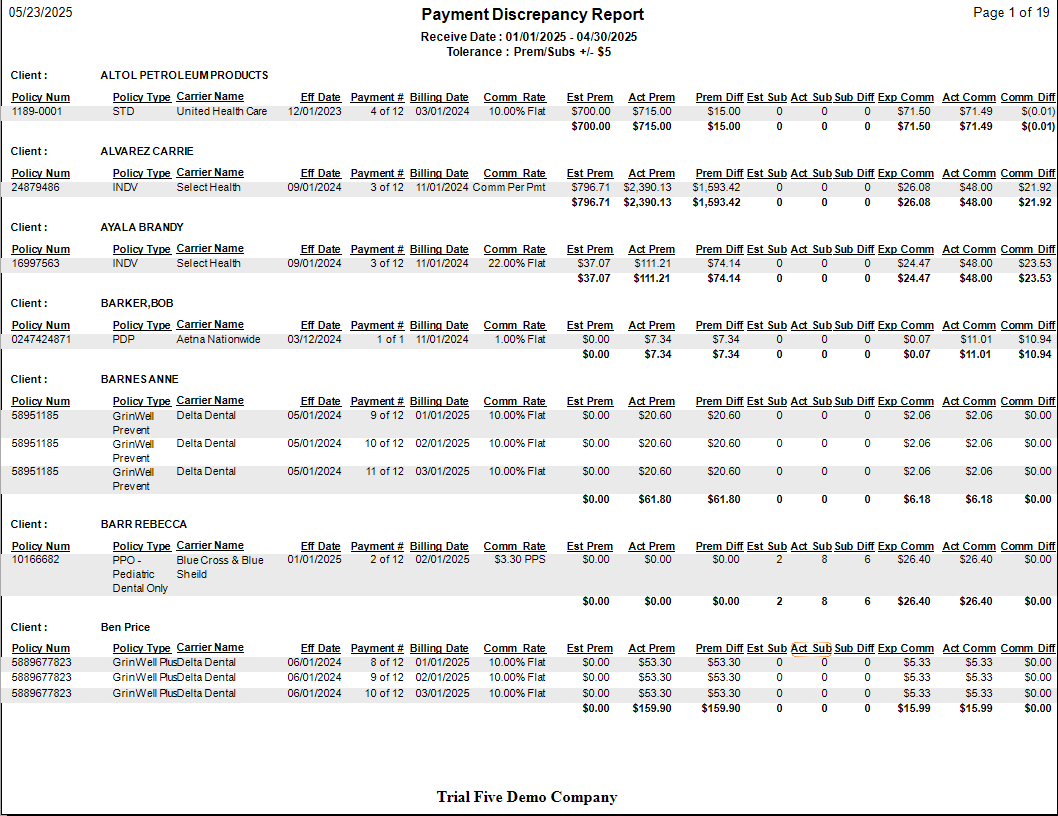
The Payment Discrepancy Report is a primary auditing tool that compares the actual commission received from a carrier against the expected commission calculated by the system. Unlike standard reports that show all data, this report isolates only the payments where the figures do not match, so you can quickly identify underpayments or carrier rate errors.
💡 Why Use This
Use this report when:
- Auditing carrier payments — Confirm that what was received matches your contracted rates.
- Finding underpayments or rate errors — Isolate specific payments where the carrier paid less than expected.
- Catching unexpected bonuses — Identify carrier payments that exceeded the expected amount.
- Combining with A/R tracking — Tick Include Billing Months That Have Not Received A Payment to see both wrong-amount and no-payment situations in one view.
🗺️ How to Access
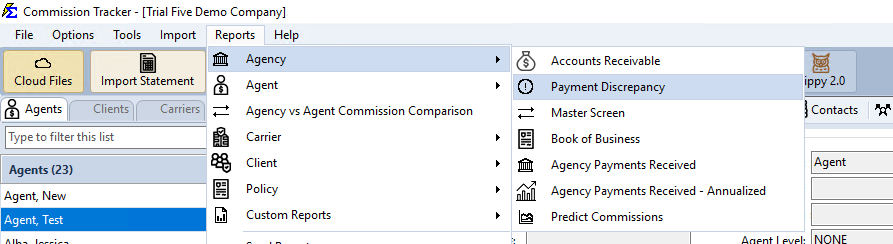
- Navigate to Reports → Agency → Payment Discrepancy.
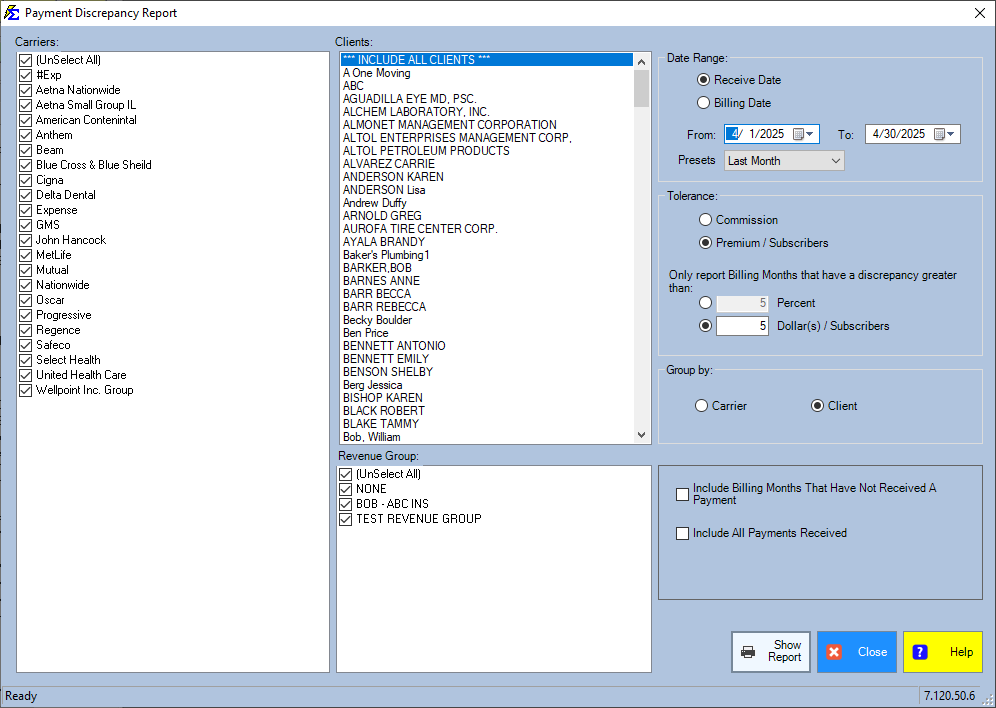
- Select your Carrier, Date Range, and any Tolerance settings.
- Choose your inclusion options (see below).
- Click Show Report.
How It Works
To find a discrepancy, the system needs a benchmark to compare against. This is provided in one of two ways:
- Carrier Commission Tables — The system calculates the expected amount based on your contract rates. See Carrier Commission Tables.
- Commission Per Payment — A fixed expected dollar amount entered directly on the policy record.
Setup Required
If neither a Carrier Commission Table nor a Commission Per Payment value is configured, the system cannot determine an expected amount and will not be able to identify discrepancies for that policy.
The report leaves out any policy term whose status is Terminated.
Report Filters and Settings
Date Range
Filter by Receive Date (when you posted the money) or Billing Date (the month the premium was due).
With Receive Date, a billing month is listed only when a payment for it was received in the date range, so a month with no payment can never appear. To see missing months, choose Billing Date and tick Include Billing Months That Have Not Received A Payment.
Tolerance
Avoid noise from minor rounding differences by setting a tolerance threshold:
- Percentage — Only show discrepancies greater than a specific percentage (e.g., 10%).
- Dollar Amount — Only show discrepancies greater than a specific dollar amount (e.g., $10.00).
Premium vs. Commission
Choose whether to compare discrepancies in the Agency Commission total or the Client Premium total.
Enhanced Reporting Options
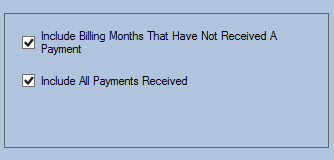
- Include Billing Months That Have Not Received A Payment — Shows billing months where no payment was received at all. This combines discrepancy tracking with Accounts Receivable functionality.
- Include All Payments Received — Shows every payment received, even those that match perfectly. Useful for a complete audit of a specific carrier or agent. While it is ticked the tolerance settings are grayed out, since nothing is being filtered by size.
Saved Settings
Newer versions only
This is in newer versions of Commission Tracker. If you do not see it, your server has not been updated yet.
The filter screen has a Saved settings row at the top. Set the filters the way you run this report each cycle, type a name and click Save; next time, pick the name and the whole screen fills in. Saved settings are shared by everyone in your company, and the report remembers the last one you used.
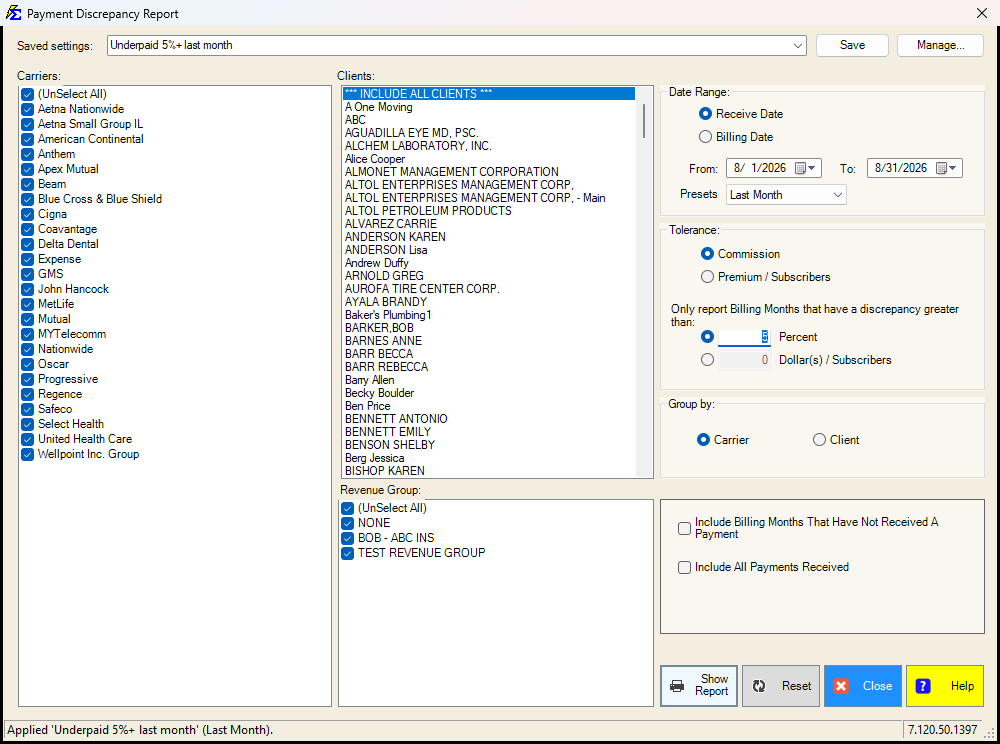
- The Presets box under the dates (Last Month, This Year-to-date, ...) is what a saved setting remembers, together with the Receive Date / Billing Date choice. Choose Custom to save fixed dates.
- The tolerance is remembered in full: Commission or Premium, Percent or Dollar, and both amounts, so the grayed-out amount is still there when you switch the type.
- Everything else on the screen is remembered: the carriers, client, revenue groups, the two include boxes and the grouping.
- Lists left at (Select All) stay "all", so a carrier added later is included automatically.
- Reset puts the whole screen back to the way it opens: Receive Date, last month to today, tolerance on Commission by Percent with both amounts 0, neither include box, grouped by Carrier, every carrier and revenue group, all clients.
See Saved Report Settings for saving, renaming and deleting.
Reviewing the Results
The report highlights the Expected vs. Actual amounts and calculates the Variance (the difference) for each entry.
Discrepancy Report vs. Accounts Receivable
| Report | Primary Focus | Use Case |
|---|---|---|
| Payment Discrepancy Report | Incorrect payments | Identifying underpayments or rate errors |
| Accounts Receivable | Missing payments | Identifying policies that have not paid at all |
🔧 Troubleshooting
A policy constantly shows a discrepancy. Verify that the Term Number and Carrier Commission Table are configured correctly for that policy. A mismatch between the table version and the policy's current term is a common cause of recurring discrepancies. See Carrier Commission Tables.
The report is showing discrepancies on almost every payment. Check whether a Tolerance is set. Without a tolerance, even $0.01 rounding differences appear as discrepancies. Set a reasonable dollar threshold (e.g., $1.00) to filter out noise.
Missing payments are not appearing even with Include Billing Months That Have Not Received A Payment ticked. Choose Billing Date in the date range: with Receive Date, months with no payment are never listed. Also, the policy must have a Commission Per Payment value or a Carrier Commission Table assigned for missing payments to be detected. Policies without expected commission values cannot generate A/R or discrepancy entries.
The report shows a bonus payment as a discrepancy. If a carrier paid more than the expected amount, it will appear as a positive variance. Confirm whether it is a legitimate bonus — if so, it can be recorded separately using the Bonus/Override function.
🔗 Related Topics
- Accounts Receivable — Track payments that are missing entirely.
- Carrier Commission Tables — Set up the expected commission benchmarks this report relies on.
- Preset Date Range — Set the reporting period quickly.
Need help? Contact support@commission-tracker.com