Commission Per Payment (Manual Entry)
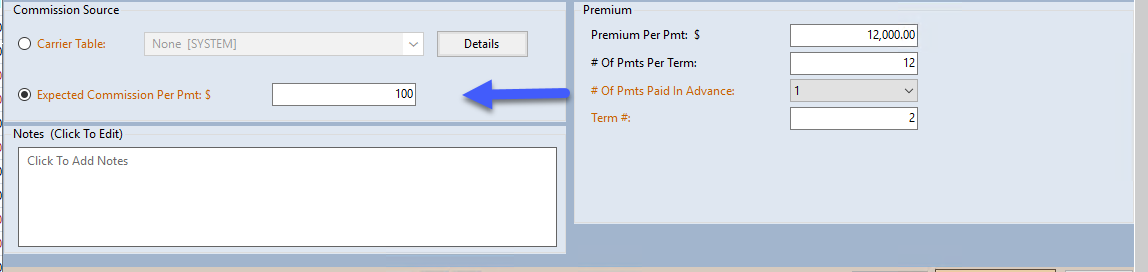
The Commission Per Payment field is used to manually define the exact commission amount you expect to receive from the carrier for each billing cycle. This method is used when you choose to calculate expected commissions externally rather than using the automated Carrier Commission Tables.
💡 Why Use This
While automated tables are recommended for scalability, manual entry is useful when:
- One-Off Agreements — The policy has a unique commission structure that does not fit into a standard table.
- Simplified Tracking — You prefer to estimate commissions manually outside of the software.
- Fixed Fee Policies — The commission is a flat dollar amount that never changes, regardless of premium fluctuations.
🗺️ How to Access
The Commission Per Payment field is in the Commission Source group of the policy window, where it reads Expected Commission Per Pmt: $ (or Expected Commission Per Term: $, depending on the Enter Premium Per Payment Or Premium Per Term setting in the Options menu).
How It Works
When you enter a value in the Commission Per Payment field, Commission Tracker bypasses its internal calculation engine and uses this fixed amount across the policy's payment schedule.
Example: Fixed Commission Calculation
If a policy has a premium of $1,000 and the commission is exactly $100 every month, enter $100 in the Commission Per Payment field. The system will expect $100 for every payment in the term.
Step-by-Step Instructions
- Navigate to the Policy screen.
- In the Commission Source group, choose Expected Commission Per Pmt: $ (the Commission Per Payment field).
- Enter the flat dollar amount you expect to receive per billing cycle.
- Click Save. The system rebuilds the policy's expected payment schedule from your manual figure as part of the save.
What Happens When You Save
- A/R Accuracy — Your Accounts Receivable reports will show this manual amount as the "Expected" commission for every month in the term.
- Agent Splits — The system will still apply your Agent Splits to this manual amount. For example, if an agent gets 50%, they will be scheduled to receive $50 of your $100 entry.
- Statement Reconciliation — When you Receive a Payment, you will compare the carrier's actual payment against this manual "Expected" figure.
🔧 Troubleshooting
I entered a Commission Per Payment amount but the expected commission is still $0. Check that Expected Commission Per Pmt: $ is the selected choice in the Commission Source group. If Carrier Table: is selected instead, the amount you typed is not used. Select Expected Commission Per Pmt: $, confirm the amount, and click Save.
I want to use both a Carrier Table and a Commission Per Payment on the same policy. That is not possible. The Commission Source group lets you select only one choice: either Carrier Table: or Expected Commission Per Pmt: $. Whichever is selected is the one the system uses.
🔗 Related Topics
- Commission Source and Premium — Overview of all payment schedule fields.
- Carrier Commission Table — Use automated table math instead of manual entry.
- Accounts Receivable — Track expected vs. received commission payments.
- Agent Commission Splits — How agent splits are applied to the manual commission amount.
Need help? Contact support@commission-tracker.com