Show Terminated Policies
The Show Terminated Policies toggle controls whether terminated and inactive policy records appear in your main policy grid and list views. Keeping it off gives you a focused view of active business; turning it on restores full visibility for audits and historical lookups.
💡 Why Use This
Use this toggle when:
- Daily workflow — Keep terminated policies hidden to reduce scrolling and prevent accidental selection of inactive accounts.
- Historical audits — Turn on when running year-end reports or reviewing the history of a terminated client's coverage.
- Troubleshooting — Enable when a policy seems to be missing from the list and you need to confirm whether it was terminated rather than deleted.
🗺️ How to Access
- Click the Policies tab on the Policy List screen.
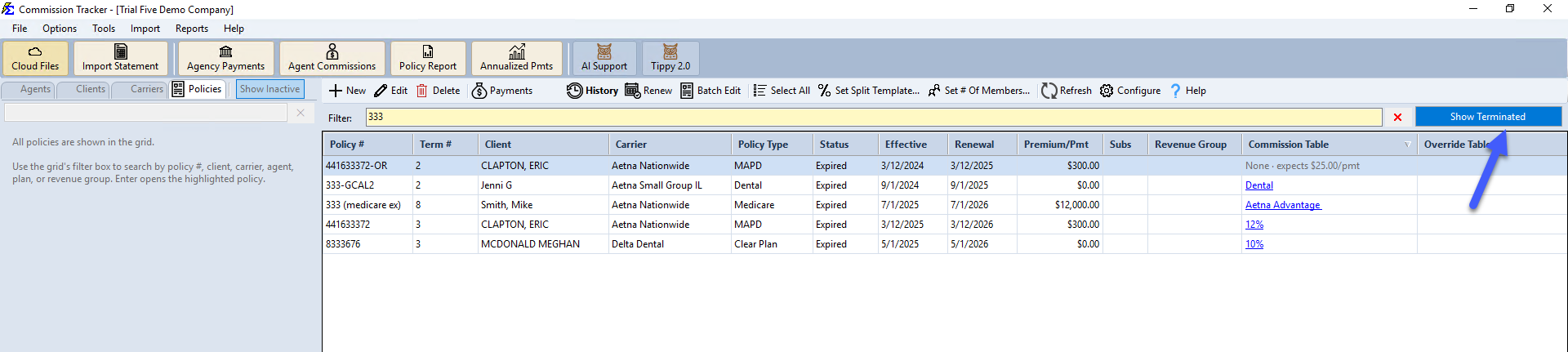
- Click Show Terminated (top-right of the grid) to toggle terminated policies in and out of the list.
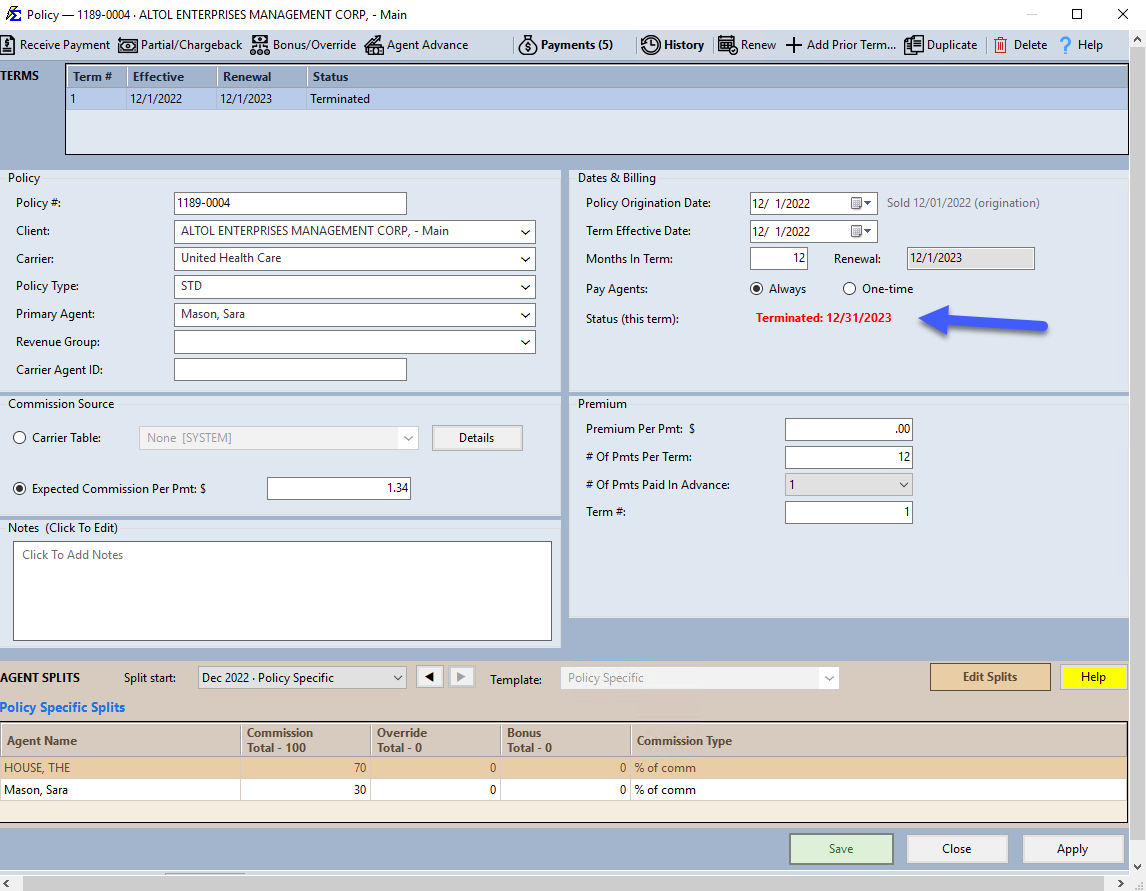
A terminated policy's current term shows red Terminated:
What This Setting Does
This toggle affects visibility only — it does not reactivate terminated policies for commission tracking or A/R reporting. Terminated policies with a termination date in the past will still be excluded from Accounts Receivable billing periods after their termination date, regardless of this setting.
🔧 Troubleshooting
I enabled Show Terminated Policies but a policy I am looking for still does not appear. If the policy was deleted (not just terminated), it will not appear in the main grid. Check the Deleted Policy Log to confirm whether it was removed from the system.
Terminated policies are showing up in my A/R report even though this toggle is off. This toggle controls the policy grid display only. The A/R report has its own filters — a terminated policy will still appear in A/R if a payment was due on or before its termination date. That is expected behavior independent of this setting.
🔗 Related Topics
- Policy List — The main policy screen and navigation views.
- Deleted Policy Log — Find policies that were fully deleted from the system.
- Policy History — Review the change log for individual policy records.
Need help? Contact support@commission-tracker.com