Converting PDFs to Excel with PDFx
Overview
The PDFx Converter transforms PDF documents into Excel spreadsheets directly within your Cloud Files. This allows you to use the automated Import Carrier Statement feature even when a carrier only provides PDF statements.
🛠️ Step-by-Step Conversion
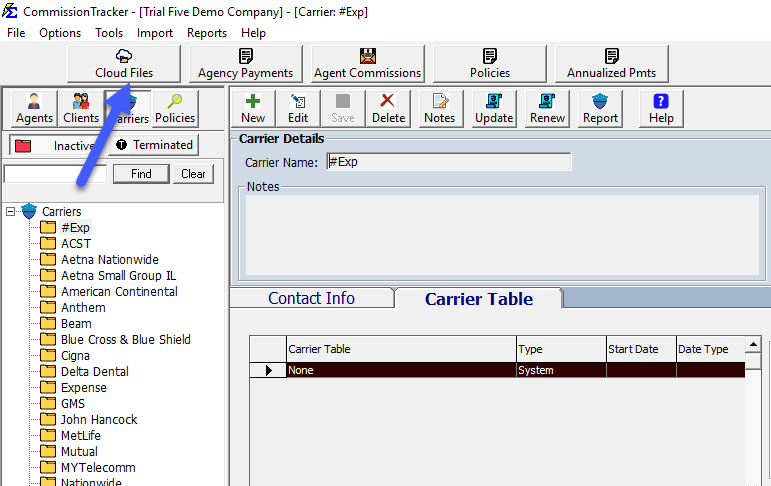
- Upload: Place your PDF into the Cloud Files folder.
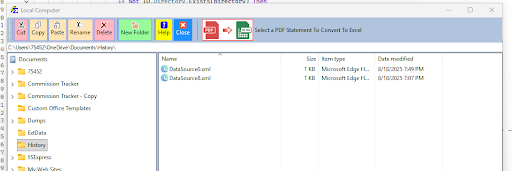
- Select: Highlight the file and click Convert to Excel.
- Wait: Allow the progress window to reach 100%.
- Confirm: Click OK on the completion message.
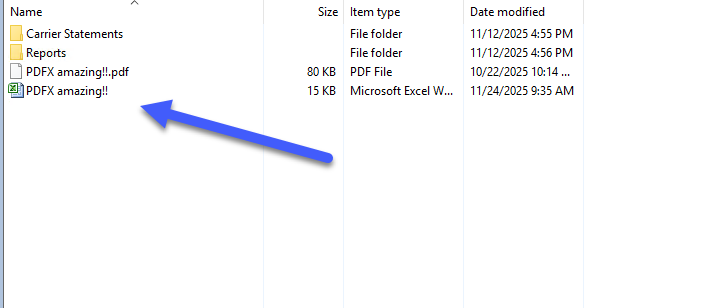
- Import: Your new Excel file is now ready to import.
💡 Best Practices
- ✅ Verify Layout: Briefly open the converted file to check that columns (like Policy Number and Commission) are distinct.
- ✅ Standardize: Once a PDF is converted to Excel, you can create a reusable Data Map for that carrier to speed up future imports.
Still Need Help?
Once your file is converted, proceed to the Import Carrier Statement page to post your commissions.