Import Carrier Statement Mapping Gears
When mapping a carrier statement, Gear Icons appear next to specific fields in the mapping screen. Each gear opens an advanced configuration menu that lets you manipulate raw data from your file before it is imported into Commission Tracker.
💡 Why Use This
Use the gear icon settings when:
- Policy numbers don't match — Strip carrier-added prefixes or suffixes so policy numbers align with your database.
- The statement gives a "Paid-To" date — Move every date back one month to the billing month it pays. This only moves dates earlier; it cannot move them later.
- The file lacks a final commission column — Build a formula to calculate Premium, Subscribers, or Commission from the available columns.
- Agents are paid flat dollar amounts — Define how flat-dollar agent splits are handled during the import.
🗺️ How to Access
Gear icons appear in the ICS Mapping window, which opens when you click Add Map or Edit Map on the import window. Click the gear next to a field (Policy #, Billing Date, Premium, Subscribers, or Commission) to open its settings. A gear changes color when it has settings turned on (the window's Color Key reads "= Properties Have Been Enabled").
General Map Settings
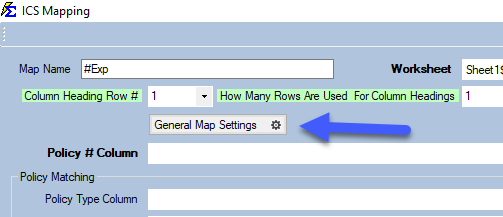
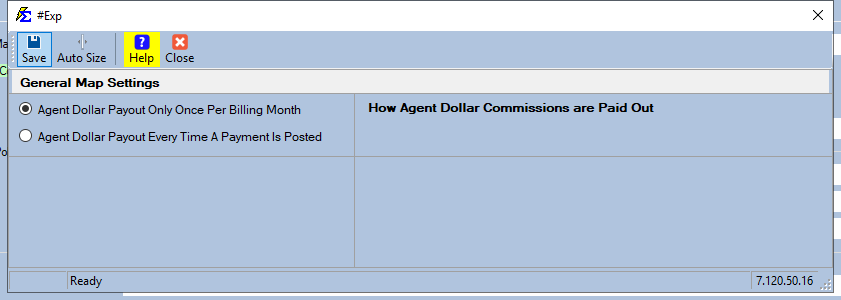
The General Map Settings button at the top of the mapping window controls global logic for agent payouts.
- Dollar Amount Payouts — Define how agents receiving a flat dollar amount (rather than a percentage) are processed during the import.
Policy Number Manipulation
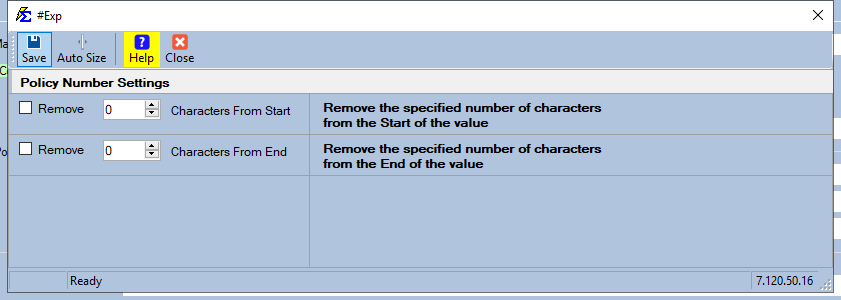
Carriers often include extra prefixes or suffixes on policy numbers that do not match your database.
- Character Removal — Automatically strip a specified number of characters from the Start or End of the Policy Number string during import.

Billing Date Adjustments
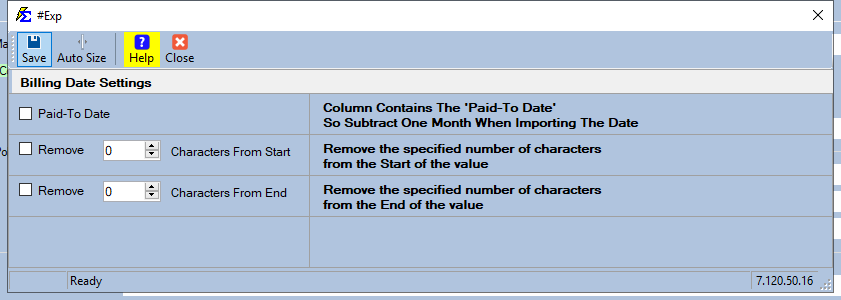
Some carriers provide a "Paid-To-Date" instead of a "Billing Date."
- Paid-To Date — Checking this box ("Column Contains The 'Paid-To Date' So Subtract One Month When Importing The Date") automatically subtracts one month from the date in the statement, aligning the payment with the correct billing cycle in your policy terms. It moves every row of the statement one month EARLIER. Use it only when the carrier's dates are one month after the month being paid; never use it when the dates are a month too early.

Financial Formulas (Premium, Subscribers, and Commission)
When the carrier file does not provide a final calculated value, use the gear beside Premium Column, Subscribers Column (newer versions: Subscribers / Months Column), or Commission Column to calculate it from the value in that column.
Premium and Subscribers
Apply calculation steps to get a new Premium or Subscriber value based on columns in your spreadsheet.
-
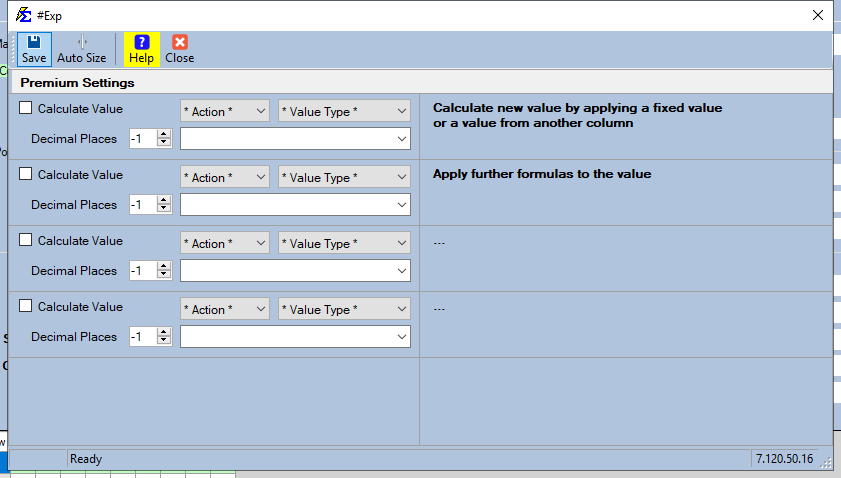
Premium Gear:

Clicking the Premium gear opens the Premium Settings window:
-
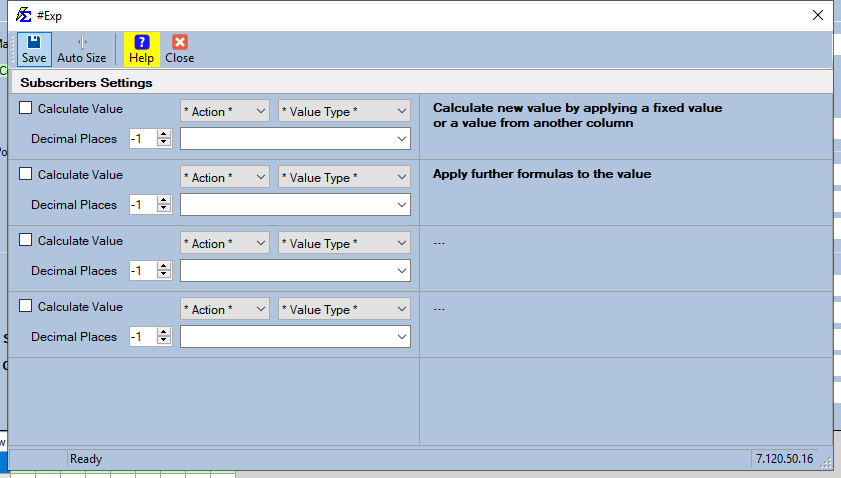
Subscribers Gear:

Clicking the Subscribers gear opens the Subscribers Settings window:
Commission Value
If the carrier statement provides gross commission but you need to calculate a net value or apply a multiplier, use the Commission gear.
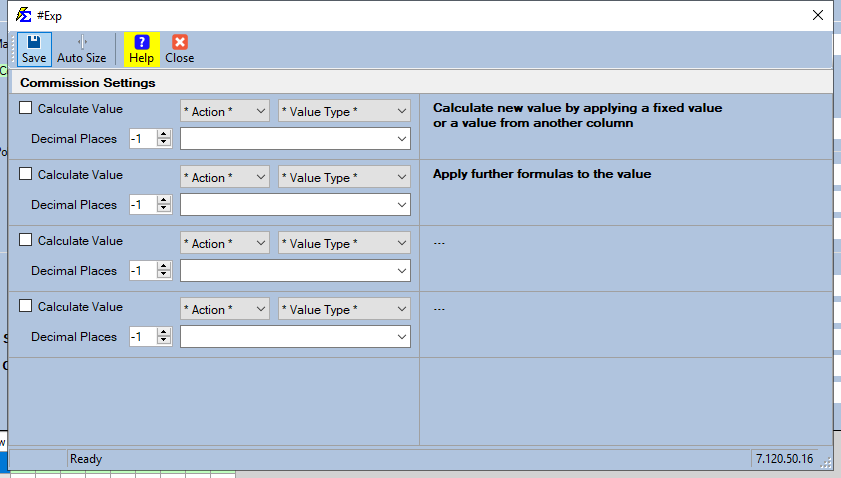
- Commission Gear:

Advanced Formula Interface
Clicking the Premium, Subscribers, or Commission gear opens a settings window headed Premium Settings, Subscribers Settings (newer versions: Subscribers / Months Settings), or Commission Settings. It has up to 4 calculation steps, one per row. Each row has:
- Calculate Value — Check this box to turn the step on. A step that is not checked does nothing.
- The action list (it starts as
* Action *) — Add, Subtract, Multiply, or Divide. - The value type list (it starts as
* Value Type *) — Fixed Value (you type a number) or Mapped Value (you pick another column from your file by its column heading). - The value box — The number to use, or the column heading to read on each row.
- Decimal Places — Rounds the result of the step.
-1means no rounding; up to4places.
The steps run top to bottom. The first step starts from the value in the mapped column; each later step ("Apply further formulas to the value") works on the result of the step before it. If a Mapped Value cell is blank on a row, that step is skipped for that row.
Example: Setting Up the Subscribers Gear
Say your file has one column for employees and another for dependents, and you want the total as Subscribers.
- In the ICS Mapping window, set Subscribers Column (newer versions: Subscribers / Months Column) to the employees column.
- Click the gear beside it. The Subscribers Settings window opens.
- On the first row, check Calculate Value.
- Choose Add as the action and Mapped Value as the value type.
- In the value box, pick the dependents column heading.
- Set Decimal Places to
0so the count is a whole number. - Click Save on the window's toolbar. The settings window closes and the gear changes color.
- Click Accept in the ICS Mapping window to save the map.
Need another step (for example, a fixed adjustment)? Turn on the next row the same way.
Quick Reference: When to Use Each Gear
| Feature | Best Use Case |
|---|---|
| Start/End Trim | Removing "POL-" prefixes or "-01" suffixes from carrier policy numbers. |
| Date Offset | Aligning "Paid Through" dates with your internal billing month tracking. |
| Formulas | Calculating Premium when only "Rate" and "Volume" columns are provided by the carrier. |
🔧 Troubleshooting
Policy numbers still aren't matching after trimming characters. Verify the exact number of characters to remove. Open the carrier file and count the prefix or suffix characters carefully — off by one will still cause mismatches. Also check whether the carrier uses leading zeros that may need to be handled separately.
The Billing Date is still one month off after enabling Paid-To Date. Confirm the date in the carrier file is actually a "Paid-To-Date" rather than a true "Billing Date." If the carrier has already provided the correct billing month, the offset will shift it in the wrong direction. Disable the setting and re-import.
My commission (or premium, or subscribers) calculation gives the wrong total. Open the gear and check each row that has Calculate Value checked: the action, the value type, and the value. Steps that use Mapped Value read a column by its column heading, not by a column letter. If the carrier renamed a heading, pick the new heading in the step (and in the map), click Save, then Accept. Also remember the steps run top to bottom, each on the result of the one before.
🔗 Related Topics
- Import Carrier Statements (Excel Statements) — Overview of the full ICS import process.
- Example — Import Carrier Statement — A walkthrough of a complete import.
- Errors — Import Carrier Statement (ICSE) — Resolve payments that failed to import.
Need help? Contact support@commission-tracker.com